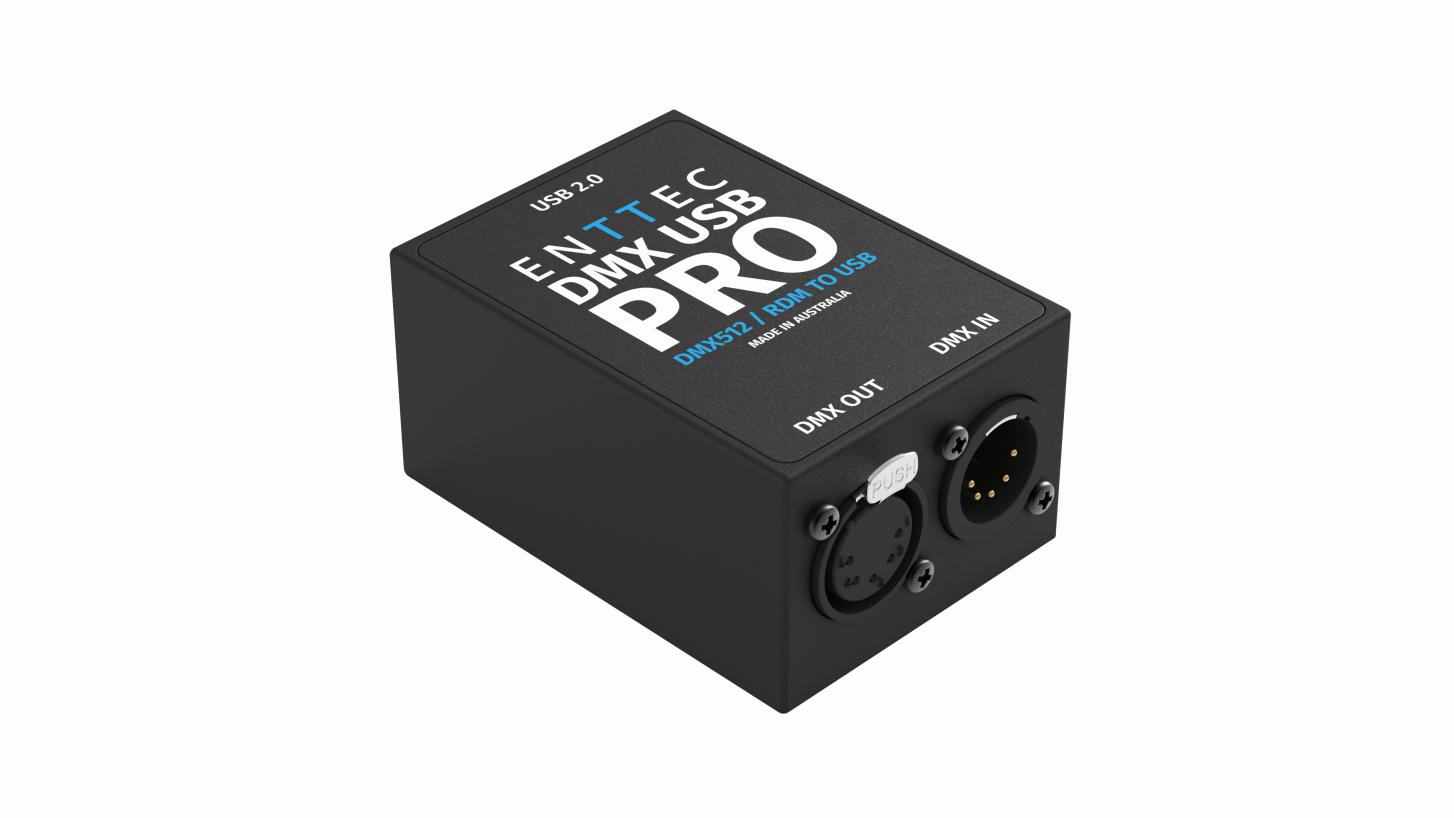
The industry standard in DMX USB control.
⚠️ Safety
Ensure you are familiarised with all key information within this guide and other relevant ENTTEC documentation before specifying, installing, or operating an ENTTEC device. If you are in any doubt about system safety, or you plan to install the device in a configuration that is not covered within this guide, contact ENTTEC or your ENTTEC supplier for assistance.
⚠️ Heads up: ENTTEC's return-to-base warranty for this product does not cover damage caused by inappropriate use, application, or modification to the product.
⚡ Electrical safety
- This device must be operated in accordance with applicable national and local electrical and construction codes.
- This device can be damaged by excess voltage outside the operating range defined within this product's datasheet.
- To reduce the risk of fire or electrical faults, do not exceed the ratings and limitations defined in the product datasheet or this guide.
- Ensure there are no opportunities for cables to short circuit and cabling cannot be snagged or pulled.
- Do not over-stretch cabling to the device's connectors and ensure cabling does not exert force on the PCB.
- Isolate your installation from power immediately if accessories, power cables or connectors are in any way damaged, defective, show signs of overheating or are wet.
- Remove power from this product during cleaning or when it is not in use.
- Do not connect this device to a dimmer pack or mains electricity.
- Do not connect any of this device's V- or GND connectors to earth.
- Ensure your installation is protected from short circuits and overcurrent.
- Ensure all connections are complete and secure before providing power to the device.
⚠️ System planning and specification
- To contribute to an optimal operating temperature, where possible keep this device out of direct sunlight.
- This unit has an IP20 rating and is not designed to be exposed to moisture or condensing humidity.
- Ensure this device is only operated within the specified ranges in its product datasheet.
⚠️ Protection from injury during installation
- Always use suitable personal protective equipment when installing ENTTEC products.
- Once installation is completed, check that all hardware and components are securely in place and fastened to supporting structures if applicable.
⚠️ Installation safety guidelines
- The device is convection-cooled — ensure sufficient airflow so heat can be dissipated.
- Do not cover the device with insulating material of any kind.
- Do not operate the device if the ambient temperature exceeds that stated in the device specifications.
- Do not cover or enclose the device without a suitable and proven method of dissipating heat.
- Do not install the device in damp or wet environments.
- Do not modify the device hardware in any way.
- Do not use the device if you see any signs of damage.
- Do not handle the device in an energised state.
- Do not crush the device during installation.
- Do not sign off a system without ensuring all cabling to the device and accessories has been appropriately restrained, secured and is not under tension.
Basic setup
- Install and configure the driver software on your Windows, Linux, or Mac computer.
- Methods can vary between operating systems, but the end result is the same: once installed correctly, the drivers will allow software to communicate with the DMX USB Pro.
- Connect the DMX USB Pro to your computer (USB) and the DMX512 control network (DMX cable).
- Load the control software of your choice onto the computer. You can choose between open-source (free) and professional (paid) programs. More information is available at Support | ENTTEC.
- Run the software and create your show.
- For troubleshooting and testing the DMX USB Pro, install and run EMU.
LED status
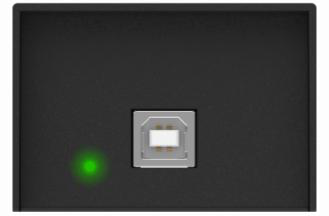
The DMX USB Pro has a green LED indicator located on the left of the USB port. It behaves as follows:
| LED status | Meaning |
|---|---|
| Blinks once on USB connection | Device LED blinks once on power on and turns off after the initial blink until DMX activity begins. |
| Blinks continuously | DMX data is actively being sent or received. |
| Solid on (no blinking) | Error mode. Device requires restoration. |
| Always off | Normal idle state. Awaiting software instruction for DMX operation. |
Install drivers
DMX USB Pro is supported by FTDI drivers for the following operating systems:
- Windows 10, Windows 8, Windows 7, Windows XP, Windows Server 2003, Windows Vista, Windows Server 2008, Windows Server 2008 R2 (32-bit and 64-bit versions).
- macOS X 10.4 or later.
- Linux — Raspberry Pi is supported; others may need drivers (check FTDI for details).
To proceed, you need the driver setup file, which is available from:
- Download EMU (includes the driver setup) from the ENTTEC 70304 website.
- For latest drivers and OS support, visit the FTDI website.
Setting up on Windows
- Run the setup file. Execute the setup file on your Windows machine. If you are using the EMU setup package, click Yes when prompted to install FTDI drivers.
- Extract and install. Click Extract, then follow the on-screen instructions by clicking Next through the setup process. The installer will proceed to install the necessary drivers and copy required files.
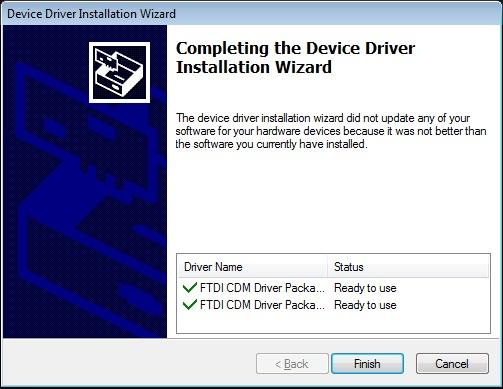
- Installation completion. Once the installation is complete, a confirmation screen will appear, indicating that the drivers have been successfully installed.
- USB port detection. In most cases, the USB port to which the DMX USB Pro is connected will automatically assign an appropriate COM port without conflict. However, if you experience communication issues or port conflicts, you may need to manually change the COM port assignment.
⚠️ Note: Before making any changes to COM port settings, it is strongly recommended to document the serial port used during each installation attempt. Keeping this record will help you retrace your steps and adjust configurations more effectively should troubleshooting be required later.
Device Manager
- Open Device Manager on your Windows machine (Control Panel → Device Manager).
- Expand the Ports section and identify the DMX USB Pro, which usually appears as USB Serial Port.
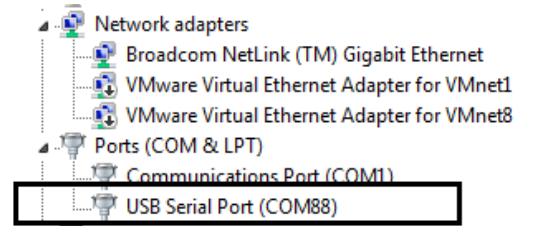
- Right-click on it and select Properties.
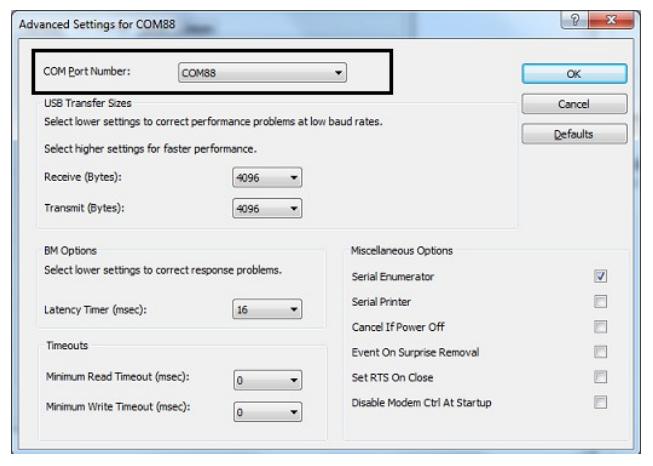
- Under Port Settings, click on Advanced — you can then change the COM Port No. on this screen.
Setting up on Mac
Download and install EMU on your Mac. For macOS X 10.7 – 10.10, FTDI "D2XX" drivers are copied by EMU and made ready for use.
From macOS X 10.11 onwards, third-party drivers are not needed — just install EMU to test your DMX USB Pro. Apple's USB drivers are supported by ENTTEC USB Pro from macOS X 10.11 onwards.
Follow detailed instructions on how to do this, using the FAQ / Support links on the ENTTEC DMX USB Pro webpage at Support | ENTTEC.
⚠️ Note: For driver problems with third-party apps, please contact their respective support for more details.
EMU software
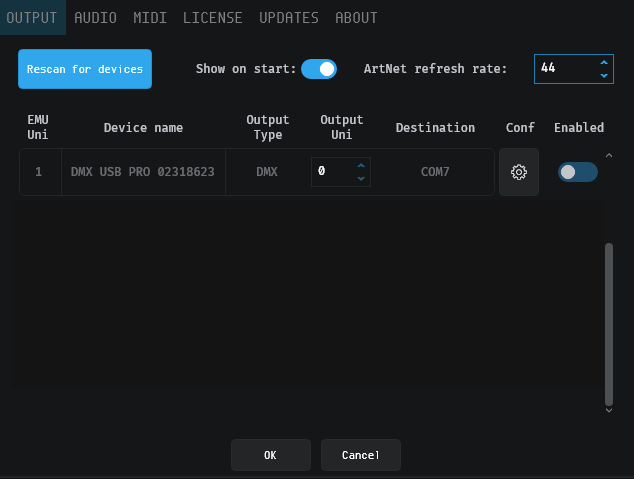
EMU is ENTTEC's free app to configure, test, and update the DMX USB Pro. You can download EMU for Windows or Mac from the ENTTEC website.
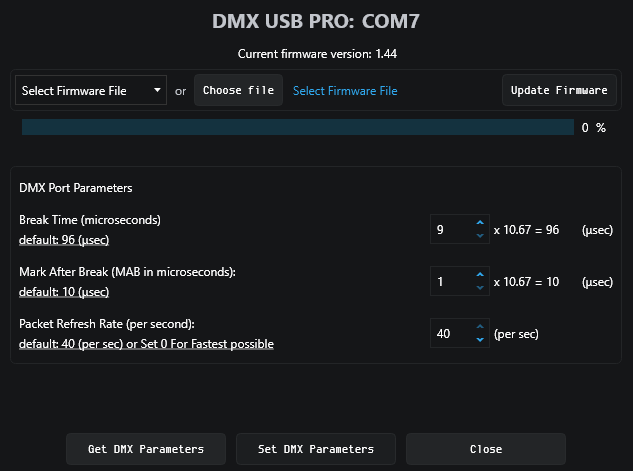
Use EMU to test your DMX USB Pro, change default parameters (refresh rate, break time), and test DMX send.
From EMU's Settings → Output tab, you can search for ENTTEC products connected to your computer. Once EMU discovers it, click the settings icon to begin communication.
Tech tip: Walkthrough video — EMU + DMX USB Pro on YouTube.
Firmware update
The following steps will guide you on how to update the firmware. Use this procedure to reset the DMX USB Pro if it ever gets stuck or stops responding.
- Firmware 1.44 — DMX only (recommended).
- Firmware 2.4 — for RDM and DMX.
From the EMU interface, click Select Firmware file to pick from the dropdown list for the default firmware option, or download firmware from the ENTTEC website and locate it manually with Choose File. Firmware 2.4 is needed if the DMX USB Pro is to be used with an RDM Controller application.
After selecting the firmware file, click Update Firmware and let the update proceed. Do not disconnect the USB until the update is complete. The update progress is displayed on the webpage.
Once finished, the page will automatically refresh, and device information will be updated to reflect the new firmware.
DMX send test
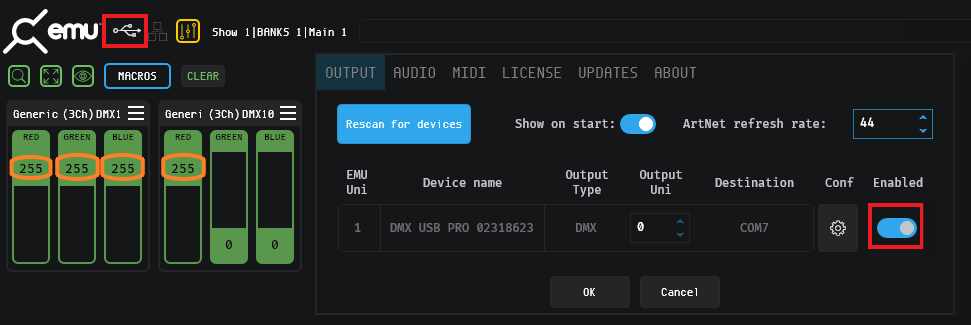
EMU can also be used to test selected DMX channels by sending DMX through the DMX USB Pro.
- Patch a 'dummy' fixture on any DMX channel of your choice.
- Return to the homepage and drag the needed faders.
- Click Enabled on the Settings → Output tab to test DMX output. The USB logo will light up on the top left to indicate output to the DMX USB Pro on EMU.
- With your fixtures connected to the DMX output of the DMX USB Pro, you will see the desired effect for the value of the channel you change. For example, a fixture set up with intensity on Ch 10 and R/G/B on Ch 1, 2, 3 — when you change the values on these channels, you will see the effect on your fixtures. This can be used to test that your DMX USB Pro is working as expected.
- After testing, you must close EMU and then open any lighting control software to use the DMX USB Pro.
Tech tip: EMU patching introduction video — EMU patching intro on YouTube.
⚠️ Servicing, inspection & maintenance
- The device has no user-serviceable parts. If your installation has become damaged, parts should be replaced.
- ⚡ Power down the device and ensure a method is in place to stop the system from becoming energised during servicing, inspection & maintenance.
Key areas to examine during inspection:
- Ensure all connectors are mated securely and show no sign of damage or corrosion.
- Ensure all cabling has not obtained physical damage or been crushed.
- Check for dust or dirt build-up on the device and schedule cleaning if necessary.
- Dirt or dust build-up can limit the ability of a device to dissipate heat and can lead to damage.
The replacement device should be installed in accordance with all steps within the installation guide. To order replacement devices or accessories, contact your reseller or message ENTTEC directly.
Cleaning
Dust and dirt build-up can limit the device's ability to dissipate heat resulting in damage. The device must be cleaned in a schedule fit for the environment it is installed within to ensure maximum product longevity. Cleaning schedules will vary greatly depending on the operating environment — generally, the more extreme the environment, the shorter the interval between cleanings.
⚠️ Before cleaning:
- Power down your system and ensure a method is in place to stop the system from becoming energised until cleaning is complete.
- Do not use abrasive, corrosive, or solvent-based cleaning products on a device.
- Do not spray devices or accessories. The device is an IP20 product.
To clean an ENTTEC device, use low-pressure compressed air to remove dust, dirt and loose particles. If deemed necessary, wipe the device with a damp microfibre cloth.
Environmental factors that may increase the need for frequent cleaning
- Use of stage fog, smoke, or atmospheric devices.
- High airflow (close proximity to air-conditioning vents).
- High pollution levels or cigarette smoke.
- Airborne dust (building work, the natural environment, pyrotechnic effects).
Package contents
- DMX USB Pro
- USB Type-A → USB 2.0 Type-B cable
- EMU Promo Code — 3 months (promo code sticker on the device)
⚠️ Note: Use the device's Serial Number to claim a free license for EMU software unless there is a Promo Code sticker on the device. Promo Codes are implemented after Serial Number 2365779 (August 2022).
Ordering information
| Item | Part No. |
|---|---|
| DMX USB Pro RevB | 70304 |
For further support and to browse ENTTEC's product range, visit www.enttec.com.
⚠️ Note: Due to constant innovation, information within this document is subject to change.