ENTTEC
ELM — User Manual
ELM (ENTTEC LED Mapper) maps video, images and effects onto LED and DMX fixtures of any shape, and drives them over Art-Net, sACN and KiNet.
ELM 2026 · revised 2026-07-29
Get started
ELM is all about displaying your video content on LED fixtures of any shape, in the most convenient way. It also helps you set the rig up and keep it running: Device Manager finds the ENTTEC Art-Net nodes on your network and configures them — addresses, names and per-port universes — and Sentry watches your RDM fixtures and your gateways and tells you when part of the rig stops answering.
Key features
- 2D vector-based stage editor
- 3D (voxel) stages — build a solid cube, a hollow cube, a sphere or a cylinder and drive it as a live volume that 3D effects sweep through by depth
- Up to 32,768 DMX universes per protocol (Art-Net, sACN and KiNet each have their own range). That is the engine's ceiling; how many actually output is set by your licence — 512 on a stock Professional or Architectural licence, raised by universe add-on packs. See Licenses. Getting near the top of the range also means spreading output across several network cards — see Computer requirements.
- Art-Net, sACN, KiNet output protocols
- Scheduled sequences
- Control via DMX, OSC, OS2L, MIDI and HTTP
- CITP/MSEX for consoles and visualizers
- HD video + audio playback
- Spout + NDI integrations for live video inputs
- Stream LED previews to visualizers via NDI
- DVI outputs for projectors, TVs and Martin P3 system
- Over 100 high quality animations included
- Audio-reactive effects
- Automatic BPM and beat detection from any audio input — a microphone, a line-in or your computer's own sound — driving one master tempo for effects, shaders and sequences. Set it up on
Settings → Audio. - RGB, RGBW, RGBA, RGBAW colour support
- Tunable white: single, dual or triple white emitters, each with its own colour temperature in Kelvin, plus a CCT fader per stage and an optional dim-to-warm behaviour
- 16-bit colour support
- Import DXF, CSV and xLights xModels into a 2D stage (
Settings → Project → Import). Point-cloud import for 3D stages is not in this release. - Sentry: RDM monitoring of your fixtures and your ENTTEC gateways, with alert rules and notifications
- Device Manager: discover and configure ENTTEC Art-Net nodes, one at a time or a whole install at once
- Interface in English, French, German, Italian, Korean, Portuguese, Russian, Spanish and Chinese (Simplified and Traditional)
- Extreme robustness for permanent installations
Sentry, Device Manager and Remote control are licensed features. Sentry and Device Manager come with an Architectural licence, Remote control with Professional and above; on a plan that does not include them the buttons and pages stay visible but open an upgrade message instead of the feature. An unlicensed copy is the exception — demo grants all of them, along with unlimited universes, in exchange for a periodic output blackout. See Licenses.
The older fixed white LED types (White, WhiteWarm, WhiteNeutral, WhiteCool, and the WWA / WAW / AWW permutations) are retired. They are no longer offered when you pick an LED type, but projects that use them still open and output exactly as before — when you load such a project ELM tells you how many fixtures use a retired type and suggests you re-select your real LED type — White (single), White (dual) or White (triple) — to opt into the tunable-white features.
Computer requirements
ELM runs on 64-bit Windows 10 (version 1607 or later) and Windows 11. Windows 7 and Windows 8 are no longer supported, and there is no 32-bit build. ELM installs everything it needs to run — you do not have to install the .NET framework, and ELM will never prompt you to.
Recommended
- Windows 10 or 11, quad core 3.5 GHz CPU, 8 GB RAM
- NVIDIA GeForce 900 series or NVIDIA 10 series or better
- SSD hard drive
The computer requirements depend on your media type. Playing multiple HD videos requires a good computer. A rule of thumb is you can play one full HD video at 30 fps for each 2 GHz CPU core. So if you have an Intel i7 4 GHz (4 cores), you should be able to play 8 full HD videos. Increasing the playback speed to 2x means the fps also increases two times and the number of videos you can play simultaneously is roughly divided by two.
The table below shows the approximate number of videos you can play simultaneously at 30 fps depending on your CPU.
| CPU Speed × Cores | Full HD Videos | HD Videos | 640×360 Videos |
|---|---|---|---|
| 2 GHz × 2 | 2 | 4 | 10 |
| 3 GHz × 2 | 3 | 6 | 15 |
| 4 GHz × 2 | 4 | 9 | 20 |
| 2 GHz × 4 | 4 | 9 | 20 |
| 3 GHz × 4 | 6 | 13 | 30 |
| 4 GHz × 4 | 8 | 18 | > 40 |
| 3 GHz × 8 | 10 | 22 | > 40 |
For live video performances where you want to change playback speed up to 10x, the recommended video resolution is 640×360.
To use the built-in effects, particularly the eye candy effects, the video card will be doing the hard work. If you're using a laptop, make sure it can sustain continuous use of the effects without overheating. Usually, an integrated video card can render two eye candy effects. For more effects, you need a discrete video card.
Measure your own computer
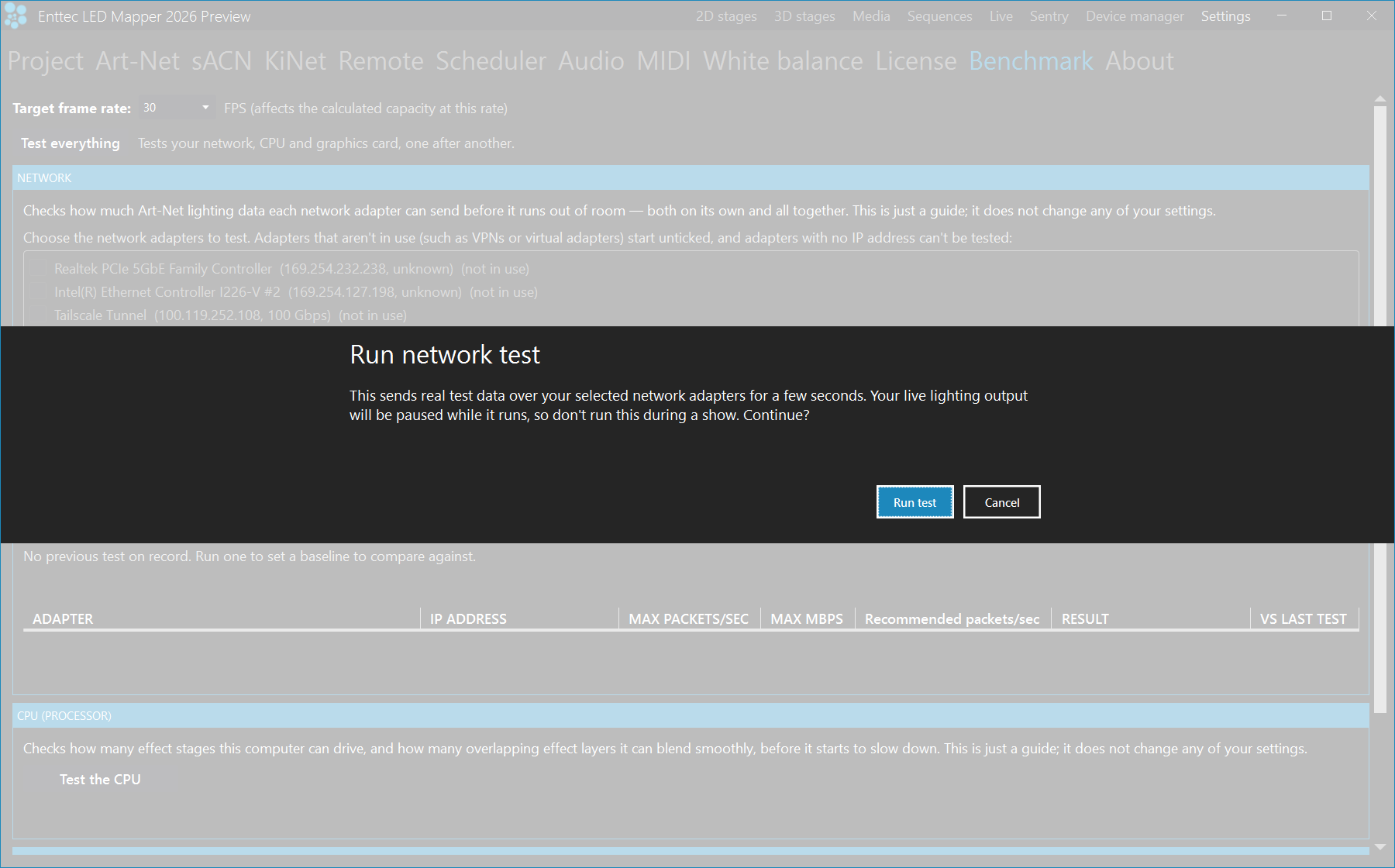
The figures above are rules of thumb. To measure the machine you will actually use, open Settings → Benchmark.
| Control | What it does |
|---|---|
| Test everything | Runs the network, CPU, 2D stage and 3D stage tests one after another. |
| Test the network | Measures how much Art-Net data each network adapter can send before it runs out of room — on its own and with all the others. Reports maximum and recommended packets/sec and Mbps per adapter. Tick the adapters to test first; adapters not in use (VPNs, virtual adapters) start unticked, and an adapter with no IP address cannot be tested. |
| Refresh adapters | Re-scans this computer's network adapters. |
| Test the CPU | Measures how many stages the computer can drive and how big each one can be, and how many overlapping effect layers it can blend smoothly. The answer is a table: because stages are merged on a single thread, the total falls as you add stages. |
| Test 2D stages | Measures how many effects run at once, using the real built-in effects at the size ELM renders them. Works on a computer with no separate graphics card. |
| Test 3D stages | Measures how many 3D stages this computer can show in the live 3D view at once. The figure does not follow the target frame rate, but it does depend on the size of the ELM window. |
| Target frame rate | The fps the universe estimate and the CPU capacity table are calculated at. |
The results are a guide. Nothing in your project or settings is changed by a benchmark run. One warning: your live lighting output is paused while the network test runs, so do not run it during a show.
Network
About DMX output: a 1 Gigabit network should be able to handle 2048 universes at 44 fps. For more universes, add a supplementary network card and a second Ethernet network.
ELM has controls for spreading output across cards. On each output protocol page (Settings → Art-Net, Settings → sACN, Settings → KiNet):
- Set the Default NIC — the adapter used for any universe that is not assigned to a specific card.
- Open the advanced output-assignment section to assign individual universes to a specific card.
- Click Auto-balance to spread all universes evenly across the available cards.
Most setups send everything out the Default NIC and never touch the rest. Use the per-universe assignment only when one card cannot keep up. Whichever card a universe is assigned to, every fixture on that universe must be reachable from that card.
Licenses
Everything to do with licensing lives on one page: Settings → License. It shows what you have, what it covers, and how to activate this computer.
Without a licence: demo mode
A computer with no licence on it runs ELM in demo. Demo grants every licensed feature — Art-Net output, sACN output, KiNet output, Live mode, Remote control, Sentry and Device manager — with no universe cap, no Sentry device cap and no Device Manager node cap. The Plan card on the License page reads Unlimited for DMX universes, and every feature is marked Included. Nothing in the app is hidden, greyed out or read-only because you have not bought yet.
The restriction is on the output, not on the features: the rig goes dark for about ten seconds every five minutes. ELM sends real zero frames during that window, so the blackout is genuine, and the moment it happens shifts by up to 30 seconds each cycle so it is not perfectly predictable. The splash screen carries a DEMO watermark, the status bar reads Trial mode, and the trial window says Full-featured trial and In trial mode, the app takes a short break every 5 minutes. That makes demo fine for building and proving a show, and unusable for running one.
Demo grants more than the Free and Professional plans do. This surprises people, so it is worth stating plainly: the moment you activate a licence, the demo grant is replaced by that licence's entitlements. Activate a Free licence and Remote control, Sentry and Device manager switch off and output is capped at 2 universes — all three of which worked on the same machine five minutes earlier, unlicensed. Nothing is broken; demo is an evaluation state, not a plan, and every statement elsewhere in this manual about a feature being "not included in your licence" is about a plan that lacks it, never about demo.
A lapsed subscription lands in the same place. Once the grace period ends the status card reads Subscription lapsed and ELM runs in demo — every feature back on, with the blackout — until you renew.
On the License page an unlicensed machine reads Demo mode. Activating a licence removes the blackout and the watermark.
Plans
ELM ships in three plans. The universe count and the feature list on your License page are the authority for what you have bought — the table below is what each plan includes by default. Demo is listed first for comparison; it is not something you buy.
| Plan | What you get |
|---|---|
| Demo / no licence | Every feature, unlimited universes, unlimited Sentry devices and Device Manager nodes — and the output blackout every five minutes. Not a plan you can buy; it is what ELM does until a licence is activated, and what it falls back to when a subscription lapses past its grace period. |
| Free | 2 DMX universes. Art-Net, sACN and KiNet output, and Live mode. No Remote control, no Sentry, no Device manager. |
| Professional | 512 DMX universes. Everything in Free, plus Remote control — OSC, HTTP, DMX and OS2L input, and the CITP server. No Sentry, no Device manager. |
| Architectural | 512 DMX universes. Everything in Professional, plus Sentry and Device manager, each with an included device allowance. |
The Plan card lists every licensed feature with Included or Upgrade beside it:
| Feature | What it covers |
|---|---|
| Art-Net output | Art-Net transmission. |
| sACN output | sACN (E1.31) transmission. |
| KiNet output | KiNet v1 and v2 transmission. |
| Live mode | The Live workspace. |
| Remote control | OSC input, HTTP input, DMX remote input, OS2L input and the CITP server. On a plan that does not include it, Settings → Remote stays visible but is covered by Remote control is not included in your licence. Upgrade your licence to use OSC, HTTP, DMX input, OS2L and CITP., and those inputs stay off — including in a project that already has them switched on. |
| Sentry | RDM monitoring. Shows the included allowance beside it, for example up to 1,000 RDM devices. On a plan that does not include it the rule engine, the RDM poll service and the gateway heartbeat never start, so a project's rules are inert. |
| Device manager | Discovery and configuration of ENTTEC Art-Net nodes. Shows the included allowance beside it, for example up to 20 nodes. On a plan that does not include it, a change you try to send is refused with Device Manager isn't included in your licence. |
The Sentry and Device Manager buttons stay on the top menu bar when your plan does not include them, drawn in gold. Their tooltips read Sentry is not included in your licence. and Device Manager is not included in your licence., and clicking one shows Feature not included in your licence — Your licence does not cover the Sentry feature. Please upgrade your licence to use it. instead of opening the workspace. In demo this does not happen: both workspaces open normally (see Without a licence: demo mode above).
If you discover more devices than your allowance covers, a banner tells you exactly where you stand: Sentry is monitoring 1,200 of 1,450 discovered devices — your licence cap. Upgrade to monitor them all. and the equivalent for Device Manager nodes.
Going over your universe count does not stop ELM. The universes within the cap keep outputting, the ones beyond it go dark, and ELM warns you: Your license is limited to 512 DMX universes — any universes beyond that will not output until you upgrade.
One thing to know about the Free plan: Share anonymous usage data on Settings → About is locked on. The note beside it reads Included with the free licence. Upgrade to Professional to turn this off.
Activating
There are two routes, both on Settings → License.
If the computer is online: under Activate with a voucher, type your voucher code and the email address the licence was bought with, then click Activate.
If the computer has no internet connection: under This computer, click Copy to copy your machine ID, send it to ENTTEC support, and they send back a licence file. Click Import license file… and select it. Some builds have online activation switched off altogether and say so: Online activation isn't available in this build — use "Import license file" below.
| Control | What it does |
|---|---|
| Activate | Redeems the voucher code and email you typed, and binds the licence to this computer. |
| Import license file… | Loads a licence file you were sent. ELM verifies it offline against this machine before trusting it. |
| Remove license | Deletes the licence from this computer. ELM returns to demo mode. |
| Deactivate this computer | Frees this machine's activation on the server so the licence can move elsewhere. It does not use up a reset. |
| Copy | Copies the machine ID to the clipboard. |
| Get a license / Renew subscription | Opens the ENTTEC store in your browser. |
| Manage your ENTTEC account & devices… | Opens enttec.com/my-account, where you can see your licences and registered computers. |
There are no hardware dongles to lose, break, or fail in the middle of a show.
Staying activated
What happens after activation depends on which kind of licence you hold. The status card names the state:
| Headline | What it means |
|---|---|
| Licensed | Working. A perpetual licence shows Perpetual as its expiry and runs offline indefinitely. A subscription shows a date and the note Stay connected occasionally and it renews automatically. |
| Reconnect to renew | A subscription expired while you were offline. You are in the grace period: every feature keeps working until the Grace until date, which is 30 days after the expiry. Connect to the internet and it renews itself. |
| Subscription lapsed | The grace period ended. ELM runs in demo mode — the output blanks briefly every few minutes — until you renew. A Renew subscription button appears. |
| Registered to another computer | This licence is active on a different machine. Deactivate it there, or contact support to move it. |
| License problem | The licence cannot be verified. Contact support. |
| Demo mode | No licence on this computer. |
ELM syncs the licence quietly at launch. The Last synced row tells you when the licence server last issued your licence; if it looks old you have simply been offline, which is fine. If a licence is deactivated or revoked on the ENTTEC server, ELM returns to demo mode at the next launch — a network fault or an offline venue never does that.
Each license includes 2 activations, so you can set up ELM on two computers, for example a main and a backup, as long as only one runs at a time. The licence is locked to this computer's processor and system drive. You can change any other component freely, but replacing or re-imaging the boot drive changes the machine ID, so deactivate the licence first if you plan to. Volatile things like MAC addresses and drive letters are deliberately not part of the fingerprint.
To move ELM to another computer, deactivate it in the app on your current machine to free up an activation, then activate it on the new one. You can view your license and its activations any time on your ENTTEC account page.
Add-on packs
To add more universes later — or more Sentry devices or Device Manager nodes — buy an add-on pack and apply it to your existing licence. There is no need to buy a second licence or run several side by side.
How many universes you can be licensed for
Two different numbers get quoted, and they are not in conflict once you know which is which:
- 32,768 universes per protocol is what the ELM engine can address. Art-Net, sACN and KiNet each have their own range of that size. It is a capability of the software, not an entitlement.
- 512 universes is what a stock Professional or Architectural licence grants (2 on Free). That is the number ELM actually enforces, and universes beyond it go dark.
Universe add-on packs raise the licensed number; the engine's 32,768-per-protocol ceiling is the most any licence can usefully grant. ELM cannot tell you which pack sizes are for sale — packs are bought from ENTTEC and applied in your ENTTEC account, and the app never sees the catalogue. If you are sizing an install past 512 universes, ask ENTTEC sales what packs apply to the count you need, and treat Settings → License as the authority on what you actually hold: the DMX universes figure on the Plan card is the number ELM enforces, add-ons included.
A large licence is not on its own enough to drive a large rig. Near the top of the range the output has to be spread across several network cards — see Computer requirements.
Do not type an add-on code into ELM's activation box. Add-on packs are applied to your licence in your ENTTEC account, not in the app. Sign in at enttec.com/my-account and apply the code under My Licences. ELM picks up the extra capacity the next time you start it. If you enter one in the voucher field, ELM tells you the same thing rather than failing silently.
Software updates
Updates are included with your licence: ELM offers you every version your licence entitles you to, at no extra cost. You can find ELM and everything about it on its product page at enttec.com.
How ELM tells you
ELM checks for a new release when it starts, and again every four hours while it is running. A mid-session check never opens a dialog — interrupting a live show is not acceptable — so all it does is light a small coloured dot beside Settings in the title bar. Hover it and it names the version. The dot clears once you open Settings → About; a newer version found by a later check lights it again.
To check yourself, go to Settings → About and click Check for updates.
The update window
| Control | What it does |
|---|---|
| Install now | Downloads and applies the update (see below for which installs can do this). |
| Later | Closes the window without installing. ELM stops popping the window up by itself for that version, but the dot beside Settings stays lit and a check you run yourself still offers the update. (The same button reads Cancel while the check is still running, and Close when you are already up to date.) |
| See what's new! | Opens the release notes for the version on offer. |
| Automatically check for updates | Untick this to stop ELM checking on startup and on the four-hourly timer. Tick it again and the periodic check restarts straight away. |
Installing
What Install now does depends on how ELM was installed.
- The auto-updating desktop installer — the update downloads inside ELM. ELM asks you to save your project, then restarts into the new version.
- An MSI install, or ELM Server — there is no in-place update. ELM tells you a new version exists and opens the download page in your browser so you can install it yourself.
What changed
After ELM updates itself it shows a What's new window listing the changes. You can reopen it at any time with the What's new button on Settings → About, which also gives you the release-notes history for earlier versions.
Definitions
| Term | Meaning |
|---|---|
| Art-Net | Protocol to transmit DMX over a standard Ethernet network. Designed by and Copyright Artistic Licence Holdings Ltd. |
| CITP/MSEX | Controller Interface Transport Protocol / Media Server Extension. |
| DMX | The most common protocol to control lighting fixtures. Full name is DMX512, which stands for Digital Multiplex. |
| DMX universe | Represents 512 DMX channels, enough for 170 RGB LEDs (1 LED takes 3 channels, one for red, one for green and one for blue). That is at 8 bits per colour. At 16-bit each colour component takes two channels, so a 16-bit RGB fixture fits 85 LEDs per universe instead of 170. |
| FPS | Frames per second. Refers to an output rate for video or DMX. |
| KiNet | Protocol to transmit DMX over a standard Ethernet network. Designed by Color Kinetics. |
| LED strip / string | Lighting fixture that may contain many LED elements and have a certain physical length. Some LED strips are flexible and can be bent to create curves and all kinds of shapes. ELM handles all lighting fixtures as if they were strips, giving you a lot of positioning flexibility. |
| Mapping | Mechanism used to associate a pixel from a media source to a specific lighting fixture element. |
| Media | Any type of visual content, including videos and pictures. |
| NDI (Network Device Interface) | Protocol to stream live videos over the network. Developed by NewTek. |
| OS2L (Open Sound to Light) | Protocol that DJ software such as VirtualDJ uses to send beats and cues to lighting software. ELM can follow an OS2L clock as its master tempo and trigger performers from OS2L. |
| OSC (Open Sound Control) | Network protocol allowing multimedia apps to communicate. ELM can be remotely controlled via OSC. |
| Overdrive DMX | An ENTTEC gateway mode in which one physical DMX line carries more than one universe, up to 8 (4096 channels). Fixtures on such a line can be given a start address above 512, which is why ELM accepts addresses up to 4096 over RDM instead of rejecting them. It is a setting on the gateway, not in ELM: on a model Device manager can configure, set the port's DMX mode to Overdrive in the settings form and its Count to the number of universes that port carries; on any other model, set it from the node's own web page. How many universes a port can carry depends on the model. A bulk auto-configure run never changes DMX mode, so Overdrive has to be switched on port by port, by hand. |
| RDM | Remote Device Management, an extension of DMX (E1.20) that lets a controller talk back to the fixtures on a DMX line: read their model and sensors, identify them, and set their start address. ELM uses RDM in Sentry. The gateway port the fixtures are on must be set to Output + RDM before ELM can see anything behind it. |
| RGB, RGBW, RGBA, RGBWA | Various colour components: red, green, blue, white and amber. |
| sACN | Protocol to transmit DMX over a standard Ethernet network, like Art-Net. More specifically, the E1.31 subset is used for DMX control. Developed by ESTA. |
| Spout | Real-time video sharing framework for Windows. Similar to Syphon on Mac. |
| Stage | A mapping surface or volume defining the position of the media placeholder and the position of lighting fixtures. ELM has two kinds: 2D stages (a flat surface you draw your strips onto) and 3D (voxel) stages (a solid cube, a hollow cube, a sphere or a cylinder, driven as a live volume that 3D effects sweep through by depth). There is no separate "DVI stage": any 2D stage can be sent to a projector, a TV or a Martin P3 system with the DVI button on its row in the Stages manager. The legacy 3D engine is retired: the 2D stages a legacy 3D structure was stacked from still load and still output, but the structure itself can no longer be edited and nothing converts it — see 3D stages. |
Setup
How ELM connects to your LED fixtures, and a high-level overview of the stages concept.
Getting started with LED strips
ELM can control any DMX-enabled lighting fixtures, not only LED strips. This is made possible because ELM outputs industry standard protocols like Art-Net, sACN and KiNet. ELM can therefore control traditional DMX dimmers and any RGB, RGBW, RGBA and RGBAW lighting fixtures, as well as complex fixtures like moving heads.
Controlling LED strips is a little bit different from traditional DMX fixtures. The main difference is that you need to use LED controllers to drive your strips. They replace the Art-Net nodes you use for traditional DMX fixtures. The LED controller receives DMX via Art-Net/sACN and converts it to the special protocol the LEDs understand.
The signal path is: ELM sends Art-Net/sACN over a network switch to your LED controllers and Art-Net nodes, which drive the strips and DMX fixtures. Video output to projectors or TVs goes out of the computer's own DVI/HDMI ports.
The next step is to get LED strips and DMX fixtures. Since there are many LED protocols out there, you need to make sure your LED controller fits with your LEDs. Common protocols for RGB LEDs are WS2811 and WS2812/B. For more information about getting compatible LEDs, contact your ENTTEC representative.
ENTTEC makes both the pixel controllers and the pixels themselves. The Pixelator Mini receives Art-Net/sACN and drives your addressable strips, and the ENTTEC Smart Pixel range provides the LEDs, with pixel dots and pixel tape in a range of resolutions, colours and IP ratings.
From install to first light
This is the whole path from a new computer to LEDs that light up, in order. Each step names the section that covers it in depth; nothing here replaces those sections, it just tells you what to do next. Steps 1 to 3 happen outside ELM, and skipping them is the most common reason a correctly patched project stays dark.
- Install ELM and start it. ELM is a 64-bit Windows application and installs everything it needs — see Computer requirements. Until you activate a licence it runs in demo mode, which blanks the output for a few seconds every few minutes; see Licenses.
- Put the computer and the gateway on the same network. Give the computer a fixed
IP in the same subnet as your Art-Net node or pixel controller — in practice the first three numbers
match and both use the mask
255.255.255.0. If the Windows firewall is on, openSettings→Projectand clickFirewall(ELM must be running as administrator) so Windows lets ELM send and receive. KiNet is the exception: Philips controllers expect the computer on10.x.x.xwith mask255.0.0.0— see KiNet. - Configure the gateway or pixel controller itself. ELM does not do this for you
except on the models Device Manager supports. The node needs its own IP, the universe each of its
ports listens to, and the protocol it listens for; a pixel controller also needs the LED chip type
(WS2811, WS2812B and so on) and the number of pixels per port. For a supported ENTTEC node, do it in
Device manager; otherwise use the node's own web page or the
manufacturer's utility. Write the port universe numbers down — you type the same ones into ELM in
step 6. If you will use Sentry later, set the ports the fixtures are on to
Output+RDMnow. - Choose the output network adapter in ELM. Open
Settingsand go to the page for the protocol you are using: Art-Net (the selector isDefault NIC), sACN or KiNet (Adapter). Pick the card your lighting network is on. Each protocol has its own selector, so set it on every page you intend to output on. - Create a stage. Click
New stageon the home screen, name it and give it a size with the same aspect ratio as your media — see New stage dialog. The size is in pixels and can be changed later without breaking the mapping. A rig built as a volume rather than a flat surface is created differently: see 3D stages. - Patch your strips. In the 2D stages workspace, on the
Stripstab, clickAdd. In the Add strips dialog set the number of strips and LEDs per strip, pick theTypethat matches your fixture's colour order and capability (Pixel types), pick one of theShapesand, for lines and arches, thePatching directionthat matches how the strips are actually wired, then setDMX protocol,Start universeandStart addressto match the port you noted in step 3. Art-Net universes are numbered from000upwards, so a gateway port set to universe 0 isStart universe0 in ELM. - Send the universes to the node. With Art-Net and KiNet, every universe is broadcast out of the box, so a single node on its own lighting network needs nothing typed here. Enter node IP addresses in the universe grid only when you want to unicast instead — see Art-Net. Check the coloured block behind each universe number on that page: green means the universe is patched and being sent.
- Load a media. Go to
Media(Alt+M), click the round+on an empty slot and pick a video, image or effect — see Media library. - Play it on the stage. Go to
Live(Alt+L) and select the stage's tab. Double-click the media in the A bank — that plays it and runs the A-B fader all the way to the A side — then raise the stageIntensity. See Live mode. This is the step that puts light on the rig. - Prove the patch. Back in the 2D stage workspace, open the
Testing tab and switch
Test patternson. The stage stops showing your media and sends a rectangle you can move across the strips, which is how you check that the LEDs come on in the order you patched them and that red really is red. Switch it off when you are done — while it is on, this stage outputs nothing else.
If nothing lights up, work through Troubleshooting. The usual causes are in steps 2 to 4: the wrong network adapter, a firewall rule that was never added, or a computer and a node on different subnets.
Quick overview
ELM allows dividing your installation into multiple zones and layers called stages. You control the media content independently for each stage. Stages can overlap and they are merged (blended) to generate the result.
A common scenario is to create a stage spanning the whole installation to map media across the board. To enable precise control over specific zones, you create smaller stages inside the big stage, then activate these zones whenever you want. For example, you can play a video on the overall stage (which acts as the background layer), and when there's a special event, activate the logo zone and make it flash.
Stages come in two kinds, and they have separate workspaces reached from the 2D stages
and 3D stages entries at the top of the window. They share the same media library, the same
intensity, colour and speed controls, and the same merging behaviour.
- A 2D stage is a flat mapping surface you draw your strips onto. This is what the rest of this chapter describes.
- A 3D stage is a volume. You generate it from a shape — a solid cube, a hollow cube,
a sphere or a cylinder — and ELM projects your 2D media onto it. You choose which face of the volume
the media lands on (
Front,ToporSide) and whether it fills the volume's depth (Extrude) or lights only the front plane (Surface).
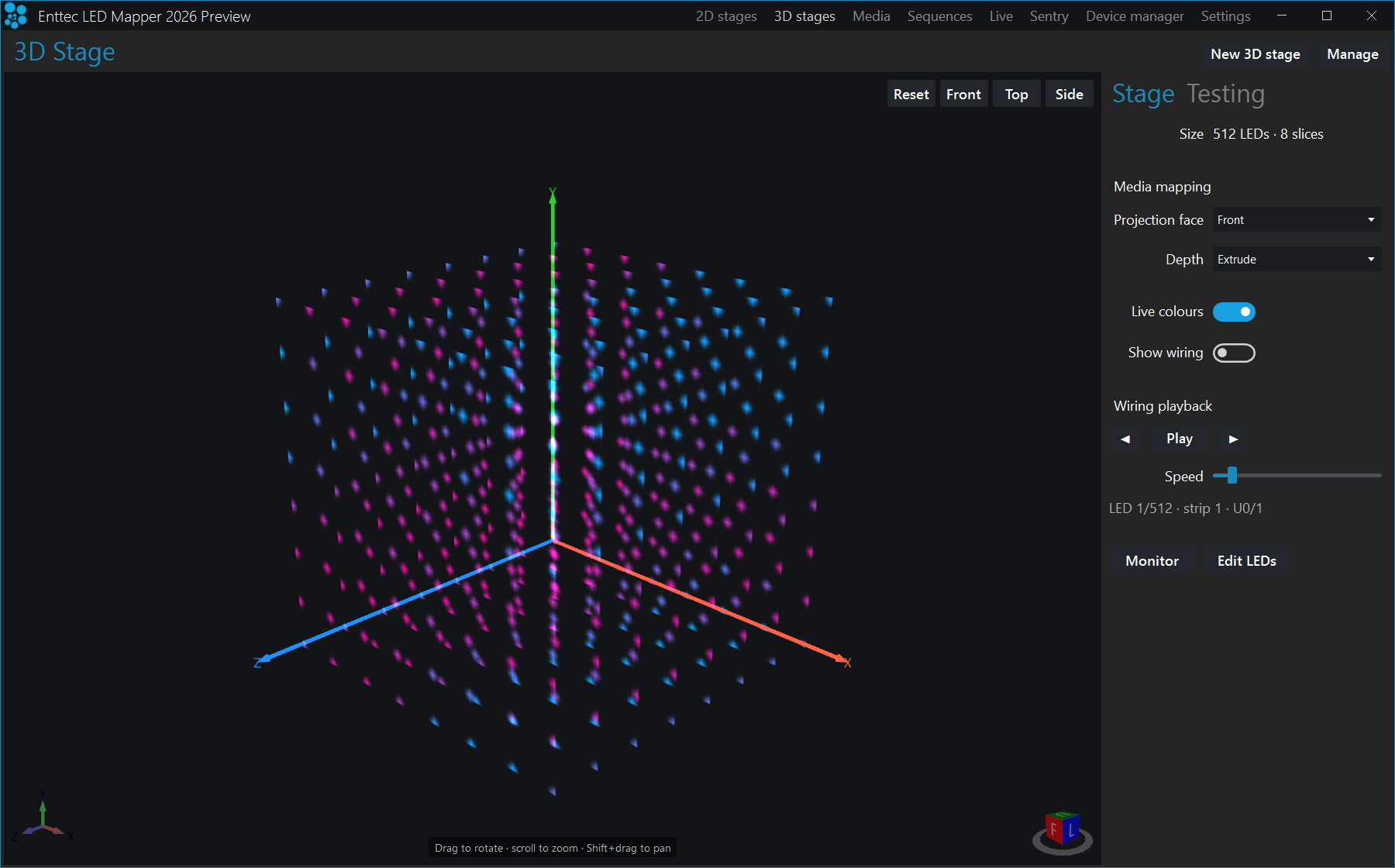
To represent your LED strips and DMX fixtures inside a 2D stage, ELM has a vector-based editor. You draw many types of shapes, including matrices, loops and curves, and ELM computes the position of each LED based on your drawing. A 3D stage is not drawn: its LED positions are generated from the shape parameters you enter when you create it.
Application tour
A guided tour of every screen and control in ELM.
Home screen
ELM opens on the home screen: Welcome! Start by creating a stage, which is the mapping surface where your media meets your LEDs. Duplicate your stage to get multiple media layers. Create a new stage, load an existing project, or import a design from Pixel Designer. Hold Alt to underline the shortcut key of each entry in the top menu bar.
If you have not activated a licence yet, ELM runs in demo mode and a banner appears across the top
of the window: You're running ELM in demo — the output blanks briefly every few minutes. Activate
to remove it. Click Activate in the banner to enter your licence, or the
✕ button to dismiss it for now. It comes back once, with wording that explains the
blackout, the first time the output actually blanks — so you know the dark moment is the demo nag and
not a fault. See Licenses.
| Control | What it does |
|---|---|
| New stage | Creates your first stage and starts the mapping process. |
| Load project | Loads an existing project. Ctrl+O. |
| Recent projects (down arrow) | Loads a recent project. Click on the down arrow in the Load project button to show the list. |
| Import project from Pixel Designer | Asks for a Pixel Designer design number and creates a stage from that design, every dot placed and patched. See Import a design from Pixel Designer. |
| Design your installation on Pixel Designer | Opens Pixel Designer in your web browser. |
The top menu bar
The menu bar in the window's title bar has eight entries. They are always visible, whatever screen you are on.
| Entry | What it does |
|---|---|
| 2D stages | Goes to the 2D mapping workspace, where you draw your strips onto a flat stage. Alt+S. |
| 3D stages | Goes to the 3D (voxel) workspace, where a rig is built as a volume rather than a flat surface. Alt+D — but see the note below the table. |
| Media | Goes to the media library. Alt+M. |
| Sequences | Goes to the sequences panel to create sequences and control your show. Alt+U. |
| Live | Goes to the live panel. Alt+L. |
| Sentry | Goes to the RDM fixture monitoring workspace. Alt+N. |
| Device manager | Goes to the workspace where you discover ENTTEC Art-Net nodes on your network and configure them. Alt+V. |
| Settings | Goes to the settings panel. Alt+I. |
| Update dot | A small coloured dot appears just right of Settings when a new ELM version is available. Its tooltip names the version. Go to Settings → About to install it; opening that page clears the dot. |
These are access keys, not global shortcuts, so they can collide with a button on the screen you are
looking at. One collision ships in ELM 2026: the Duplicate button on the Strips
tab of a 2D stage also answers to Alt+D. While that tab is showing, the two share
the key, so use the menu button itself if you specifically want the 3D workspace. Everywhere else
Alt+D reaches 3D stages. See Duplicate strips
dialog.
Sentry and Device manager are never hidden, but they are drawn in gold if your licence does not
include them — the tooltip then reads Sentry is not included in your licence. or
Device Manager is not included in your licence. Clicking one explains how to upgrade.
To the left of these entries the bar carries the Master int. and Master speed faders, which scale every stage at once. The master intensity does not affect the monitor — it only modifies the output data.
New stage dialog
This is the dialog for a 2D stage, opened by New stage in the 2D stages workspace. A 3D stage is created from a different dialog, documented under 3D stages.
A rule of thumb is to create a stage with dimensions respecting the aspect ratio of your media. Then you'll position your LED strips on it to create the mapping. For example, you can create a full HD stage (which has a rectangular aspect ratio) to fit your media sources, and then map a 20×20 square LED array on it.
You can easily change the dimensions later, so don't worry. The minimum recommended size is 320×180. Smaller than this, you'll need to constantly work at a very high zoom level, which isn't very convenient. So it's better to use a higher size and let ELM scale your media.
The same window opens when you duplicate a stage from the Stages manager. Its instruction line then
reads Duplicate your stage to get new layers. and four extra options appear, marked below.
| Control | What it does |
|---|---|
| Name | The name of your new stage. Usually refers to its physical location. Up to 50 characters. It cannot be empty and it cannot repeat another stage's name (the check ignores case). Until you enter a valid name, OK stays greyed out and the reason is shown beside the box — Name cannot be empty. or Name already used by another stage. |
| Width, Height | The desired size in pixels for the mapping surface used to display media. This can be changed later without affecting the mapping. Width accepts 5 to 20000, height 2 to 20000. |
| Full HD, HD buttons | Presets for common media sizes. Full HD is 1920×1080, HD is 1280×720, Ultra HD is 3840×2160. |
| Duplicate count | Duplicate only. How many copies to make, from 1 to 200. |
| Strip scaling | Duplicate only. How the strips are scaled if the new stage's size is different from the original. |
| Merge mode | Duplicate only. How values are merged when several stages target the same LEDs. See Stage merging and layering. |
| Universe offset | Duplicate only. Tick it and set a number (0 to 2048) to shift the copy's DMX addresses by that many universes, so the duplicate drives different fixtures instead of the same ones. Leave it unticked to keep the original addresses and drive the same LEDs. |
Pro tip: To help you position strips like they are in the real world, use a picture of your installation as the stage's background (see Stage Tab). No pictures handy? Use your phone's camera to get one.
New 3D stage dialog
A 3D (voxel) stage is created from its own dialog, not from this one. Go to 3D stages in
the top menu bar and click New 3D stage, either in the toolbar at the top right or on
the welcome panel when you have no 3D stages yet. There is no drawing step: you describe the rig with
numbers, a live preview redraws as you type, and ELM generates the LED positions and patches them in
one step.
Every control of that dialog — shape, LED counts and sizes, the hollow cube's
Faces option, run axis, wiring, DMX addressing and the Advanced — depth
slicing section — is documented once, under 3D stages.
Import a design from Pixel Designer
Pixel Designer (pixeldesigner.enttec.com) is ENTTEC's online tool for laying out Smart PXL
dot installations: where every dot goes, how the dots are chained into strings, and which controller
output each string runs from. ELM can bring a finished design straight in. You get one stage with every
dot already placed at its real position and already patched: one strip per string, grouped by
controller, on the universes and addresses the design gives it.
There is no file to download. ELM fetches the design over the internet by its design number, so the computer running ELM needs an internet connection for the import (not afterwards: the imported stage is part of your project like any other).
Ways in
| Where | What happens |
|---|---|
Import project from Pixel Designer on the home screen | Asks for the design number, then adds the design to the open project. The home screen only shows while the project has no stages, so this is the quickest way to start a project from a design. |
New project from Pixel Designer in Settings → Project | Asks for the design number, then starts a new project with the design. You are offered to save the current project first. |
Open in ELM on the Pixel Designer site | Opens ELM (or brings the running ELM to the front) and imports that design. Needs an installed ELM; see Open in ELM from the website, below. |
Design your installation on Pixel Designer on the home screen | Opens Pixel Designer in your web browser, to create or find a design. |
Find the design number
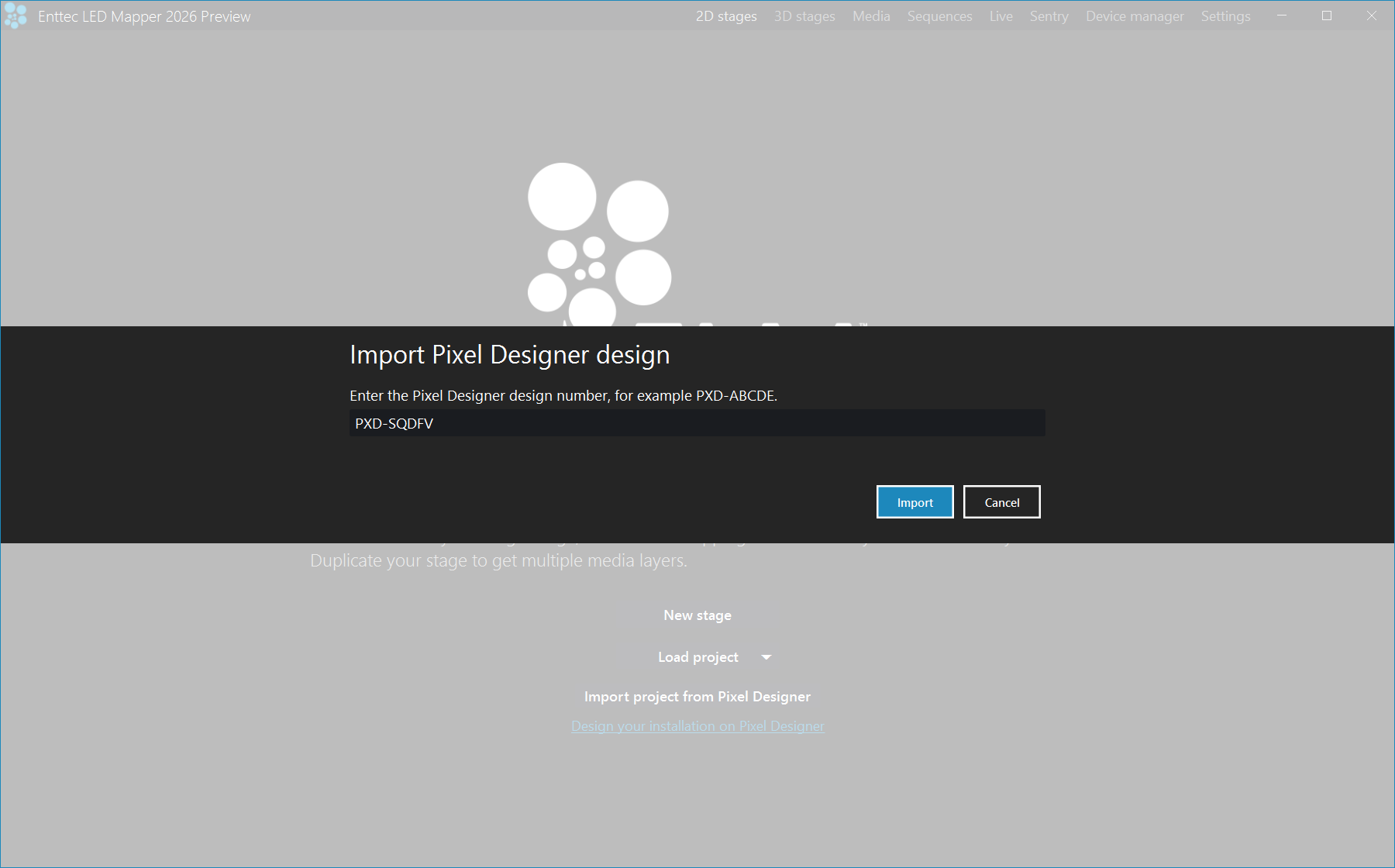
Every design has a number such as PXD-SQDFV; a revised design has a suffix such as
PXD-SQDFV-r2. Pixel Designer shows it on the design, and it is also the last part of the
design's web address: pixeldesigner.enttec.com/d/PXD-SQDFV is design
PXD-SQDFV. Anyone who has the number can import the design.
Import by design number
- Click
Import project from Pixel Designeron the home screen, orNew project from Pixel Designerin Settings → Project. - The box opens with
PXD-already typed. Complete the design number and clickImport. Upper or lower case both work, and you can leave out thePXD-prefix:pxd-sqdfv,SQDFVandPXD-SQDFVall find the same design. If what you typed cannot be a design number, the box opens again with"PXD-12" is not a design number. It looks like PXD-ABCDE.(showing what you typed) so you can correct it. - ELM downloads the design and checks it, then shows its name, its number, how many pixels it has
and how many universes it uses. Click
Import(orNew show) to create the stage, orCancelto leave your project as it was. Nothing is created before this click.
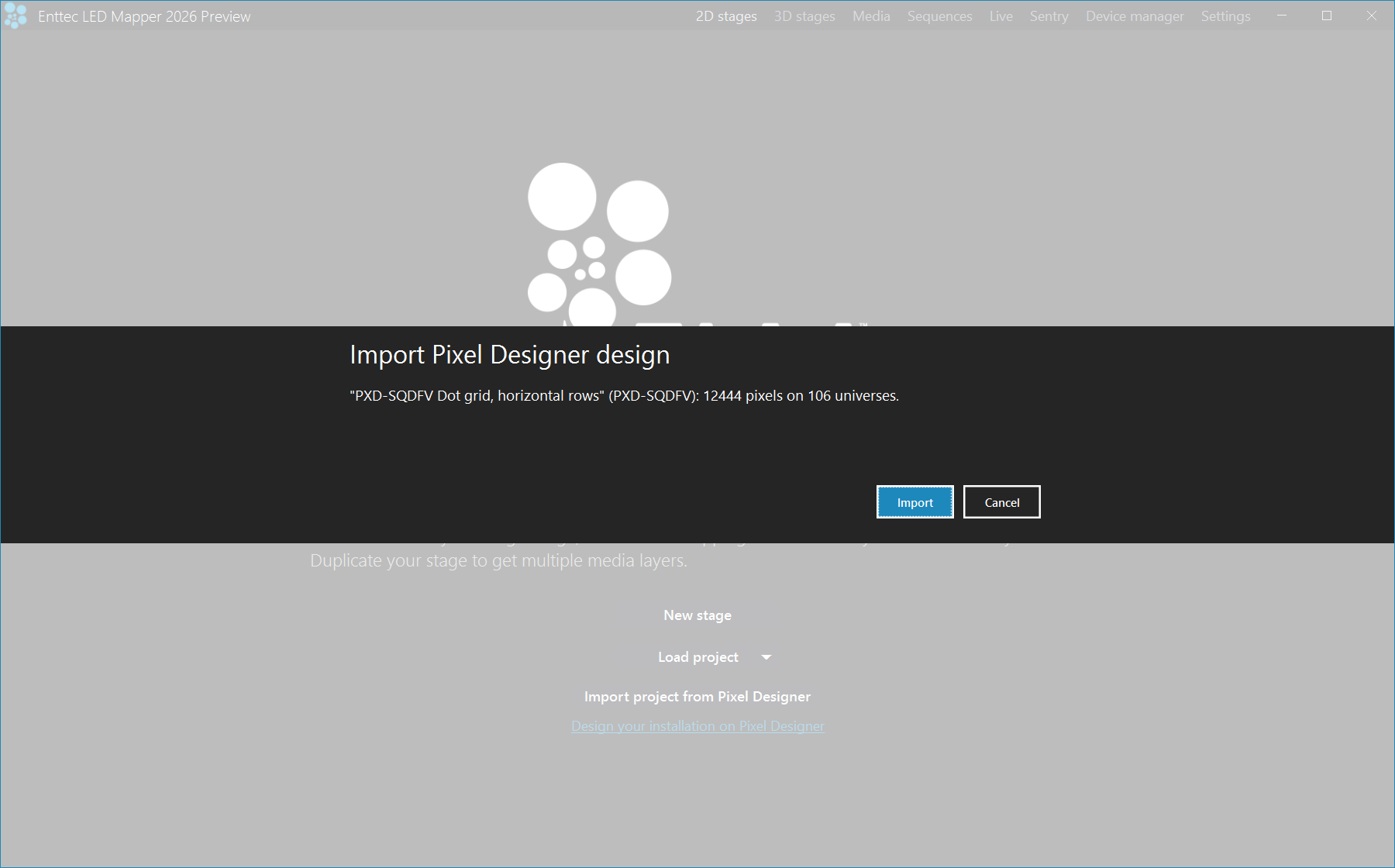
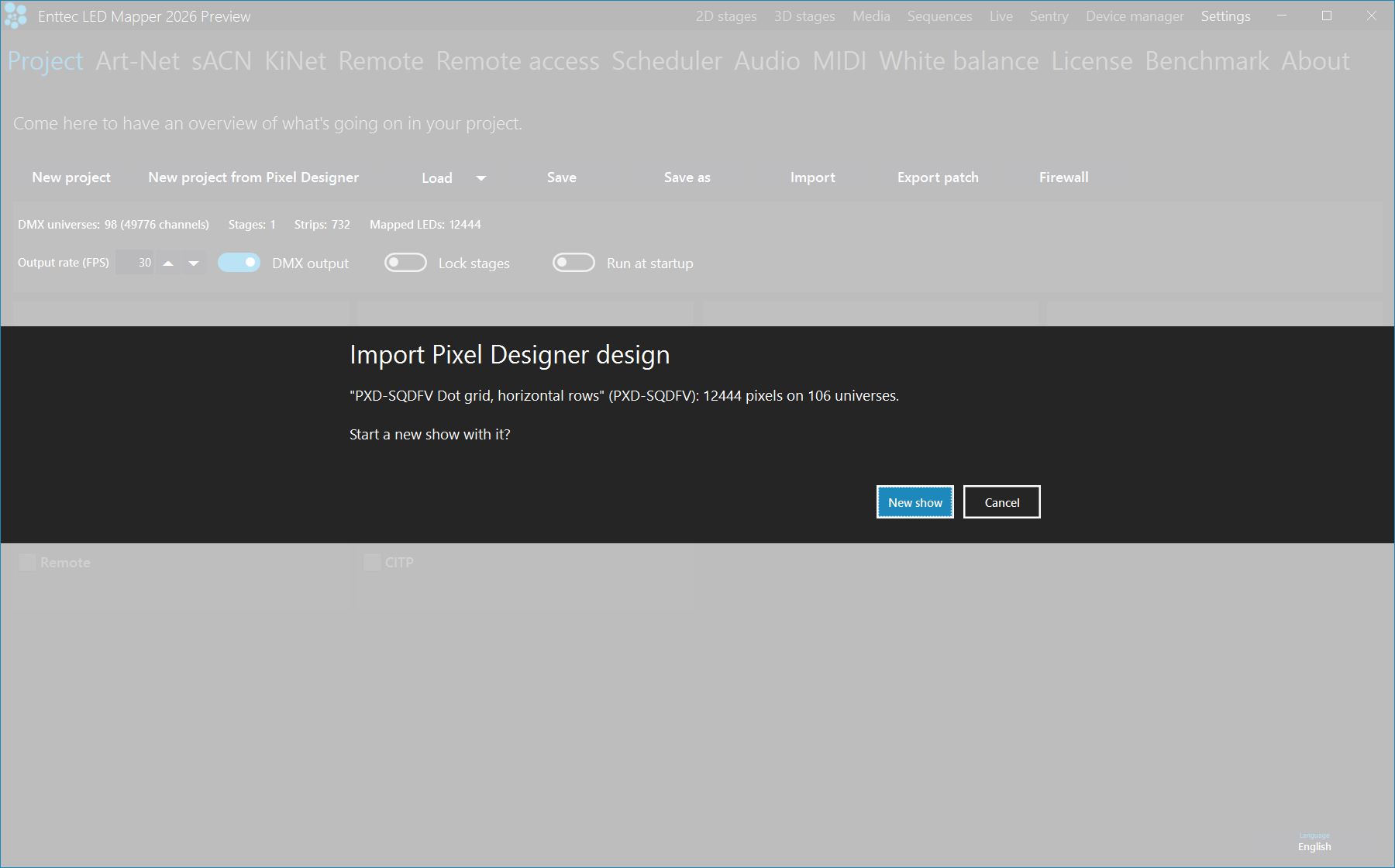
New project from Pixel Designer the confirmation asks Start a new show with it?. New show offers to save the current project, then starts a new one with the design.The confirmation can carry extra lines under the summary:
This design uses 106 universes and your licence outputs 64. Universes beyond the licence stay dark.(with your numbers): the design still imports, but only as many universes as your licence allows are sent. See Settings: license for your limit.The open show already outputs on Art-Net 0, 1. Adding the design there mixes both on those universes.(with your universes): only when you add a design to a project that already has stages (see Open in ELM, below). The design keeps the universes it was designed for.- A note that the design is large for its pixel pitch: on a very large design the closest dots end up close together on the stage, and dots that are less than one stage unit apart may show the same colour.
What you get
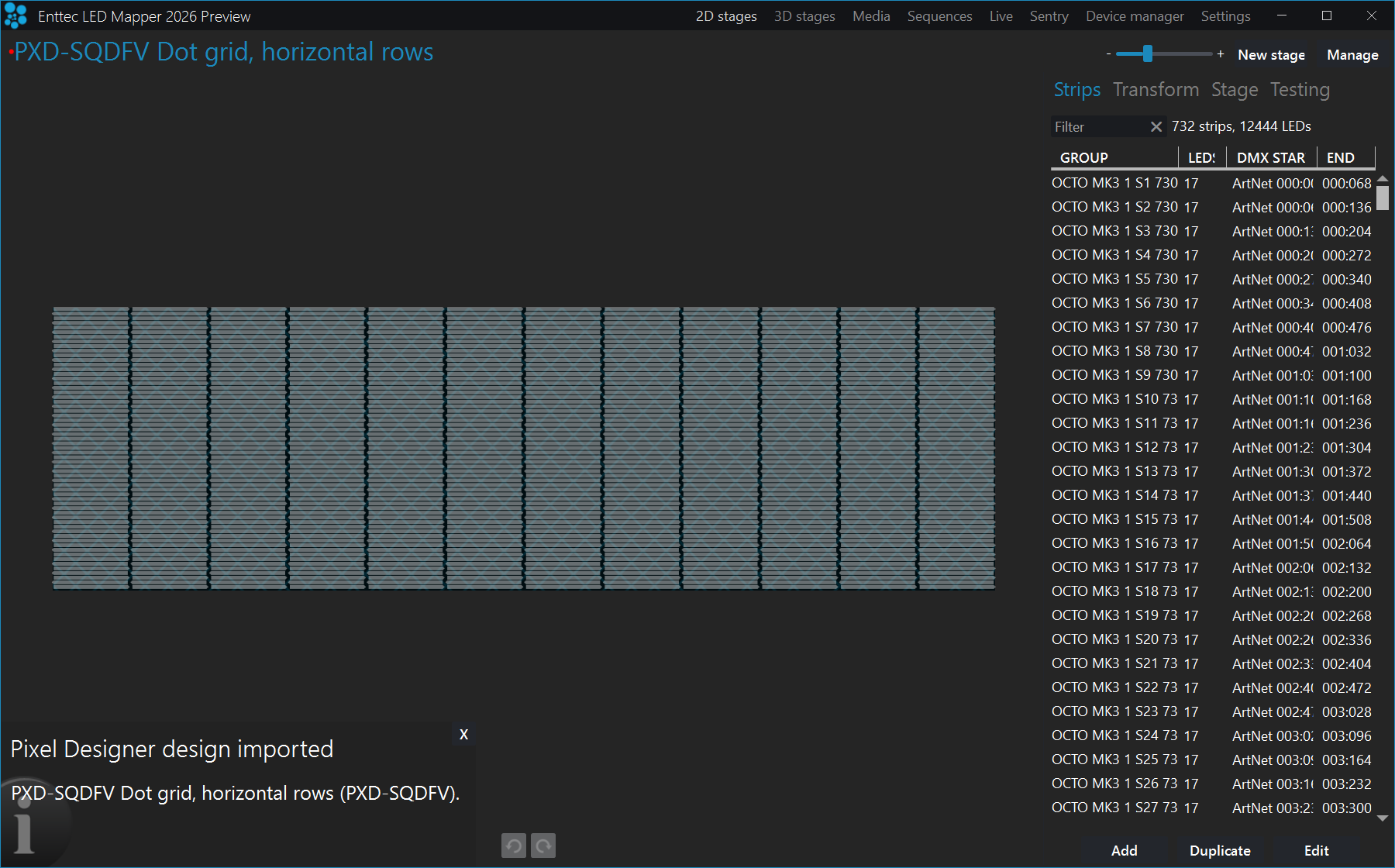
732 strips, 12444 LEDs. The list's columns are narrow, so the strip names and start addresses are cut short; widen the columns or select a strip to read them in full.- One stage, named after the design. Positions are scaled from millimetres so that the closest neighbouring dots sit two stage units apart, which gives every dot its own part of the media.
- One strip per string, in the order the data runs, grouped by controller (for example
OCTO MK3 1) and named after the string in the design, followed by its controller output, for example(out 1). - The patch from the design: protocol, universe, start address, colour order (Smart PXL dots are RGBW) and bit depth exactly as designed. You do not address anything by hand.
- Controller addresses: if the design gives a controller an IP address, every universe that controller drives is sent to that address. Universes the design does not use keep the routing you set in Settings → Art-Net or sACN.
When the stage is created, Pixel Designer design imported appears at the bottom left with
the design's name and number.
The universe count in the confirmation is the number of universes the design actually outputs on,
which is what your licence limit is checked against. The DMX universes counter in Settings
→ Project can show a smaller number for the same design (98 instead of 106 for the design in these
pictures); see Settings: project.
Open in ELM from the website
On the Pixel Designer site, Open in ELM hands the design to ELM directly. Your browser asks
whether to open ELM; allow it. If you declined, click Open in ELM again. If ELM is already
running, the design goes to that window rather than starting a second copy.
If the open project already has stages, ELM asks Add it to the open show as a new stage, or start
a new show with it? with three buttons: Add to this show, New show (offers
to save the current project first) and Cancel.
If clicking Open in ELM does nothing, or your browser offers to look for an app, ELM is not
installed on this computer or the installed version is older than the one that added this feature.
Preview builds of ELM never answer the button, because they are installed beside the regular ELM. In all
these cases use the design number instead: it imports the same design.
When it does not work
If the design cannot be fetched, a message titled The design could not be downloaded
appears, starting with the design number, for example PXD-SQDFV: followed by one of these:
| Message | What to do |
|---|---|
There is no design with this number on Pixel Designer. | Check the number on the design in Pixel Designer, including any -r suffix. |
This design is not ready for ELM yet. Open it on Pixel Designer to see what needs finishing. | Finish the design in Pixel Designer and try again. |
The design is too large to import. | The design is bigger than ELM accepts in one import. Split it into smaller designs in Pixel Designer. |
Pixel Designer could not be reached. Check this computer's internet connection and try again. | ELM needs internet access for the import. A proxy configured in Windows is used. |
Too many requests to Pixel Designer. Try again in a minute. | Pixel Designer limits how many designs one computer can look up per minute. Wait a minute. |
Pixel Designer would not share this design. Check the design number and try again. | Pixel Designer refused the request. Check the number; if it is right, contact ENTTEC support. |
Pixel Designer returned an error. Try again in a few minutes. | A problem on the Pixel Designer side. Try again later. |
Other messages:
| Message | What to do |
|---|---|
This design cannot be imported, followed by a list of strings or universes | The design failed ELM's checks, for example two strings on the same DMX channels, or one universe sent to two different controllers. Nothing was created. Fix the design in Pixel Designer. |
This design cannot be imported, with any other explanation | Nothing was created. Try again; if it happens again, contact ENTTEC support with the design number and the message. |
This Open in ELM link cannot be used | The link that started ELM was damaged or not an ELM link. Click Open in ELM on the design again, or use the design number. |
Stages
Shortcut key: Alt+S
This is the 2D stages workspace. 3D stages have a workspace of their own, reached from
the 3D stages entry in the top menu bar, with its own tabs and its own Manage window.
You can create as many stages as you want. Generally, you'll want an overall stage corresponding to the whole installation and multiple individual stages to target specific zones. The overall stage allows you to map content across the board. Then the other stages allow you to override specific parts of your installation whenever you want. Each stage is a tab: select the current stage by clicking its name at the top.
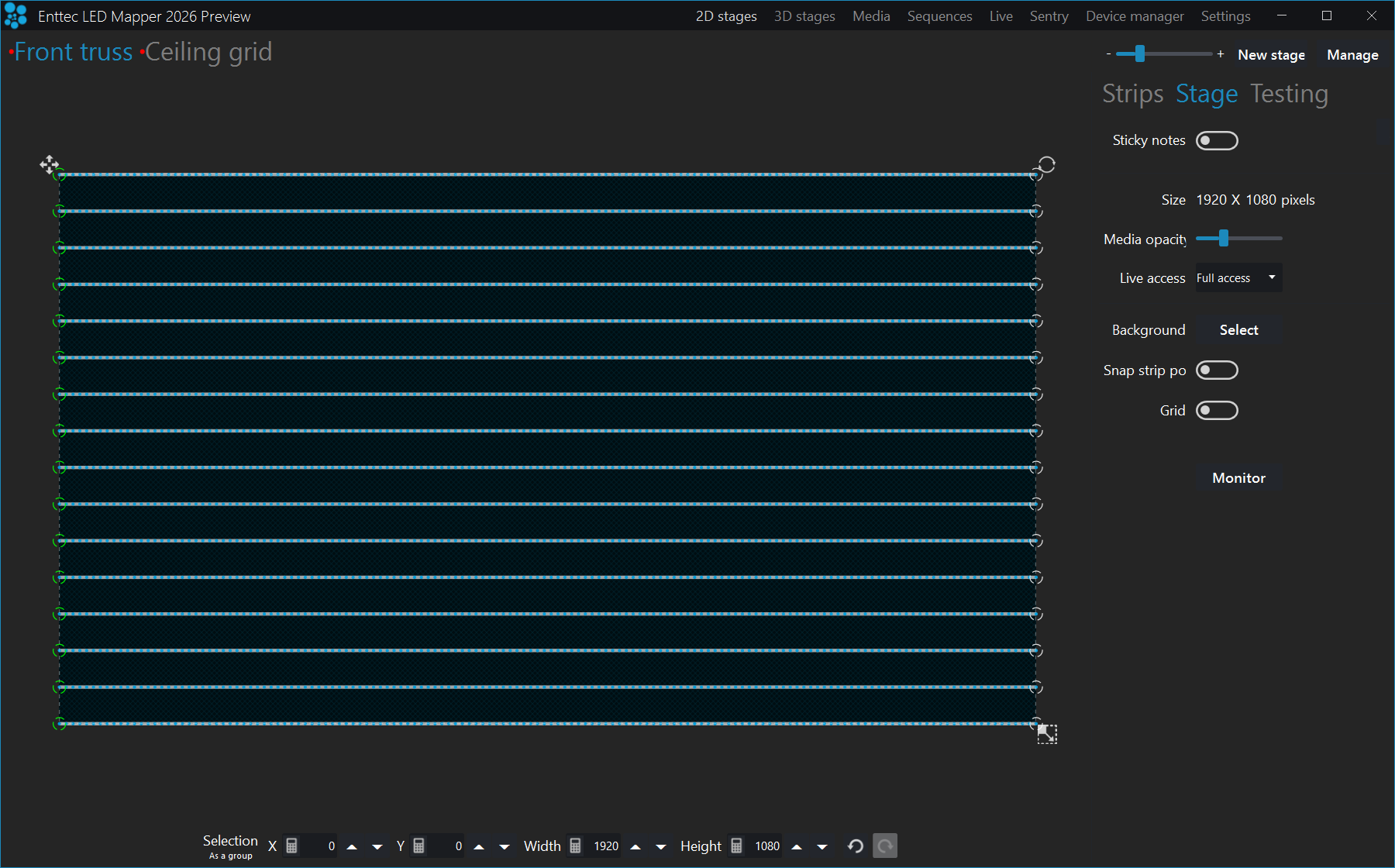
The controls at the top right of the tab bar are where every stage operation starts.
| Control | What it does |
|---|---|
| Zoom slider | Sets the zoom level of the stage canvas, from 10% to 200%. Ctrl+0 resets it, Ctrl++ and Ctrl+- step it, and double-clicking the slider resets it too. Hover the slider and use the mouse wheel to change it. |
| New stage | Creates another stage. Opens the New stage dialog. |
| Manage | Opens the Stages manager, where you rename, resize, reorder, duplicate and delete stages, and set each stage's merge mode. |
Before you have created any stage, the workspace shows the welcome panel instead, with New stage and Load project buttons.
Pro tip: Different effects may demand different mapping layouts. One goal of the mapping is to ease content creation. Don't hesitate to create multiple stages with the same LED strips but positioned in different ways.
Status indicator
At the left of the stage's name, a small mark tells you the current control mode and whether the stage is activated. Most of the time there is no mark: a stage under manual control that is activated carries nothing, which is the normal state. A mark appears only when something is worth telling you about.
Read it in two parts. The shape is the control mode — a letter for remote
(R), schedule (S), the audio reactive mix (A) or testing
(T), and a plain dot when the stage is under manual control. The colour is
the state: blue for activated, red for deactivated, and
yellow for testing, which is always yellow and always wins over the other marks.
A stage is activated when a media is selected and its intensity is above 0, when it carries at least one effect layer that is switched on and above 0 intensity, or while its test patterns are running.
| Indicator | What it means |
|---|---|
| No mark | Manual control mode, stage activated. |
| Red dot | Manual control mode, stage deactivated. |
| Blue R | Remote control mode, stage activated. |
| Red R | Remote control mode, stage deactivated. |
| Blue S | Schedule control mode, stage activated. |
| Red S | Schedule control mode, stage deactivated. |
| Blue A | The audio reactive mix mode is active. If such a stage is deactivated it shows the red dot instead. |
| Yellow T | The testing mode is active — the stage is sending test patterns rather than media. |
The same marks are used on the 3D stage tabs.
Stage syncing
Everything using the same media slot is synced — stages, and any effect layer pointing at that slot. You can still set each stage's own output parameters (intensity, colour filter, speed and CCT), but the media content is the same everywhere the slot is used. When applicable to the media type, the playback speed is the highest speed requested by anything using that slot, so a fast stage speeds up the slower ones sharing the same media.
Pro tip: To play the same video file on multiple stages but at different speeds, load the video file in multiple media slots. Then use a different media slot for each stage, or for each layer.
Stage merging and layering
There are two ways to layer content. This section is about how whole stages combine when they share LED strips. To layer several media on a single stage, use effect layers instead — see the end of this section and Effect layers.
Stage merging
When multiple stages contain the same LED strips, a merge occurs following the order as shown in the Stages Manager. This allows creating complex visuals by layering multiple stages on top of each other. You can target specific zones by creating stages with only a subset of all strips or with parts of the strips outside the stage.
A stage takes part in the merge only while it is activated. A stage is activated when a media is selected and its intensity is above 0, when it carries at least one effect layer that is switched on and above 0 intensity — even with no base media at all — or while its test patterns are running. A stage that is not activated is treated as transparent and is left out of the merge entirely.
Which stage is on top
The Stages manager list is ordered bottom layer first. The stage in the first row is the bottom of the stack; each stage further down the list merges on top of the result built so far. Drag and drop rows to change that order.
Every mode below therefore combines two things: this stage (the one whose merge mode you are setting) and what is below it — the result of merging every activated stage that comes before it in the list. There is no left and right, only up and down.
You set a stage's merge mode in the Stages manager, and in the New stage dialog when you duplicate a
stage. The default for a new stage is overwrite. The names below are exactly as they appear
in the drop-down.
| Merge mode | Behaviour |
|---|---|
| overwrite | Replaces what is below with this stage. The stage is fully opaque. |
| multiply | Multiplies this stage with what is below, channel by channel. Black in this stage blacks out what is below, white leaves it untouched, and a colour tints it. This is the mask / tint mode. |
| screen | Both are inverted, multiplied, and inverted again — the opposite of multiply. The result is never darker than what is below. |
| overlay | Multiply and screen combined, chosen per pixel by what is below: where what is below is dark the result gets darker, where it is light the result gets lighter. It raises contrast. |
| darken | Keeps the smaller of the two values on each colour channel. |
| lighten | Keeps the larger of the two values on each colour channel. |
| difference | The absolute difference between this stage and what is below, channel by channel. The result is the same whichever of the two is on top, so stacking order does not change it. |
| add | Adds this stage to what is below and clips at full. Brightens. |
| subtract | Subtracts this stage from what is below and clips at zero: where this stage is bright, what is below goes dark. |
| blackkey | Black pixels of this stage are transparent. Every pixel of this stage that is not pure black replaces what is below; where this stage is black, what is below shows through unchanged. |
| intensityCrossFade | This stage's intensity fader becomes its opacity: at 0 % you see only what is below, at 100 % only this stage, and a straight crossfade in between. |
| intensityWhiteFade | The same fader, but the crossfade goes through a bright middle instead of dipping. From 0 % to 50 % what is below stays at full brightness while this stage is added over it; from 50 % to 100 % what is below fades out as this stage reaches full. |
multiply, subtract and overlay need something underneath. These three only ever modify pixels that another stage has already written. If a stage using one of them is the lowest activated stage on a strip, it contributes nothing at all and those LEDs stay dark — the stage looks broken. Put it above the stage it is meant to act on.
Pro tip: To easily target specific zones of an installation, first create the overall mapping then select the strips corresponding to the individual zones and right-click in the strip list to access the "new stages from strips" menu.
Effect layers
You no longer need extra stages to stack content. Each stage carries its own stack of effect layers,
edited in the Layers panel of the Live view — the per-stage screen described later in
this chapter, under Live mode, and reached with Alt+L.
In that panel: click
+ Add layer, then right-click the layer to give it an effect or edit an existing
effect's parameters. Every layer has its own blend mode, opacity fader and Area, and can be hidden
(H) or soloed (S). Clear removes every effect layer at once and keeps the base media, and
Save as new media bakes the whole stack into a single media you can re-select later to
get the layers back. This is per-stage, and none of it changes the merge described above. See
Effect layers for the panel in full.
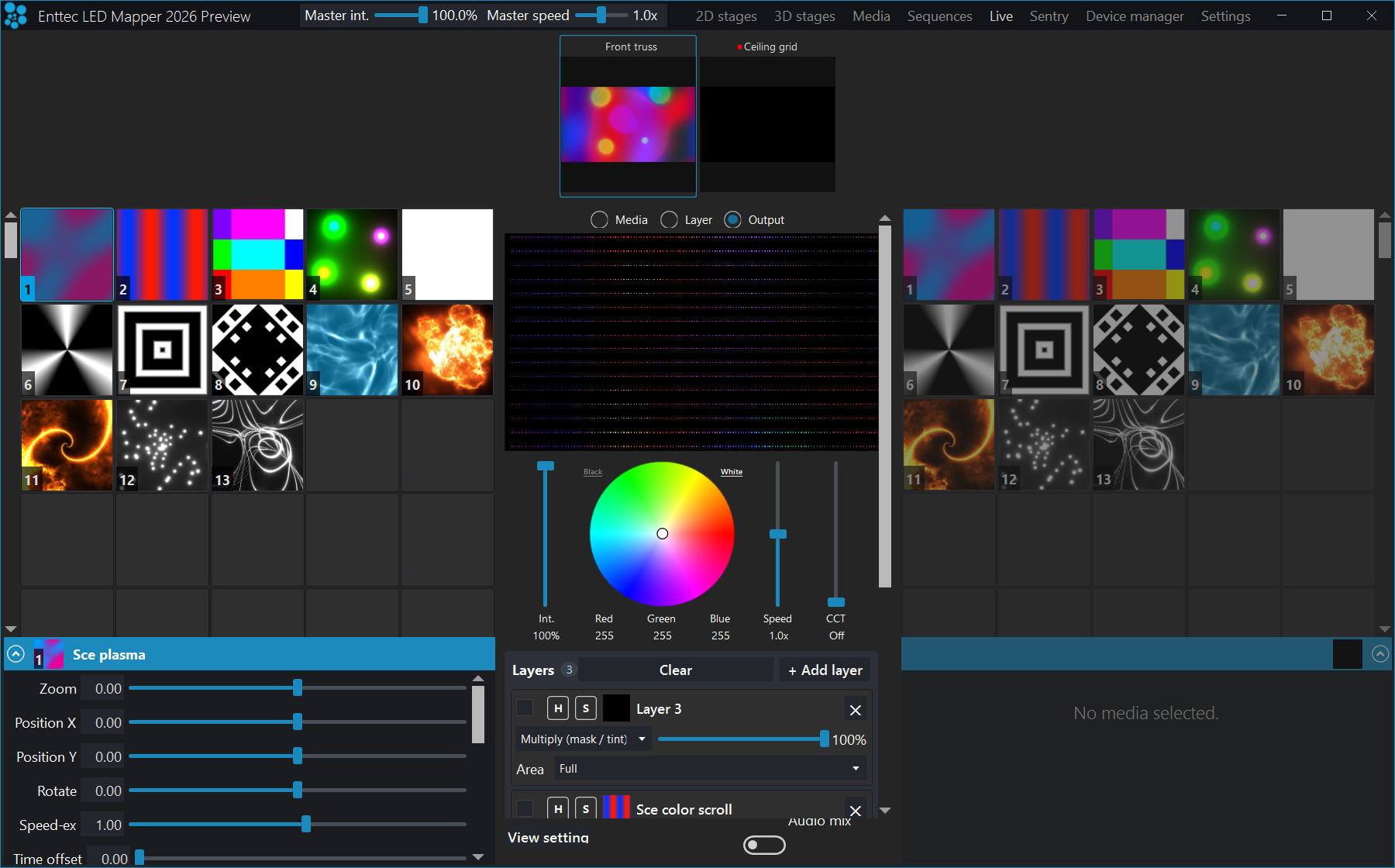
Multiply (mask / tint) at 100% over the whole stage; it merges down onto the rows below it, the same way stages do.The two mechanisms use different blend-mode lists, but the same underlying modes. Stage merging offers all twelve modes in the table above; an effect layer's drop-down offers a curated five, under plain-language labels:
| Effect layer label | Merge mode it is |
|---|---|
| Normal | overwrite |
| Add (brighten) | add |
| Multiply (mask / tint) | multiply |
| Lighten (brightest) | lighten |
| Screen (soft glow) | screen |
The five behave on a layer exactly as the table above describes them on a stage, reading "what is below it" as the base media plus every layer under this one. A layer saved in an older project with a mode that is no longer offered still loads and renders unchanged, and that mode is appended to that layer's drop-down so you can see it and keep it. The remote-control API can also set a layer to any of the twelve — see the remote-control HTTP section for the exact strings it accepts and for the modes a layer renders differently from a stage.
Edit zone
Position your strips as they are in the real world, or based on the effect you want to create with your media. A strip has a start (green) and an end (red) control point showing the direction of the patch. Add intermediate control points to build other shapes. Bundle several strips together to handle a complex shape as one item.
You can position parts of your strips outside the stage. The LEDs outside the stage are not mapped. This is a common scenario when you use the same strips in several stages and want to target specific parts in each one.
When any LED sits outside the stage, a warning appears under the edit zone: Some LEDs are outside the stage, followed by the number of LEDs in brackets. Click the warning to select the strips those LEDs belong to. If it is deliberate, ignore it.
| Control | What it does |
|---|---|
| Select strips / Deselect all | Click a strip to select it. Hold Ctrl and click to add a strip to the selection, or to remove it again. Hold Shift and drag on the stage background to use a selection window and select every strip inside the rectangle; hold Ctrl as well to keep what was already selected. Press Ctrl+A to select all strips and Ctrl+D to deselect. |
| Move a control point | Click a control point and drag it. Hold Shift while dragging to keep the point aligned horizontally or vertically with the previous point. |
| Snap while dragging | Two toggles on the Stage tab change what a dragged control point snaps to. Snap strip points (Ctrl+P) snaps the point onto control points of other strips. Grid (Ctrl+G) shows a grid and snaps the point to it; the grid's Size and Offset in pixels become editable once the grid is on. If both are on, snapping to another strip wins over the grid. |
| Move selected strips | Right-click on a strip and drag it, or use the move handle at the top-left corner of the selection. You can also use Ctrl+the keyboard arrows. |
| Add a control point | Right-click on the stage (only one strip needs to be selected) or on a control point to use the context menu — on a control point it offers Insert point before and Insert point after. Or double-click on the strip line to add a control point there. |
| Delete a control point | Right-click the control point and choose Delete. It is greyed out when the strip is down to two points — a strip always keeps a start and an end. Right-clicking the first control point also offers Reset points, which puts the strip back to a straight line. |
| Bundle / Unbundle strips Ctrl+B / Ctrl+Shift+B | Select multiple strips and right-click one of them in the strip list. Then select the bundle menu item to create one element with all selected strips. Unbundle the strips to edit or see the details. |
| Move around the stage | Click on the stage background and drag. Hold Shift and use the mouse wheel to scroll sideways. |
| Zoom in/out | Use the zoom control at the top, or hold Ctrl and use the mouse wheel. Ctrl++ and Ctrl+- zoom in and out, and Ctrl+0 — or a double-click on the zoom slider — resets the zoom to fit the stage. Zoom out when you want to offset the selected strips quickly. |
| Zoom notice | At high zoom levels ELM stops drawing the media preview and shows High zoom: media preview disabled. at the bottom right of the edit zone. Zoom back out to get the preview back. |
| Show individual LED positions | When zoomed enough, the LEDs of the selected strips are visible as blue dots. Put your mouse over one to see the LED number and its DMX address. |
| Copy / Paste strips Ctrl+C / Ctrl+V | Copy and paste the selected strips. You can paste the strips into a different stage. |
| Delete selected strips Ctrl+Delete | Use the shortcut, or right-click in the strip list and select the delete menu item. |
| Undo / Redo Ctrl+Z / Ctrl+Y | You can always use Undo and Redo while editing. |
| Sticky notes | Drop a note onto the edit zone with the Add note button at the top of the Stage tab, or press Ctrl+Shift+E. Type in it, drag it by the handle at its top-left corner, and delete it with the button at its top-right corner. Ctrl+E — or the Sticky notes switch on the Stage tab — shows and hides every note. Notes are saved with the project. |
| As a group (checkbox) | This checkbox under the rotate section determines whether strips are rotated, moved and scaled all together (maintaining the overall shape), or if the action is done to each strip individually. It doesn't apply when using the move, rotate and resize handles. For example, if you uncheck this option and enter 0 in the X position box, all strips will move to the position 0. |
Strips tab
Shortcut key: Alt+P
Strip list
The strips for the current stage are shown in this list. Select one or several strips in the list to also select them in the edit zone. Click the column headers — Group, LEDs, DMX start, End — to sort. Type text in the filter box to filter on the group names. The buttons under the list are Add, Duplicate and Edit.
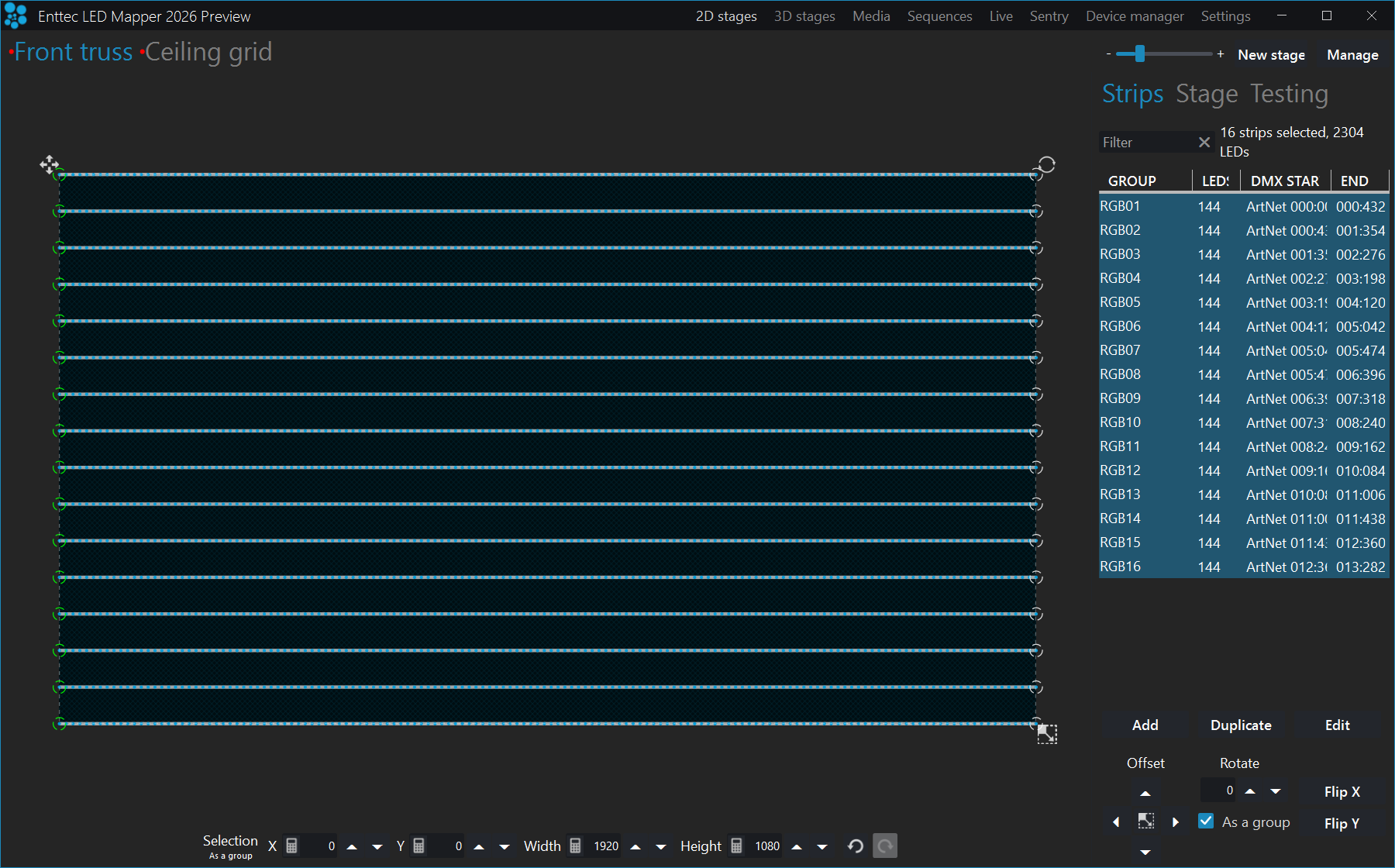
Right-click in the list for more options. The menu holds three groups of commands:
- Selection —
Select all,Deselect,Select even,Invert selectionandGo to selection(which scrolls the edit zone to what is selected). There is no "select odd" item: useSelect evenfollowed byInvert selection. - Editing —
Copy,Paste,Delete, andBundle/Unbundle. - New stages from strips — a submenu that builds new stages out of the selected strips. It does not move or delete the strips you started from.
| New stages from strips | What it does |
|---|---|
| One stage per strip | Creates one new stage for each selected strip, with the strip laid out on its own. |
| One stage per strip, keep positions | Same, but each strip keeps the position it has on the current stage. |
| One stage per strip, all lines | One new stage per strip, with every strip straightened into a line. |
| All strips in a new stage (copy) | Copies all the selected strips into a single new stage, positions unchanged. |
| All strips on one line (back to back) | Puts every selected strip on a single new stage, laid end to end on one line. |
| Each strip on a new line | One new stage with each strip on its own line, stacked. |
| Each strip on a new stretched line | Same, but each line is stretched to the full width of the stage. |
| Each strip collapsed on a new point | One new stage where each strip is collapsed to a single point — useful when you want one pixel of media per fixture. |
Pro tip: Use the group and sub-group fields wisely in order to use the filter box and quickly select the strips you want.
Add strips dialog (patching)
Open it with Add at the bottom of the Strips tab. Patch your strips and lighting fixtures here to create arrays and any shape you need.
Multiple LED types (or colour types) are supported, including RGB, RGBW, RGBWmax, RGBA, RGBAW/RGBWA, and white fixtures with one, two or three white emitters, each with its own colour temperature. Most colour component orders (GRB, BGR, WRGB, and so on) are supported. Bit depth is a separate setting: any type can be driven at 8- or 16-bit, chosen in the Bit depth box. 16-bit uses two DMX channels per colour component for smoother colour transitions, and doubles the number of channels each LED takes. RGBWmax activates all channels (RGB + white) when white is needed, for maximum brightness. See Pixel types for what each type does.
| Control | What it does |
|---|---|
| Number of strips | The number of LED strips/fixtures you want to patch. |
| LEDs per strip | The number of LEDs per strip. Enter 1 to create a unique fixture. For a matrix, this is the number of rows or columns, depending on the patching direction. |
| Type | Also named pixel type. Corresponds to the colour component order (RGB, BGR, GRB, and so on) and the capability (white only, RGBW, and so on). Many LED strips have the colour components in a different order than red, green and blue. Usually, LED controllers have the option to reorder the colour components, but ELM can handle this for you. |
| Bit depth | The colour resolution of each LED. 8 uses one DMX channel per colour component; 16 uses two (most significant byte first) for smoother fades. 16-bit doubles the number of channels each LED takes, so check that your universes still fit. Every type can be 8- or 16-bit. |
| White 1 (K), White 2 (K), White 3 (K) | Only shown when Type is White (single), White (dual) or White (triple). The colour temperature in Kelvin of each white emitter, in the order the channels are wired (1000–12000 K). Defaults are 4000 K for a single emitter, 2700/6500 K for dual and 2700/4500/6500 K for triple. Enter the real values from your fixture's data sheet — they set the range the stage's CCT fader can reach and they drive the preview colour. |
| When dimming | Only shown for White (dual) and White (triple). Constant colour keeps the mixed colour temperature where you set it as the fixture fades. Dim to warm drifts it toward your warmest emitter as it fades, like an incandescent lamp. |
| Shapes | Select a predefined shape to position your strips on the stage: lines, arches, circles, squares, diamonds, triangles, pentagons, hexagons or octagons. For arrays, use lines. Remember that you can create any kind of shape by adding control points later. |
| Patching direction | For LED arrays, specify the way your strips are wired to let ELM automatically assign the proper DMX addresses. It is shown for lines and arches, and for single-LED fixtures. |
| Stretch | Stretches the shapes so they fill the whole stage. It is shown for the closed shapes — circles, squares, diamonds, triangles, pentagons, hexagons, octagons — in place of the patching direction picker. |
| Group and sub-group | Use these two groups to tag your strips and quickly find them later. You can search for these keywords in the strip list's filter box. |
| Colour | Optional colour tag for your strips. |
| DMX protocol | Select the output method for DMX: ArtNet, sACN, KiNetV1 or KiNetV2. KiNet V1 is DMXOUT and V2 is PORTOUT — they are different protocols with their own pages under Settings → KiNet, so picking the wrong one means no output. Select none to leave the strips un-patched for the moment and not output any DMX. |
| Start universe | The universe of the first strip to be patched. |
| Start address | The DMX address of the first strip to be patched. |
| LED address offset (Advanced) | The number of DMX channels between the start of two consecutive LEDs. Increase it to leave holes between your LEDs/fixtures, allowing merging ELM's output with another console. For example, you can control moving heads by letting ELM handle the colours and a console handle the movement. |
| Break universe after (Advanced) | Automatically start patching in the next universe when reaching this limit. The box next to it chooses whether the limit counts strips or LEDs. Set to 0 to break only when the universe is full. |
Pro tip: Got the patching direction wrong? No problem. You can easily flip your strips horizontally and vertically later. For snake mode, right-click in the strip list and use Select even; there is no "select odd" item, so follow it with Invert selection to get the other half.
Pro tip: Want to control more complex DMX fixtures like moving heads? Let's say your moving head has 20 channels and the RGB channels start at 3. In ELM, patch it with a start address of 3 and a LED address offset of 20. ELM will send 0 for the unused channels, which allows merging the DMX data from ELM with the DMX data from a console. The console provides the values for pan, tilt and all other channels except the RGB.
Pro tip: Whites! For an accurate preview, pick the white type that matches your fixture — White (single), White (dual) or White (triple) — and enter each emitter's real colour temperature in Kelvin. The stage monitor then tints the strip with the mix ELM is actually sending, and it follows the stage's CCT fader in the Live view.
Pixel types
The pixel type tells ELM what emitters your fixture has and in what channel order they are wired. Set it in the Type box of the Add strips and Edit strips dialogs. The letters give the channel order, so a strip wired blue-green-red is BGR, not RGB.
| LED Type | Detail | Remark |
|---|---|---|
| RGB, RBG, BGR, BRG, GBR, GRB | Red, green and blue. 3 channels per LED. | |
| RGBW, RBGW, GRBW, WRGB, WBGR | Red, green, blue and white. 4 channels per LED. WRGB and WBGR put the white channel first. |
The white is automatically activated based on the saturation of the media colour. The less saturated the colour is, the more the white LED is activated. As the white is activated, the RGB LED levels are reduced proportionally until only the white LED is active for a pure white colour. |
| RGBWmax | RGB + White, all at maximum. 4 channels per LED. | The white activation is calculated like for RGBW but the RGB LEDs aren't reduced proportionally. The result is that when a pure white colour is needed, all RGBW LEDs are activated. While it gives a maximum brightness, it also takes more power. |
| RGBA | Red, green, blue and amber. 4 channels per LED. | The amber LED is automatically activated the closer the media colour is to amber. As the amber is activated, the RGB LED levels are reduced proportionally until only the amber LED is active for a pure amber colour. |
| RGBAW, RGBWA | Red, green, blue, amber and white. 5 channels per LED. | The white and amber LEDs are activated following the same recipe as for RGBW and RGBA. |
| White (single) | One white emitter. 1 channel per LED. | The level is the perceived brightness (luma) of the media colour. Set the emitter's colour temperature in the White 1 (K) box. A single emitter cannot change colour, only brightness. |
| White (dual) | Two white emitters, for example warm + cool. 2 channels per LED. | Set each emitter's colour temperature in White 1 (K) and White 2 (K). The stage's CCT fader mixes the two toward a target temperature, so the fixture fades from amber to daylight as you ride the fader. |
| White (triple) | Three white emitters. 3 channels per LED. | Same as dual. ELM blends the two emitters that bracket the target temperature; the third stays off. |
Bit depth
Bit depth is set separately from the type, in the Bit depth box of the Add strips and Edit strips dialogs. Choose 8 or 16. Any type can be 16-bit. 16-bit uses two DMX channels per colour component (most significant byte first), so it doubles the channel count in the table above — an RGB strip at 16-bit uses 6 channels per LED instead of 3, and a White (triple) strip uses 6 instead of 3. It gives smoother fades and more headroom for colour corrections, at the cost of twice the universes. Projects made with the old RGB16 / GRB16 / White16 style type names open as the plain type set to 16-bit — there is no longer a separate "…16" entry in the Type list.
Tunable white
A white fixture is described by how many white emitters it has and the colour temperature of each one, in Kelvin, in the order the channels are wired. Enter those values when you add or edit the strip (or, for a 3D stage, in Edit LED arrangement). They are saved with the project.
However many emitters the fixture has, its overall level comes from the perceived brightness (luma) of the media colour mapped onto it — roughly 30% of the red, 59% of the green and 11% of the blue. The emitters then share that level between them to reach the target colour temperature.
The Live view then has a per-stage CCT fader, to the right of the Speed fader, which mixes the emitters toward a target temperature between 1800 K and 10000 K. It works on 2D and 3D (voxel) stages, and drives the wire output and the 2D/3D previews together. It can also be set from a remote over OSC or the HTTP API. Pull the fader to the bottom (Off) and every emitter runs at the same level — the fixture's native white, which is what ELM did before this fader existed.
For a dual or triple white fixture, When dimming chooses what happens as the fixture fades: Constant colour holds the mixed temperature where you set it, and Dim to warm drifts it toward your warmest emitter as it fades. The fixture can only reach temperatures between its warmest and coolest emitter — a target outside that range is clamped to the nearest one.
Older projects can still contain the retired white types (White, WhiteCool, WhiteNeutral, WhiteWarm, WWA, WAW, AWW). They keep working exactly as before — nothing is re-mapped — but they are no longer in the Type list. When you open such a project ELM tells you how many fixtures use one. Edit those strips and select White (single), White (dual) or White (triple), then set each emitter's colour temperature, to get the tunable-white behaviour.
Pro tip: For the colour temperature settings to get a more accurate stage monitor preview, see Settings → White balance.
Duplicate strips dialog
Copy the selected strips and create new strips by applying certain transformations. Select the
strips, then click Duplicate on the Strips tab. Click Duplicate
in the dialog to create the copies.
Alt+D is the button's access key, but the 3D stages entry in the
top menu bar uses the same letter and that bar is always on screen, so while the Strips tab is showing
the two share the key. Click the button when you want to be sure which one you get. See
Home screen.
Each copy is made from the previous one, so every offset below stacks: with a count of 4 and an X offset of 100, the copies land 100, 200, 300 and 400 pixels to the right of the original.
| Control | What it does |
|---|---|
| Duplicate count | The number of times you want to copy the selected strips, from 1 to 999. |
| Group, Sub-group | Use these groups to help you quickly find your strips later. When creating multiple duplicates, the primary group will automatically be appended with a counter. ELM fills the group in from the first selected strip; leave it empty and the copies are named duplicate. The sub-group is left alone unless you type one. |
| Universe offset | The offset used to calculate the first DMX universe of the newly created strips. The range is limited by the selection so a copy can never fall outside the available universes. |
| Address offset | The offset used to calculate the first DMX address of the newly created strips, from -512 to 512. If a copy would run past the end of a universe, ELM continues it in the next universe, right after the previous copy. |
| X offset | The horizontal position offset applied to the newly created strips. |
| Y offset | The vertical position offset applied to the newly created strips. |
| Rotate offset | The rotation in degrees applied to each new copy, from -359 to 359. It stacks like the other offsets, so a count of 12 at 30 degrees closes a full circle. |
| Center | The point the rotation happens around. strip uses the centre of the copied strips, start the first point of the first strip, end the last point of the last strip. |
| Center X offset, Center Y offset | Move the rotation centre away from that point — for example to leave a hole in the middle of a ring of strips. |
ELM pre-fills the two patch offsets from what you selected, so the copies are patched directly after the originals: if the selection sits inside one universe you get an address offset the size of the selection, and if it spans several universes you get a universe offset instead and an address offset of 0. Change them if your gateways expect something else.
Pro tip: When in the design phase of the lighting installation, keep the duplicate options in mind. They allow creating complex shapes by copying simple elements, which is a real time saver.
Pro tip: To make sure certain strips always stay together, use the bundle feature. You can create
complex shapes by combining multiple simple elements. Select the strips, right-click in the strip
list and choose Bundle or Unbundle — Ctrl+B and
Ctrl+Shift+B do the same.
Pro tip: To copy strips to another stage, select your strips and use Ctrl+C and Ctrl+V. You can also right-click in the strip list to see all options.
Edit strips dialog
Edit the selected strips and change their patch. Select the strips on the stage or in the strip
list of the Strips tab, then click Edit. With that tab showing,
Alt+E does the same.
Everything you change applies to all the selected strips at once. Some fields disappear depending
on what you selected: when the selection contains a bundle, the dialog shows
There are bundles in the selection making some options unavailable.; when it contains
strips whose LEDs you have positioned individually, it shows
There are strips with individually editable LEDs in the selection making some options
unavailable.
| Control | What it does |
|---|---|
| LEDs per strip | The number of LEDs per strip. Hidden for bundles and for strips whose LEDs are individually positioned. |
| Type | The pixel type. See Add Strips Dialog. The list ends with White (single), White (dual) and White (triple) for white fixtures with one, two or three white emitters. |
| Bit depth | 8 or 16 bits per colour. 16-bit uses two DMX channels per colour for smoother fades, which doubles the number of channels every LED takes — so changing this re-addresses the selected strips. Check that the rig still fits your universes afterwards. |
| White 1 (K), White 2 (K), White 3 (K) | Shown only for the White (single / dual / triple) types, one box per emitter. The colour temperature of that emitter in Kelvin, from 1000 to 12000. The per-stage CCT fader in Live mixes the emitters toward a target temperature using these values. |
| When dimming | Shown for the dual and triple white types only. Constant colour keeps the mixed colour temperature as the fixture fades; Dim to warm drifts warmer as it fades, like an incandescent lamp. |
| Segments | Determines whether it's straight lines or curves between the points. Curves are perfect to represent flexible strips. |
| Closed shape | Determines whether you want a closed shape like a square or circle. |
| 1st LED position | For closed shapes, you can move the first LED around the shape to be exactly where the first LED is in reality. The value is a percentage of the path, from -100 to 100. |
| Group, Sub-group | Use these two groups to help you quickly find your strips. The row is labelled Group and holds two boxes: the first is the group, the second the sub-group. |
| Color | The small swatch button beside the group boxes sets an optional colour tag on the selected strips. The tag shows as a coloured edge in the strip list. |
| Numeric seq | One checkbox under each group box. When editing multiple strips at a time, automatically generates numeric sequences when the group name ends by a number. The sequence will start at this number and go up. |
| Stabilizer | Takes the average of the media pixels around the LEDs to reduce large jumps. May be used like an Ambilight feature. |
| LEVELS | Adjusts the intensity, temperature and tint to compensate for manufacturing and age differences. The result is visible on the fixtures only, not in the preview. The small indicator on the button lights up when the selected strips carry a correction. |
| DMX protocol | Select the output method for DMX. For example, Art-Net or sACN E1.31. |
| Start universe | The universe of the first strip to be patched. |
| Start address | The address of the first strip to be patched. |
| LED address offset | See Add Strips Dialog. |
| Break universe after | See Add Strips Dialog. The drop-down beside the value chooses whether you are counting strips or LEDs. Enter 0 to disable it. |
| Apply changes (except the shape) to other stages | Applies everything you changed here — except the shape — to the matching strips in your other stages. Type, bit depth, white settings, groups, stabilizer, levels and the patch all travel. Strips match when they use the same DMX protocol and occupy exactly the same universe and address range. The option appears only when you have other stages, it is on by default, and the text beside it says how many strips in how many stages will be updated, for example (16 matching strips in 2 stages). |
Buttons
The buttons along the bottom left apply the rest of your changes at the same time as they do their
own job. Reverse LEDs and Edit LEDs pos act at once and close the dialog.
Re-patch, Split and Join ask you something in a second window
first and close the dialog only once you confirm it — cancel that window and you are back in the
dialog with nothing changed. Locate leaves the dialog open when you close it, unless you
use Set last LED, which applies the new LED count and closes.
| Button | What it does |
|---|---|
| Re-patch | Re-addresses the selected strips one after another. It opens a Re-patch strips window listing the strips with their Group, LEDs, DMX start and End, in the order they will be patched. Choose the starting order under Initial strip order — As they appear in the stage's strip list or As you've selected them — drag and drop rows to change it, then click Re-Patch. The button appears only when you selected more than one strip, or a bundle. |
| Locate | Locates each LED in the real world by going through a list. The Locate window lists every LED of the selected strips with its strip number, LED number and DMX address; selecting a row lights that LED on the rig. With a single strip selected, Set last LED trims the strip so the LED you picked becomes its last one. |
| Reverse LEDs | Reverses LEDs without changing the shape. This is handy when the strip has been physically installed in the wrong direction. |
| Edit LEDs pos | Allows editing the position of each LED individually for precise control. This converts the strips to individually placed LEDs and cannot be undone from this dialog — once a strip holds individual LEDs you can no longer turn it back into a line or a curve. The button is hidden when the selection totals 10,000 LEDs or more. |
| Split | Splits the strip in two and allows each part to be configured independently. ELM asks which LED comes before the split by opening the LED list titled Select the LED before the split. A strip needs at least 2 LEDs to be split. |
| Join | Joins all selected strips one after another to form only one strip. It opens the same ordering window as Re-patch, titled Join strips, so you can drag the strips into the order they are joined in. |
If ELM told you when the project loaded that some fixtures use a retired white LED type, this is
where you fix it: select those strips, open this dialog, and set Type to the
White (single), White (dual) or White (triple) entry that
matches the fixture, then set each emitter's colour temperature. Nothing is re-mapped for you — the
old white types keep working exactly as before until you change them.
Offset / resize strips dialog
Precisely change the position and size of the selected strips. Select the strips, then click the
resize button in the middle of the Offset arrow pad on the Strips tab, or
press Alt+O.
The dialog changes the bounding rectangle of the selection. What that rectangle covers depends on
the As a group checkbox next to the Rotate box: when it is ticked, the rectangle is the
one around all the selected strips and they move and scale together; when it is cleared, every
selected strip is moved and scaled on its own to the values you type.
| Control | What it does |
|---|---|
| X | The position of the left boundary of the rectangle. A value of 0 means the far left of the stage. |
| Left / Center / Right | Snap the rectangle horizontally in one click. Left sets X to 0, Center centres the rectangle on the stage, Right puts its right edge on the right edge of the stage. |
| Y | The position of the top boundary of the rectangle. A value of 0 means the top of the stage. |
| Top / Center / Bottom | The same, vertically: top edge of the stage, vertically centred, or bottom edge of the stage. |
| Width | The horizontal length. |
| Height | The vertical length. |
| Max | One on the Width row, one on the Height row. Stretches the rectangle to the edge of the stage from where it currently starts — so Max on Width gives the stage width minus X, not always the full stage. Snap with Left or Top first if you want the whole stage. |
| Linked | When checked, the initial aspect ratio is preserved when changing the width or height. It is on by default, and it is hidden when the selection has no size to keep a ratio from, such as a single point. |
| Equal strips spacing: Horizontal, Vertical | Two independent checkboxes. Tick either or both to space the selected strips evenly on that axis. On an axis you tick, the strips are not scaled: they keep their own size, the first one sits at the start of the rectangle, the last one ends at its far edge, and the rest are spread evenly between them. So on that axis Width (or Height) sets the span the strips are spread across, not a scale factor. |
Nothing moves while you type. The stage draws the rectangle you are describing so you can see
where it lands; the strips are only repositioned when you click OK. The two spacing
checkboxes and the Linked state are remembered for the next time you open the dialog.
Pro tip: Right-click in a numeric box and move the mouse left/right to quickly change the value. Each box also has a calculator button if you would rather type a sum.
Stage tab
The Stage tab holds the settings that apply to the whole stage: its size, the media preview, the background image you trace your strips over, the snapping grid, and sticky notes.
Select and the size, offset, flip, rotate and opacity rows appear under it.| Control | What it does |
|---|---|
| Sticky notes | Puts notes anywhere on the stage to remember key points of the mapping and TODOs. The switch shows and hides the notes you already have (Ctrl+E). To create one, click Add note just beside the switch, or press Ctrl+Shift+E to drop a note straight onto the stage. Pressing Ctrl+E on a stage with no notes tells you how to make one rather than showing an empty overlay. |
| Size | The mapping size of the stage. Change it with the resize button. |
| Media opacity | Determines the visibility of the media preview drawn over the stage. You can disable the preview to save CPU by setting the opacity to 0. This affects the preview only, never the output. |
| Live access | Controls how this stage appears in the live panel. Full access lets anyone edit and
control it, Read-only shows it but blocks manual control, and Hidden keeps it
out of the live view entirely. |
| Background — Select, Clear | To help you position the LED strips like in the real world, you can display an image on the background of the stage. Click Select to choose the image. Once one is set, a Clear button appears beside it to remove it, and the rows below become available. |
| Size, Offset, Flip, Rotate | Positions the background image on the stage. Size is in pixels — tick Linked to keep the image's aspect ratio while you resize. Offset moves it in X and Y, Flip X and Y mirror it, and Rotate turns it in degrees. There is no separate scale control; you size the image in pixels. |
| Opacity | Determines the visibility level of the background image. It stops below full opacity so the image can never completely hide your LEDs. |
| Snap strip points | Snaps control points to help positioning (Ctrl+P). |
| Grid | Configure the snap-to-grid feature by specifying the size of a cell in pixels (Ctrl+G). Use the offset X-Y to align the top-left cell with your design. |
| Monitor | Opens a monitor window to help you see the final result of the mapping. See Monitor window. |
Pro tip: When you zoom in very closely, ELM switches the media preview off by itself and
shows High zoom: media preview disabled. on the stage, so you no longer have to do anything about
it while editing. If the preview is costing you CPU at normal zoom levels, set Media opacity to 0.
Monitor window
The monitor window lets you see the result of the stage only or after all stages have been merged. When you don't have access to the real fixtures, this is an indispensable tool while creating effects. Alternatively, you can use any 3rd party visualizer able to receive the LED rendering via NDI (see NDI output in the Stages manager) or supporting Art-Net or sACN.
Open it with the Monitor button on the stage's Stage tab, or with the small screen icon on the stage's row in the Stages manager.
Merged, in the window's title bar, switches between the two views. It is ticked when the window opens, so what you see by default is the merged result of every stage. Untick it to see this stage on its own — that is the one to use when you are chasing down which stage is contributing what.
Monitor window for a 3D stage
A 3D (voxel) stage has its own monitor window, titled 3D voxel stage and showing the live volume.
Open it with the Monitor button at the bottom of the 3D stage page's Stage tab, or with the
Monitor button on the stage's row in the Manage 3D stages dialog.
It shows the output and nothing else — there is no Merged checkbox and no options. The projection, wiring and testing controls all live on the 3D stage page itself, so keep that page open beside the monitor while you commission a rig. See 3D stages.
Pro tip: Try reducing the stage's size and see if the output is still good. Also reduce your videos and other media size accordingly to potentially save a lot of CPU. High resolution media is not always a good thing.
Testing tab
Quickly test the mapping by generating a rectangle that you can move over the strips. Turn Test patterns on and the stage stops showing your media: the rectangle is what goes out on the wire, so what you see on the rig is exactly what the test is sending.
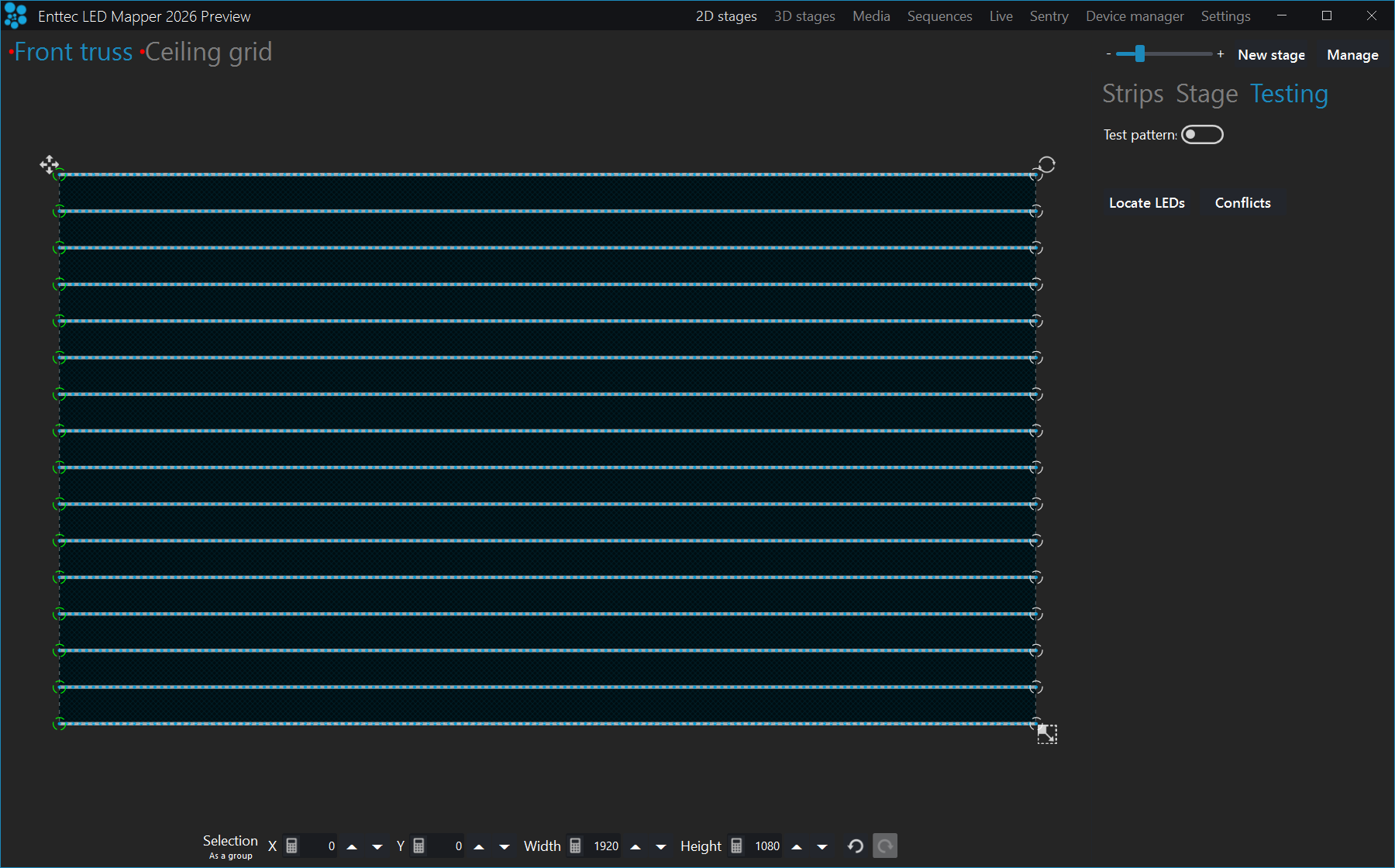
Locate LEDs and Conflicts are there either way.| Control | What it does |
|---|---|
| Test patterns On/Off switch | Activates the generation of test patterns. While it is on, this stage's output is the test rectangle and nothing else. |
| Colour | Changes the colour of the testing rectangle. Handy to test the colour component order of your strips. Type values in the R, G and B boxes, or click one of the seven swatches beside them — red, yellow, amber, green, cyan, blue, white — to set a pure colour in one click. The two remaining buttons are not solid colours: the rainbow button spreads a rainbow across the rectangle, and the grey-gradient button spreads a grey ramp across it. Both are useful for spotting LEDs that are out of order or missing a channel. |
| Int. | Sets the output intensity of the test, from 0 to 100. Use it to run the test at a level your eyes and your power supply can live with. |
| Width, Height | Changes the size of the testing rectangle. Each row also has three buttons: Max makes the rectangle fill the stage in that direction; the bar button makes a thin bar — 10% of the stage wide (or tall) and full height (or full width); and the moving-bar button makes that bar sweep across the stage by itself, so you don't have to drag anything. |
| Test selected strips only | If checked, only the selected strips in the Strips tab will be under test. The other strips will all be off. |
| Highlight 1st LEDs | Highlights the first LED of each strip on top of the test pattern, so you can see where each strip starts. It does not turn the other LEDs off — the rest of the test carries on as normal. |
| Locate LEDs | Locates each LED in the real world by going through a list. Alternatively, you can put the mouse over a LED in the editor. The LED number and its DMX address are displayed, which is handy to count the LEDs and troubleshoot addresses. |
| Conflicts | Analyzes all patched LEDs of the current stage and looks for overlapping DMX addresses. In some situations you may want to have duplicated LEDs on the stage, but if this isn't the case, you should adjust the DMX addresses. |
Pro tip: Reduce the width and height of the testing rectangle and drag the rectangle around the stage. This way, you can see if the patch order is right. For example, if dragging the rectangle from left to right makes the LEDs go on from right to left, then you know you need to flip them horizontally. To do so, go to the Strips tab and click the Flip X button. If you'd rather watch the rig than the screen, click the moving-bar button beside Width and let ELM sweep the bar for you.
Pro tip: Quickly test the red, green and blue component order of your LEDs by generating a pure red, pure green and pure blue test. For each test, note the colour of your LEDs. If you're not getting a RGB order, edit your LED strips and select the LED type corresponding to the order you've observed (BGR, GRB, GBR…).
Pro tip: While the testing mode is active, the DMX is constantly being output at the full output rate, even when there's no change. This is handy while you're configuring your LED controllers and want to see if it's working. This is also a good way to test whether your network supports the load.
Pro tip: Use the "Test selected strips only" option, go in the Strips tab and change the selection in the strip list. This is similar to traditional lighting consoles' locate function.
Testing a 3D stage
A 3D (voxel) stage has its own Testing tab, on the right of the 3D stage page. It does not use a rectangle — it runs one of eight patterns through the volume, sent as real DMX, so you can check that the rig in front of you is wired, addressed and oriented the way you think it is. The patterns and their controls are documented under 3D stages.
Stages manager
Select multiple stages in the list to modify them all at once. The first stage of the list is the bottom media layer and the following stages can override any preceding stages. Drag and drop stages to reorder.
Type in the filter box at the top right to narrow the list. Right-click the list for Select all (Ctrl+A), Deselect (Ctrl+D) and Invert selection (Ctrl+I); the shortcuts also work anywhere in the window. On a show with many stages, that is how you build the multi-selection the buttons at the bottom act on.
Each row carries its own controls. Three of them sit at the end of the row and are easy to walk past: a small screen icon with no label at all, a DVI button and a ... button.
| Control | What it does |
|---|---|
| Name | The name of the stage. Select a stage to edit its name. |
| Size | The size in pixels of a stage. |
| Merge mode | Specifies how this stage combines with what is below it when several stages target the same LEDs. The merge starts with the stage in the first row — the bottom of the stack — and works down the list, so a stage's mode acts on the result of every stage above it in this list. Reorder with drag and drop. See Stage merging and layering for what each mode does. |
| Test patterns | Activates the testing mode and shows the test patterns. It is a shortcut to the switch on that stage's Testing tab. |
| NDI output | Streams the LED rendering via NDI to be used by 3D visualizers like WYSIWYG, Capture or Realizzer. This way you don't need to patch your LEDs in the visualizer and you get a very high quality and live LED rendering. |
| Monitor (screen icon) | The small screen icon at the end of each stage row opens a monitor window for that stage, to help you see the final result of the mapping. See Monitor window. |
| DVI | Opens a window to output the video to a projector or TV. The position of the window is saved in the project file. You can output the media or the LED map. The LED map is exactly the size of the stage and one LED is exactly one pixel. This is required for systems taking a video input like Martin P3. |
| ... | Opens a menu of the extra actions for that stage: Duplicate, Copy, Export LEDs position image and Export LEDs CSV. These are not buttons on the row — you reach all four from this menu. |
| ... → Duplicate | Copies the stage to get a new media layer. |
| ... → Copy | Copies the strips of the stage to quickly update other stages. Apply them with Paste. |
| ... → Export LEDs position image | Exports a PNG image showing the exact position of every LED. Useful for motion designers as they can use the snapshot as a content guide. |
| ... → Export LEDs CSV | Exports a CSV file containing the information about all LEDs. |
| New | Creates a new stage. |
| Resize | Resizes all selected stages. |
| Paste | Pastes the copied strips on the selected stages (replaces content). Useful when you use multiple stages as layers. |
| Delete | Deletes all selected stages. |
Pro tip: You can use ELM to output video to a projector or TV without controlling LEDs. Simply create a stage and don't put any LEDs on it. Then in the stages manager, click on the DVI button.
3D (voxel) stages are not listed here. They have their own Manage 3D stages dialog, where each row has Monitor, Edit LEDs and Delete buttons and a New button at the bottom. Merge order, test patterns and NDI don't apply to them, so those columns are absent.
3D stages
A 3D stage is a volume of LEDs — a cube, a hollow cube, a sphere or a cylinder — that ELM drives as one rig. ELM slices the volume into parallel depth planes, evaluates your media once per plane, and sends the result to the LEDs. Everything you already know about stages still applies: media, effect layers, intensity, colour, speed, sequences and remote control all work on a 3D stage.
Open the workspace with 3D stages in the top menu, next to 2D stages.
Each 3D stage is a tab. With no stages yet the screen reads
No 3D stages yet. Build a cube, sphere, cylinder, or imported point cloud, then drive it as a
live volume that 3D effects sweep through by depth. with a New 3D stage button
under it. Ignore the words "imported point cloud" there — point-cloud import is not in this release and
there is no Import button. Build your rig from one of the four shapes.
The old 3D tools screen is gone. In ELM 2025 a 3D structure was built by stacking
2D stages. That workspace has been retired from the menu in ELM 2026 and is replaced by 3D stages.
If you open a project that still contains legacy 3D content, ELM shows a Legacy 3D content
warning: This project contains legacy 3D (3D tools) content, which is no longer supported in
ELM 2026. To view, edit or convert that content, please keep this project in ELM 2025.
The 2D stages the structure was stacked from load normally and keep outputting on their existing DMX addresses — it is the 3D structure on top of them that is gone. Nothing converts it for you. There is no conversion command in ELM 2026: if you need that content as a 3D stage, keep the project in ELM 2025, or rebuild the rig here as a 3D stage and re-patch it.
3D Stage. New 3D stage and Manage are top right, and the axis gizmo at the bottom left shows Y up.How the volume is oriented
Read this before you create a rig. One set of world axes governs the shapes, the run axis, the depth axis, the projection faces, the test sweeps and the viewport:
| Axis | Direction |
|---|---|
| +X | To the right. |
| +Y | Up. Y is the vertical axis: a cylinder stands up along Y, and a sphere's poles sit on Y. |
| +Z | Front to back — this is depth. A flat media on the Front face extrudes along Z. |
So the Front projection face is the X–Y plane with depth receding along Z, which is why
picking Front and then clicking the Front camera button shows your media the
same way round as on a 2D stage. The viewport draws the same axes, Y up.
Two tooltips in the New 3D stage dialog still describe an older, Z-up convention:
Run axis says "Z = vertical columns", and Faces says the two open ends are the
top and bottom under Z. Both predate the axis correction and are wrong. The vertical axis is Y. Trust
the table above and the live preview, which are correct.
Create a 3D stage
Click New 3D stage (top right, or on the empty screen). The dialog builds the rig from
a parametric shape and patches it to DMX in one step. The preview on the right redraws as you type, so
check it before you click Create.
Give the stage a Name (up to 30 characters; it must be unique), then pick a
Shape:
| Shape | What it builds |
|---|---|
| Cube (solid) | Every point of the box is an LED, interior included. Set LEDs X / Y / Z (1–100 each) and Size X / Y / Z (1–10000 each). Defaults are 8 × 8 × 8 LEDs over 100 × 100 × 100. |
| Cube (hollow) | Only the surface of the box is lit — the shape most installations actually are: strips around a booth, a room lined on its walls, a light box. Same counts and sizes as the solid cube, plus Faces. |
| Sphere | Rings and Segments (1–512 each) and a Radius (1–10000). Each ring is one strip. Defaults 12 rings × 24 segments, radius 50. |
| Cylinder | Stacks and Segments (1–512 each), Radius and Height (1–10000 each). Each segment is one strip, running up the height, so you get one strip per segment and each is Stacks LEDs long. Defaults 10 stacks × 24 segments, radius 40, height 120. |
The size fields carry no unit. They set the rig's proportions and how big it is in the 3D view; the LED counts, not the sizes, decide how many fixtures you get.
Faces appears for the hollow cube only. Ticking Close the two ends gives a
closed box — all six sides, for a cube people walk around. Clearing it leaves the four walls with both
ends open, which is what a room, a booth surround or a floor-standing cube needs.
Which two ends are open is decided by the Run axis: they are the two
faces that axis points at. With the default Z the open ends are the front and back.
For the usual booth or room — walls all round, open at the top and bottom — set the run axis to
Y, which also makes the wall strips run vertically. Set it before you click
Create: the run axis cannot be changed afterwards. The preview redraws as you change it, with
Y up, so you can see which two faces are open before you commit.
A closed hollow cube looks identical to a solid one from outside, because the LEDs it drops are the
ones nobody could see. The preview therefore states what you saved — for example
216 fewer than solid (512) — under the LED count.
Addressing
| Control | What it does |
|---|---|
| Run axis | The axis each physical strip runs along. Y gives vertical runs, X gives runs across the width, Z gives runs front-to-back through the depth. The default is Z. Cubes only — a sphere always runs along its rings and a cylinder up its height. You cannot change this after the rig is built: strip membership is fixed when the fixtures are generated, so a different run axis means building the stage again. On a hollow cube it also decides which two faces are open. |
| Snake (serpentine) | Addresses alternate strips in reverse, so there is no return jump between runs. On by default. |
| New universe per strip | Starts each strip on a fresh universe instead of packing strips back to back. Off by default. It costs at least one universe per strip, however short the strip is. |
| DMX protocol | Art-Net, sACN, KiNet and the other output types, as for a 2D stage. |
| LED type | The channel order of your product (RGB, GRB, RGBW and so on). Picking a white type adds the per-emitter colour temperature fields. |
| Bit depth | 8 or 16 bit. 16-bit uses two DMX channels per colour for smoother fades and doubles the channel footprint of the whole volume. Pick it here or change it later in Edit LEDs. |
| Start universe | First universe of the rig (0–32767). |
| Start address | First channel in that universe (1–512). |
If the rig does not fit in the universes you have, ELM says so and creates nothing:
The 3D rig does not fit in the available DMX universes. 16-bit uses twice as many channels per LED
as 8-bit, so try 8-bit, fewer LEDs, or a lower start universe.
Advanced — depth
slicing
Expand Advanced — depth slicing only if you want to control how the volume is cut up.
The rig is decomposed into parallel planes along the Depth axis, and your media is
evaluated once per plane. Depth slices (1–256) is how many planes there are.
Depth axis defaults to Z for every shape, whatever the run axis is.
It is the same setting as Projection face on the Stage tab, named for the
axis instead of for the face: Z is Front, Y is Top,
X is Side. The two cannot disagree, and unlike the run axis this is not a
permanent decision — change it from the Stage tab whenever you like and the volume re-slices and the
media re-projects, without ever re-addressing the rig.
ELM derives the slice count from the shape you are building and from the depth axis — a 20 × 8 × 4
slab is 4 deep seen front-on but 20 deep from the side. The preview states the result next to the LED
count: 16 depth slices — one per layer of the rig, or
8 depth slices for 16 layers — layers will share content when the two do not match. Every
LED snaps to its nearest plane, so a mismatch means pairs of physical layers show identical content.
If you type a value yourself it is kept and no longer follows the shape; a coarser count is a
legitimate way to buy back rendering cost on a deep rig. You can change the count again later in
Edit LED arrangement.
The preview
The right half of the dialog draws the rig as points, with the LED count, the saving line for a
hollow cube, and the slice line. Show LED wiring (on by default here) draws the chain
order over the rig, and ◀ / Play / ▶ steps or animates a
highlight along it so you can see where each run starts and which way it goes. Very dense rigs are
thinned on screen only; the stage you create uses every point.
The four shapes above are not the only way to build a rig. For anything else — a cone, a tree, a sign,
a scanned sculpture — use Import… in the 3D stages toolbar, which builds a stage from a CSV
list of LED positions and their DMX patch. See
Import a 3D stage from CSV.
The DXF, CSV and xLights imports on Settings → Project → Import are a different feature:
they load into a 2D stage, not into a volume.
The 3D stage page
Each tab shows the volume on the left and a Stage / Testing panel on the
right, laid out like a 2D stage page. Drag the divider to widen the panel.
Moving the camera
Drag to rotate, scroll to zoom, Shift+drag to pan. The same hint is printed along the bottom of the viewport. Four buttons sit above the volume:
| Control | What it does |
|---|---|
| Reset | Back to the default view. |
| Front | Look from the front, along −Z. X runs screen right and Y screen up, so with the Front projection face your media appears the same way round as on a 2D stage. |
| Top | Look down from above, along −Y. Note that world X lands screen left from here, so media on the Top face reads mirrored in the viewport. The rig itself is not mirrored; only this viewpoint is. |
| Side | Look from the side, along −X, Y still up. Same mirror caveat as Top: world Z lands screen left. |
The viewport uses the axes above — Y up, X right, Z front-to-back — matching the rig model, the projection faces and the New 3D stage dialog's preview. A 3D stage built in an earlier ELM 2026 build appears rotated compared with before: that is the correction — the rig, its addressing and its output are unchanged, only which way the preview points the camera.
Stage tab
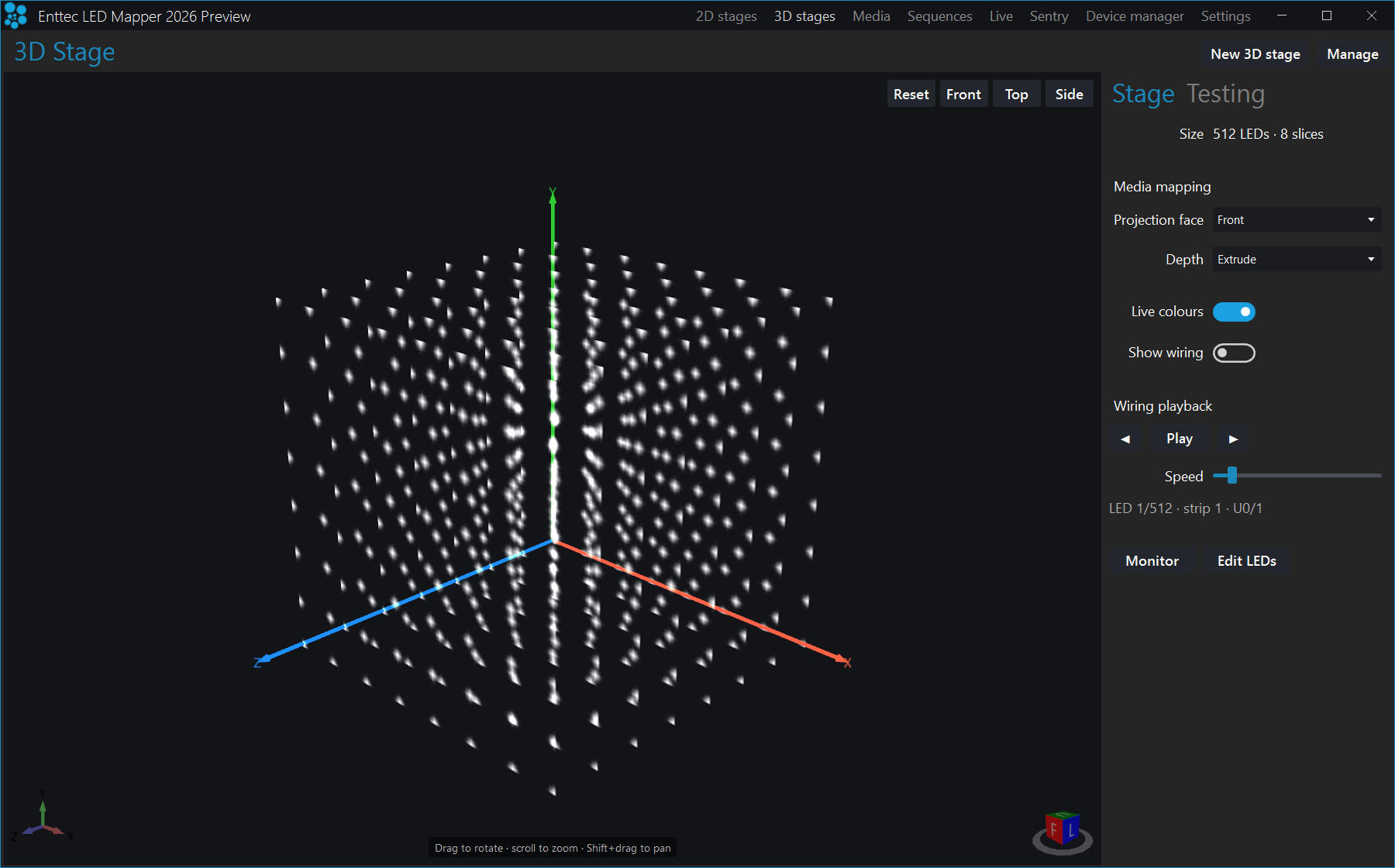
| Control | What it does |
|---|---|
| Size | Read-only summary of the rig, for example 512 LEDs · 8 slices. |
| Projection face | Which face of the volume a 2D media lands on: Front, Top or Side. This is the same setting as Depth axis in the New 3D stage dialog (Front = Z, Top = Y, Side = X), so changing it also changes the axis the volume is sliced along. Pick Front here and click the Front camera button to see your media the same way round as on a 2D stage. |
| Depth | How a flat media fills the volume's depth. Extrude projects it onto every plane. Front plane only lights the single frontmost depth slice and leaves the rest dark, so a rig with real depth reads like a flat 2D stage. Works for every media type — text, images, video, capture, NDI, Spout and effects. For a hollow rig, use Extrude: with no LEDs inside it, projecting through the volume is what lands your effect on the surface. Earlier builds called Front plane only "Surface", which read as though it mapped onto the shape of the rig; it does not, and on a hollow rig it lights a sliver and leaves the rest dark. |
| Live colours | Paint the live per-fixture colours onto the volume, so the preview shows what the rig is actually doing. On by default. |
| Show wiring | Draw the per-strip wiring path over the rig. Off by default — it is a commissioning aid, and it sits on top of your content. The playback highlight only animates while this is on. |
| Wiring playback | ◀ and ▶ step one LED back or forward along the DMX address order; Play runs the highlight. The readout underneath names the highlighted LED — LED 1/512 · strip 1 · U0/1 — so you can read its strip, universe and address off the rig. |
| Speed | How fast the wiring highlight runs (1–120). |
| Monitor | Open a 3D voxel stage monitor window for this rig. It is output only — all the controls stay on this page. |
| Edit LEDs | Open Edit LED arrangement for this stage: LED type, wiring, bit depth, DMX addressing and slice count. |
Projection face and Depth apply as soon as you pick them — there is no
Apply step — and neither one re-addresses the rig. Flip between faces freely on a patched installation
to find which way round your content wants to be.
Scan has been removed. Earlier builds offered a third Depth mode called
Scan, described as a moving cross-section. It replaced the media's vertical axis with the depth
position, so the picture did not vary vertically inside a plane and its own top-to-bottom detail was
spent on depth; it also only ever did anything for shader effects. Projects saved with Scan open on
Extrude.
Testing tab
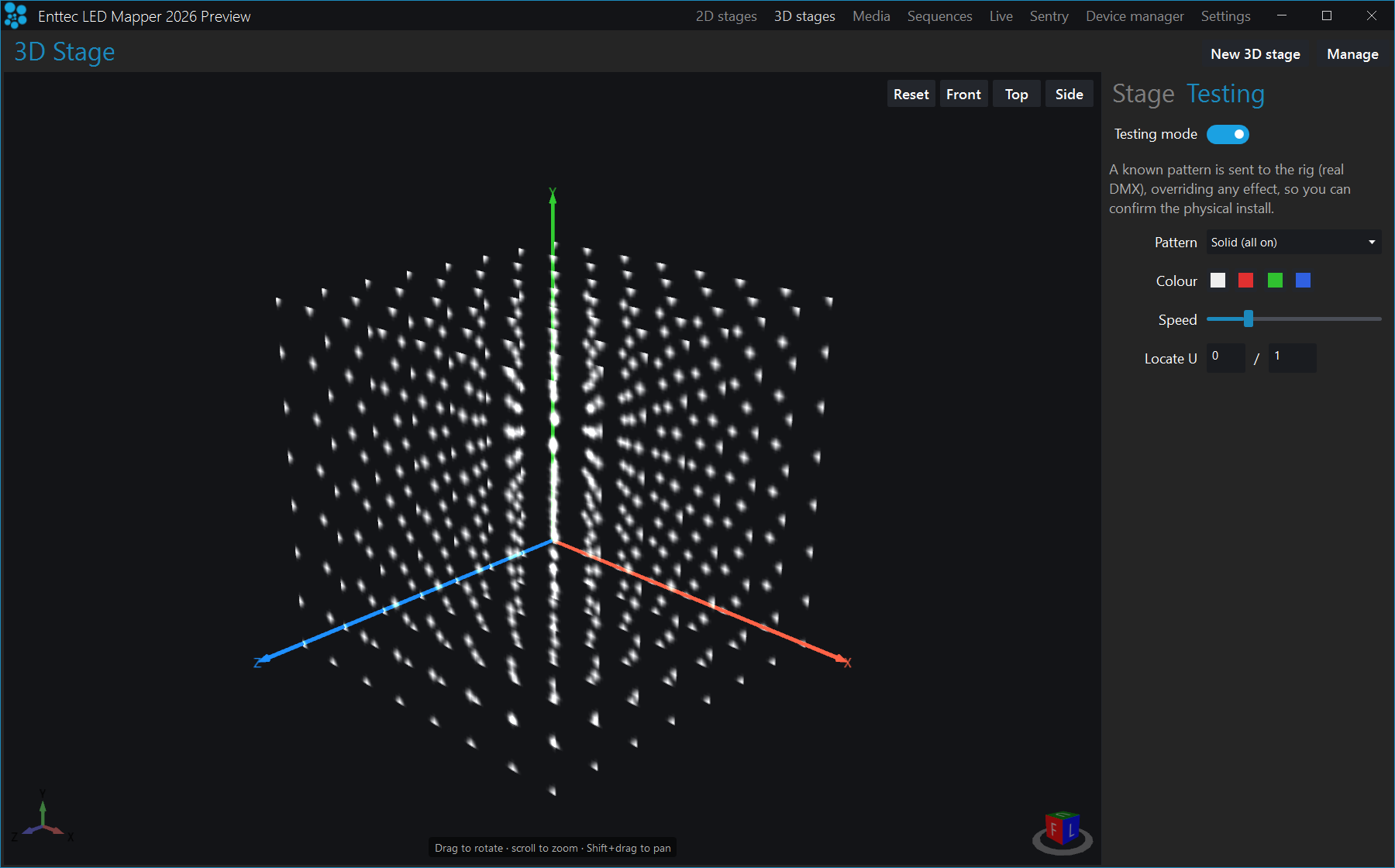
Turn Testing mode on to send a known pattern to the rig. This is real
DMX and it overrides any effect on the stage, so use it to check a physical install, not
during a show. Turning it on also switches Live colours on so you can see the override in
the preview. The rest of the fields appear once the switch is on.
| Control | What it does |
|---|---|
| Solid (all on) | Every LED lit. Confirms nothing is dead and the colour order is right. |
| Sweep X / Sweep Y / Sweep Z | A plane sweeps along that world axis. A sweep along the depth axis lights exactly one depth slice at a time, in order. |
| Position → RGB | Colours each LED by its position in space (red from X, green from Y, blue from Z) — a smooth gradient through the volume. Any LED in the wrong place shows as a wrong colour. |
| Per-universe colour | Colours each LED by its DMX universe. Confirms the universe patching. |
| Address chase | Runs a single dot along the DMX address order. Confirms the wiring chain. |
| Locate LED | Lights one LED and leaves the rest dark, so you can find it on the rig. |
| Colour | White, red, green or blue for the pattern. |
| Speed | Sweep and chase speed (1–10). |
| Locate U | The universe and address of the LED to light, for Locate LED. Enter them as universe / address. |
Edit LED arrangement
Open it with Edit LEDs on the Stage tab, or from Manage. This window is
about addressing only — LED positions do not change here, and the projection face and depth mode live
on the Stage tab.
The header states what the rig actually is, for example 512 LEDs in 64 strips of 8, running
along Z. and, under it, the DMX footprint of your current choices: 3 channels per LED —
1,536 channels, about 4 universes. That second line updates live as you change LED type, bit
depth or universe packing, so you can see whether 16-bit still fits before you commit.
| Control | What it does |
|---|---|
| Wiring | Snake (serpentine) and New universe per strip, as in the New 3D stage dialog. |
| DMX protocol | Output protocol for the rig. |
| LED type | Channel order of your product. White types add the per-emitter Kelvin fields and, for dual and triple white, a When dimming choice. |
| Bit depth | 8 or 16 bit. Apply re-addresses the whole volume; 16-bit doubles every LED's channels. |
| Start universe / Start address | Where the rig starts on the wire. |
| Depth slices | Number of depth planes (1–256). The volume re-slices live, so you no longer have to rebuild a stage to change it. |
| Apply | Re-addresses the rig. If the new addressing no longer fits your universes, ELM says so and leaves the rig exactly as it was. |
The run axis is shown in the header but cannot be changed. Strip membership is fixed when the rig is
created, so to run the strips along a different axis you have to build the stage again — see
How the volume is oriented for what each axis means. Nor is there a
per-strip re-address here: the controls above apply to the whole rig. If the Address chase
test shows the generated order does not follow your cable, Snake (serpentine) and
New universe per strip are the only two things you can change; anything else means
re-wiring the rig to match, or rebuilding the stage.
Manage 3D stages
Click Manage (top right) to open Manage 3D stages — the list of your 3D
stages, with the same actions per row.
| Control | What it does |
|---|---|
| Name | Click the name and type to rename the stage. The tab header follows. |
| LEDs / slices | Summary of the rig, for example 512 LEDs · 8 slices. |
| Monitor | Open the live monitor window for that stage. |
| Edit LEDs | Open Edit LED arrangement for that stage. |
| Delete | Delete the stage. ELM asks first and tells you how many LEDs and depth slices go with it. |
| New | Open the New 3D stage dialog. |
Driving a 3D stage
3D stages take their media from the normal media and Live workflow — there is no effect control on
the 3D stage page. Go to Live, select the 3D stage, and click a media in the bank exactly
as you would for a 2D stage. Intensity, speed, the colour picker, effect layers, layer solo and the
CCT fader for tunable-white fixtures all apply to a 3D stage and update the volume immediately.
In the media bank an effect marked with a small 3D badge varies with depth: it is
evaluated once per depth slice and fills the volume in true 3D. Anything else is flat, and the
Depth setting on the Stage tab decides whether it fills the volume
(Extrude) or lights only the front plane (Surface). A layer stack you saved
from a 3D stage carries the badge too, but there it only records where the stack came from: a saved
stack is flattened to one image, so it extrudes like any other flat media.
3D stages also appear in the stage picker when you create or edit a sequence group, alongside your 2D stages, and a group can mix both. Recording a step captures the 3D stage's look — effect, intensity, colour, speed and transition — and replaying it brings the look back.
Import a 3D stage from CSV
The four parametric shapes cover cubes, spheres and cylinders. Anything else — a cone, a tree, a sign, a scanned sculpture, a facade — comes in as a CSV. One row per LED: where it sits in space, what kind of pixel it is, and its DMX patch.
ELM does not address an imported rig. The file is the patch. Every LED brings its own protocol, universe and address, and ELM uses them exactly as written. That is the whole idea: the addressing is done in whatever tool laid out the rig, by whoever knows how it is wired, and ELM's job is to read it faithfully and tell you precisely what is wrong when it cannot.
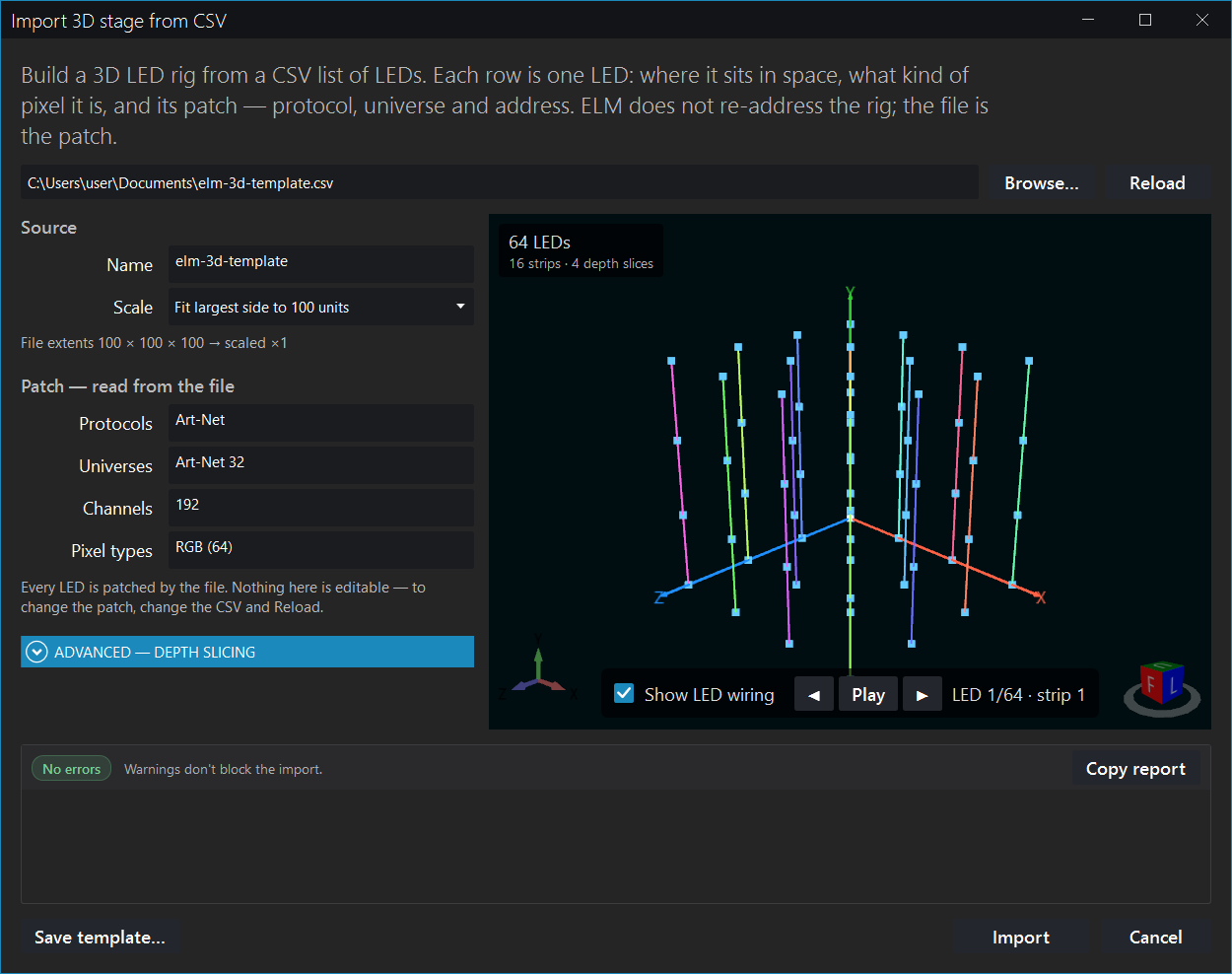
Patch — read from the file is read-only: it reports what the file asked for. The preview states 64 LEDs, 16 strips · 4 depth slices.Open it
Go to 3D stages and click Import… at the top right. With no 3D stages yet,
click Import from CSV on the empty screen. Nothing is created until you click
Import, so it is safe to open the dialog and look.
The columns
The header row names the columns; the order they appear in does not matter, and names are matched regardless of case. Eight columns are required.
| Column | Required | What it is |
|---|---|---|
| x, y, z | Yes | The LED's position. Use any unit you like — millimetres, centimetres, inches — as long as you use the same one throughout. The file carries no unit; Scale sorts it out on import. |
| protocol | Yes | ArtNet, sACN, KiNetV1 or KiNetV2. It is per LED, so one rig can span protocols. |
| universe | Yes | The universe number as ELM shows it. Art-Net counts from 0, KiNet from 1, and sACN from your project's sACN display offset — the same numbers you see everywhere else in ELM and on your gateway. |
| address | Yes | The LED's first channel, 1–512. |
| type | Yes | The pixel type, which sets how many channels the LED uses. It must be one ELM supports — the list is below. |
| bits | Yes | 8 or 16. 16-bit doubles the channels each pixel uses. |
| strip | No | Which physical run the LED is on. It drives the wiring view and the LED order. Leave the column out and ELM splits runs wherever the addresses jump. |
| order | No | The LED's position along its run, from 1. Leave it out and the row order in the file is used — but then sorting the sheet in a spreadsheet silently re-wires your rig, so it is safer to keep it. |
| name | No | A label for the run. |
Lines beginning with # are ignored, so you can keep notes in the file. Comma, semicolon
and tab separators all work, and a comma used as a decimal mark is understood.
Pixel types
| Channels | Type |
|---|---|
| 3 | RGB, RBG, BGR, BRG, GRB, GBR |
| 4 | RGBW, RGBWmax, RBGW, GRBW, WRGB, WBGR, RGBA |
| 5 | RGBWA, RGBAW |
| 1 / 2 / 3 | WhiteSingle, WhiteDual, WhiteTriple — white fixtures by emitter count. Their colour temperatures are set in ELM, not in the file. |
Older white types (White, WhiteCool, WhiteNeutral,
WhiteWarm, WWA, WAW, AWW) still import so that a file
exported from an older project keeps working, but they raise a warning pointing at the three above.
A type and a bit depth are separate columns. Writing RGBW8 in the type
column is the most common mistake; it is type = RGBW and bits = 8.
Making the file
Start from the template
Click Save template… at the bottom left and choose where to put it. ELM writes a working
example — a 4 × 4 × 4 cube of 64 RGB LEDs in 16 vertical runs, patched from Art-Net universe 32 — with
every column filled in and explained in the comments at the top. The dialog then loads what it wrote, so
you immediately see a valid import before you change anything.
Edit it in a spreadsheet or a text editor, come back, and click Reload.
Generate it from your own tool
Anything that can write a CSV can feed ELM: a spreadsheet, a Python script, an export from the CAD or 3D package the rig was designed in. You only need the eight required columns.
Let an AI assistant write it
This is the fastest route for a shape you can describe but would not enjoy typing out. Give an AI assistant the template file, tell it what you want, and ask for a CSV back in the same format:
Here is the CSV format ELM uses for 3D LED stages — the columns are explained in the comments. Generate me a cone: 1.8 m tall, 1.2 m across the base, 12 vertical runs of 50 pixels each, RGB at 8-bit, Art-Net starting at universe 10 address 1, each run on its own universe.
The maths — placing points around a cone, walking the addresses up each run, rolling to the next universe — is exactly what these tools are good at, and it is the part that takes a person an afternoon. Ask for a change ("make it a spiral", "put the seam at the back", "double the pixel density near the top") and you get a new file in seconds.
Then let ELM check it. This is what makes the approach safe: you do not have to trust the file. Load it, read the validation panel, and paste any errors straight back to the assistant — the messages name the line and say what to fix, which is as useful to a machine as it is to you. Two or three rounds is normal.
Two things to confirm yourself, because no assistant can know them:
- The patch has to match your real rig. The universes, addresses and run lengths must be what your controllers are actually set to. A file that imports cleanly can still be addressed for a rig you do not own.
- The shape has to match what got built. Compare the preview against the real thing
before you rely on it — and use the
Testingtab afterwards, which sends real DMX patterns to the rig so you can confirm each LED is where ELM thinks it is.
Scale
The file has no unit, so ELM measures the whole rig first and then scales it. Fit largest side to
100 units makes the rig's longest side 100 units and scales the other two to match, so a cone drawn
in millimetres and the same cone drawn in inches import identically. The line under the control reports
what happened — File extents 100 × 100 × 100 → scaled ×1.
Choose Multiply the file's coordinates and enter a Factor if you want the
file's numbers used as they are, or scaled by a figure you pick. Scaling is always uniform, so the rig is
never distorted.
The rest of the dialog
| Control | What it does |
|---|---|
| Name | The stage name, taken from the file name and made unique. Up to 30 characters. |
| Patch — read from the file | Read-only. Protocols, Universes, Channels and Pixel types report what the file asked for, so you can check the patch before importing. To change any of it, change the CSV and click Reload. |
| Browse… / Reload | Pick a file, or re-read the one you have. Reload is the button you will use most: fix the file in a spreadsheet, click it, look again. |
| Show LED wiring | Draws the chain order over the preview. ◀ / Play / ▶ steps a highlight along it, and the readout names the LED and its run, so you can check the wiring order before you commit. |
| Advanced — depth slicing | Depth axis and Depth slices, as in the New 3D stage dialog. ELM derives the slice count from the depth of your rig; set it yourself only if you want to override that. |
| Copy report | Puts the whole validation report on the clipboard — useful when the person who made the file is not the person at the machine. |
Errors and warnings
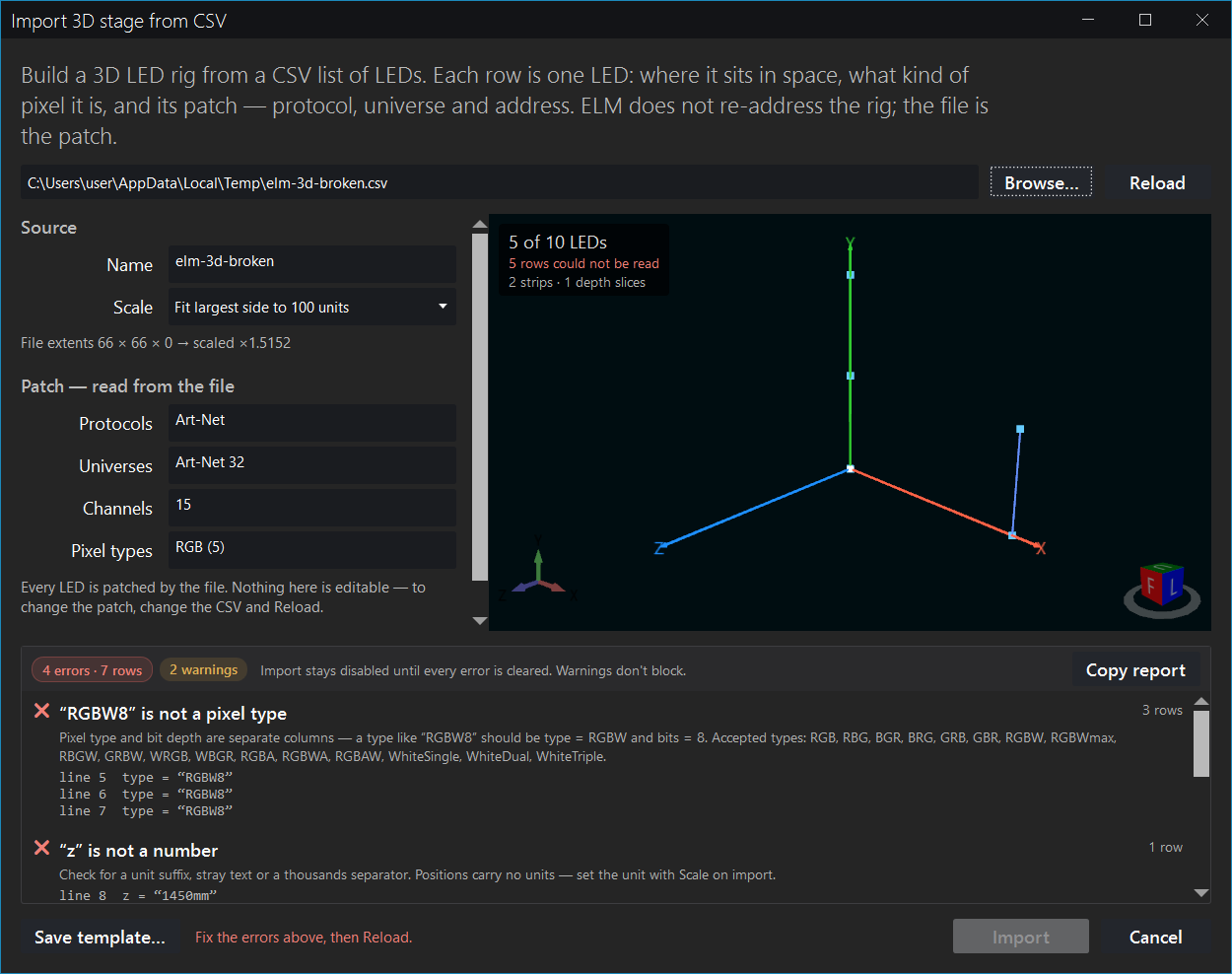
Import stays disabled until every error is cleared.Errors block the import; warnings do not. The badges above the list give the counts, and each finding names the offending lines and says what to do about it. Problems are grouped by kind — a file saved with the wrong separator produces one finding with every row behind it, not one finding per row.
Rows that fail are dropped, and the preview says so: 5 of 10 LEDs,
5 rows could not be read. The rows that are fine still draw, so you can see how close the
rig is while you fix the rest.
Errors include: a missing required column; a position, universe or address that is not a number; an unknown protocol, pixel type or bit depth; a universe or address outside the legal range; a patch that runs past the end of its universe; two LEDs sharing a DMX channel; two LEDs claiming the same position on a run; and more LEDs than one 3D stage can hold.
Warnings include: a retired pixel type; two LEDs at the same position; gaps in order;
a flat rig, where every LED shares one coordinate; an unused column; a run spanning two protocols;
unused channels inside a patched universe; a very large LED count; a 3D structure thicker than a computer
comfortably draws; and a universe another stage is already driving. That last one is deliberately only a
warning — sharing a universe is usually a mistake, but sometimes it is exactly what you meant.
How big a rig can be
Two size guards run on every import. They report in the same list as everything else, and both are about how smoothly the rig will run once it is in — not about whether the file is correct.
LED count. Above 20,000 LEDs you get a warning: the rig still imports,
but expect the 3D view to become less responsive. 200,000 LEDs is the limit for one 3D
stage: past that it is an error and the import is blocked. The limit cannot be raised, so split the rig
across several 3D stages — each one carries its own share of the LEDs with its own patch, and they play
together.
LED count is rarely the thing that actually slows a rig down, though. How thick the structure is matters more — see depth slices below — and on a large rig the network usually runs out first: every DMX universe is one packet per frame, so around 5,900 universes at 30 FPS will fill a 1 Gb network card whatever the rest of the computer is doing. Settings → Benchmark measures all of this for your machine.
Depth slices. Above 48 slices you get a warning. It is advice, not a
limit: the rig imports either way. The live 3D picture draws every slice on top of the last, so the
slice count is the first thing to turn down when a 3D stage is expensive to draw. Lower
Depth slices under Advanced — depth slicing, or pick a Depth axis
that sees fewer layers — a wide, shallow rig is shallow from the front and deep from the side. Every LED
snaps to its nearest plane, so a coarser count means pairs of physical layers show identical content,
which on a deep rig is usually a fair trade for what it saves.
The warning counts the slices the stage will actually be built with — the number ELM worked out
from your rig, or the number you set yourself under Advanced — depth slicing — so it follows
whatever is in the box. Set the count to 48 or fewer and the warning clears; set a bigger one
and it comes back. Changing the Depth axis re-checks it too, since a different axis sees a
different number of layers. When the rig has more layers than the slice count it will get, the warning
says both, so the figure it names is never mistaken for the depth of the rig: The rig is 213 depth
layers deep and will be sliced 100 ways. To find out what this computer can carry, run the 3D stage
test on Settings → Benchmark.
After importing
The rig becomes an ordinary 3D stage: it appears as a new tab, and everything in
3D stages applies to it — projection face, depth mode, the monitor, the testing
patterns and the wiring playback. The one thing to know is that Edit LEDs re-addresses a rig
from a recipe, which would discard the patch your file supplied. To change an imported rig's addressing,
change the CSV and import it again.
For a hollow rig — a cone, a sphere shell, a sculpture with nothing inside it — leave Depth
on Extrude. Projecting through a volume that has no interior lands the effect on its surface,
which is what you want. Front plane only lights the single frontmost depth slice and switches
the rest of the rig off.
Media library
Shortcut key: Alt+M.
You can manage your media and see what's active. Up to 255 media items can be loaded.
To add a media, click the round + button on an empty slot and pick a type from the menu. To load several video or image files in one go, use Batch add.
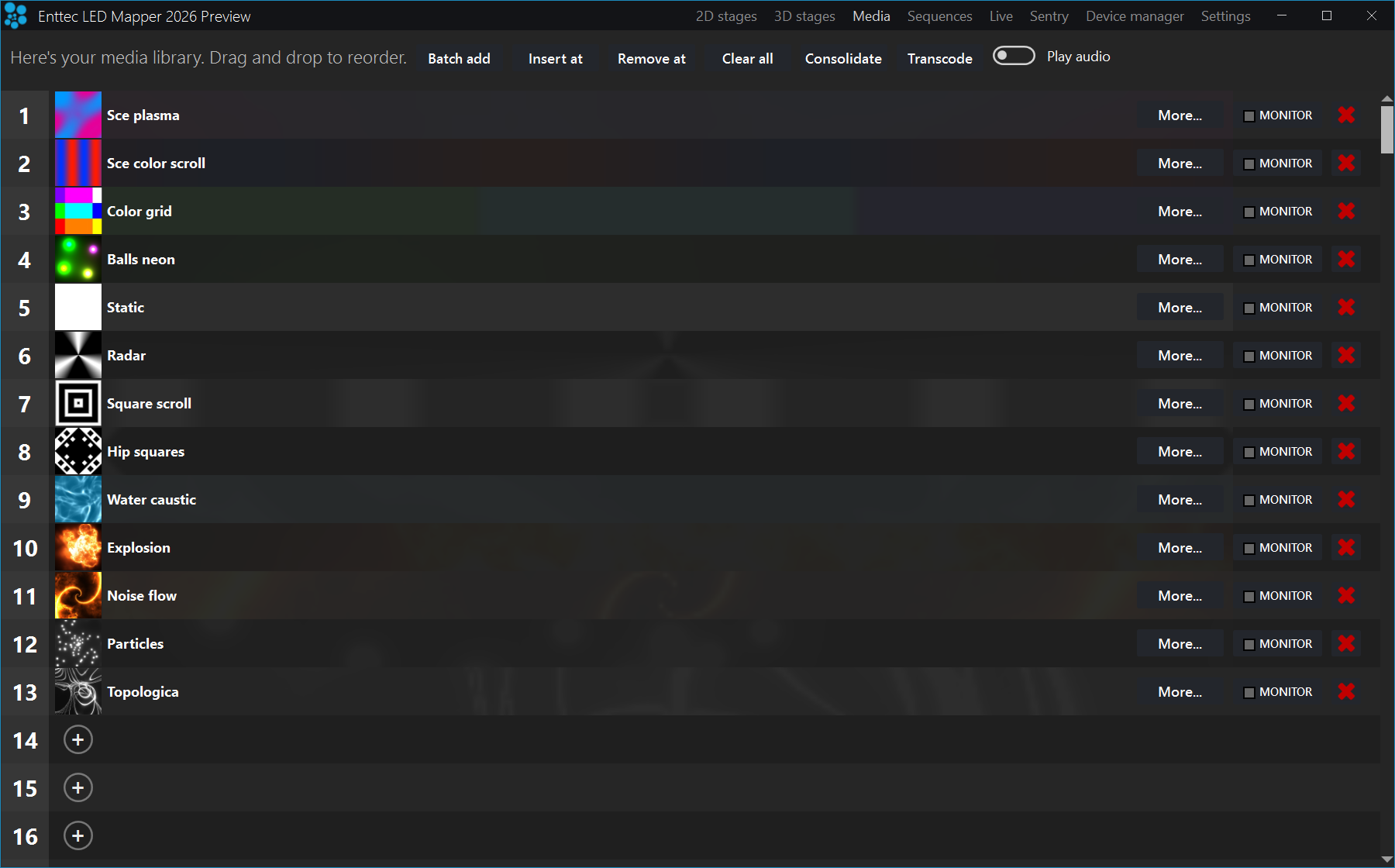
More… menu, a MONITOR button and a red cross to clear the slot; the round + on slot 14 and below adds media.| Control | What it does |
|---|---|
| Batch add | Loads multiple video and picture files at once. |
| Insert at / Remove at | Inserts or removes a slot and offsets other media accordingly. |
| Clear all | Resets the library. |
| Consolidate | Copies all files in the same directory to make it easy to move your project file to another computer. |
| Transcode | Transcodes one or several videos at once to MPEG4 in an .avi file, which plays on all computers. In the Video transcoder window you set Video width and Video height — leave Auto ticked on either one to keep the original size and aspect ratio — a Target FPS (No changes, 30, 60, 90 or 120), Contrast, Brightness, Grayscale, Remove audio and a Destination path. Resizing a video closer to your rig's pixel count and lowering the frame rate are the two quickest ways to cut playback load. |
| Play audio | For videos, plays the audio track if available. |
| Playback position indicator | For videos, shows the position and allows seeking, which is handy for long videos to test specific parts. |
| More... | The button on the right of each slot. What it offers depends on the media. For a video: Select another file, Rename the file, Duplicate, Transcode. For an image: Select another file, Rename the file, Duplicate. For a live media such as a capture device, screen capture, text, Spout, NDI, MJPEG or DMX bitmap: Replace, Duplicate and Configure. Configure reopens that media's own settings window, and it is the only way to change those settings after you have added the media. |
| Monitor | Opens a window showing the images coming from a media source. Can also set a custom media thumbnail. |
| Delete | Clears a media slot and allows selecting another media. |
| Swap items and reorder | You can swap items by using drag and drop. |
Video files (with or without audio)
ELM decodes video with its own built-in video engine, so you do not need to install codecs. Installing a DirectShow codec pack changes nothing for video files. ELM can play these files: .mov, .avi, .wmv, .mpeg, .mp4, .mp2, .mkv, .webm, .ogv and .ogg. There's no video size and resolution limits. The audio track is played back on the default sound device. If not needed, you can remove the audio by using the transcode button.
The recommended video format is MPEG4 in an avi file. For smaller files at the expense of a higher CPU usage, you can use H264 in an avi file.
Picture files
Use images like bmp, jpeg, gif (animated or not) and png.
Effects
The built-in effects give you pixel-perfect and configurable visuals. ELM ships 21 basic animations and 151 shader effects, each one configurable in multiple ways. Many effect parameters are controllable via the DMX remote.
Choosing Effects opens the Effect library window. It has four tabs:
| Tab | What it holds |
|---|---|
| Basic | 21 simple shape and colour animations — plain colour, lines, circles, rectangles, pulse, noise, raindrops, fireworks, snake, strobe and so on. |
| Generators | Seven parametric pattern generators: colour, colour scroll, metaballs, plasma, pulse, shapes and tubes. |
| Eye candy | The GPU shader effects, including the ones that fill a 3D stage. |
| Audio | Shaders that react to sound. They listen to the audio input you pick in Settings > Audio — there is no per-effect input choice. |
Type in the search box at the top right to filter the list by name; a tab with no match shows No effects match the filter.. Hold Ctrl to pick several effects at once, or double-click one to select it and close the window. Tick Grayscale at the bottom left to preview the shaders without colour — the box appears on the three shader tabs, not on Basic. An effect carrying a small 3D badge varies with depth and fills a 3D stage in true three dimensions instead of being painted on it as a flat picture.
You can add your own shaders. Put a GLSL or ISF fragment shader in %ProgramData%\ELM\shaders with a .frag extension and it appears in the library next to the built-in ones. If the shader starts with an ISF header comment, its inputs become the effect's parameters; a shader without one simply has no parameters. To give it a thumbnail in the picker, drop a JPEG beside it named after the shader, for example myshader.frag.thumb.jpg.
3D effects
Effects that fill a 3D (voxel) stage in true three dimensions rather than being projected onto it as a flat picture. Picking 3D effects from the + menu opens the same Effect library filtered to those effects only, so the Basic tab is hidden and the window opens on Eye candy. The same effects also appear in the normal Effects list, marked with the 3D badge.
Capture devices
Use live videos captured with a video card input or a connected camera like a webcam. All DirectShow compatible video cards, cameras and devices are listed.
Adding one opens the Select a video capture device window, where you choose three things: Device, Stream and Physical input. Stream lists every format the device offers, for example 1280x720 @ 30 fps MJPG 24-bit. Choose it deliberately: most cameras offer the same resolution in several formats at very different frame rates — a typical webcam lists 1280x720 as both MJPG at 30 fps and uncompressed at 10 fps. The format you pick is applied when the device opens. If you don't pick one, ELM uses the fastest format available at the chosen resolution. If a format saved with your project is no longer offered — after a driver update, or with a different camera on the same port — ELM falls back to the best available and notes the substitution in the log.
A device that is unplugged and plugged back in recovers on its own; ELM keeps retrying with a growing delay. A device that genuinely cannot be opened, because it is gone or held by another application, is reported once rather than every few seconds. On a computer with no camera attached the window shows No devices detected. with the controls greyed out.
Screen capture
Capture any part of your screen and use it as media in ELM. For example, play a video on YouTube and map it to your LEDs. Another utility is to capture your video editor (like Adobe After Effects) preview zone and let ELM generate a LED preview in real-time to assist your content creation. This avoids having to render your video before trying it in ELM.
Screen capture dominant colours
Capture any part of your screen and extract the dominant colours. This is useful to do colour matching between any kind of content and your LEDs.
Texts
Generate scrolling text with various fonts.
Spout (v2.007)
Use live videos generated by the most common video frameworks and VJ software. This includes Resolume, Ableton Live, Processing, Max/MSP, TouchDesigner, Cinder, OpenFramework, VVVV, Isadora, After Effects, Mapio, Unity3D and more. The Spout integration gives you total control over the content and is the way to go when you want interactive visuals.
Network Device Interface (NDI v6.0)
Receive live video streams via the network, as commonly used in professional live show productions. Easily connect ELM to a multitude of NDI compatible hardware and software, including capture cards, IP cameras and video over the cloud. NDI has been developed by NewTek.
MJPEG streams
The most basic way to receive video streams via the network. If your IP camera doesn't support the more complete NDI protocol, it should at least support MJPEG streaming.
DMX bitmap
This special media allows receiving DMX from a lighting console and converting it to a video. You can then use this video like any other media and map it on your LEDs. A common usage scenario is to control groups of LEDs with one RGB or intensity value.
Pro tip: To quickly test your installation without having the final videos, just use the built-in effects. You can create your schedules and test everything right away. Then when you get your videos, replace the built-in effects.
Pro tip: Media file paths are saved relatively to your project file. Use the consolidate feature to copy all files in a directory next to your project. Then copy everything to your other computer.
Sequences
Shortcut key: Alt+U.
The sequences section allows you to create sequences and steps (cues) for your stages and launch the perform panel for live performances. First you create groups for your stages either based on the different zones of your installation and/or the different layers. A stage can only be in one group. You can duplicate a stage (see Stages Manager) if you want to put it in multiple groups or if you'd like multiple layers like a background and a foreground. This way, you'll be able to create sequences for the background group and other punchier sequences for the foreground group.
3D (voxel) stages can be used in sequences too. A 3D stage appears in the stage picker next to your 2D stages, and one group can mix both. Recording a step captures a 3D stage's look — effect, intensity, colour, speed and transition — exactly as it does for a 2D stage. A stage that is hidden or locked is not offered; if the picker is empty it tells you so with No stages available. A stage can only be in one group and cannot be hidden or locked.
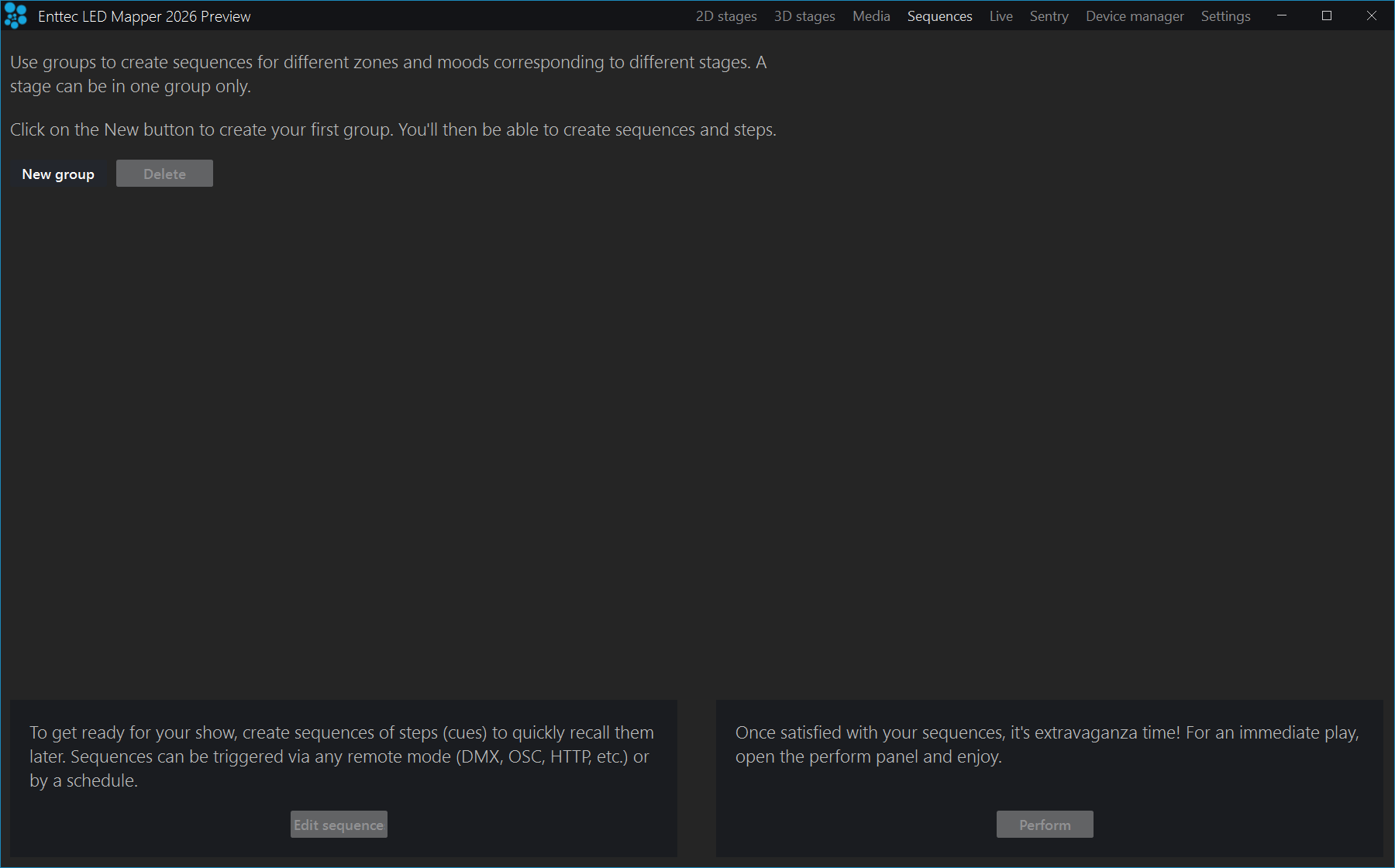
New group to start — the list described below fills in from there, and Edit sequence and Perform stay greyed out until a group exists.| Control | What it does |
|---|---|
| New group | Creates a new group of stages. |
| Group name | Click the name to rename the group. Up to 50 characters. |
| Stages | How many stages are in the group. Click the ... button in the column to choose them. |
| Sequences | How many of the group's sequences hold at least one step. |
| Steps | The total number of steps across those sequences. |
| Status | What the group is doing right now. It reads Inactive, or one or more of Performer, Remote and Schedule depending on what is driving it, followed by the sequence and step that are playing — for example ▶ 3 Sunset 2/8 for step 2 of 8 in sequence 3, named Sunset. |
| Delete | Delete the selected groups. |
| Edit sequences | Launches the edit sequence panel. |
| Perform | Launches the perform panel for live performances. |
Select several groups with Ctrl or Shift, or right-click the list for Select all, Deselect and Invert selection.
Edit sequences
Go in the live panel and configure the stages of the group as you want and then store the result as a step of a sequence. The live panel is where you pick the media and set the intensity, speed, colour and layers for each stage; it is described later in this chapter, under Live mode, and reached with Alt+L. The settings stored in a step, for each stage, are: the media, the stage intensity (a stage stored at zero intensity comes back dark), the stage speed, the stage colour filter, the transition duration, the transition effect, the transition curve, and whether the audio mix is on together with its whole configuration. Media parameters are stored as well unless you untick Media params in the stage filters. An interpolation is made for transitions between steps and sequences for all numeric parameters, including the media parameters. For example, you can change the zoom level of an eye candy effect to animate it between steps.
A step stores one media per stage. If a stage is showing a stack of effect layers, ELM saves the whole stack — each layer's media, blend mode, opacity and region — as a new media called Layer stack in the media library and stores that instead, so playing the step back reproduces the full look rather than just the base media. Only the layers you can actually see are baked in: a layer that is switched off or at zero opacity is left out, and if any layer is soloed only the soloed ones are kept. ELM tells you when this happens. The look stays editable: select that Layer stack media on the stage again to get the individual layers back. Re-recording an unchanged stack reuses the same media instead of piling up copies. Each stack does use one of your 255 media slots.
Each group can have up to 255 sequences and each sequence can have as many steps (cues) as you want. You'll then be able to recall these sequences during a live show or via any remote mode.
Overview section (upper part)
| Control | What it does |
|---|---|
| Group | The current group of stages. |
| Stage filters | The expander at the right of the Group row. It sets what each step records. Untick All and click Select to record only some of the stages, and untick Media params to leave the media parameters out of the step. When a stage isn't stored in a step, it keeps its current configuration when the step plays. That is handy when you want to set its configuration on step 1 and then keep it as is for all other steps. This way, you only need to update step 1 when you want to do a change. |
| Sequence and step | The current sequence and step. Ctrl-space-e jumps to the sequence number, Ctrl-space-t to the step number. |
| Sequence description box | The name or description of the current sequence. |
| Sequence colour tag | Optional colour tag for the sequence (Ctrl-r). |
| Add | Stores the result as a new step at the end of the sequence. |
| Update | Updates/replaces the current step with the result. |
| Insert | Inserts the result after the current step. |
| Delete | Deletes the current step. |
| Undo / Redo | Undo (Ctrl+Z) or redo (Ctrl+Y) the operations for the current group. |
| Play (▶) | The toggle button next to Redo. Plays the current sequence while you keep editing it, so you can watch the steps go by. It is disabled in Blind mode. |
| Blind | Allows editing the steps without selecting them in the live panel. This is handy during a show to modify some parameters without disturbing the show. |
| Transitions (toggle) | Determines whether to show the transitions while editing steps. |
Pro tip: The keyboard shortcuts for the add, update, insert and delete steps work even when the focus is outside the edit sequence window. So you can press Ctrl-space-a to add a step while working in the live panel — and Ctrl-space-u, Ctrl-space-i and Ctrl-space-d to update, insert and delete.
Details section (bottom part)
| Control | What it does |
|---|---|
| Sequences | Shows the grid layout with the 255 sequences. Drag and drop to move the sequences. Right-click on a sequence for more options like copy in order to duplicate. |
| Columns | The number of columns for the grid organization of the sequences. This is also used to show the sequence in the perform panel. |
| Steps | All the steps of the current sequence, one row each. Drag and drop steps to reorder and right-click on a step to copy and delete multiple steps. See the column list below. |
| Step content (overview) | Shows an overview of the content stored in a step. There's one square per stage. The media thumbnail is shown along with the colour filter and the stage intensity which determines the width of the colour rectangle under the thumbnail. If nothing is stored for a stage or the stage is deactivated, the thumbnail is invisible. |
| Find sequences (🔍) | The magnifier button on the Details header. Select one or more media and ELM walks you through every sequence and step that uses them. Click Find next step to jump to the next match, or read No sequences use these media. if there are none, and click X to leave find mode. Use it before you delete or replace a media. The Blind and Transitions switches are hidden while find mode is on. |
| Schedule tab | Next to the Steps tab. It holds the schedule of the sequence you have selected — see the Schedule section. |
The Steps columns
The first four columns describe the step. The last six override what the step recorded: tick the box in the cell to reveal the value and apply it, untick it to fall back to what was stored.
| Column | What it does |
|---|---|
| # | The step number. |
| Name | An optional label for the step. Click and type. |
| Content | The step content overview described above — one square per stage. |
| Duration(s.) | How long the step plays before the sequence moves to the next one, in seconds, from 0.1 upwards. This is not an override — it is the only place the step's length is set. |
| Fade(s.) | Overrides the transition time into this step, in seconds. |
| Intensity | Overrides the stage intensity, 0 to 100. |
| Speed | Overrides the stage speed, 0 to 10. |
| Color | Overrides the colour filter. Click the swatch to pick a colour. |
| Fade fx | Overrides the transition effect. |
| Fade curve | Overrides how the transition is shaped over its duration. |
Schedule
You can schedule your sequence so that it starts playing automatically. Each sequence carries its own schedule: open Edit sequences, select the sequence, then open the Schedule tab at the bottom right, next to Steps. A group has its own scheduler, allowing each group to play one sequence at a time.
Turn the switch at the top of the panel on first. Nothing below it does anything while it is off.
| Control | What it does |
|---|---|
| Enabled | The switch at the top of the panel. Turn it on to arm this schedule. Every setting below has no effect while it is off. |
| Start time | The time of the day to start the playlist, as hours (0-23), minutes and seconds. |
| Relative to | Determines how to interpret the start time: Midnight for a plain clock time, or Sunrise or Sunset to offset the start time from that day's sunrise or sunset. Sunrise and sunset are worked out from the latitude and longitude you set under Your position in Settings > Scheduler — set those before you rely on them, or the times will be wrong. |
| Duration | How long the playlist runs. Tick Auto and the duration boxes disappear: ELM works the length out from the items instead. Untick it to type an explicit hours, minutes and seconds duration. |
| Loop | Repeats the sequence indefinitely. It is only shown when Auto is ticked — with an explicit duration the sequence repeats until that duration is up anyway. |
| Black at end | Fades the rig to black when the schedule finishes, so you don't need a second schedule just to switch the lights off. With Black at end ticked and no explicit duration entered, the sequence plays through once — even if Loop is on — and then goes dark. Leave it off to keep looping. |
| Start/end dates | The month and day range (inclusive) when the playlist is active. The range repeats every year, so the year shown in the date picker is indicative only. Click One day to collapse the range to a single date, or All-year to cover the whole year. |
| Active days | The days of the week when the playlist is active. Use Everyday, Weekend or Workweek to set the whole row at once. The row is greyed out when the start and end dates are the same single day, because there is only one day to run on. |
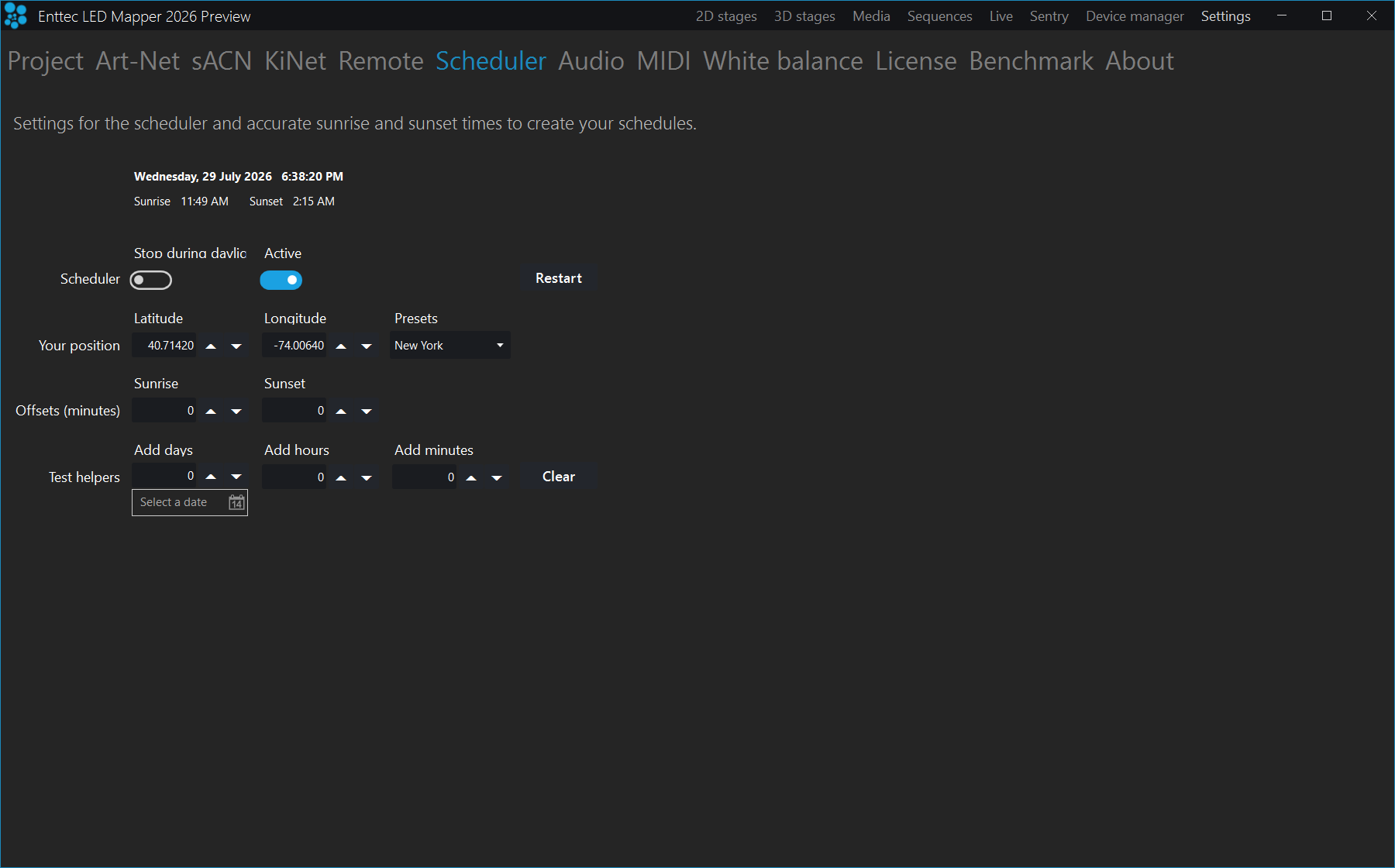
Perform panel
The perform panel is a touchscreen, keyboard and MIDI controller friendly interface to control your show. You can trigger your sequences and play live with the intensity, speed, strobe, tap tempo and more. Most of the controls can also be controlled via HTTP and OSC.
The panel is dead until you switch Active on — it reads The performer is inactive.
Activate it in order to enable the controls. Once active, the performer overrides the stage
parameters in the Live view — the per-stage screen described later in this chapter, under
Live mode.
| Control | What it does |
|---|---|
| Group | Selects the active group for the perform panel. Most visible controls are relative to this group. |
| Active | Determines whether the current group is active. Deactivating a group blackouts all stages of the group. |
| Master intensity, speed and BPM | Controls the master intensity (0 to 100%) and master speed (0 to 2x) from the perform panel —
these are application-wide, the same pair as in the main window title bar. Double-click either
fader to return it to normal. Beside them is Master BPM (20 to 300), the one clock
that tempo-synced effects and beat-stepped sequences follow. Master BPM works only while the
Tempo source is Manual; under an external clock it is greyed out and the
BPM comes from that source. |
| Shortcuts | Edit the keyboard and MIDI shortcuts to control most of the perform panel features. |
| Sequences | The grid shows all sequences. Click on a sequence to play it. |
| Go / Back | Play the next or previous step of the sequence. |
| Tempo source | Where ELM's master tempo comes from: Manual, MidiClock,
OS2L or Audio. It is one setting for the whole show, so changing it here
changes it for every group and for tempo-synced effects, and it matches the Beat detection page
(Settings → Audio). Choose Audio and every active sequence follows the music.
This selector is never greyed out — it is the only way back to Manual. |
| Tap tempo | Tap to set the tempo to automatically go to the next step. The tempo of all groups are synced.
Tap works only when the Tempo source is Manual — under
MidiClock, OS2L or Audio the BPM comes from that source and
the Tap button and the tempo dividers are greyed out. Tapping (or typing a master BPM) puts a
running group on the beat rather than on each step's programmed duration. |
| Tempo dividers (/1, /2, /4, /8, /16) | Determines how many beats it takes (based on the tempo) to advance to the next step. Available
only while the Tempo source is Manual. |
| Play button | Automatically plays the steps of the sequences based on each step programmed duration. This
button is deactivated when manually pressing go/back or when using the tap tempo. It is also
switched off when you pick a Tempo source other than Manual: an active group then
steps on the master beat instead, and the two can never both advance the steps. |
| Play mode | Determines what to do when reaching the end of a sequence. For example, if you select
row, then the next sequence of the row will start playing. The choices are
loop, all, random, row,
rowRandom, column, columnRandom and last. |
| Strobe | Strobes the group while you hold the button, and stops when you release it. The slider underneath sets the strobe speed — drag it right for a faster strobe. |
| Intensity fader and presets | The group's intensity, on the left of the panel. The five buttons beside the fader recall
preset levels — 100, 80, 60, 40 and 20 out of the box. Right-click a button to change its value.
A preset is taken with the Fade time, not instantly. |
| Bump (intensity) | Momentarily lifts the intensity to the value of the first intensity preset, then fades back down over about a quarter of a second. |
| BO | Blackout. The group goes dark while you hold the button and comes back when you release it. |
| Speed fader and presets | The group's playback speed, from 0 to 5x, on the right of the panel. The five buttons beside the fader recall preset speeds — 5, 2, 1, 0.5 and 0.2 out of the box. Right-click a button to change its value. |
| Bump (speed) | Momentarily jumps the speed to the value of the first speed preset, then falls back over about a quarter of a second. |
| Freeze | Sets the speed to 0 while you hold the button. Everything on the group's stages stops on the frame it was on, and runs again when you release it. |
| Colour wheel | Sets the colour filter for the whole group, the same way the Live view's colour wheel does for one stage. |
| Colour presets | Twelve swatches, six either side of the wheel, recall a colour — white plus eleven hues out of
the box. Right-click a swatch to change its colour. A preset is taken with the
Fade time. |
| Fade time | The transition time in seconds used when you select a sequence, or an intensity, speed or
colour preset. Use + and - to change it in steps of 0.1 s; hold either
button to run it up or down. |
| Clock and playback readouts | The bottom band shows the time of day under Clock, the running sequence's elapsed
time and name, and the current step's elapsed time and name while a step is running. |
When another controller is driving the group, Remotely controlled appears beside the
group name in the title bar.
Live mode
The main goal of the live mode is to see what's playing on each stage and configure the effects. For example, if a playlist is running, you'll see what's happening in real-time, including the transitions. If nothing is controlling the stage, you'll be able to manually select what's playing.
Each stage is a tab across the top. 3D stages appear here too, beside your 2D
stages, and use exactly the same controls — media banks, faders, Layers panel and A-B fader. A 3D
stage's tab tile draws a small structural 3D view of the rig instead of a flat output image, and the
large preview shows the live 3D volume when the preview source is set to Output. See the
3D stages chapter for building and mapping the rig itself.
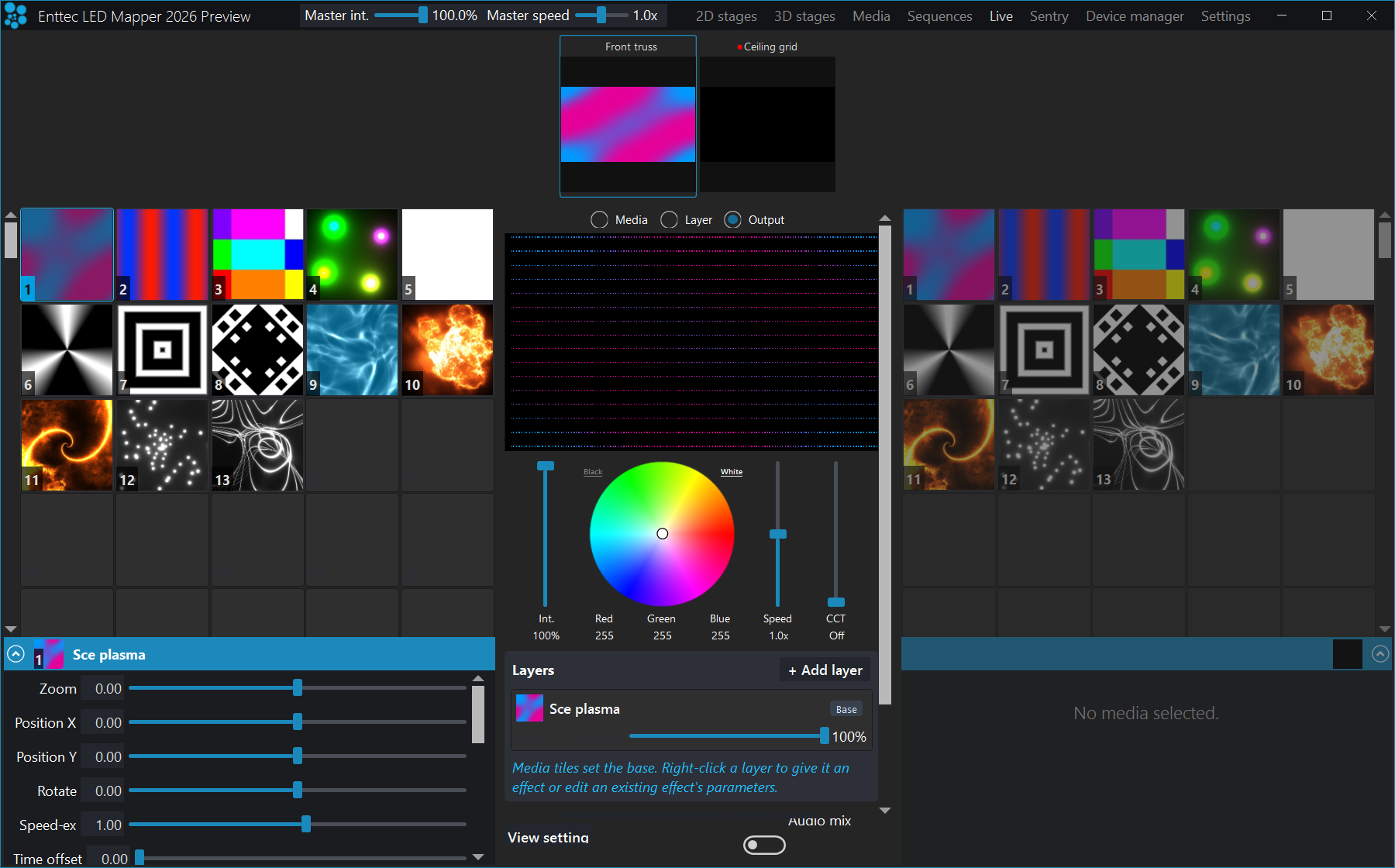
Output, so it shows the colours going to the fixtures.| Control | What it does |
|---|---|
| Preview source (Media / Layer / Output) | Three buttons above the preview choose what it shows. Media shows the A and B
decks mixed by the A-B fader. Layer shows only the layer you have selected in the
Layers panel, and reads No layer selected if none is. Output shows the
colours actually sent to your fixtures — the same per-LED render as the stage monitor — and on a
3D stage it shows the live 3D volume. Output is the default. |
| A and B media banks | Shows the loaded media. Click a media to play it on that side. A click replaces the
whole look: it sets that side's base media and clears any effect layers you had built on
top. Double-click to run the A-B fader all the way to that side as well. To change only the base
and keep your layers, right-click the base row in the Layers panel and choose
Choose media…. Both are undoable with Ctrl+Z. Right-click a
tile for Monitor, Duplicate and Delete. A small
3D badge marks a media that varies with depth, or a layer stack saved from a 3D
stage. |
| A and B configuration panels | At the bottom of the right and left sides, the selected media are displayed and you can expand the sections to see the parameters of the media. The header names the media you picked; if that is a saved layer stack, the parameters below are the stack's base media, because a stack has no parameters of its own. |
| A-B Fader | Mix the media from the A and B sides, using the selected transition/mix effect. |
| Execute | Automatically creates a transition from A to B or B to A depending on the most active side. Hidden while Audio mix is on. |
| Transition effect and duration | Selects one of the 40+ transition/mix effects and its duration in seconds. Hidden while Audio mix is on. |
| Intensity | The luminosity level (dimmer). Set to 0 to deactivate the stage. Double-click the fader to return it to full. |
| Colour wheel | Filters the colour output. It works like a colour gel, where if you select the red colour,
only red pixels will be visible at the output. The two small buttons above the wheel are
shortcuts: White removes the filter, Black closes it right down. Both
are hidden while Audio mix is on. |
| Speed | The playback speed. Used for certain media types only, including video files, built-in effects and texts. Does nothing for live video streams. Double-click the fader to return it to 1x. |
| CCT | The target white temperature for tunable-white fixtures on this stage, from 1800 K to
10000 K. Ride it and a warm+cool strip fades from amber to daylight, on the wire and in the
previews. Pull the fader to the bottom and it reads Off, which leaves every white
strip at its own fixed white. It works on 2D and 3D stages, and it can be driven remotely over OSC
and HTTP like the other live faders. It only does something for strips whose LED type declares
white emitters and their colour temperatures. |
| Layers | The effect-layer stack for this stage, under the faders. The media you click in the bank is the base; layers blend on top of it. See Effect layers for the full panel. |
| View settings | Opens a small menu with two sliders. Thumb size (30 to 100) sets how large the
media thumbnails in the A and B banks are drawn. Preview size (30 to 170) sets how
large the per-stage tab tiles are when you have more than one stage. In a full-screen live window
only Thumb size is offered. |
| Audio mix | Automatically mixes your media in time with the music. It's a kind of auto-pilot, which is
handy to create a show very quickly. Turn it on per stage with the switch at the right-hand end of
the bar that carries View settings. See Audio mix below. |
| Master intensity and speed | Modifies the intensity and speed of all stages without affecting the actual programming. The master intensity doesn't affect the stage monitor brightness. |
Above the A-B fader the panel tells you when something else is driving the stage:
Under remote control, Under scheduler control or The testing mode is
active. A stage set to Read-only in the Stage tab shows The stage is
read-only and its live controls are disabled — change that on the stage itself, not here.
Audio mix
Audio mix drives one stage from the music. It takes its beat from ELM's master tempo — whichever source you picked on the Beat detection page (Settings → Audio): tap, MIDI clock, OS2L or audio beat detection. That keeps it in step with your sequences and tempo-synced effects, and it means Audio mix works on a MIDI clock or a tapped tempo with no audio input at all. It still listens to the music for the feel: level and frequency bands drive intensity, colour and the automatic strobe.
Choose your audio input once on the Beat detection page; every audio-reactive feature in ELM uses
it. There is no per-stage audio input picker. Projects made before this open set to Auto,
and because Auto now follows the master tempo, a show that never set a tempo source runs at the default
120 BPM instead of chasing the kick drum.
Turning Audio mix on replaces the transition effect drop-down and the Execute button for that stage with the controls below. Turning it off puts them back.
| Control | What it does |
|---|---|
| Mix colors | The colours the mix is allowed to use, up to seven. Click a swatch to change that colour,
+ to add one and - to remove the last. The + button
disappears at seven colours and the - button at one. |
| Min/max int. | The brightness range the mix works within, 0 to 100. Drag either end, or drag the middle to move the whole range. |
| Strobe | Enables the automatic strobe, mainly for techno/dance music. It belongs to
Auto only. |
| Media | Quick media selection: opens a picker where you tick every media the mix may use. It is the same setting as the tick box that appears on each media tile while Audio mix is on — clear a tile's tick box to keep that media out of the mix. |
| Change | When the mix moves to the next media. Auto lets it pick its own moments from the
music, and brings its own strobe, crossfader bumps and random transition effects with it.
Switch cuts on the beat. Crossfade fades using this stage's own
transition effect and time. For those two, set how many beats between changes in the
every N beats box beside it (1 to 64); the box is greyed out in Auto,
where it means nothing. In Switch and Crossfade nothing moves that you
did not ask for. |
| Activation meter | The two-sided bar under the A-B fader shows how hard the music is driving the mix. If an audio input is open but nothing is coming through it, a warning replaces the bar. With no input open at all there is no warning — the mix is running on the master beat, and there is no music for it to miss. |
Pro tip: Using black and white media allows you to use the colour filter and get exactly the RGB colour you want as output.
Pro tip: Use the live mode as a monitor to help you see what's going on while remotely controlling ELM with another lighting console. You can also open multiple DVI outputs (one per stage) and use them as monitors.
Effect layers
An effect layer is an extra media blended over the stage's base media. Build a look by stacking layers: a base video, a strobe over it, a colour wash on the left half. The stack belongs to the stage, plays live, and is saved with your project.
The Layers panel sits in the centre column of the Live view, directly under the
Intensity, Speed and CCT faders. The bottom row is always the base — the media you
clicked in the A bank — badged Base and marked (Base — no blend). Effect
layers stack above it, and the badge beside the Layers title counts every row including
the base.
Layer 3, shows the controls every effect layer has: hide, solo, blend mode, opacity and Area. The rows under it — including the base at the bottom — run past the edge of the panel here.Build a stack
Click a media in the A bank to set the base. Then click + Add layer: ELM adds a layer
on top and immediately opens the media picker for it. Pick the effect you want. If you cancel, the
layer stays but is empty — right-click it and choose Choose effect… when you know what you
want in it.
Media tiles only ever set the base. A layer's effect is chosen from that layer's own right-click menu, never by clicking the bank. The panel says so on screen: Media tiles set the base. Right-click a layer to give it an effect or edit an existing effect's parameters.
Drag a layer row up or down to reorder the stack. The base row stays at the bottom and is never a drop position.
| Control | What it does |
|---|---|
| + Add layer | Adds an empty effect layer above the base and opens the media picker for it. |
| Clear | Removes every effect layer and keeps the base media. It asks first, and it cannot be undone. |
| Tick box (left of each layer) | Selects which layer the Layer preview shows — one at a time. Ticking it also
switches the preview source to Layer so you see the layer straight away; clearing it
returns the preview to Output. |
| H | Hides the layer. The layer stays in the stack with its settings, but stops contributing to the output. |
| S | Solo — shows only this layer and mutes the other effect layers. Use it to audition one layer against the base. |
| ✕ | Removes the layer. It asks first, and it cannot be undone. The base media is kept. |
| Blend mode | How the layer combines with everything under it — the base media plus every layer below this
one: Normal, Add (brighten), Multiply (mask / tint),
Lighten (brightest) or Screen (soft glow). Light is additive, so
Add builds brightness, Multiply masks or tints, and
Lighten combines two looks without clipping. These five are the stage merge modes
overwrite, add, multiply, lighten and
screen under plainer labels, and they behave the same way here — see
Stage merging and layering for what each one does to the pixels. A
layer saved in an older project with a mode that is no longer offered keeps that mode, and it is
added to this drop-down so you can see it and keep it. |
| Opacity fader | How strongly the layer blends, with a percentage readout beside it. Click anywhere on the track to jump there, and keep dragging from that point. On the base row this fader is the stage intensity. |
| Area | Where on the stage the layer applies: Full, Left,
Right, Top or Bottom. Left and Right are the left and right
halves of the stage, Top and Bottom the top and bottom halves. |
| Save as new media | Bakes the whole stack into a new media slot. See below. |
Right-click a layer
Right-clicking an effect layer gives you:
Choose effect…— pick the media this layer plays.Edit parameters…— open the layer media's parameters in a popup, the same editor the media banks use. Nothing else is needed to make a layer effect look right.Move up/Move down— reorder without dragging.Delete— the same as✕, with the same confirmation.
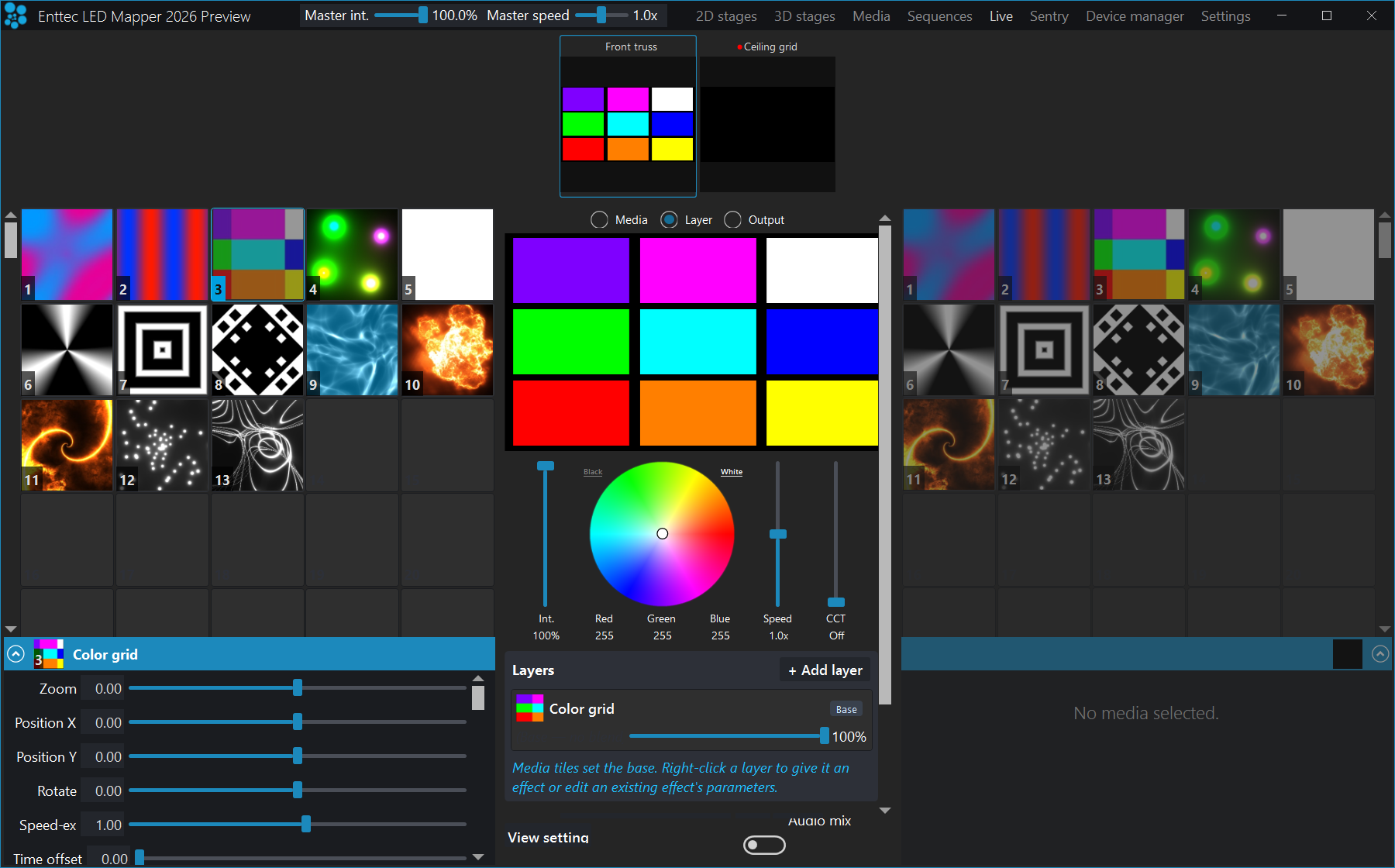
Color grid, sitting in the stack as the base — its Zoom, Position, Rotate, Speed-ex and Time offset sliders. The same editor is what Edit parameters… gives you for a layer.The base row has a shorter menu. Its first item is Choose media…, and
that is the one way to swap the base media while keeping your layers — a click in the media bank
replaces the whole look and clears the stack. Both actions are undoable with
Ctrl+Z.
Save as new media
Save as new media bakes the base plus every visible layer — with its blend mode,
opacity and area — into the next empty media slot. You need a base media and at least one layer, or
ELM tells you there is nothing to save. Hidden layers and layers at zero opacity are not baked, so
what you save is what you see.
The saved stack behaves like any other media: click its tile to play it, put it in a sequence step,
or drive it remotely. Clicking it in the bank also un-bakes it back into editable layers,
so you can pick a saved look up months later and change one layer. Its tile is the highlighted one
while it plays, and a stack saved from a 3D stage carries the same small 3D badge as a 3D
effect.
While a sequence is driving the stage and the step is playing a saved stack, the panel expands the stack so you can see what is in it, but the rows are read-only and have no right-click menu. The hint reads Baked layer stack (under sequence control). Re-select it on the base media to edit the layers. Editing mid-playback would change the live output, so ELM does not allow it.
Sentry
Sentry is ELM's fixture monitoring for permanent and architectural installations. It watches the RDM fixtures on your DMX lines — their sensors, and whether each one still replies — and the ENTTEC gateways they plug into. When a reading crosses a threshold you set, or something stops answering, Sentry raises an alert in the app and, if you configure it, by email or SMS.
The two halves run on different clocks, and this decides whether Sentry suits your site. Watching the gateways is continuous. Polling the fixtures on a schedule only happens while the rig is dark, because RDM shares the wire with your DMX output — so a rig that plays content around the clock is never polled on a timer. Before you plan a permanent install around Sentry, read RDM shares the wire with your DMX output and If your rig never goes dark below.
Open Sentry from the top menu bar. Sentry is part of the ELM Architectural plan. On a copy that
is not licensed for it the Sentry button is drawn in gold and clicking it offers the
upgrade instead of opening the workspace.
Sentry or Device Manager?
The two screens look alike — both list things called "devices", both have a Queue tab, both can Identify — so it is worth stating the split plainly:
- Device Manager sets the ENTTEC boxes up. Network settings, per-port protocol, universe and mode.
- Sentry monitors the fixtures plugged into them, and now the boxes themselves.
A gateway port has to be set to Output with RDM enabled in Device Manager before
Sentry can find anything behind it. A gateway that cannot do RDM, or has it switched off, says so on
its row in the Devices list.
RDM shares the wire with your DMX output
Everything else in this section follows from that one fact. Discovery briefly holds Art-Net output on its last frame, so it is best done between cues. Scheduled monitoring waits until the rig is dark and stands down the moment content plays. Watching a gateway is the exception: that is a small network heartbeat rather than an RDM scan, so it runs continuously, including during a show.
"Dark" means no light on the wire, not ELM shut down. ELM watches its own Art-Net
output: the rig counts as dark while every channel it sends is zero, and counts as lit the moment any
channel is above zero. A blackout, a stage with nothing playing, master intensity at zero, a schedule
that ends with Black at end, or DMX output switched off on
Settings → Project all read as dark within about a second. Content
starting up reads as lit just as quickly, and a pass already running is abandoned.
Two consequences worth knowing before you rely on this. ELM judges it from Art-Net output only, so a rig driven over sACN or KiNet always looks dark to the schedule and passes will run during the show, sharing the DMX line with your content. And the daily hours window narrows this rule, never overrides it: monitoring runs when the rig is dark and the clock is inside the window.
Get monitoring running
Nothing is monitored until you do these three things. Sentry ships with scheduled monitoring off and an empty device list.
- Discover your fixtures. On the
Devicestab, clickDiscover devices. ELM asks you to confirm first, because discovery clears the current device list, re-scans every Art-Net node and holds your Art-Net output on its last frame for a few seconds while it runs. Other protocols are not interrupted. - Turn scheduled monitoring on. Discovery does not start a timer. The
Sentry monitor:chip at the top of the workspace readsScheduled monitoring offuntil you set one up. ClickSet up monitoring…beside the chip (orMonitoring…on the Devices toolbar) to open theMonitoring settingswindow, tickMonitor discovered devices automatically (while the rig is dark), set theMonitoring cycle (seconds)and clickSave. - Add rules. Discovery and monitoring collect readings; they never alert on
their own. Go to
Rules & alertsand create at least one rule, then tickEnabledon it.
Discover devices and Refresh work whether or not scheduled monitoring is
on. Once it is on, Set up monitoring… is replaced by a Hold button that
pauses the schedule and a Resume button that starts it again; discovery and refresh
still work while it is held.
If your rig never goes dark
A site that plays content 24 hours a day never satisfies the gate, so scheduled monitoring
never runs. You can complete all three steps above, tick the master switch, build your rules,
and still have nothing polled: the chip sits on Content active — monitoring on hold
indefinitely, no sensor readings are collected, and no sensor-threshold rule can ever fire. Decide how
you are going to handle this before you rely on Sentry for a permanent install.
Three things still work on a rig that is always lit:
- Gateway rules. The gateway heartbeat is not RDM and is not gated, so a
Watch: Gatewayrule reports a controller that dies mid-show, whatever the content is doing. On a 24/7 site this is your only continuous cover. - Manual passes.
Discover devicesandRefreshignore the gate entirely — a maintenance visit can inspect the rig with the show running. Discovery still holds Art-Net output on its last frame for a few seconds while it runs. - The
Livetick on a sensor row, which polls that one sensor about once a second while you have the fixture open.
To get scheduled monitoring back, give the rig a genuinely dark window and point the schedule at it:
leave a gap between scheduled sequences, tick Black at end on the last schedule of the
night, or drop master intensity to zero for a maintenance period. Even a few minutes of black a night
gives the monitor several passes at the default 30-second cycle. You can then tick
Only monitor during set hours and set the hours around that window, so an unplanned dark
moment during a show — a blackout cue, a gap between cues — does not start a pass at a time you would
rather keep the wire clear.
Watch the offline rules on a rig like this. Offline detect defaults to
MissingOrStale, and "stale" means nothing has been heard from the fixture within the
staleness timeout — 30 seconds out of the box. With nothing polling, every fixture goes stale shortly
after your last manual discovery and the rule reports the whole rig offline when nothing is wrong. On a
site that is never dark, set fixture offline rules to Missing, which only changes when a
discovery actually runs, and put the continuous alerting on gateway rules instead.
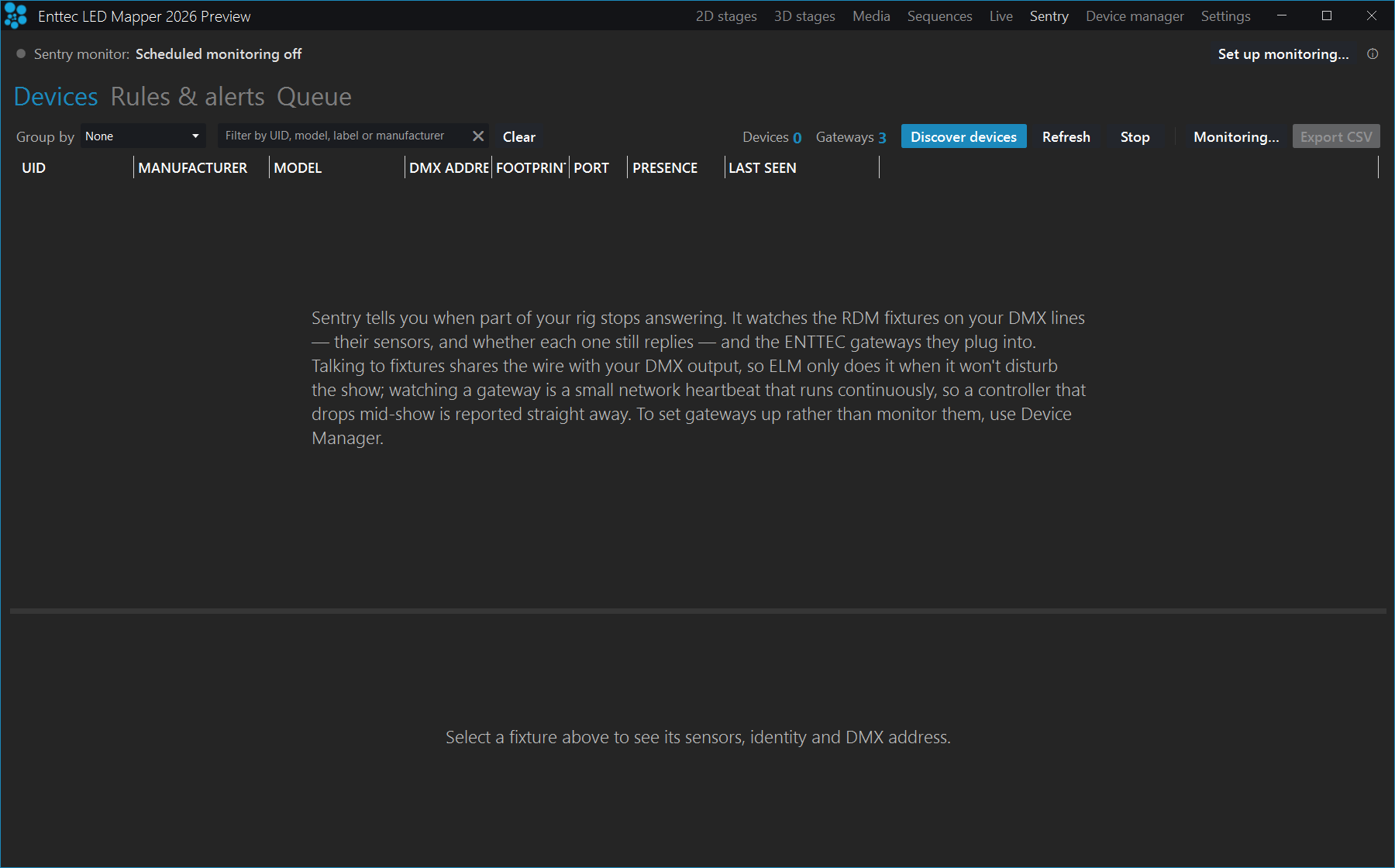
Scheduled monitoring off, and the counters read Devices 0 and Gateways 3 — three gateways answered on the network, but no RDM fixtures have been found behind them yet. Discover devices starts the scan.What the monitor chip is telling you
| Chip text | What it means |
|---|---|
Scheduled monitoring off | No schedule has been set up. Nothing is polled on a timer. Click Set up monitoring…. |
Monitoring… | A pass is running now. |
Monitoring idle — rig dark | The schedule is armed and the rig is dark; the next pass runs when the cycle comes round. |
Content active — monitoring on hold | Output is playing, so RDM stands down. This is normal, not a fault. |
Outside monitoring hours — on hold | You limited monitoring to set hours and the clock is outside them. |
Monitoring paused | You pressed Hold. Press Resume to start it again. |
Devices
The Devices tab lists every fixture Sentry has found, with a detail panel underneath for the one you select.
| Control | What it does |
|---|---|
Discover devices | Clears the list and re-scans every Art-Net node for RDM fixtures. Briefly holds Art-Net output. This is the only action that populates an empty screen. |
Refresh | Updates the list and re-reads sensor values for fixtures already found. Does not interrupt output and does not find new fixtures. |
Stop | Appears while a discovery or poll is running. Stops it now, dropping the queued RDM requests and cancelling what is in flight. |
Monitoring… | Opens the Monitoring settings window — the same one as Set up monitoring…. |
Export CSV | Saves the inventory to a CSV file. |
Group by | None, Gateway, Manufacturer, Model or Port. |
| Filter box | Filters by UID, model, label or manufacturer. Clear empties it. |
While a sweep is running a Communication underway strip appears above the list with
counts of Background requests (the discovery or monitoring sweep still to run) and
Priority requests (your own clicks, which jump the queue). A half-filled list during a
large discovery is still working, not missing data.
The list columns are UID, Manufacturer, Model, DMX address, Footprint, Port and Last seen, plus Presence with a coloured dot:
| Presence | What it means |
|---|---|
Online (green) | The fixture answered the last time Sentry asked. |
Missing (amber) | The fixture dropped out of discovery — it was there and now is not. |
Offline (grey) | Recorded as not present. In normal use you will see Missing instead — a fixture that stops answering during live monitoring is reported as missing or as stale, not as offline. |
Unknown (grey) | Not heard from yet this session, for example a fixture restored from a saved project before the first pass. |
Right-click a device for Create notification rule…,
Alert when this device goes offline, Create group from selection… (which
uses the whole multi-selection), Identify device and Stop all identify.
The rule shortcuts create the rule already scoped to that device and switch you to
Rules & alerts to finish it.
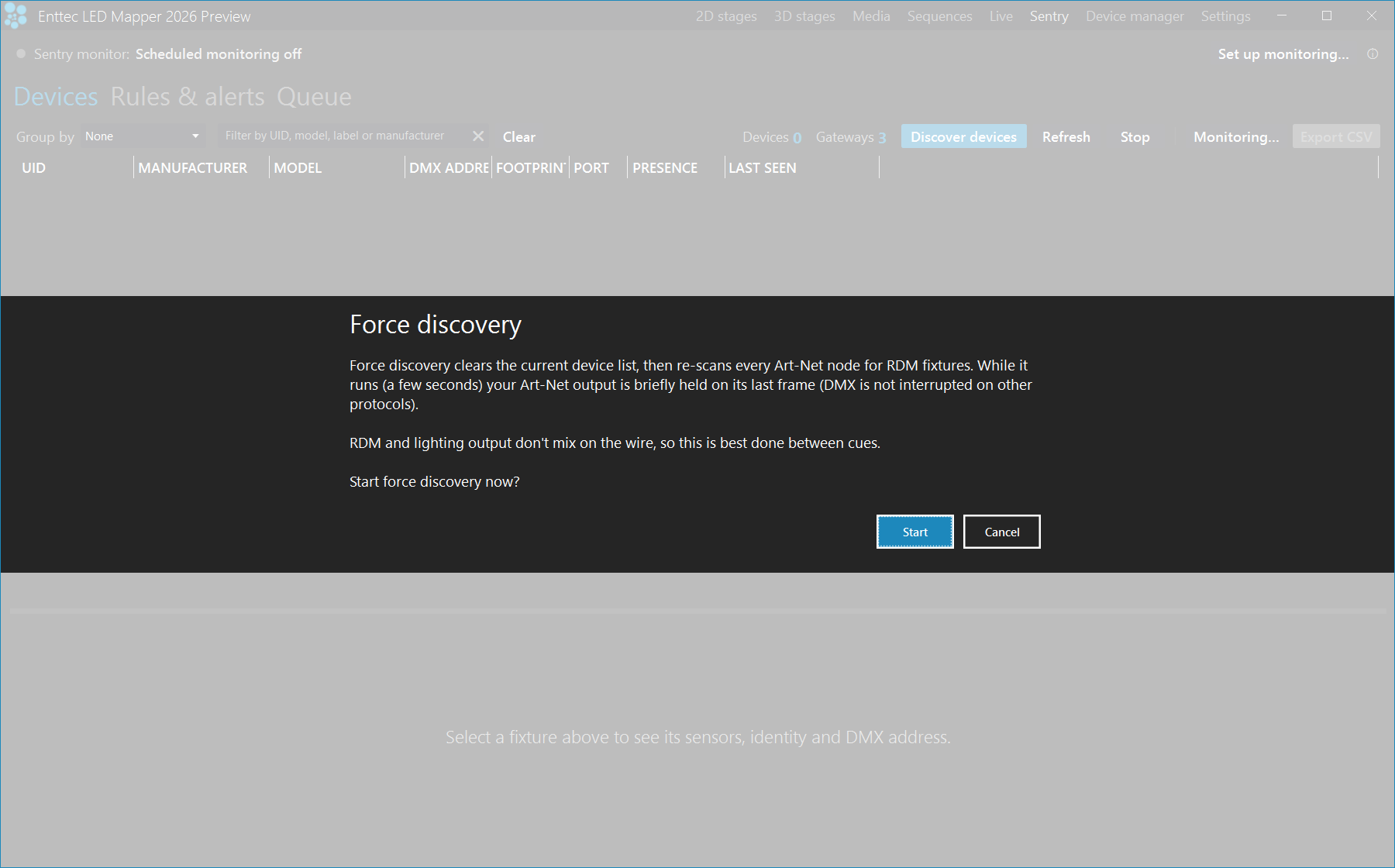
Grouping by gateway
Set Group by to Gateway and the list becomes a collapsible tree, one
header row per discovered gateway, including gateways with no fixtures behind them. Gateways start
collapsed so a large rig opens instantly; right-click anywhere in the tree for
Collapse all gateways and Expand all gateways.
Each gateway header carries its name, IP, the network card it answered on, port summary, device
count, its average RDM response time and a health dot — green when it answers reliably and quickly, amber with
slow to respond — check the gateway, red with
not responding to RDM — check the gateway, not ELM. That points you at a misbehaving
gateway instead of leaving you wondering whether ELM is at fault. A gateway with RDM switched off is
badged RDM disabled and one that cannot do RDM at all is badged
RDM not supported; neither can report fixtures, and the row explains that rather than
claiming nothing was found.
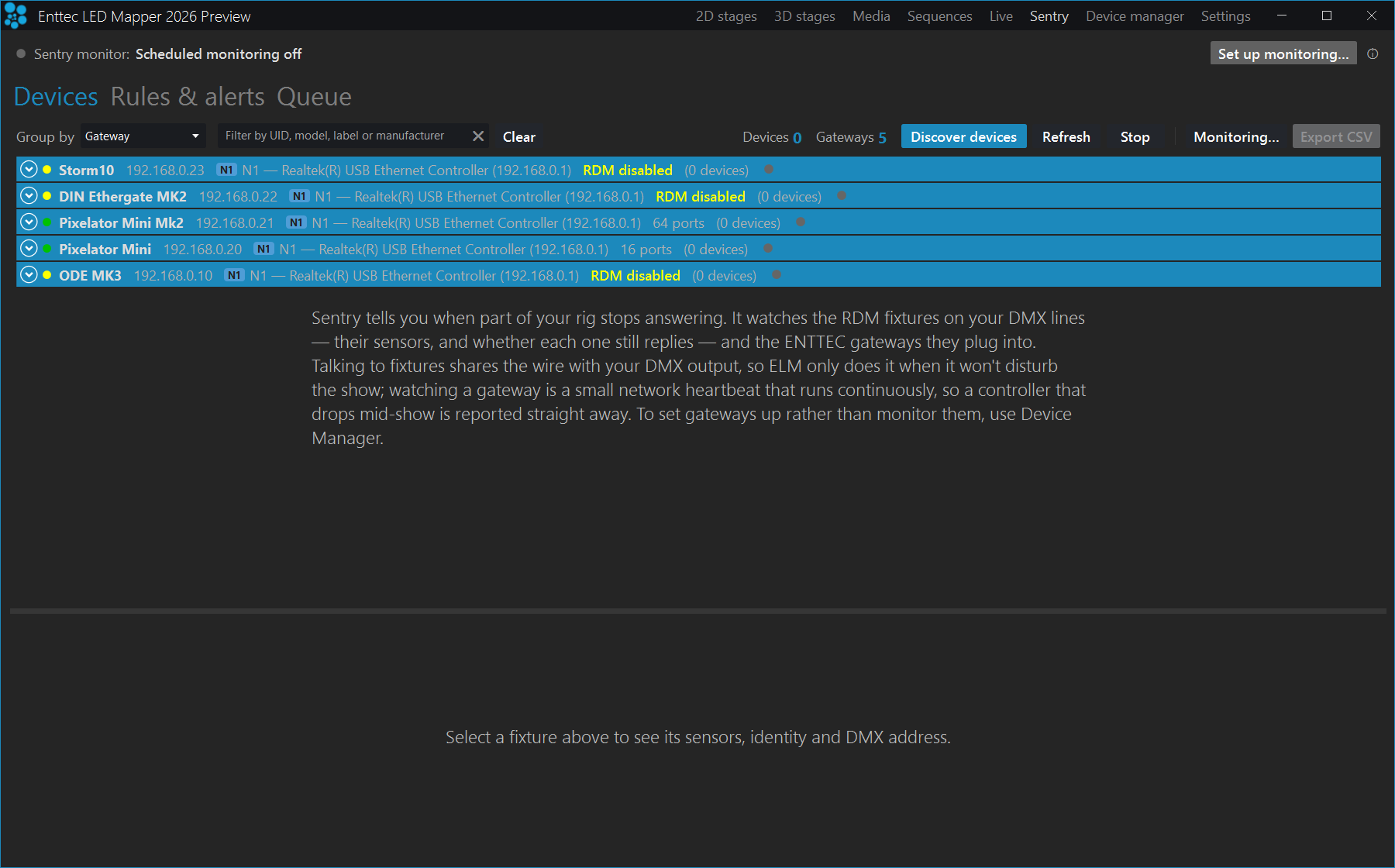
N1. Three of them report RDM disabled, so no fixtures can ever be found behind those ports until RDM is switched on for them in Device manager. The other two could report fixtures, but read (0 devices) here because no discovery has been run yet.The card is shown as a short tag — N1, N2 — with the card's
name beside it, the same tag it carries in Settings and Device manager. On a rig split across two
networks that tells you which cable a silent gateway is on. If you disable that card in Windows, the
gateways found on it stay listed and say card no longer in use rather than simply going
quiet — the alert is still there to see, and the reason is the card rather than the rig.
When the gateway itself stops answering Art-Net, the whole header row turns red. Hover it for the
reason, and right-click it for Alert when this gateway goes offline.
The device detail panel
Select a fixture and the panel below the list fills in. Until you do, it says
Select a fixture above to see its sensors, identity and DMX address.
The Identity / Gateway / DMX section is collapsed by default — it is reference data
you read once, and the chart below needs the height. Expand it for manufacturer, model and model ID,
device firmware, last seen, presence, the gateway's name, IP, MAC and firmware, and the fixture's DMX
address, footprint, personality and universe. A model name or firmware string shown dimmed and
italic is a numeric fallback: that fixture did not report the descriptive value over RDM. A warning
triangle beside the fixture name means it refused a required RDM parameter; hover it to see
which.
| Control | What it does |
|---|---|
Identify | Tells the fixture to flash itself over RDM so you can pick it out of the rig. The button reads Identifying… while it is on. Click again to stop; ELM also turns it off by itself after 30 seconds, so a rig is never left flashing. Stop all identify (right-click in the device list) clears every flashing fixture at once. If a fixture refuses the command or cannot be reached, ELM tells you why. |
DMX address + Apply | Type a new DMX start address and click Apply. ELM sends it over RDM, updates the display as soon as the fixture confirms, then reads the address back a moment later to check it stuck — some fixtures accept the change without storing it. See the note below on addresses above 512. |
Refresh | Re-reads this fixture now. |
Export CSV | Saves the recorded sensor history for this fixture. |
Addresses above 512 are accepted with an amber warning, not rejected: an ENTTEC
line running Overdrive DMX carries up to 8 universes (4096 channels). Make
sure Overdrive is enabled on the gateway or the fixture will not receive data — it is a per-port
setting on the gateway itself, set in Device manager's settings form
(DMX mode → Overdrive) or on the node's own web page, never in Sentry.
An address below 1, above 4096, or one whose
channel footprint would run past 4096, is a hard error — the note turns red and Apply
is disabled, so nothing goes on the wire.
Sensors and the chart
The Sensors grid lists each sensor the fixture declares, with columns Live, Chart,
Name, Value, Unit, Range, Normal and Updated. Units are shown as symbols (°C,
V, A, Hz, Ω) rather than raw RDM codes.
| Column | What it does |
|---|---|
Live | Tick to poll that one sensor about once a second while this fixture is open. Off by default — the values you see otherwise are from the last pass or refresh. |
Chart | Tick to plot that sensor on the time chart beside the grid. Nothing is charted until you ask for it. |
Range | The operating range the fixture declares for the sensor. Hover for the extremes actually recorded. |
Normal | The fixture's own declared normal band, read over RDM. Blank when the fixture does not declare one. A value outside it is shown amber and bold. This is reference information — it does not raise an alert on its own; your rule's threshold does that. |
Charted sensors are stacked into one band per quantity — temperature, voltage, current, power — each with its own labelled value scale up the side, sharing a single time axis. Each band auto-scales to the readings it holds and will not magnify a reading past the resolution the sensor can actually report, so a rock-solid 230 V rail looks flat instead of appearing to swing wildly. Sensors measuring the same quantity share a band so they are comparable; a declared normal band is shaded behind the trace only when that band holds a single sensor, because a shaded region cannot honestly stand for two.
The gestures are printed under the chart:
| Gesture | What it does |
|---|---|
| Scroll | Zoom in and out of time around the cursor. |
| Ctrl+scroll | Zoom one band's value scale. |
| Drag (or Shift+scroll) | Pan back through history. |
| Double-click (or Esc) | Snap back to live. |
| Hover | Crosshair with each sensor's exact value at that moment, in the sensor's colour. |
While you are zoomed or panned the chart shows a PAUSED badge and keeps recording in
the background.
Rules & alerts
This tab has three sub-tabs: Rules, Groups and
Alerts & notifications.
Click Add rule and fill in the editor on the right. A new rule starts
disabled — it does nothing until you tick Enabled, so you can finish
configuring it without arming a pager halfway through.
| Setting | What it does |
|---|---|
Name | A label for the rule, shown in the rules list and in the alert history. |
Enabled | Turns the rule on. Disabled rules are never evaluated. |
Watch | What the rule is about: Fixture (an RDM fixture behind a gateway) or Gateway (the ENTTEC controller itself — Octo, Pixelator, Storm). A gateway has no RDM sensors, so choosing Gateway hides Kind and the three threshold rows: a gateway rule is always an offline rule. |
Kind | SensorThreshold compares a sensor reading against a value; DeviceOffline alerts when the thing stops responding. |
Sensor class | Which reading to compare: Any, Temperature, Voltage or Current. Any matches every sensor on the device. |
Comparison | Above or Below. |
Threshold | The single value the reading is compared against, in the sensor's own units. There is no band here — one value, one direction. |
Offline detect | How "offline" is judged: Missing (dropped out of discovery, or a gateway that stopped answering Art-Net), Staleness (nothing heard within the timeout below), or MissingOrStale (the default — either one). |
Staleness (s) | Seconds without a reading before the thing counts as offline. 30 by default. |
Scope | Which ones the rule watches. For a fixture rule: AllDevices, or only those on one Gateway, Universe, Device or Group. A gateway rule is offered only AllDevices (which reads "All discovered gateways are watched") and Gateway — the fixture-side scopes mean nothing about a controller, so they are withdrawn. |
Target | The picker swaps to match Scope — a gateway list, a universe box, a searchable device list or a group list. The resolved target is always spelled out underneath, so a rule pointed at something currently offline still reads correctly, and an unset target is flagged. |
Debounce (s) | The condition must hold this long before an alert fires, which filters out brief spikes. A new rule starts at 5 seconds; set it to 0 to fire immediately. |
Cooldown (s) | Minimum seconds between repeat alerts for the same device while the condition persists. 60 by default. Debounce and cooldown together give you one clear alert per real problem instead of a pager storm. |
Severity | Info, Warning or Error, shown on the alert and the in-app notification. |
Email / SMS | Also send this rule's alerts on that channel. Each needs the channel enabled and configured on Alerts & notifications first. |
Notify on recovery | Send a "recovered" alert to the same channels when the condition clears. With it off the rule resets silently. |
The fastest way to build a rule is not this editor. Right-click a device in the inventory for
Create notification rule… or Alert when this device goes offline,
right-click a gateway header for Alert when this gateway goes offline, or right-click a
sensor row in the detail panel for Create threshold rule for this sensor — which seeds
the threshold from the current reading. Each opens the new rule on the Rules tab, scoped
correctly and disabled, ready for you to adjust and enable.
Watching the gateways themselves
Set a rule's Watch to Gateway and it reports on the ENTTEC controllers
rather than the fixtures behind them. ELM sends a quiet Art-Net heartbeat to every discovered gateway
every 10 seconds and treats one as unreachable after 30 seconds of silence — three missed polls, so a
single dropped broadcast on a busy network cannot raise a false alarm.
Because that heartbeat is one small broadcast rather than an RDM scan, it keeps running during your show, unlike scheduled RDM monitoring which waits for the rig to go dark. A controller that dies mid-show is reported while it matters.
When a gateway goes quiet ELM also checks whether the box still answers a network ping and says so in the alert and in the header-row tooltip:
- Still answers ping — it is powered and on the network, but its Art-Net has stopped. Usually a controller that needs restarting.
- Does not answer ping either — check its power and cabling.
A gateway restored from a saved project starts as unknown rather than assumed online, and is given time to answer before anything is reported. Debounce, cooldown, severity, email and SMS routing and recovery alerts all work exactly as they do for fixtures.
Groups
On the Groups sub-tab, Add group creates a named set of devices — "North
Facade", "Bridge Span" — and you point a rule's Scope at the whole group. Membership is
a list of device UIDs; the quick way to fill it is to multi-select devices in the inventory and
right-click Create group from selection…, then rename the group here. Groups scope rules;
they do not regroup the Devices list, which uses Group by.
Alerts & notifications
Alert history on the left lists every alert Sentry has raised — Time (UTC), Severity,
the Rule that fired and the Message — and Export CSV saves it.
Email and SMS use your own accounts; ELM sends nothing on your behalf until you supply credentials.
| Setting | What it does |
|---|---|
Email (SendGrid) | Tick Enable email, then fill in Recipients (CSV) (comma-separated addresses), your SendGrid API key and the From email. |
SMS (Twilio) | Tick Enable SMS, then fill in Recipients (CSV), your Twilio Account SID, Auth token and From number. |
Save settings | Stores the settings. The key and token boxes stay blank afterwards and are watermarked Leave blank to keep existing; a stored secret is confirmed by ✓ Key configured / ✓ Token configured underneath. |
Test | Sends yourself one alert on the enabled channels so you can prove the credentials before you rely on them. |
Enabling a channel here does not route anything on its own. Each rule chooses its own channels with
its Email and SMS tick boxes, so you decide which alerts go out and which
stay in the app.
Queue
The Queue tab is the RDM traffic log — every request Sentry has put on the wire,
including your Identify and set-address commands. It is not a list of alerts; those live in
Alert history.
| Column | What it shows |
|---|---|
Sent | The clock time the request went out. |
Request | What it asked for. |
Gateway | Which gateway it went through. |
Card | Which of this computer's network cards the request left by, as the same N1/N2 tag used elsewhere. It records the card used when the request was queued, so a finished row keeps telling you where it actually went even if the gateway is later found on a different card. |
Reply | The clock time the reply landed. Blank while nothing has come back. |
Result | The one outcome word, colour-coded: ok when the fixture answered, no reply (or the reason the fixture gave for refusing) when it did not, otherwise the live state. A request that got no answer is never reported as a success. |
Response (ms) | The true request-to-reply round trip. |
Counts along the top show how many requests are Pending, Running,
Succeeded and Failed. Narrow the list with the Status filter
(All, Pending, Running, Succeeded,
Failed, Cancelled) and the free-text box, which filters by name or gateway.
Select several rows — filter to Failed, then Shift or Ctrl-click —
and right-click Retry or Cancel to act on all of them at once.
Export CSV saves exactly the rows currently shown, after the filter.
Clear completed tidies finished rows away and Cancel all empties the
queue.
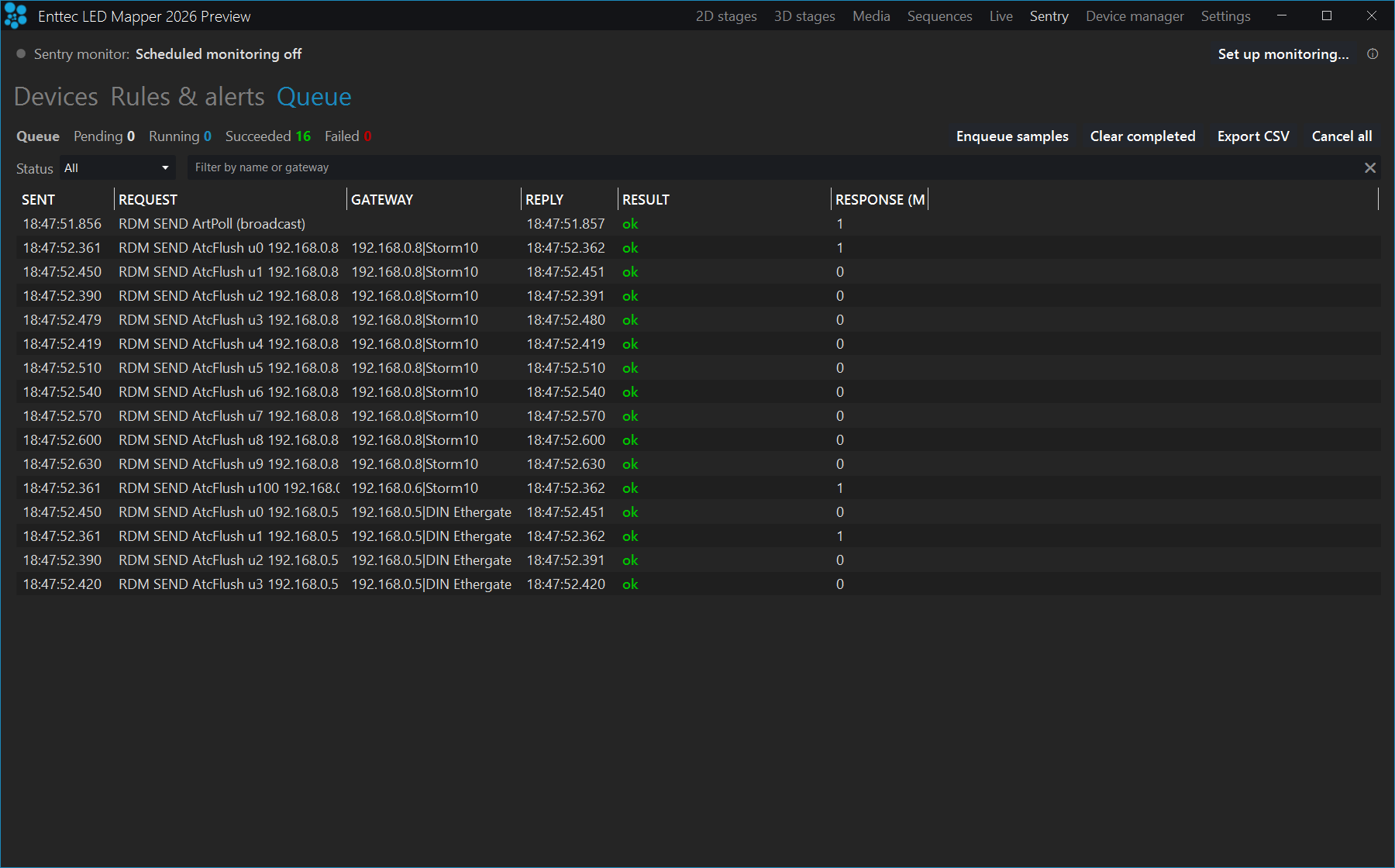
Monitoring settings
Everything on this window applies to scheduled RDM monitoring only. Gateway watching is a separate mechanism and is not affected by any of it.
| Setting | What it does |
|---|---|
Monitor discovered devices automatically (while the rig is dark) | The master switch. Off by default — until you tick this, nothing is polled on a timer. |
Monitoring cycle (seconds) | How often a pass runs while the rig is dark. 30 by default. Shorter gives fresher readings and more RDM traffic on the wire. |
Only monitor during set hours | Limits monitoring to a daily From–to window, 09:00 to 17:00 by default. A start later than the end wraps past midnight, which is what a site that runs shows at night wants. |
Also look for new or removed fixtures each pass | Off by default. Leave it off and a pass only re-reads the fixtures it already knows, so a newly-added or dead fixture is not noticed until you run Discover devices. Tick it and each pass re-scans as well, which is more thorough and a little more traffic. |
Hold output while monitoring | Off by default, and rarely needed — a pass only runs while the rig is already dark. While output is held, a cue firing mid-pass cannot interrupt it. |
Cancel queued requests when monitoring stops | On by default. When the window ends or output goes live, pending requests are dropped so a fixture that did not answer is not retried during your next show. |
Monitoring settings are saved with the project, so a show file carries its own monitoring cadence.
How many devices your licence covers
Sentry monitors up to the number of devices your licence covers. An Architectural licence issued
without an explicit figure carries a baseline of 1,000 devices; Settings →
License shows the number your licence actually grants beside the Sentry entry.
Discovery still finds and lists everything on the wire. If you discover more devices than
your licence covers, an amber banner appears above the device list — for example
Sentry is monitoring 1,000 of 1,100 discovered devices — your licence cap. Upgrade to monitor
them all.
The devices beyond the cap stay visible in the inventory but are not evaluated and
cannot raise an alert. The monitored set is chosen by lowest UID so it stays the same
between passes rather than shifting as discovery reorders the list. Contact ENTTEC to raise the
limit; the banner and the monitored set follow the new entitlement as soon as the licence updates,
with no restart.
Device manager
Device manager is where you discover and set up the ENTTEC gateways and nodes on your network from one place. It finds the ENTTEC Art-Net nodes on your network and sets them up — addresses, names and per-port universes — one at a time or a whole install at once. Instead of configuring each unit by hand through its web page, you can configure a batch of nodes in one pass, which makes it the fastest way to bring a large or permanent rig online and to keep its gateways consistent.
Open it from the top menu bar (Alt+V). Entering the workspace starts a network scan on its own, so the inventory usually fills in before you touch anything.
Device manager is part of the ELM Architectural plan. On the Free and Professional plans
the Device manager entry stays in the top menu but is locked — shown in gold — and clicking it
gives you an upgrade message instead of opening the workspace. The refusal is also enforced below the
interface, so nothing that reaches the workspace by another route can write to hardware: an unlicensed copy
reports Device Manager isn't included in your licence. instead of sending the change.
Device manager and Sentry are two different jobs on the same hardware. Device manager sets
up the ENTTEC boxes — addresses, names and per-port universes. Sentry monitors the fixtures plugged into
their DMX ports. A gateway port has to be set to Output+RDM here before Sentry can find anything
behind it.
The workspace has four tabs:
| Tab | What it does |
|---|---|
| Inventory | Every node found on the network. Name a node, open its web page, or edit one supported node's settings directly. |
| Auto-configure | Build an install list, write a recipe, preview what it would do to every node, then apply it. |
| Queue | What has been sent to the nodes and what came back. Retry, cancel or export. |
| Supported devices | Which models Device manager can configure, and the firmware each one needs. |
Finding nodes
Click Refresh in the header to scan. It broadcasts an Art-Net poll and lists every node that
answers. Nodes also arrive on their own from ELM's normal background polling, so the list can grow while you
are looking at it.
Before the first scan, the inventory shows a short paragraph saying what the screen is for, plus a
Scan for nodes button that runs the same scan as Refresh. The paragraph stays until
you scan; after that it is still available from the ⓘ next to the header.
If nothing is found, the network card is almost always the reason. ELM scans on the
cards chosen for Art-Net, not on every card the machine has. The empty inventory names them for you —
Listening on … — so you can see straight away whether ELM is watching the network your nodes
are on. If it is not, go to Settings → Art-Net: with
Use Multiple Network Cards off, change the Default NIC drop-down; with it on,
tick the card your rig is on in the list beneath it. Come back and press Refresh. Also check
that the nodes are powered and on the same subnet — a node on a different subnet will not answer the
poll.
Inventory tab
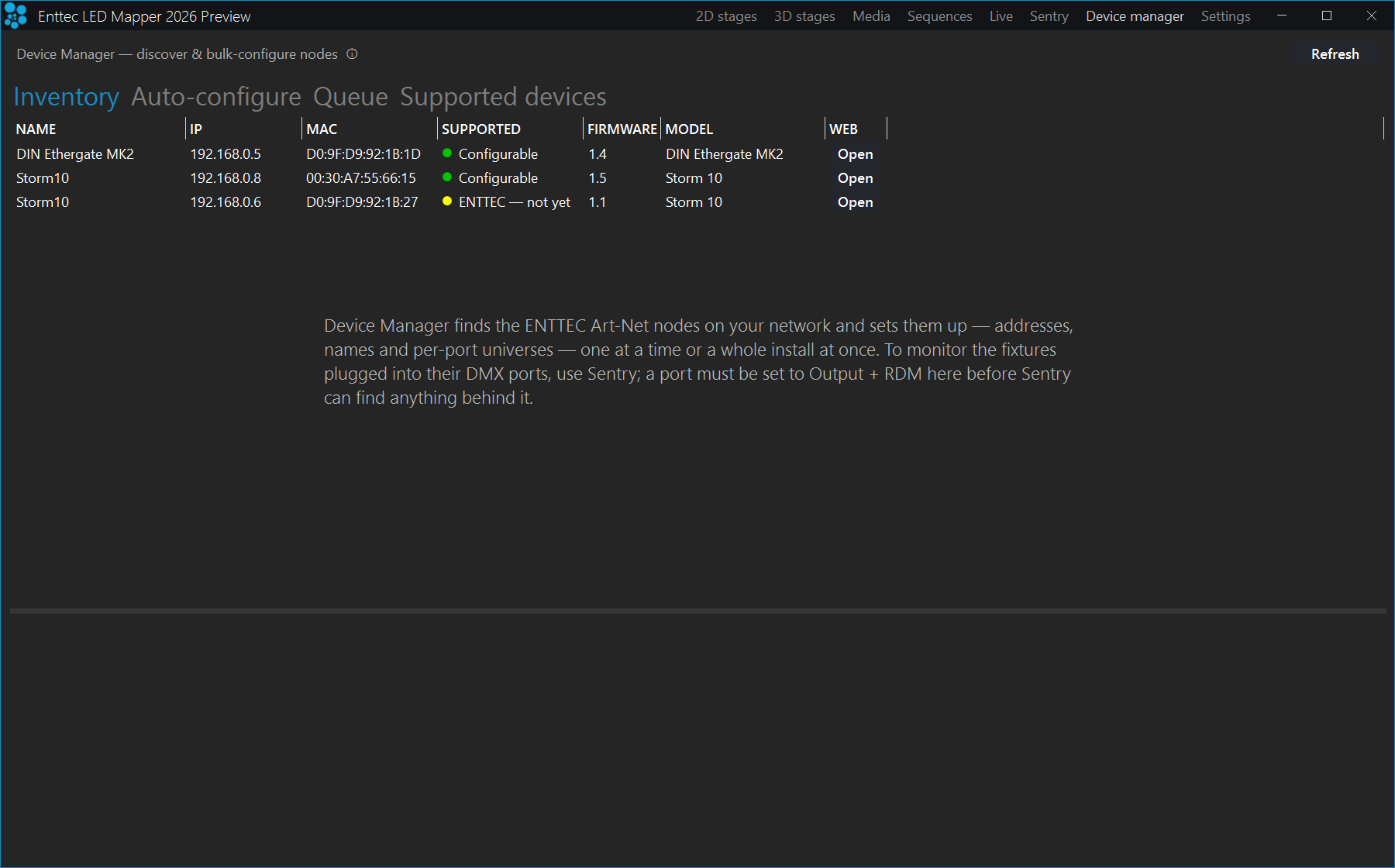
Configurable with a green dot; the Storm 10 on firmware 1.1 reads ENTTEC — not yet with an amber dot, because the profile needs 1.5. No node is selected here, so the settings form is not open.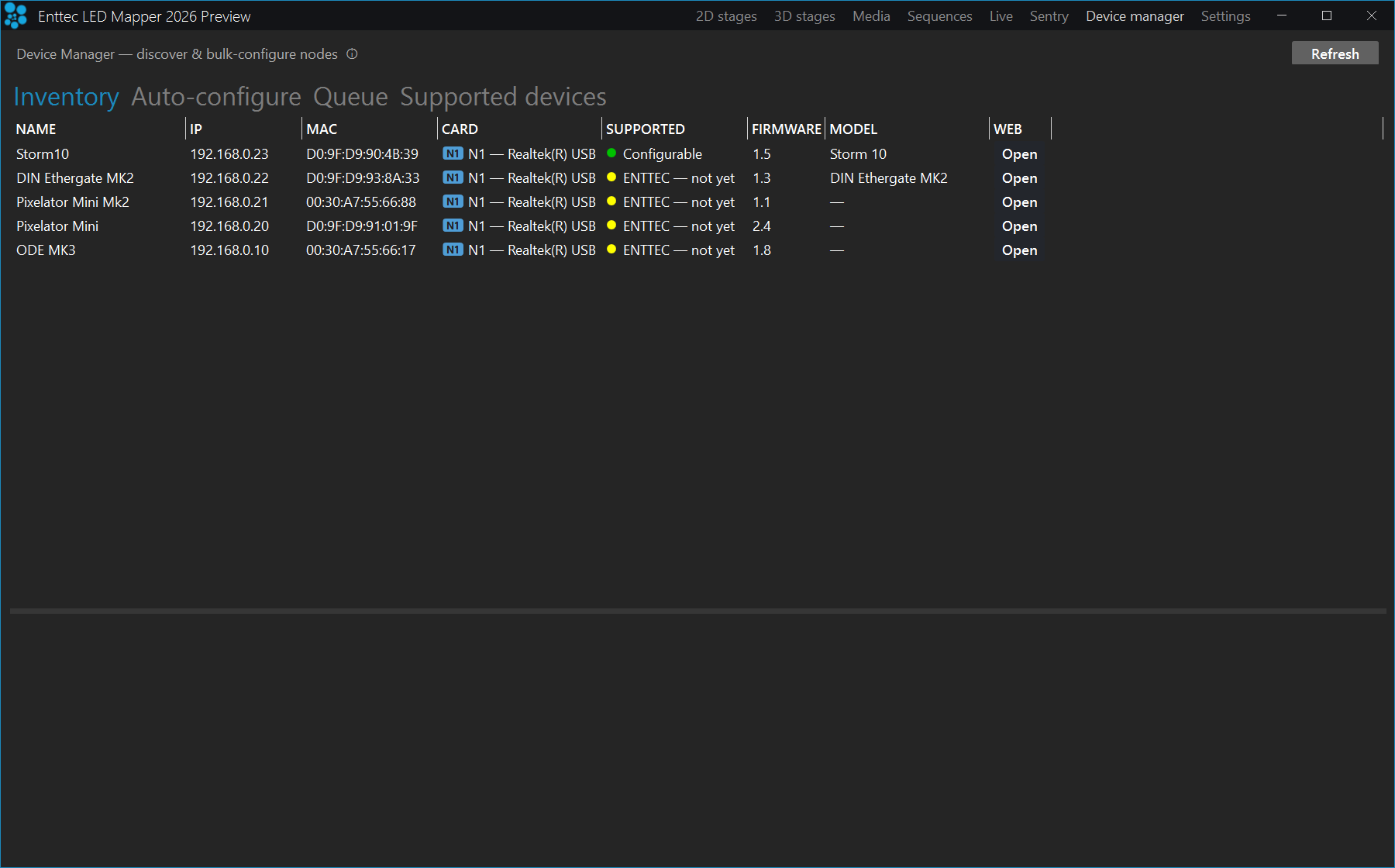
Card column shows the N1 tag against each, so a node on the wrong network is obvious at a glance. Only the Storm10 is Configurable here; the rest are recognised but not yet supported for configuration.| Column | What it shows |
|---|---|
| Name | The install name you have given the node, or the name the node announces if you have not named it. |
| IP | The address the node is answering on right now. |
| MAC | The node's hardware address. This is what ELM matches an install list against, so it survives an IP change. |
| Card | Which of this computer's network cards the node answered on, as a tag — N1, N2 — and the card's name. It is the same tag and colour that card carries in Settings, so you can tell at a glance that a rack is on the wrong network. A node restored from a saved show that has not answered since reads not seen yet; one found on a card the computer no longer has says N2 — card no longer in use. |
| Supported | Whether ELM can configure this node — a coloured dot and one of three words (see below). |
| Firmware | The firmware version the node reports. Support is matched to an exact firmware, so this matters. |
| Model | The model ELM recognised, or — if it did not recognise one. |
| Web | Open opens the node's own web page at http://<ip>/ in your browser. |
The Supported column decides how much you can do with a node:
| Value | What you get |
|---|---|
| Configurable | ELM has a profile for this model at this firmware. You get the full settings form, and the node can be auto-configured. |
| ENTTEC — not yet | ELM recognises the manufacturer, but not this model, or not at this firmware. You can name it and open its web page; you cannot change its settings from ELM. |
| Not supported | ELM can see the node on the network but knows nothing about it. Naming and the web page only. The pane below offers Request support — contact ENTTEC. |
A node running firmware older than its profile requires reads as ENTTEC — not yet, not as
Configurable. Update it through its own web page, then press Refresh. A node running
firmware newer than the profile is treated the same way, because a newer firmware can use a different
configuration interface.
Working on one node
Right-click a node in the inventory:
| Menu item | What it does |
|---|---|
| Add to auto-configure | Puts the selected node — or the whole selection — on the install list and switches to the Auto-configure tab. Nodes already on the list keep their position. |
| Set name… | Moves the cursor to the Name field in the pane below. |
| Identify | Asks the node to blink so you can find the physical box. Best effort — a node that does not support it simply does nothing. |
| Open webpage | Same as the Open button in the Web column. |
The Name field below the grid is the install name. It works for any node,
supported or not, and is stored against the node's MAC address, so it survives an IP change and a re-scan.
It is saved with the project. This is also the name written to the device as its own name when you press
Configure or apply an auto-configure run.
The settings form
Select a Configurable node and ELM reads its current configuration and builds a settings form
in the pane below. The form is built from the model's own profile, so a Storm 10 shows ten port rows and a DIN
Ethergate MK2 shows two, each with the fields that model actually has.
| Control | What it does |
|---|---|
| DHCP / Static IP | How the node gets its address. Switching to Static IP enables the three boxes below. |
| IP / Mask / Gateway | The static address, subnet mask and router address. |
| Port grid | One row per DMX port. Typical columns are Protocol, Universe, Count, Merge, DMX mode, Speed, Address, Rate (fps), Output, Unicast IP and sACN pri. The exact set depends on the model. |
| Read | Re-reads the live configuration from the node and discards what you have typed. This runs automatically when you select the node. |
| Identify | Asks the node to blink. |
| Configure | Sends only the fields you changed, as one request, and puts it on the Queue tab. If you changed a network field, the node restarts afterwards. |
DMX mode is what the port does. On a Storm 10 the choices are Off,
Input, Output, Output+RDM and Overdrive; a DIN
Ethergate MK2 adds Address. Set it to Output+RDM if you want Sentry to
discover the fixtures on that port, or to
Overdrive if that one line has to carry more than one universe (see
Overdrive DMX), and set Count to the number of universes the
port carries. The auto-configure recipe does not touch DMX mode — a bulk run leaves every
port in whatever mode it was already in — so both RDM and Overdrive are switched on here, per port, or
on the node's own web page.
Auto-configure tab
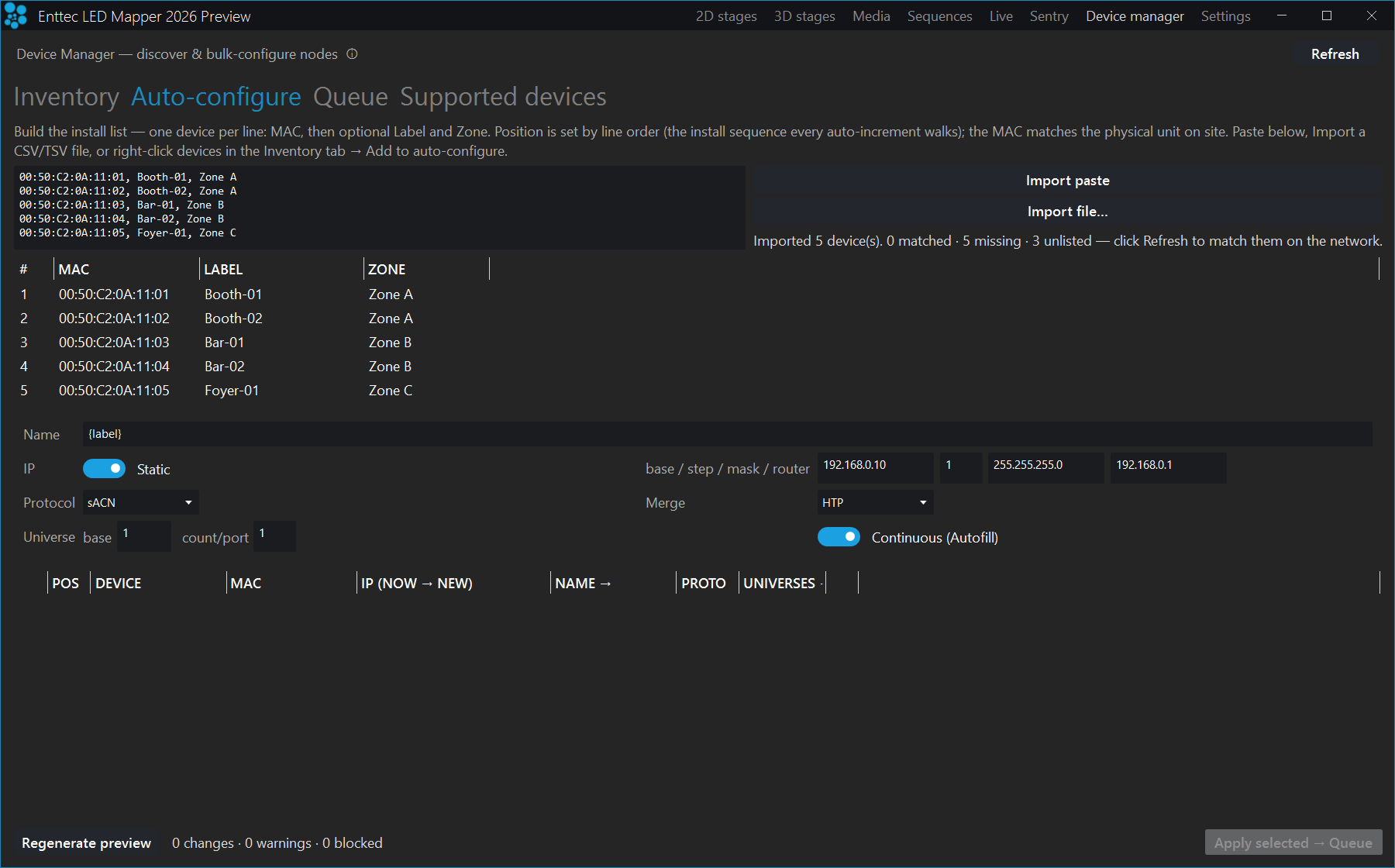
Leave alone, so the base, step, mask and router boxes beside it are greyed out and no addressing will be written. The address boxes are empty rather than pre-filled — ELM fills the mask in from the adapter it is sending Art-Net on, and here nothing is bound yet, so it offers nothing rather than a guessed network. The counts read 0 changes · 0 warnings · 0 blocked, and Apply selected → Queue is greyed out because there is nothing to apply.Bulk configuration is not "select some rows and press go". You build an install list — the order the boxes are installed in — and every auto-increment walks that order. Position comes from the list, not from the order nodes happened to answer the scan.
1. Build the install list
One device per line, MAC, then an optional label and zone:
00:11:22:33:44:55, Stage-L, Zone A
Blank lines and lines starting with # are ignored. Position is assigned by line order, 1-based,
across the valid lines. There are three ways in:
| Control | What it does |
|---|---|
| Paste box + Import paste | Type or paste the list, then press Import paste to parse it. |
| Import file… | Reads a CSV, TSV or TXT file — one device per line, columns MAC, Label, Zone. A header row is skipped. Quoted fields are honoured, so a label containing a comma survives. Save from Excel as CSV first. |
| Inventory right-click | Add to auto-configure appends the selected nodes to the end of the list, labelled with each node's install name — or the name it announces, if you have not named it — and switches to this tab. |
The list appears below with #, MAC, Label and Zone
columns. Importing again re-numbers positions by the new line order; a MAC that is already listed is updated in
place rather than duplicated. Lines with a malformed MAC are skipped and counted as such.
Beside the buttons, a summary reconciles the list against what is on the network — for example
12 matched · 1 missing · 3 unlisted. Missing means the MAC is on your list but nothing on
the network answered to it: a dead box, an unplugged cable, or a typo on the paper. Unlisted means a
node is out there that your list does not mention. Fix missing nodes before applying; a listed node that is
offline is simply left out of the run.
The install list is saved with the project, so the paperwork survives a save and reopen, and the next visit to site starts where you left off.
2. Write the recipe
| Field | What it does |
|---|---|
| Name | The name written to each node. Plain text is used as-is; the tokens {label}, {pos}, {pos:00}, {zone} and {mac4} are replaced per device — the label from your install list, its position in that list, the same position padded to two digits, its zone, and the last four characters of its MAC. Ships as {label}. |
| IP: Leave alone / Static / DHCP | Leave alone is the default and does not touch addressing at all — use it when you are only changing universes, protocol or names, because it also means the nodes are not restarted. Static gives each node a fixed address worked out from the base and step. DHCP lets your network hand out addresses instead — simpler, but a node can come back on a different address after a power cycle. |
| base / step / mask / router | Enabled for Static. base is the address given to the first device on the list; every later device counts up from it by step. A step of 1 gives .10, .11, .12; a step of 10 gives .10, .20, .30 — leave room if you plan to add nodes between them later. mask and router are written to every node in the run. |
| Allow off-subnet | Shown for Static. An address this computer cannot reach is normally blocked, because the node would disappear the moment it is applied and would need a factory reset by hand to get back. Tick this only when you are deliberately pre-configuring kit for a different network. |
| Protocol | Art-Net, sACN or ESP, applied to every port. This must match what ELM is sending on the Output page — a node set to the other one sits dark. |
| Merge | What a node does when two consoles send it the same universe: HTP takes the brighter of the two per channel, LTP takes whichever arrived last, Disabled turns merging off. If only ELM is sending, this makes no difference. |
| Universe base | The universe given to the first port of the first device. Everything else counts up from here, in install order. |
| count/port | How many universes each port carries. 1 is normal DMX. More than 1 needs Overdrive DMX enabled on the node — and this recipe does not enable it. Set the port's DMX mode to Overdrive in the settings form above, or on the node's own web page, before you raise this number, or the port cannot carry them. |
| Continuous (Autofill) / Per-device block | Continuous numbers every port across the whole install with no gaps, so a 4-port node is followed by one starting at 5. Per-device block gives each device its own run anchored on its position, leaving gaps — easier to read on paper, and it leaves room to add ports later. |
The recipe ships with IP set to Leave alone, protocol sACN, merge HTP,
universe base 1, one universe per port, continuous. Change what you need and leave the rest.
The mask is filled in from the network adapter ELM is sending Art-Net on, so it matches the network
you are actually on. base and router are left empty on purpose: ELM knows your netmask but
cannot know which address your install starts at, or whether your lighting network has a router at all —
guessing either is how a run ends up addressed to a network nobody can reach. Fill them in when you choose
Static; nothing is written from them while IP is on Leave alone.
3. Regenerate the preview and read it
Press Regenerate preview. The table does not update on its own. Change anything
in the recipe and the table is marked out of date and Apply selected → Queue is disabled until you
press Regenerate preview again — so what gets written is always what you reviewed.
The preview is a dry run. Nothing has been sent at this point.
| Column | What it shows |
|---|---|
| Tick box | Whether this row is included when you apply. Every row starts ticked; untick the ones you want to leave alone. Deselection survives a regenerate. |
| Pos | The device's position on the install list — the number every increment is worked out from. |
| Device | The name the node currently announces. |
| MAC | The node's hardware address, to check against the paper. |
| IP (now → new) | The address it is on now, and the address it would get. Reads DHCP if the recipe switches it to DHCP. |
| Name → | The name that would be written, with the tokens resolved. |
| Proto | The protocol that would be set on its ports. |
| Universes → | The range of universes its ports would cover. |
| Dot | Green: fine. Amber: a warning, or excluded by the licence cap. Red: blocked or unsupported. Hover it for the reason. |
Only nodes that are both on the install list and resolve to a configurable model appear in the preview. A listed node that is offline, or one ELM cannot configure, is not in the batch.
Beside the buttons is a summary reading, for example, 18 changes · 2 warnings · 0 blocked:
| Count | Meaning |
|---|---|
| Changes | Settings that would actually be written. If this is 0, nothing would change and Apply stays disabled. |
| Warnings | Something looks odd, but the row is still applied. The usual cause is a node that is changing its own IP as well as other settings: it drops off and comes back on the new address while the rest of the run is still going out. |
| Blocked | Rows that cannot be applied and will be skipped. Common causes: two devices given the same static IP, an address that collides with a node outside the batch, the same universe landing on two devices on the same protocol, a universe outside the protocol's range, an address on a network this computer cannot reach (unless you tick Allow off-subnet), or an address that is the network or broadcast address of its subnet — a step that runs past .255 lands on one of those. |
One blocked row disables Apply selected → Queue for the whole run. Unticking
the blocked row does not re-enable it — fix the cause in the recipe or the install list and regenerate.
4. Apply
Apply selected → Queue writes the settings to the ticked devices and moves you to the Queue tab.
Applying cannot be undone, and it can restart hardware. Choosing Static or
DHCP writes a network setting, and every node in the run restarts as it is configured and drops off
the network for a few seconds, so anything running through it stops. With IP left on Leave alone —
the default — no addressing is written and the nodes are not restarted, so a run that only changes universes,
protocol or names can be applied while the rig is live. Plan an addressing run for a time when the rig can go
dark, and check the preview table before you press it.
Applying the same run twice is safe: a device that already has the settings shows no changes and is skipped.
The licence node cap
How many nodes one run can configure is set by your licence. Every node still shows up in the inventory and
in the preview, but the rows beyond your limit are marked over capacity, coloured amber and skipped, and a
banner above the preview tells you how many are covered — Managing 20 of 25 configurable nodes — your
licence cap. Upgrade to manage them all. The rows that fit are still applied; the cap does not block the
run.
Rows are kept in install order, so the first N on your list are the ones that get configured. Architectural
licences start at 20 nodes; Settings → License shows the number yours includes, as
up to 20 nodes beside the Device manager row. Capacity add-on packs are applied to your licence in
your ENTTEC account, not in ELM, and the new number arrives the next time ELM starts.
Queue tab
Everything Device manager sends to hardware goes through this queue, whether it came from
Configure on one node or from a whole auto-configure run. Counts across the top show Pending,
Running, Succeeded and Failed.
| Column | What it shows |
|---|---|
| Sent | Clock time the request left ELM. |
| Request | What was asked for. |
| Gateway | Which node it went to. |
| Card | Which of this computer's network cards the request left by, as the same N1/N2 tag used elsewhere. It records the card used at the time the request was queued, so a completed row keeps telling you where that request actually went even if the node is later found on a different card. |
| Reply | When the answer landed. Blank means nothing came back. |
| Result | The outcome — running, retrying, succeeded, failed or cancelled. Nothing reads as succeeded unless the node answered. |
| Response (ms) | How long it took. |
Filter by status or by text to find one node in a long run. Right-click rows to Cancel or
Retry them — the action applies to the whole selection. Cancel all stops the pending
work, Clear completed tidies the list, and Export CSV writes the rows currently shown
to a file you can open in Excel, which is the commissioning record for the run.
If a row fails, check whether the node is back on the network first — a node that is still restarting cannot
answer. Press Refresh on the Inventory tab, then retry the row.
Supported devices tab
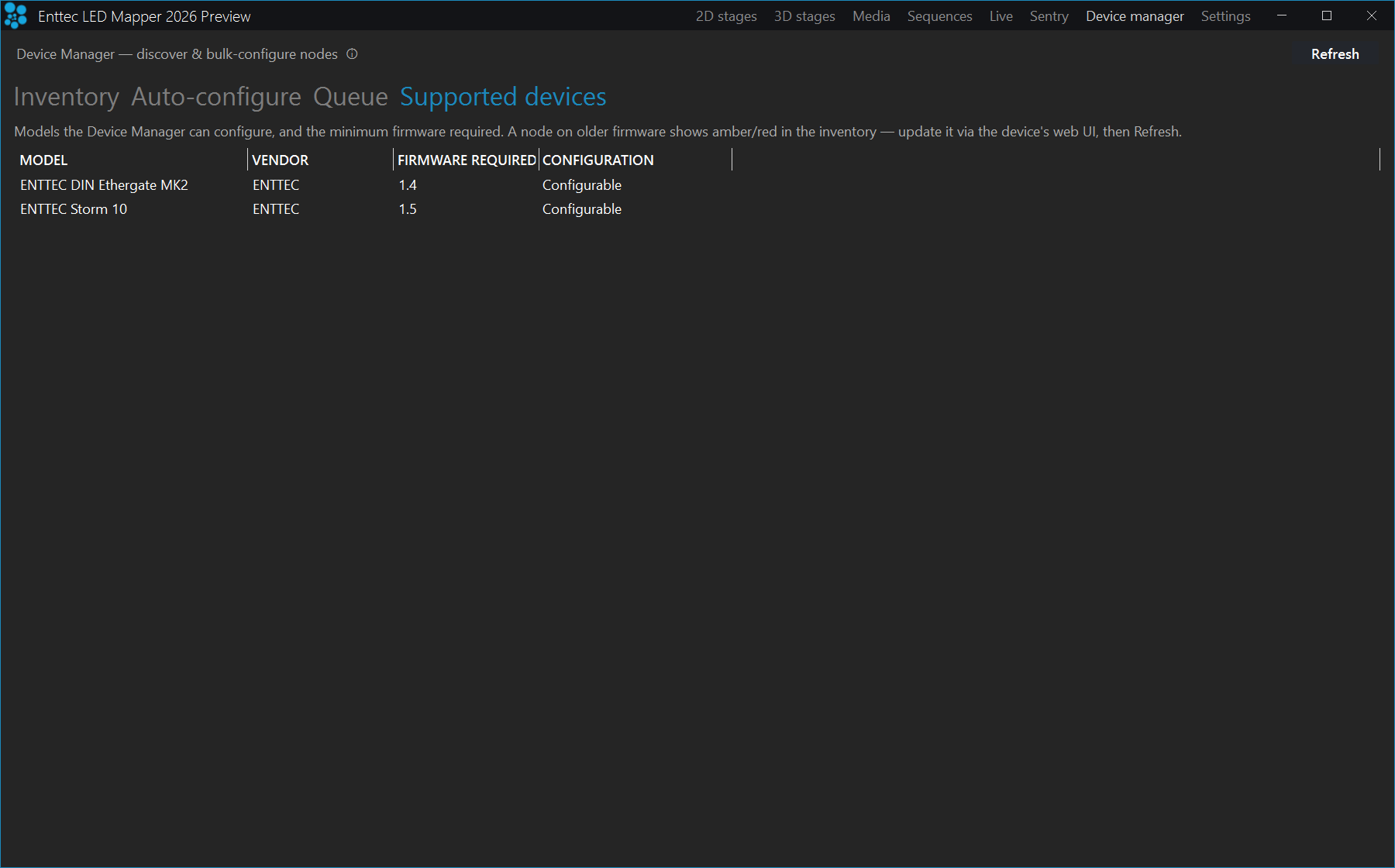
Not every node can be configured from ELM. This tab is the list of models Device manager can configure and the firmware each one needs. As of ELM 2026 it holds two models:
| Model | Vendor | Firmware required | Configuration |
|---|---|---|---|
| ENTTEC Storm 10 | ENTTEC | 1.5 | Configurable |
| ENTTEC DIN Ethergate MK2 | ENTTEC | 1.4 | Configurable |
Firmware matching is exact, because the configuration interface is firmware-specific. A Storm 10 on
firmware 1.4 is listed in the inventory but is not configurable; update it through the device's own web page,
then press Refresh.
Every other node on your network is name-only: you can give it an install name, open its web page and see
it in the inventory, but its settings have to be changed on the device itself. If you need a model added, use
Request support — contact ENTTEC in the pane below the inventory.
Reference
All settings panels, remote control options (DMX, OSC, OS2L, HTTP), troubleshooting, and the end-user licence agreement.
Settings: project
This is the overall panel, displaying the most important info about your project status. The top of the page holds the project buttons and the project counters; below them, a grid of status tiles shows what every subsystem is doing right now.
Project buttons
| Control | What it does |
|---|---|
| New project | Closes the current project and starts a new one. |
| New project from Pixel Designer | Asks for a Pixel Designer design number, then starts a new project with that design, every dot placed and patched. You are offered to save the current project first. See Import a design from Pixel Designer. |
| Load | Opens an existing project (Ctrl+O). Click the small arrow at the right edge of the button to pick from your recently opened projects instead of going through the file browser. |
| Save | Saves the project (Ctrl+S). |
| Save as | Saves the project under a new name. |
| Import | Imports items from another project, including stages, media and DMX settings. The menu offers From project (Stages, Media, or DMX settings per protocol: Art-Net, sACN, KiNet v1, KiNet v2), CSV → LEDs, DXF, and xLights → xModels. CSV and AutoCAD DXF files can be used to import your strips. |
| Export patch | Creates an HTML file containing all strips/fixtures to be opened in a web browser or Excel. The button stays disabled until the project has at least one mapped LED. |
| Firewall | Does the necessary firewall configuration for all network protocols. ELM must be running as administrator. The button only appears when the Windows firewall is enabled. |
Counters and output settings
| Control | What it does |
|---|---|
| DMX universes | The number of DMX universes used by your project, followed by the total number of DMX channels in brackets, for example 12 (5760 channels). The universe count is the channel total divided by 512, so it can be lower than the number of universes your strips actually output on, for example when strips start a new universe before the previous one is full. Your licence limit is checked against the universes actually in use; when you import a Pixel Designer design, its confirmation shows that real count. See Settings: license for your limit. |
| Stages | The number of stages in your project. A 3D (voxel) stage counts as one stage, not one per slice. |
| Strips | The number of strips in all stages. For a 3D stage the strips are counted from its slices, where the real fixtures live. |
| Mapped LEDs | The number of LEDs inside the mapping zones in all stages (including duplicated LEDs). |
| Output rate (FPS) | The number of times per second DMX packets are sent. Default is 30, max 240. WARNING: don't set it higher than what your LED controllers/fixtures support. This may result in DMX packets being discarded and visual artefacts. |
| DMX output | Activates or temporarily disables the DMX output. This is handy during testing. |
| Lock stages | Prevents accidentally editing the stages by requesting a password to unlock (last 4 characters of the hardware ID). |
| Run at startup | Automatically runs ELM when Windows starts and loads the last opened project file. When it is on, a drop-down appears beside it: normal opens the app as usual, minimized starts it without a window, and live starts it straight on the Live screen. |
| Language | Selects the user interface language. The button is at the bottom right of the page and shows the language currently in use. |
Status tiles
The lower part of the page shows one tile per subsystem: CPU, Media, Art-Net, sACN, KiNet, NDI out, Audio, MIDI, Remote and CITP. Each tile has a coloured square and a line of text beside it. Read the square first:
| Colour | What it means |
|---|---|
| Green | The subsystem is working — for example a protocol that is transmitting reads Sending, and MIDI reads Controllers connected. |
| Grey | The subsystem is idle or has nothing to do. A tile for a subsystem that is switched off entirely is also dimmed. |
| Yellow | A warning. The text beside the square is the warning message itself. |
| Red | An error. The text beside the square is the error message. |
This is the first place to look when something is wrong on site: a red Art-Net tile or a grey MIDI tile tells you which page to open next.
Backups
A project backup file is created every 5 minutes. To avoid slowdown during a live show, you need to manually save the project to trigger the backup creation. To open a backup, select the Backup file type in the file browser when opening a project. To set the backup to be the current project, simply save the project.
Import xLights / xModels
Select one or multiple xModel files to import. Strips will be automatically created to best fit the models.
Import CSV LEDs
Select one or multiple CSV files to import. Strips will be automatically created to best fit the LEDs. Each row of the CSV file can contain the following columns:
| Column | Description |
|---|---|
| X | Decimal number representing the LED horizontal position. |
| Y | Decimal number representing the LED vertical position. |
| Protocol | The DMX protocol like ArtNet, sAcn, KinetV1, KinetV2. |
| Type | The LED type like RGB, RGBW, RGBA, and so on. |
| Universe | The DMX universe number. |
| Address | The DMX address. |
| Group or Group1 | The name of the group. |
| Sub-group or Group2 | The name of the sub-group. |
A stage will be created to contain all LEDs based on their X and Y positions. To export the LEDs of a stage as a CSV, see Stages Manager.
Import strips from AutoCAD DXF file
Select a DXF file to import using the AutoCAD 2000 and up format, either in binary or text. Strips will be created based on the entities. Notes are also created based on the Text and MText entities.
Art-Net
Settings for the Art-Net universes. Configure them by entering the IP addresses of your nodes in the grid at the bottom of the page. ELM provides 32768 Art-Net universes; how many you may actually use depends on your license.
Run network test dialog across the middle was left open when this was captured.Page controls
| Control | What it does |
|---|---|
| Default NIC | Selects the network adapter used for the output. Any universe you have not assigned to a specific card under Advanced is sent from this one. Tick Use Multiple Network Cards beneath it to use more than one card — see Using several network cards below, where this drop-down goes read-only and a list takes over. |
| Use Multiple Network Cards | Switches this protocol between one card and several. With it off, everything leaves by the Default NIC above. With it on, that drop-down goes read-only and a list of cards appears beneath it. On a computer with only one usable card the tick box is greyed out, with a line beneath naming the card it did find — or saying it has found none. |
| Universe display | Chooses how universe numbers are shown in the grid below. Decimal is the default and numbers the universes from 000 upwards. Hex shows the Art-Net port address in hexadecimal, where the last digit is the universe (0-F), the digit before it is the Sub-Net (0-F) and the leading digits are the Net. |
| Scan nodes | Opens a window and shows the detected Art-Net nodes. Click Configure unicast to activate Art-Net unicast and send the universes to the subscribed nodes. Select the nodes you want taken into account first, or select nothing to use them all. |
| Locate uni. | Locates universes by sending all channels at full. No LEDs need to be patched. |
| Monitor | Shows the exact DMX values being sent. |
| Optimize frames | When activated, a universe is sent only when one of its channels has changed, which may considerably reduce the network load. It does not shorten the packets: every ArtDMX packet ELM sends still carries the full 512 channels. A universe that is in use is also resent at least twice a second even when nothing changes, so a node that missed a packet recovers. Older or low-powered nodes that expect a continuous stream may not work with this on. |
| ArtSync | When activated, sends an ArtSync packet after all universes have been sent. This makes sure all outputs to the lights are in sync and prevents tearing problems. |
| Primary/backup | A drop-down with three choices. Set it to primary on the main computer and backup on the standby computer; disabled turns the feature off. The backup stops all DMX output — Art-Net, sACN and KiNet — until the primary stops sending, then takes over automatically. Liveness is detected with Art-Net poll messages on the output network adapter, so both computers must be on that same network. On the backup, the label above the drop-down changes to Primary is active or Backup is active so you can see which machine is currently driving the rig. |
The universe grid
| Control | What it does |
|---|---|
| Universe IP addresses | For each universe, enter an IP address to enable unicast and send the DMX packet to a specific node. Type broadcast to send the universe to all connected nodes in the network. Leave a box empty and it inherits the address of the universe above it, shown greyed out. Unicast is preferred when using more than 64 Art-Net universes or a WiFi network. |
| Show used only | On by default. Hides universes that aren't patched and have no IP or network card set, so a small show isn't lost among thousands of empty boxes. Turn it off to see every universe. If nothing is used yet, all universes are shown so a fresh project isn't blank. |
| Universes per page | How many universes each numbered page tab holds: 16, 32, 48, 64, 96, 128, 256 or 512, with 96 the default. Use the numbered page tabs above the universe boxes to move between pages — each tab shows its page number and the range it covers, such as U000-095. |
The coloured block behind each universe number tells you its state: green means the universe is patched and being sent, dark yellow is a warning, red is an error, and grey means the universe is not in use. Red also appears when a universe is in use but falls beyond your license limit — ELM keeps the show running and blacks out that universe rather than stopping output.
Using several network cards
A computer with two network cards can drive two separate lighting networks — for example a house rig on one and a touring rack on another, each with its own address range. Tick Use Multiple Network Cards under the Default NIC drop-down and a list of the computer's cards appears beneath it.
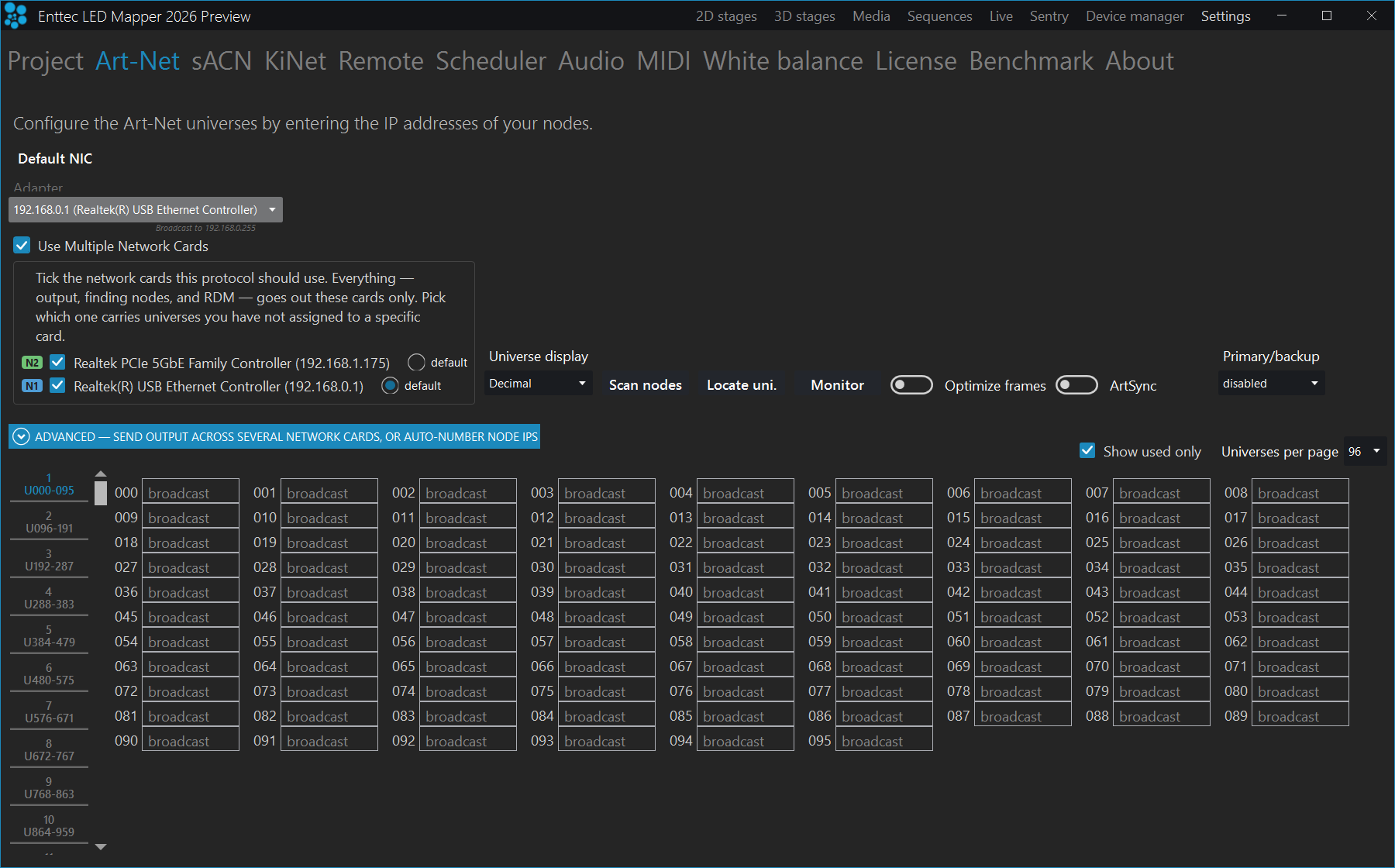
Use Multiple Network Cards on. The Default NIC drop-down above is greyed out because the ticked list below it is now the answer. Each card carries its tag — N2 for the PCIe card, N1 for the USB one — and the USB card is nominated default, so any universe not assigned to a specific card leaves by it.Everything follows the ticked cards. Output, finding nodes and RDM all use them. This is the answer to “which network is ELM on?” for this protocol.
Two exceptions, both deliberate. A card you have un-ticked but that still has universes assigned to it is still watched for nodes, so those universes do not vanish from the inventory. And if you un-tick every card, output falls back to the card in the Default NIC drop-down rather than stopping — sending out one card beats sending out none. The warning under the list tells you when you are in that state.
On the sACN and KiNet pages only the output half applies: neither protocol has node discovery or RDM, so ticking cards there decides where DMX goes and nothing more.
| Control | What it does |
|---|---|
| Card tick boxes | One per card, showing its name and address. Tick the ones this protocol should use. Un-ticking a card stops output leaving by it, and stops ELM looking for nodes on it. |
default | One ticked card carries every universe you have not assigned to a specific card. Exactly one card holds it. If the card you nominated is not ticked, ELM says so rather than choosing another for you. |
| Card tag | Each card carries a short tag — N1, N2 — on a coloured badge. The same tag and colour identify that card everywhere else in ELM: the universe grid, Sentry, Device Manager and the request queues. The tag is what identifies the card; the colour is only there to help you scan a list. |
Warnings appear under the list when the selection cannot work: No network cards are ticked, so nothing can be sent. Tick at least one. if you have un-ticked them all, and a prompt to pick a default if the nominated card is no longer among them.
A card that cannot carry a broadcast — a VPN or tunnel adapter such as Tailscale, and also Bluetooth, WSL and Docker adapters — is marked in yellow: VPN or tunnel — can send to a node's IP address, but cannot find nodes or broadcast. You can still tick it and send to a node by its IP address, which is how you reach a rig at another site over a VPN. A tunnel that reports no hardware address at all cannot be ticked — per-universe assignment is stored against the card's MAC, and it has none. ELM leaves it out when searching for nodes, because the search is a broadcast and no reply could come back.
A card can also disappear while ELM is running — unplugged, or disabled in Windows. It keeps its tag, and anything that was found on it says card no longer in use rather than simply going quiet. Plug it back in and it returns as the same card, with the same tag.
Two rigs on two cards, start to finish
A house rig on one card and a touring rack on the other:
- Tick
Use Multiple Network Cards, then tick both cards. - Click
defaultagainst the card that should carry anything you have not assigned — normally the house rig. - Open Advanced, type the touring rack's universe range into
NIC — universes, pick the other card, and clickApply. - Check the coloured chips on the universe boxes and the capacity badges underneath.
Nothing needs restarting: ELM re-points output and node-finding as soon as you tick. Switching the mode on for the first time ticks the card you were already using, so the switch by itself never moves any data.
This is saved with your show — the mode, the ticked cards and the per-universe assignments all go into the project file. Assignments are stored against each card's hardware address, so opening the show on a different computer will not find them. ELM says so rather than going quiet: These universes were set to send out a network adapter that isn't on this computer, so they're going out the default adapter instead., naming the universes affected.
Advanced: assigning universes to cards, and auto-numbered node IPs
Above the universe grid, on the left, is an expander headed Advanced — send output across several network cards, or auto-number node IPs. With Use Multiple Network Cards off it reads Advanced — auto-number node IPs and only the IP tools inside it apply. It starts collapsed. Most setups send everything out the Default NIC and never need the card tools; the IP auto-numbering is useful whatever your card setup.
Each fixture must be reachable from the card its universe is assigned to. A universe sent out a card that can't reach the fixture fails silently — nothing arrives and no error is raised. ELM asks you to confirm before it re-routes anything.
| Control | What it does |
|---|---|
| NIC — universes | Only shown when Use Multiple Network Cards is on. Type the first and last universe of a range, pick a card from the drop-down, then click Apply. The drop-down offers only the cards you have ticked, so a universe cannot be routed to a card this protocol is not using. The numbers are the ones shown in the grid. Picking a card also fills in base IP below with that card's own address, if you haven't typed one, so range IPs land in the right subnet. |
| Auto-balance | Only shown when Use Multiple Network Cards is on. Spreads all universes evenly across the ticked cards in contiguous blocks. ELM shows you the exact split it is about to make — which card gets which universe range — before applying it. |
| IP — universes | Type the first and last universe of a range, a base IP, and how often to step the address (+1 every N univ; 1 = a new IP for every universe). Click Apply IPs to fill the range with sequential addresses. ELM also stops the last address bleeding into the universes after the range. |
| Capacity badges | Only shown when Use Multiple Network Cards is on. One badge per card, reading e.g. 512 / 2,083 univ @40Hz: how many universes are assigned to that card against how many it can carry at 40 Hz. Green is comfortable, amber is at the limit, red is over it. The capacity figure comes from the network test on the Benchmark page if you have run it, otherwise it is estimated from the card's link speed; a card whose speed can't be read reads (capacity unknown). |
Once more than one card is available, each universe box grows a small coloured chip on its right edge showing which card it goes out of (no chip means the default card), and hovering the chip names the card, in the same N1 form used elsewhere. A universe whose IP address falls outside its assigned card's subnet gets a red outline — ELM warns but still sends. You can also right-click a page tab and pick a card to send that whole page out of it — again, only the ticked cards are offered.
sACN
Settings for the sACN (E1.31) universes. Configure them by entering the IP addresses of your nodes in the grid at the bottom of the page. ELM provides 32768 sACN universes; how many you may actually use depends on your license.
Page controls
| Control | What it does |
|---|---|
| Adapter | Selects a network adapter for the output and the input (if using remote control with sACN). Any universe you have not assigned to a specific card under Advanced is sent from this one. |
| Use Multiple Network Cards | Switches sACN between one card and several, exactly as on the Art-Net page — see Using several network cards. Only the output half of that applies here — sACN has no node discovery or RDM — so ticking cards decides where DMX goes and nothing more. The choice is per protocol: sACN can use a different set of cards from Art-Net. |
| First universe | Since sACN supports thousands of universes, set the first universe to use. Enter a value from 1 to 32255. The universe grid below renumbers to start at this value, and the numbers you type into the Advanced range boxes are the renumbered ones. |
| Priority | The priority carried in every sACN packet ELM sends, used by receivers to merge multiple sources. Choose Highest (200), Higher (101), Normal (100), Lower (99) or Lowest (1) — there is no free numeric entry. When running two ELM computers, leave the main one on Normal and set the backup to Lower or Lowest so the main computer wins. |
| Locate uni. | Locates universes by sending all channels at full. No LEDs need to be patched. |
| Monitor | Shows the exact DMX values being sent. |
| Optimize frames | When activated, universes are sent only when there's a change, which may considerably reduce the network load. Packets are always the full 512 channels; only whole unchanged universes are skipped, and a universe in use is still resent at least twice a second so a receiver that missed a packet recovers. |
| sACN sync | When activated, sends a sync packet after all universes have been sent. This makes sure all outputs to the lights are in sync and prevents tearing problems. The sACN controllers need to support sACN sync. |
The universe grid
| Control | What it does |
|---|---|
| Universe IP addresses | For each universe, enter an IP address to enable unicast and send the DMX packet to a specific node. Type multicast to send the universe to all subscribed nodes in the network. Leave a box empty and it inherits the address of the universe above it, shown greyed out. Unicast is preferred when using more than 64 sACN universes with a network switch not IGMP v2 ready, or a WiFi network. |
| Show used only | On by default. Hides universes that aren't patched and have no IP or network card set. Turn it off to see every universe. If nothing is used yet, all universes are shown. |
| Universes per page | How many universes each numbered page tab holds: 16, 32, 48, 64, 96, 128, 256 or 512, with 96 the default. Use the numbered page tabs above the universe boxes to move between pages. |
The coloured block behind each universe number shows its state: green when the universe is patched and being sent, dark yellow for a warning, red for an error or for a universe in use beyond your license limit, grey when it is not in use.
Advanced: assigning universes to cards, and auto-numbered node IPs
Above the universe grid is the same expander as on the Art-Net page. With Use Multiple Network Cards on it is headed Advanced — send output across several network cards, or auto-number node IPs; with it off it reads Advanced — auto-number node IPs and only the IP tools apply. It starts collapsed.
| Control | What it does |
|---|---|
| NIC — universes | Type the first and last universe of a range (as numbered in the grid), pick a card, then click Apply. ELM asks you to confirm first. |
| Auto-balance | Spreads all universes evenly across the available cards, showing you the split it is about to make before applying it. |
| IP — universes | Fills a range of universes with sequential addresses from a base IP, stepping the address every N universes. Click Apply IPs. |
| Capacity badges | One per card, e.g. 512 / 2,083 univ @40Hz — universes assigned against what the card can carry at 40 Hz, in green, amber or red. |
Each universe box then shows a coloured chip for the card it goes out of (no chip means the default adapter), and gets a red outline when its IP falls outside that card's subnet. You can also right-click a page tab to send that whole page out one card. Remember that each fixture must be reachable from the card its universe is assigned to — universes sent out the wrong card fail silently.
KiNet
Settings for the Philips Color Kinetics devices (power supplies). Both protocol versions are supported, and the KiNet page has a sub-tab for each: V1(DMXOUT) and V2(PORTOUT). The two sub-tabs are configured completely independently — each has its own adapter, its own Locate uni. and Monitor buttons, its own quick mapping panel and its own universe grid. Use Philips QuickPlay Pro to configure and get the IP addresses of your KiNet devices, and close it once the configuration is done to avoid flickering.
Philips controllers generally expect the computer to be on the 10.x.x.x network with a 255.0.0.0 subnet mask. If the adapter you select is not on that network, ELM shows a warning on the page — change the computer's IP address before troubleshooting anything else.
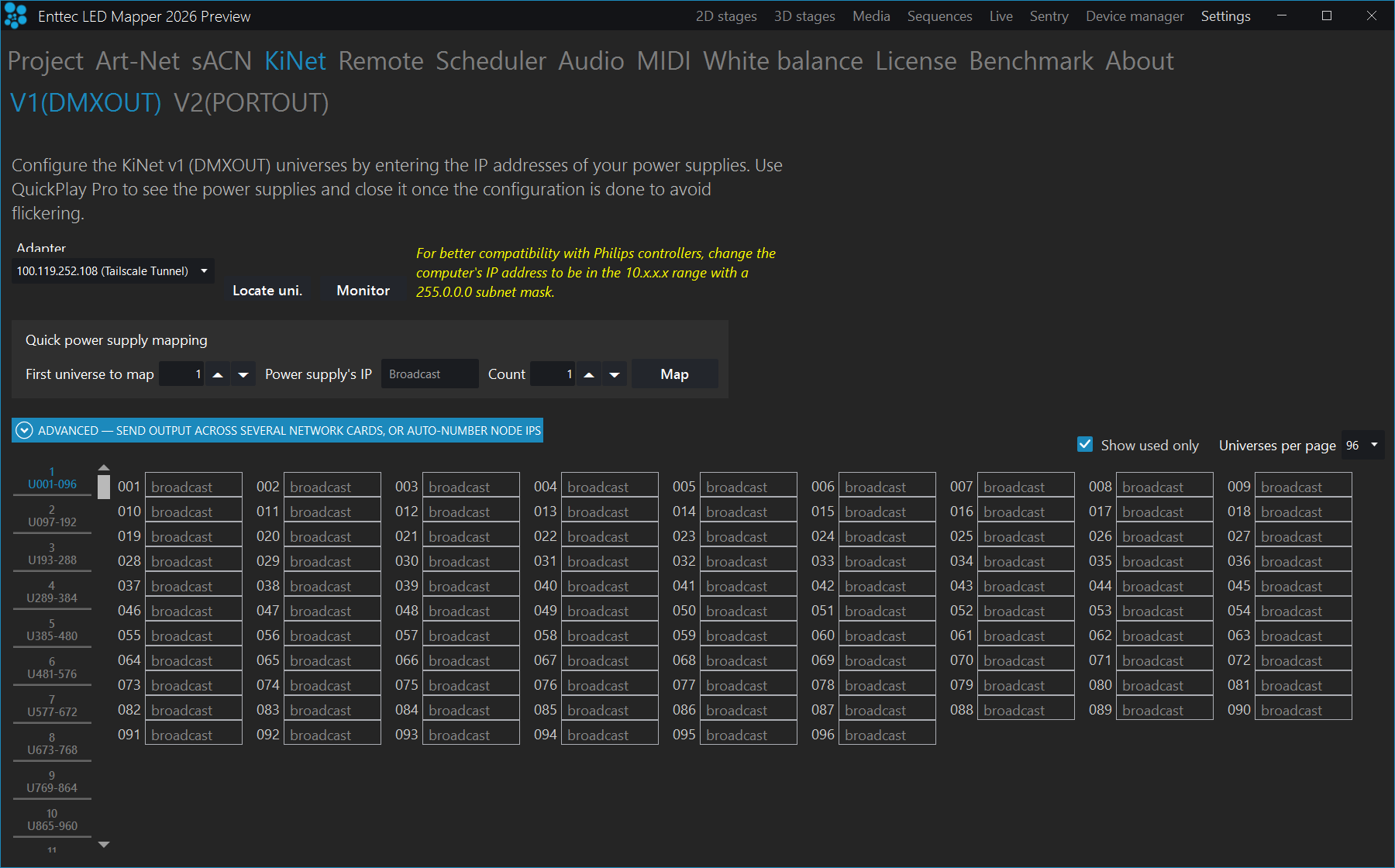
broadcast placeholder. Fill them with Quick power supply mapping rather than typing addresses one by one.Controls on both sub-tabs
| Control | What it does |
|---|---|
| Adapter | Selects a network adapter for the output. Any universe you have not assigned to a specific card under Advanced is sent from this one. |
| Use Multiple Network Cards | Switches this KiNet version between one card and several, exactly as on the Art-Net page — see Using several network cards. Only the output half of that applies here — KiNet has no node discovery or RDM — so ticking cards decides where DMX goes and nothing more. V1 and V2 each carry their own choice. |
| Locate uni. | Locates universes by sending all channels at full. No LEDs need to be patched. |
| Monitor | Shows the exact DMX values being sent. |
| Device IP addresses | Enter the IP address of your device against each universe in the grid. Leave a box empty and it inherits the address of the universe above it, shown greyed out; leave the whole column empty to broadcast. |
| Show used only | On by default. Hides universes that aren't patched and have no IP or network card set. Turn it off to see every universe. |
| Universes per page | How many universes each numbered page tab holds: 16, 32, 48, 64, 96, 128, 256 or 512, with 96 the default. Use the numbered page tabs above the universe boxes to move between pages. |
| Advanced | The same band as on the Art-Net page — range assignment, Auto-balance, sequential node-IP fill and per-card capacity badges. The card tools appear when Use Multiple Network Cards is on; the node-IP fill is always available. |
KiNet V1 (DMXOUT)
On this sub-tab each universe carries only a power supply IP address; there is no port. One power supply drives one universe.
Quick power supply mapping is the practical way to fill the grid — without it you are typing IP addresses into boxes one at a time.
| Control | What it does |
|---|---|
| First universe to map | The first universe in the grid to fill (1 to 2048). |
| Power supply's IP | The IP address of the first power supply. Leave it blank to broadcast. |
| Count | How many power supplies to map (1 to 2048). |
| Map | Fills that many consecutive universes, giving each one the next IP address in sequence, then advances First universe to map past the block it just filled so you can carry straight on. The IP is not incremented for 127.0.0.1 or for a broadcast address. |
KiNet V2 (PORTOUT)
On this sub-tab you map each KiNet device's port to a universe in ELM. ELM provides 32768 KiNet universes; how many you may actually use depends on your license.
| Control | What it does |
|---|---|
| Port | V2 (PORTOUT) only. The physical output port on the power supply that this universe drives (1 to 16). The box sits to the right of the IP address in each universe row. |
Quick power supply mapping maps one supply per press, port by port:
| Control | What it does |
|---|---|
| First universe to map | The first universe in the grid to fill (1 to 2048). |
| Power supply's IP | The IP address of the power supply. Leave it blank to broadcast. |
| Start port | The first port number on that supply (1 to 16). |
| Port count | How many of its ports to map (1 to 16). |
| Map | Fills that many consecutive universes with the IP address and consecutively numbered ports, then advances First universe to map past the block and adds 1 to the IP — ready for the next supply, so you can press Map once per power supply down the rack. The IP is not incremented for 127.0.0.1 or for a broadcast address. |
Quick power supply mapping reaches the first 2048 universes only. Beyond that, set the IP addresses and ports in the grid directly, or use the IP — universes range fill under Advanced.
Scheduler
The scheduler is responsible for activating your sequences for those with scheduling options. The sunrise and sunset times are automatically updated throughout the year based on your location.
The top of the page shows the date and time ELM is currently using and today's Sunrise and Sunset for the position set below. The clock ticks once a second, and the sunrise and sunset are recomputed whenever you change the latitude, longitude, a preset or a test helper — so you can confirm the times before relying on them in a schedule. The times shown already include the sunrise and sunset offsets set below.
| Control | What it does |
|---|---|
| Stop during daylight (under Scheduler) | Determines whether you want to stop the scheduler during daylight. In this case, all running sequences are stopped automatically. |
| Active (under Scheduler) | Temporarily stops all schedules. It is handy to take over and manually select what's playing on each stage in the live mode. This option isn't saved to the project file. |
| Restart (under Scheduler) | Restarts the scheduler and works out again which sequences should be playing. Use it after you have taken manual control of a stage in the live mode, or after editing your schedules, to hand playback back to the scheduler immediately instead of waiting for the next scheduled event. |
| Your position | Your latitude and longitude position on Earth. Latitude runs from -90 at the south pole to 90 at the north pole, 0 at the equator; Longitude runs from -180 to 180, positive east of Greenwich and negative west. You can also select a preset in the Presets list, which fills both boxes for you. |
| Offsets (minutes) | Offsets the sunrise and sunset times, from -3600 to 3600 minutes each. For example, if you want to start the installation 2 hours before sunset, you enter (-120) in the sunset box. |
| Test helpers | Temporarily shift the current date and time so you can test your schedule without waiting. Add days, Add hours and Add minutes each accept -9999 to 9999 and add up; the calendar under Add days fills in the day offset for you when you pick a date. The date, time, Sunrise and Sunset at the top of the page follow the shift straight away, so you can watch a schedule fire. Press Clear to go back to the real date and time. These values aren't saved in the project file. |
Audio
ELM listens to one audio input for the whole app, and this is where you choose it.
Everything that reacts to audio follows that one input: the audio reactive effects, the audio reactive
mix and beat detection. Pick System (loopback) to listen to what is playing on this
computer, or pick a microphone, a line-in or an ASIO driver.
Settings > Audio is a single page, headed Beat detection. There is no sub-tab and no list of audio input slots — the eight-input panel from earlier versions has been removed, together with its activation switches, falloff speed, frequency-range boxes, auto-gain delay, slot arrows and the WaveIn / ASIO mode switch. The controls at the top of the page, described below, are the whole audio input chain. The rest of the page — spectrum, beat readout and master tempo — is covered in Beat detection.
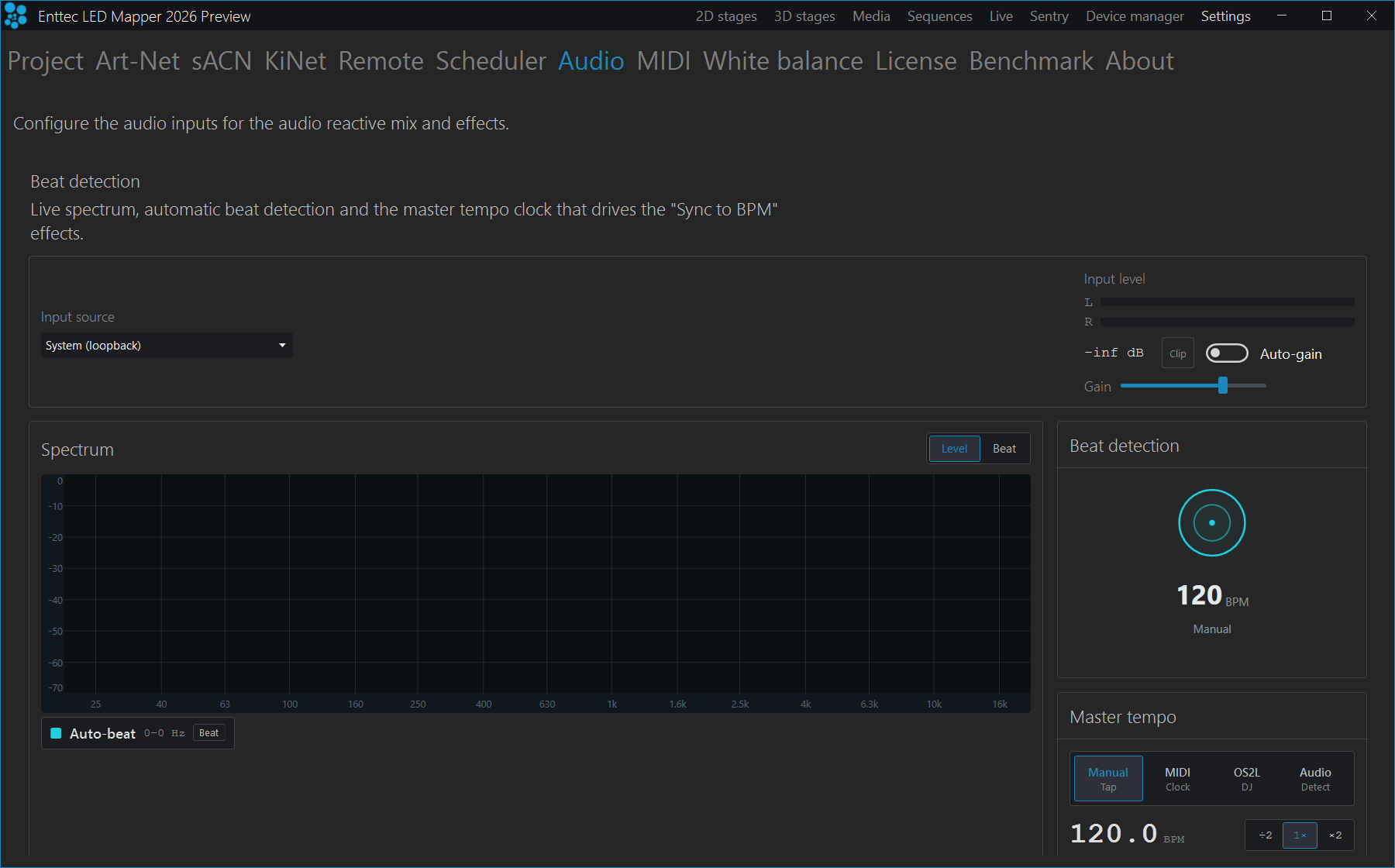
-inf dB and the spectrum is flat; the 120 BPM shown is the manual tap tempo, not a detected one.| Control | What it does |
|---|---|
| Input source | The audio device ELM listens to. The list is System (loopback) first, then every capture device on this computer, then every installed ASIO driver as ASIO: <driver name>. Selecting an input connects it and cleanly closes the previous one. |
| ASIO channel | A second, unlabelled list that appears beside Input source only when you have selected an ASIO driver. ELM captures the single channel you pick there. There is no separate ASIO panel and no mode switch. |
| Input level | The incoming L / R level and the level in dB. The Clip indicator turns red when the signal is too hot — turn the source down, or turn Auto-gain on. |
| Auto-gain | Evens out a quiet or loud source to a usable level. Turn it off to set the level yourself. |
| Gain | Appears only when Auto-gain is off. Sets the input gain from -50 dB to +50 dB. The default is -15 dB. |
If you open a project made with an older version of ELM, any per-effect audio input choice it carries is ignored — the effects listen to the input you select here. The audio reactive effects look exactly as they did.
Beat detection
Beat detection listens to live audio, works out its tempo (BPM) and beat in real time, and uses that beat to drive ELM's master tempo clock. Every tempo-synced feature (shader and effect time, sequence playback and live faders) can follow the detected beat, with no MIDI clock, DJ software or extra hardware needed. It works with any audio input: a microphone, a line-in, or the computer's own output (loopback).
Open it from Settings > Audio. That page is the beat detection page — the
heading Beat detection is printed at the top of it, it is not a sub-tab you click. The page
shows a live spectrum analyser, a pulsing beat indicator with the detected BPM, and the master tempo panel
where you choose the tempo source.
The Input source, Input level, Auto-gain and Gain controls across the top of the page are the app-wide audio input; they are described under Audio. The controls below are the rest of the page.
| Control | What it does |
|---|---|
| Spectrum (Level / Beat) | Live frequency display. Switch between the Level and Beat views. Scroll to zoom, drag with the middle mouse button to pan, double-click to reset the view. You cannot drag a frequency range here — there is nothing to set. |
| Auto-beat | The chip under the spectrum, showing the frequency window ELM is currently tracking the beat in. ELM chooses that band for itself and follows the music as it changes. There is nothing to turn on or off and no Hz range to type. |
| Beat detection readout | The pulsing indicator and BPM value show the current detected tempo and which band the beat is tracked from (for example Kick (60-150Hz)), with a confidence readout. It reads Listening... until the tempo is confidently locked. With a source other than Audio it shows that source's name and a steady BPM instead. |
| Master tempo source | Chooses what drives ELM's master clock: Manual (tap), MIDI (clock), OS2L (DJ software) or Audio (this beat detection). Choose Audio to have the detected beat drive every tempo-synced effect at once. |
| Tap / Type BPM | Set the tempo by tapping in time with the music, or press Type BPM and enter a value. Both work only while the source is Manual — under MIDI, OS2L or Audio they are greyed out, because the tempo comes from that source. Tapping or typing a BPM also puts every running sequence group onto that beat instead of its own step timer. |
| ÷2 · 1× · ×2 | A sticky three-way octave switch, not two momentary buttons. Whichever you pick stays applied as a multiplier on whatever tempo the source reports, so a detected 100 BPM keeps beating at 200 instead of snapping back at the next estimate. It applies to the audio detector, MIDI clock, OS2L and tap alike, and is saved with your project. Use 1× for the tempo as reported. |
| Phase | Press the ⟲ button on the beat you want to be the "one" and ELM re-seeds the detector at the current tempo, snapping the beat to that moment. The slider beside it returns to centre and currently drives nothing on its own. |
| OS2L status | The dot shows whether DJ software is connected — OS2L - connected or OS2L - waiting. The words "falls back to audio" are printed beside it, but no fallback happens: if the source is OS2L and nothing is sending OS2L, the clock simply holds its last tempo. Switch the source to Audio or Manual instead. See OS2L. |
ELM detects onsets across six frequency bands (roughly 20 Hz to 12 kHz) instead of reacting to raw volume, so it locks onto real musical material, not only four-on-the-floor. It confirms a new tempo before switching, so a passing drum fill will not pull the BPM around, holds time through breakdowns and quiet passages, and keeps the last good reading until its confidence is high, so the on-screen BPM stays steady rather than flickering. It searches roughly 60 to 200 BPM and reports in a stable octave; use the ÷2 · 1× · ×2 switch when you want the other one. The whole engine runs on your machine at low latency, with nothing to install and no cloud.
MIDI
The detected MIDI controllers are listed here. Activate the ones you want to use for your performance. The configuration for which notes and CC messages to use is done in the Perform panel. Multiple controllers can be used at the same time as long as they are transmitting on different channels or at least sending different note or CC messages.
| Control | What it does |
|---|---|
| Master tempo | A read-only panel at the top of the page showing the current master BPM — the clock that drives the "Sync to BPM" shader effects. You cannot choose the source here; it is marked Selection is in the audio screen. To have a MIDI clock drive the show, set the master tempo source to MIDI on the Audio (Beat detection) page. |
| Activation switch | Activates this MIDI controller. Leave unused controllers off. |
| Clock BPM | The tempo detected from this controller's MIDI clock messages. It stays empty if the controller sends no clock. |
| Activity | Lights up while MIDI messages are arriving from this controller. Use it to confirm the right box is talking before you start mapping notes. |
| Error text | If a controller cannot be opened — usually because another application already has it — the reason is shown in red on its row. |
| Refresh | Re-scans for connected controllers. Press it after plugging one in. |
White balance
Adjust the colour temperature and intensity of the various LED types in order to get a more accurate
preview in the stage monitor. The page lists one card per entry — White,
White cool, White neutral, White warm/amber and
Default — each with a short line saying which part of the mapped media colour drives it.
Default covers every other LED type: RGB, RGBW, RGBAW and so on.
Check which white type your strips use first. These white entries drive the preview
only for the retired fixed white types — White, White warm,
White neutral, White cool, WWA, WAW and
AWW. Those types still load and render so old shows keep working, but they are no longer
offered when you add or edit a strip. The picker now offers White single,
White dual and White triple instead, and for those types the stage monitor
colour comes from the emitter temperatures you set on the strip and from the stage's CCT fader on the
Live view, not from this page. See Edit strips.
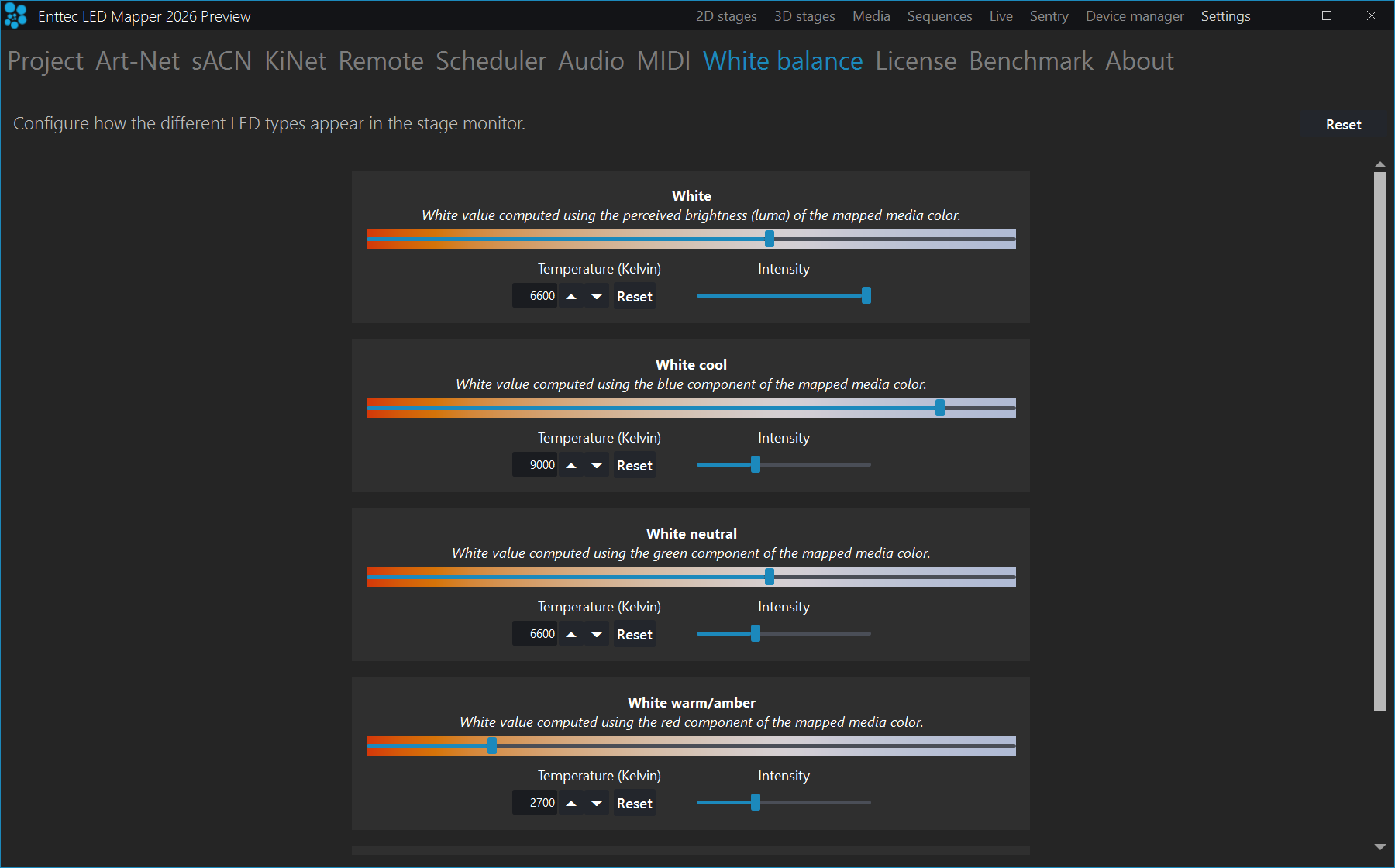
Default; the Reset at the top right restores every card.| Control | What it does |
|---|---|
| Temperature (Kelvin) | The colour temperature this white is drawn at in the stage monitor, from 1000 to 10000 K. Type a value in the box or drag the coloured bar on the card. |
| Intensity | How bright this white appears in the preview, from 0 to 1. |
| Reset (on a card) | Restores that one entry to its default temperature and intensity. |
| Reset (top right) | Restores every entry on the page to its defaults. |
These settings are saved with your project. They change only how ELM draws your rig — the stage monitor, and the previews ELM streams to a console over CITP or to the remote control view. They never change what is sent to your fixtures.
License
Manage your license. ELM holds one license at a time: importing another replaces the one already stored, it does not add to it. To get more DMX universes, buy an add-on and apply it to your existing license in your ENTTEC account — see below.
Status
The card at the top shows a coloured dot with the current state and a plain sentence explaining it.
It also names your plan, but only when your license carries a plan name — older licenses and demo
mode do not, and then the line is simply absent. If no plan name is shown, read your plan off the Plan
card below instead: Remote control marked Upgrade means Free; Remote control
Included with Sentry and Device manager Upgrade means Professional; all three
Included means Architectural. A demo machine also shows all three as
Included, but its headline reads Demo mode. Underneath the status, when a
license is present:
| Field | What it shows |
|---|---|
| The email address the license was issued to. | |
| Expiry | When a subscription license runs out. Absent on a perpetual license. |
| Grace until | How long ELM will keep running after the license expires or while it cannot reach the license server. |
| Last synced | When the license server last issued your license. An old date just means you have been offline — that is fine. |
| Renew subscription | Appears only when your license is due for renewal. It opens the ENTTEC store. |
Plan
The Plan card shows the DMX universes your license grants — including any add-on you
have applied — then every feature ELM gates, each marked Included or Upgrade:
Art-Net output, sACN output, KiNet output, Live mode, Remote control, Sentry and Device manager. The two
features with a capacity also show the included quantity beside the name, for example Sentry
up to 1,000 RDM devices and Device manager up to 20 nodes.
This card is the authority on what you hold. The universe number here is what ELM enforces — universes beyond it go dark — and it is not the same as the 32,768 universes per protocol the engine can address; that is a capability, this is your entitlement. If you need more, universe add-on packs raise this number (see below and Licenses).
On a computer with no license the Plan card reads Unlimited for DMX universes and marks
every feature Included, because demo grants everything. That is correct, not a display
fault: the restriction in demo is the periodic output blackout, not the feature list. Activating a
license replaces that grant with the license's own, so the numbers on this card can go down the
first time you activate — a Free license reads 2 universes with Remote control, Sentry and Device
manager marked Upgrade.
Activate with a voucher
Enter your voucher code and the email you bought with, then click Activate to activate
this computer. If the build you are running cannot activate online it says so and points you at
Import license file… instead.
Add-on pack codes are not entered here. Extra universes, extra Sentry devices and extra Device Manager nodes are applied to your existing license in your ENTTEC account under My Licences. The extra capacity appears the next time you start ELM. If you enter an add-on code on this screen ELM tells you what it is and where to use it, and leaves the code in the box so you can copy it across.
This computer
| Control | What it does |
|---|---|
| Machine ID | This computer's unique ID. Send it to support if you need a license file issued for this machine. |
| Copy | Copies the machine ID to the clipboard so you can paste it into an email. |
| Deactivate this computer | Frees your license so you can activate it on another computer. It does not use up a reset. Do this before you move machines. |
Buttons at the bottom
| Control | What it does |
|---|---|
| Import license file… | Imports a license file you were sent. It replaces whatever license is stored — licenses do not stack. |
| Remove license | Removes the activated license from this computer, after a confirmation. ELM drops back to Demo mode; you can import the license again later. |
| Get a license | Opens the ENTTEC store. |
| Manage your ENTTEC account & devices… | Opens your ENTTEC account page in your browser, where you manage subscriptions, add-ons and registered computers. |
Benchmark
Benchmark sizes your rig against reality. It tests your actual network, processor and graphics and tells you how many universes this computer can truly sustain at your chosen frame rate, so you can plan a show against what the hardware can do rather than a guess. The tests are a guide only and do not change any of your settings.
The network test pauses your live lighting output. It sends real data on the wire, so
ELM pauses output for the few seconds it runs and asks you to confirm first: "This sends real test
data over your selected network adapters for a few seconds. Your live lighting output will be paused
while it runs, so don't run this during a show. Continue?" A banner shows while it runs, and output
is restored when it finishes, is cancelled or fails. The CPU, 2D stage and 3D stage tests do not touch
the network and do not pause anything. Test everything starts with the network test, so it
asks the same question and pauses output too. Do not run either during a show.
Set a Target frame rate (FPS) first: it is the rate the universe estimate and the CPU
capacity table are worked out at. Choose 25, 30, 40,
44 or 60. Use Test everything to run all four tests in turn, or run
each one on its own.
Once the network or CPU test has run, a banner appears at the top of the page. It tells you roughly how many DMX universes your hardware can handle (a 20% safety margin is already included), what today's build is limited to and how many you are using, and lists the figure for every standard frame rate — higher frame rates carry fewer universes. The banner is outlined green when your hardware covers all the universes you have configured, amber when it covers at least 80% of them, and red below that.
| Test | What it measures |
|---|---|
| Network | Measures how much Art-Net data each network adapter can send before it runs out of headroom, both on its own and all together. Tick the adapters to test (unused ones such as VPNs or virtual adapters start unticked, and adapters with no IP address cannot be tested), then run the test. Results show max packets/sec, max Mbps and a recommended packets/sec per adapter, and compare against your last test. This is the test that pauses live output. |
| CPU (processor) | Measures how much effect processing this computer can handle, how well it uses all its cores, and how many overlapping effect layers it can blend smoothly. |
| 2D stages | Measures how many effects this computer can run at once before it slows down, using your real built-in effects at the size ELM actually renders them. Works even on a computer with no dedicated graphics card. |
| 3D stages | Measures how many 3D stages this computer can show in the live 3D view at once. What costs the most is how thick a structure is — how many layers of LEDs there are front to back — not how many LED pixels it has, because the on-screen picture is redrawn once per layer. Only the picture on screen is affected; your lights always receive everything on time. |
The CPU test is the only one that reports a capacity table rather than a single line.
Under its headline it lists up to three stage counts — 1, 5 and 16 —
and, for each, how many pixels every stage can carry and how many pixels in total. The total falls as the
stage count rises, because stages are merged on a single thread: every stage you add brings merging
work that cannot be spread across your other cores. A stage count this computer cannot merge in time is
left out of the table altogether. The figures are quoted at the worst case, with every stage covering the
same fixtures so that all of them have to be merged together — stages that light separate fixtures cost
less than the table says, so read it as the floor rather than the ceiling. The line above the table names
the frame rate the figures were worked out at, which is the nearest rate the test actually measured to the
one you picked. With a project open, a line under the table compares your own stage and pixel counts
against it and says whether this computer can handle them.
The 2D stages test answers with a single line: roughly how many effects this computer can run at once, measured at the size ELM really renders them. There is no table and no resolution figure to read — the effect count is the number that matters.
The 3D stages test also answers with a single line — roughly how many 3D stages this
computer can show in the live 3D view — and it does not follow your target frame rate. The live 3D picture
is redrawn about 30 times a second whatever rate you output at, so the figure is the same at 25 FPS as it
is at 60 FPS, and a note under the answer says so. What it does depend on is how big the ELM window is,
since every slice is drawn right across the 3D view: a smaller window carries more slices. When the figure
falls short of what your rig needs, an amber tip appears advising you to switch Live colours
off on the 3D stage while you work — the live picture is drawn separately from your lighting output, so
turning it off changes nothing your fixtures do.
About
About is the last tab in Settings. It tells you which build of ELM you are running, gives you the two things support will ask for — your system info and your log file — and holds the privacy choices for what ELM sends back to ENTTEC.
| Control | What it does |
|---|---|
| Version | The edition and build number you are running, and whether it is the 64-bit or 32-bit build. Quote this in any support request. |
| Copy system info to clipboard | Copies your version and computer details to the clipboard, ready to paste into a support ticket. |
| Check for updates | Looks for a newer release now. If one is found you get Install now and a See what's new! link. The same window carries the Automatically check for updates tick box — leave it on and ELM checks at startup and every few hours while it runs, showing a dot next to the Settings menu when an update is waiting. |
| What's new | Opens the release notes inside ELM, for this version and earlier ones. |
| Open log folder | Opens the folder holding ELM's log files, with today's file highlighted. The path printed underneath is a link that opens the log file itself. |
| Share anonymous usage data | Sends anonymous usage statistics and crash reports. No personal information, project names or media names are sent. Turn it off any time — except on a free licence, where it is ticked and locked, with the note "Included with the free licence. Upgrade to Professional to turn this off." On a paid licence you can always switch it off, and your choice is remembered even if your licence later changes. |
| Share identified diagnostics | Off by default and opt-in on every licence, including free. Turning it on adds your licence email, your Windows user and computer name and full diagnostic logs to crash reports, so support can help with a problem you report. ELM asks you to confirm before enabling it, and you can turn it off any time. |
Language
ELM ships in ten languages. The language selector is not on this tab — it is the button in the
bottom-right corner of Settings > Project, labelled Language with the
current language named under it. Click it and pick a language from the menu; the interface changes
straight away, with no restart.
Remote control: DMX
ELM can be remotely controlled in many ways. Multiple inputs can be active at the same time to give you even more flexibility. The DMX input always takes priority.
Remote control is a licensed feature. If your licence does not include it, the Remote settings page stays visible but is locked — its tab turns yellow and the page is covered by an upgrade message — and none of the remote inputs run. DMX input, OSC, OS2L and HTTP all stay off, including when you open a project that already has them switched on, and remote control stops being applied if the entitlement lapses while ELM is running. If a working integration suddenly does nothing at all, check Settings > License first.
Settings for remotely controlling ELM with a lighting console (Art-Net, sACN or an ENTTEC USB Pro interface). Open them from Settings > Remote > DMX.
| Control | What it does |
|---|---|
| DMX input | Selects how you want to remote control ELM. The current options are Art-Net, sACN and an ENTTEC USB Pro interface. Leave it on none to switch the DMX input off. |
| Network adapter | For Art-Net and sACN, selects the network adapter ELM listens on for input. It can be a different adapter from the one used for output. Art-Net and sACN each have their own selector; the one for the input mode you picked is the one shown. |
| Universe | Selects the DMX input universe. Not available with an ENTTEC USB Pro interface, which carries one universe. |
| Monitor | Shows the exact DMX values being received. |
| Address | Selects the DMX address for the first stage. |
| Fixture mode | Selects the level of control you want (Basic or Extended). |
| DMX value mode | Percent: makes it easy for consoles working in percent. Raw: makes it easy for consoles working in the 0-255 DMX range. |
| Stages | Determines the stages you want to control. You can select no stages if you only want to control the groups. |
| Media remote | Click Map media params to give DMX channels to the effect parameters of each media slot. Every parameter type can be mapped, not just sliders: a colour takes three rows (R, G, B), a position takes two (X, Y), an on/off toggle switches around 50%, and a trigger or bang fires when its channel rises. Choose 16-bit resolution for a parameter that needs finer control — it then uses two channels, MSB and LSB. ISF shader parameters appear in the list automatically. The channels you map are added to the DMX sheet below, with the rest. |
| Universe offset | Puts the mapped media channels on a different universe from the stage and group channels. 0-9, counted from the input universe. Not available with an ENTTEC USB Pro interface. |
The DMX sheet showing what can be controlled and by which channel is integrated in ELM. It is dynamically generated based on the current remote settings and your stages, so you can't lose it.
The groups created in the sequences panel are automatically added to the remote control.
When no DMX data is received for more than 5 seconds, remote control of the stages is automatically deactivated. This is a failsafe feature in case the remote console has a problem. The stages go back to the schedule right away; if there are no schedules, the current media continues to play.
Groups behave differently, on purpose. Losing DMX releases a group's remote control but does not stop the group: it keeps playing the sequence it was last told to play. A short dropout from a console that only sends on change, or a few seconds of network trouble, therefore holds the triggered look instead of dropping your show to the schedule. To hand a group back to the scheduler, send an explicit value on the group's channel 1 — 0-245 (remote deactivated) or 246-250 (group inactive).
Basic fixture mode (8 channels per stage)
| Ch | Name | Values | Note |
|---|---|---|---|
| 1 | Remote control mode | 0: deactivated. 1-254: reserved, don't use. 255: activated | Remote control activated only when receiving 255. 0 disables remote control and the stage goes back to being controlled via schedule (if any) or manually. |
| 2 | Media index | 0: no function. 1-255: media index | The media to play. ELM has 255 media slots and this channel reaches all of them in Raw value mode. In Percent value mode the channel is scaled to 0-100, so only slots 1-100 can be reached. If needed, a transition (crossfade) is automatically executed between the current media and the new one. This effectively controls the A and B sides in the live panel for you. |
| 3 | Intensity level | 0: stage deactivated. 1-255: level | The output level (dimmer). When at 0%, the stage is deactivated and doesn't override stages with a lower precedence (it becomes transparent). To keep the stage activated and force a black output, use the colour filters at 0%. |
| 4 | Red filter | 0-255 | Filters the colour output. |
| 5 | Green filter | 0-255 | Filters the colour output. |
| 6 | Blue filter | 0-255 | Filters the colour output. |
| 7 | Playback speed | 0: paused. 1-255: speed up to 10x. 25 = 1x | For some types of media like videos, effects and texts, speed controls how fast the playback goes. For live streams, speed has no effect. |
| 8 | Transition duration | 0: no transition. 1-255: duration up to 20 s. 12 = 1 s | When transitioning between media, controls the duration of the crossfade. |
Extended fixture mode (15 channels per stage)
| Ch | Name | Values | Note |
|---|---|---|---|
| 1 | Remote control mode | 0: deactivated. 1-254: reserved, don't use. 255: activated | Same as basic mode channel 1. |
| 2 | Intensity level (MSB/coarse) | 0: stage deactivated. 1-65535: level (combined with ch 3) | The output level. At 0%, the stage is deactivated. |
| 3 | Intensity level (LSB/fine) | 0-255 | |
| 4 | Red filter | 0-255 | Filters the colour output. |
| 5 | Green filter | 0-255 | Filters the colour output. |
| 6 | Blue filter | 0-255 | Filters the colour output. |
| 7 | Media A speed | 0: paused. 1-255: speed up to 10x. 25 = 1x | Controls playback speed of media A. |
| 8 | Media B speed | 0: paused. 1-255: speed up to 10x. 25 = 1x | Controls playback speed of media B. |
| 9 | Media A index | 0: empty. 1-255: media index | The media to play on side A. Raw value mode reaches slots 1-255; Percent value mode reaches slots 1-100 only. |
| 10 | Media B index | 0: empty. 1-255: media index | The media to play on side B. Same value-mode limit as channel 9. |
| 11 | Media mixing position (MSB/coarse) | 0: A fully active. 65535: B fully active | Controls the position of the mixing effect, from A to B. |
| 12 | Media mixing position (LSB/fine) | 0-255 | |
| 13 | Mixing position modifier | 0: no function. 1-255: various mapping functions | Spices up the mixing position by applying a function like bounce, sigmoid and exponential. See the list of functions in ELM. |
| 14 | Mixing effect | 0: no effect. 1: crossfade. 2: black fade. 3: white fade. 4-255: various effects | Determines the effect to be applied when mixing the A and B sides. From simple crossfade to complex effects including rotations, scaling and translations. See the list of effects in ELM. When not needed, select "no effect" to avoid wasting CPU. |
| 15 | Reserved (unused) |
Group mode (12 channels per group)
| Ch | Name | Values | Note |
|---|---|---|---|
| 1 | Group active and remote control enabled | 0-245: remote deactivated. 246-250: group inactive. 251-255: group active | Controls the group active switch. When remote control is deactivated, the scheduler can take over. Deactivating the group deactivates all stages in the group. This channel is the only way to hand a group back to the scheduler — simply stopping the DMX stream does not. |
| 2 | Intensity level (MSB/coarse) | 0-65535: level | Multiplies the intensity of all stages in the group. 0 does a blackout without deactivating the stages (they continue playing). |
| 3 | Intensity level (LSB/fine) | 0-255 | |
| 4 | Red filter | 0-255 | Filters the colour output. |
| 5 | Green filter | 0-255 | Filters the colour output. |
| 6 | Blue filter | 0-255 | Filters the colour output. |
| 7 | Speed | 0: paused. 1-255: speed up to 10x. 25 = 1x | Multiplies the speed of all stages of the group. |
| 8 | Sequence number | 0: stop. 1-255: sequence number | 0 stops playback but doesn't blackout stages as long as the group is active. |
| 9 | Step number | 0: auto. 1-255: step number | 0 automatically plays all steps using the programmed duration of each step. For step numbers, it wraps around the number of steps automatically. So if the sequence has 4 steps and you specify step 5, then step 1 will play. This is to avoid needing to know the exact number of steps. |
| 10 | Transition time overridden | 0-250: no. 251-255: overridden | Whether the transition time between steps and sequences is using the programmed time or the time of channel 11. |
| 11 | Transition time | 0: no transition. 1-255: duration up to 20 s. 12 = 1 s | The time of the transition between steps and sequences. |
| 12 | Strobe | 0: off. 1-255: strobe on, slow-fast | Strobes the intensity of the group. |
CITP/MSEX
Activate this option to enable ELM to communicate with other CITP/MSEX compatible consoles and software. CITP/MSEX versions 1.0, 1.1 and 1.2 are available. ELM can:
- Send the media thumbnails to your console.
- Stream the LED preview of every stage to your console or visualizer.
- Send the stage statuses, including the current playing media.
CITP has its own tab and its own network adapter selector on the Remote settings page. Set the frame rate in your console or visualizer, up to 20 FPS. Make sure firewalls are off. The CITP tab is on the same settings page as the other remote inputs, so it is locked too when your licence does not include remote control.
OSC
Settings for remotely controlling ELM via OSC (Open Sound Control) over the network. ELM listens for incoming OSC on all network adapters. Open the settings from Settings > Remote > OSC and turn the switch on.
Remote control is a licensed feature. If your licence does not include it, the Remote settings page stays visible but is locked — its tab turns yellow and the page is covered by an upgrade message — and the OSC input will not run, including when you open a project that already has it switched on. If ELM ignores every message you send, check Settings > License before you debug the network.
| Control | What it does |
|---|---|
| Port | The UDP port ELM listens on for OSC. The default is 9001. Changing it restarts the listener. |
| Monitor | Shows the OSC messages as they arrive, including the ones that were ignored (address ELM doesn't know) and the ones that could not be applied (bad stage name, bad slot id, unknown parameter). Open it first when a message doesn't do what you expect. |
| OSC activity | Lights up while messages are arriving. |
| Feedback | When on, ELM sends each message it receives straight back to the device that sent it, to the sender's IP address. Use this to keep a touch surface in sync with what ELM actually did. |
| Port | The second Port box, shown beside Feedback while Feedback is on: the port the feedback message is sent to. |
The full address list is also built into ELM, below the settings, along with the numbered list of transition effects.
Stages
/elm/stages/{stage name}/
  live/
    intensity           0..1
    rgb (or r, g, b)    0..1, 0..1, 0..1
    media               0..255
    speed               0..10
    targetcct           1800..10000 (Kelvin), or 0 to turn it off
    transitionFx        0..43
    transitionDuration  0..9999 seconds
    audioMixControlled  {0: no, 1: yes}
    remotelyControlled  {0: no, 1: yes}
    mix/
      position          0..1
      A/
        media           0..255
        speed           0..10
      B/
        media           0..255
        speed           0..10

  merge                 1..12, or a merge mode name
targetcct is the target colour temperature for tunable-white fixtures on the stage — the same control as the CCT fader in the Live view. The value is in Kelvin and is clamped to 1800-10000. Send 0 (or any negative value) to turn the mapping off and drive the fixtures at their native white.
merge sets the stage's merge mode. Send a number from 1 to 12, in this order: overwrite, multiply, screen, overlay, darken, lighten, difference, add, subtract, blackkey, intensityCrossFade, intensityWhiteFade. You can send the mode name as a string instead.
Groups
/elm/groups/{group name}/
  performer/
    active           {0: no, 1: yes}
    paramTransitionDuration
                     0..9999 seconds
    intensity        0..1
    blackout         {0: no, 1: yes}
    bumpingIntensity {0: no, 1: yes}
    strobing         {0: no, 1: yes}
    strobeOnDuration 0..10 seconds
    rgb (or r, g, b) 0..1, 0..1, 0..1
    speed            0..10
    freeze           {0: no, 1: yes}
    bumpingSpeed     {0: no, 1: yes}
    tempoBPM         0..300
    tap              press the tap tempo button
    cleartempo       deactivate the tap tempo
    tempoDivider     1..128
    autoGo           {0: no, 1: yes}
    playMode         {0: loop, 1: all, 2: random, 3: row,
                      4: row random, 5: column, 6: column random}
    play             sequenceId, [stepId]
    go               play the next step
    back             play the previous step

/elm/groups/{group name}/
  sequences/{sequenceId}/schedule/
    enabled          {0: no, 1: yes}
tap and tempoBPM only work when the master tempo source is Manual. ELM now runs one master tempo for the whole show, and you pick its source on the Beat detection page (Settings > Audio) or from the Tempo source selector in the performer view. When an external source is driving — MIDI clock, OS2L or audio beat detection — these two messages are accepted and then do nothing. The same applies to the HTTP performer tap and tempoBPM.
Media parameters
/elm/media/
  slots/{slotId}
    parameters/{name}             value in the parameter's range (as in the live panel)
    parameters/{name}/normalized  0..1
{name} is the parameter label shown in the live panel, and every parameter type can be driven, not just sliders: a number takes its value (or 0..1 with /normalized), an on/off toggle turns on at 0.5 or more, a colour is addressed one channel at a time as {label} R, {label} G and {label} B, a position as {label} X and {label} Y, and a trigger or bang fires once on any rising value. {slotId} is the media slot number as shown in the media library, 1 to 255.
Settings
/elm/settings/
  masterIntensity    0..1
  masterSpeed        0..2
  dmxOutputActive    {0: no, 1: yes}
  schedulerActive    {0: no, 1: yes}
Bindings
/elm/binding/{id}             value in the target's own range
/elm/binding/{id}/normalized  0..1
This one pair of addresses reaches anything in ELM that can be mapped, by its global id, so a single OSC surface can drive both worlds without knowing which is which. {id} is either a performer or stage shortcut id — for example master.intensity, master.speed, tempo.bpm, tempo.divider, step.go, step.back, sequence.play.index, performer.active, or a per-group id such as group0.intensity — or a media parameter id in the form media.slot.{slotId}.param.{label}. The slot id in a binding address counts from 0, so the first media slot is media.slot.0, unlike the /elm/media/slots/ addresses above which count from 1. There is one id per performer action, and the actions are the ones listed in the shortcuts editor under the sequences menu. An id ELM doesn't know is reported in the Monitor.
Notes
Addresses and names are case-insensitive. Media index 0 is an empty slot; the slots are numbered 1 to 255. RGB can be sent in 3 parts at the /r, /g and /b addresses. audioMixControlled controls the audio mix activation. remotelyControlled determines whether OSC overrides the scheduler. DMX takes priority over OSC: a stage or group already held by the DMX input ignores OSC until DMX releases it. Use * (wildcard character) in the stage name to target multiple stages at once. For example, /elm/stages/*/XYZ targets all stages. /elm/stages/background*/XYZ targets all stages with a name starting with background.
OS2L
Use the Open Sound to Light (OS2L) protocol to receive commands from VirtualDJ. This allows using the timeline editor in VirtualDJ to trigger your lighting effects in sync with the song that is playing. Open the settings from Settings > Remote > OS2L and turn the switch on.
Remote control is a licensed feature. If your licence does not include it, the Remote settings page stays visible but is locked — its tab turns yellow and the page is covered by an upgrade message — and the OS2L listener will not run, including when you open a project that already has it switched on. VirtualDJ will simply fail to connect. Check Settings > License first.
| Control | What it does |
|---|---|
| Port | The TCP port ELM listens on for VirtualDJ. The default is 9666. ELM listens on all network adapters. |
| Monitor | Shows every OS2L message as it arrives — the page, name and state of each btn, and the id and param of each cmd — plus the ones ELM ignored. Beat messages are not listed. Use it to read the exact page, name and id VirtualDJ is sending before you map anything. |
| OS2L activity | Lights up while a DJ software client is connected and sending. |
To activate OS2L in VirtualDJ, go in the options and check yes for os2l and set os2lDirectIp to the ELM IP address (or 127.0.0.1 if the same computer) and port. For example: 127.0.0.1:9666.
Mapping a message to an action
OS2L messages drive the perform panel through its shortcuts. Open the perform panel from the sequences menu, click Shortcuts, and select an action in the list. Each action has a keyboard, a MIDI and an OS2L shortcut row; the OS2L column in the list shows what is mapped today.
In the OS2L shortcut row, choose the message type:
btn— a button in VirtualDJ. Type the samePageandNameVirtualDJ sends; both must match exactly. The action follows the button: on when the button goes on, off when it goes off. Leave Page empty to match messages that carry no page.cmd— a command in VirtualDJ, matched on its id alone. Enter the id in the numeric box. VirtualDJ'sparam(0-100) becomes the value of the action, so a fader in VirtualDJ can ride an intensity or a speed in ELM.none— no OS2L mapping for this action.
ELM fills the list in with a default mapping the first time: every on/off and preset action gets a btn named after the action, and every continuous action gets a numbered cmd id starting at 1. Read the names and ids off the shortcuts list, or use the Monitor to see what VirtualDJ actually sends, and change whichever you prefer.
A btn message that matches no shortcut can still play a sequence directly, as long as the group is active: ELM matches the message's page to a group name — or uses the current group when the page is empty — and the message's name to a sequence name in that group, or to a sequence number. So a VirtualDJ button named 3 on page background plays sequence 3 of the group "background" with nothing mapped at all.
Beat and tempo
OS2L also carries the beat and BPM of the playing track, and it is one of the sources for ELM's single master tempo. Select OS2L as the tempo source on the Beat detection page (Settings > Audio) or from the Tempo source selector in the performer view, and VirtualDJ's BPM drives the master clock — every tempo-synced effect and every playing sequence follows it. While OS2L is driving the tempo, ELM's own tap tempo and Type BPM controls are greyed out, and the OSC and HTTP tap and tempoBPM messages are ignored.
There is no fallback. If VirtualDJ disconnects, or nothing is sending OS2L, the master clock holds
the last tempo it was given and keeps running at it — nothing switches to audio beat detection for you,
whatever the falls back to audio text printed beside the OS2L status dot on the Beat
detection page suggests. Switch the tempo source to Audio or Manual yourself.
See Beat detection.
HTTP
Settings for remotely controlling ELM via HTTP, which is a protocol based on TCP/IP. Use it to build a custom web interface, or to drive ELM from other software. Open the settings from Settings > Remote > HTTP and turn the switch on.
Remote control is a licensed feature. If your licence does not include it, the Remote settings page stays visible but is locked — its tab turns yellow and the page is covered by an upgrade message — and the HTTP server will not run, including when you open a project that already has it switched on. Nothing listens on the port, so your client's connection is refused rather than answered with an error. If your integration does nothing at all, check Settings > License before you debug your client.
Where the API is served
The HTTP API is served on this computer only. Use http://localhost:port/elm (or http://127.0.0.1:port/elm) from software running on the same machine as ELM. The port can be omitted if it's 80, which is the default for HTTP. Requests coming from another computer do not reach the server. The URL shown on the settings page is built from this computer's name, but it only answers on this computer.
You can restrict access to the API by activating the Basic auth feature. For more details see Basic access authentication.
| Control | What it does |
|---|---|
| Port | The TCP port the API is served on. The default is 80. |
| HTTP activity | Lights up while requests are arriving. |
| Basic auth | When on, every request must carry the user name and password you set here, using HTTP Basic authentication. A request without them, or with the wrong ones, gets 401. |
| Auto off if inactive | When on, ELM releases HTTP remote control after about 10 seconds without a request: the stages it was holding go back to the schedule, and the groups it was holding are deactivated. Turn it off if your client only posts when something changes. |
| Static content | A built-in server for your own static files. Click Browse and put your files under the /webapp folder. The two URL boxes below show the address of your web app and of your files. They are reachable from this computer only, like the rest of the API. |
Requests
| Request | Parameters | Output |
|---|---|---|
GET /elm/status | Statuses of all sub-systems like under the settings/project menu. | |
GET /elm/heartbeat | 200 OK if the server is running. | |
GET /elm/settings | Global settings like the master speed and intensity, output rate, scheduler active, and so on. | |
POST /elm/settings | masterIntensity 0..1, masterSpeed 0..2, and so on. | Sets global settings. |
GET /elm/remote/dmx | The DMX remote settings — mode, universe, address, fixture mode and value mode — and the full generated channel list with each channel's address, current value and description. Returns isEnabled: 0 alone when the DMX input is off. | |
GET /elm/remote/osc | Whether the OSC input is enabled, its port and feedback setting, and the description of the OSC messages. | |
GET /elm/remote/http | Whether the HTTP input is enabled, and the description of this API. | |
GET /elm/stages | includeState 0 (only names) or 1 (ids, names and other info) | List of stages. With includeState 1, each stage also carries its layers array. |
GET /elm/stages/{stage name or id} | Stage id, name, size, merge mode and a layers array describing the stage's effect layers (empty when it has none). | |
POST /elm/stages/{stage name or id} | merge {merge mode name} | Sets the merge mode of the stage. An unknown name returns 400. |
GET /elm/stages/transitionFxNames | List of all transitionFx names. | |
GET /elm/stages/{stage name or id}/live | State of the requested stage, including targetCCT and the layers array. | |
POST /elm/stages/{stage name or id}/live | intensity 0..1, media 0..255, speed 0..10, targetCCT 1800..10000 Kelvin (0 turns the white mapping off), transitionFx {name}, transitionDuration 0..9.999 seconds, red 0..255, green 0..255, blue 0..255, audioMixControlled 0|1, remotelyControlled 0|1 (if 0, let the scheduler or another remote take over). | State of the updated stage. |
POST /elm/stages/{stage name or id}/layers/{index} | media 1..255 (0, or a number outside that range, clears the layer's media), opacity 0..1, enabled 0|1, solo 0|1, blend {merge mode token, see below}, regionX / regionY / regionW / regionH 0..1 | The updated layer. Layers are numbered from 0; an index the stage doesn't have returns 404. |
POST /elm/stages/{stage name or id}/live/dvi | visible 0 (no) or 1 (yes) | Show or hide the existing DVI windows. |
GET /elm/stages/{stage name or id}/patch | List of all patched strips. | |
GET /elm/stages/{stage name or id}/monitor | width, height, fps | MJPEG stream of the LED preview. |
GET /elm/groups | List of groups. | |
GET /elm/groups/{group name or id}/stages | List of stages in the group. | |
GET /elm/groups/{group name or id}/sequences | List of sequences in the group. | |
GET /elm/groups/{group name or id}/performer | Computed state of the performer. | |
POST /elm/groups/{group name or id}/performer | Any parameters returned in the full state can be set except the computed parameter. | Updated state. |
GET /elm/groups/{group name or id}/sequences/{sequenceId} | Info about the sequence. | |
POST /elm/groups/{group name or id}/sequences/{sequenceId}/schedule | enabled 0 (no) or 1 (yes) | Enable or disable the schedule for a sequence. |
POST /elm/groups/{group name or id}/performer/go | Play the next step in the sequence. | |
POST /elm/groups/{group name or id}/performer/back | Play the previous step in the sequence. | |
POST /elm/groups/{group name or id}/performer/tap | Press the tap tempo button. Only does something when the master tempo source is Manual. | |
GET /elm/media/slots | includeState 1 (return slot states) | List of filled media slot ids. |
GET /elm/media/slots/{id} | State of a media slot. | |
GET /elm/media/slots/{id}/thumbnail | width, height | PNG image. |
GET /elm/media/slots/{id}/monitor | width, height, fps | MJPEG stream of the media. |
POST /elm/media/slots/{id} | path (load an existing local file) or form file (upload a new file) | State of the updated media slot. |
GET /elm/media/slots/{id}/parameters | List of all parameters of the media. | |
POST /elm/media/slots/{id}/parameters/{name} | value (range as visible in the live panel) or normalized 0..1 | Change the value of a parameter. |
POST /elm/media/slots/{id}/parameters/text | value (text) | Change the text of a text media. |
Effect layers
A stage's effect layers are part of the API. Every stage state — from GET /elm/stages, GET /elm/stages/{name} and GET /elm/stages/{name}/live — carries a layers array, one entry per layer, with its index, name, mediaId, blend, opacity, isEnabled, isSolo and regionX / regionY / regionW / regionH. A stage with no layers returns an empty array.
POST /elm/stages/{name}/layers/{index} sets one layer and returns it. Layers are numbered from 0, unlike media slot ids which are numbered from 1. Send only the parameters you want to change.
regionX / regionY / regionW / regionH are a fraction of the stage, so the API can place a layer on any rectangle. The Layers panel's Area drop-down only offers five of them — Full is 0,0,1,1, Left is 0,0,0.5,1, Right is 0.5,0,0.5,1, Top is 0,0,1,0.5 and Bottom is 0,0.5,1,0.5. Post a rectangle that is none of those and the layer is masked to it correctly, but the drop-down reads Full, and changing it in the UI throws your rectangle away.
The blend value
blend takes one of these thirteen tokens, matched without regard to case. They are the internal merge-mode names, not the plain-language labels the Layers panel shows:
overwrite  add  subtract  multiply  screen  overlay
darken  lighten  difference  blackkey
intensity  intensityCrossFade  intensityWhiteFade
The Layers panel's drop-down offers five of them under friendlier labels. Post the token, not the label — Normal and Multiply (mask / tint) are not accepted:
| Layers panel label | Token to POST |
|---|---|
| Normal | overwrite |
| Add (brighten) | add |
| Multiply (mask / tint) | multiply |
| Lighten (brightest) | lighten |
| Screen (soft glow) | screen |
The other eight tokens are accepted and stored, and the layer's drop-down grows an extra entry so the mode is visible in the UI and is not silently reset. Two things to know before you use them:
- A layer renders
add,subtract,multiply,screen,overlay,darken,lightenanddifferencethe way Stage merging and layering describes them.blackkey,intensity,intensityCrossFadeandintensityWhiteFadeare stored but render asoverwrite— a layer has no intensity-driven merge, because its opacity fader already does that job.intensityis a retired alias ofintensityCrossFade; useintensityCrossFadeon a stage. - An unrecognised value is ignored, not rejected. A misspelt token still returns
200, and the layer keeps the blend it already had. Compare theblendfield of the response with what you sent to confirm the change landed.
The blend field in every layers array comes back as the same token, so a layer showing Normal in the UI reads "blend": "overwrite" over the API. The merge parameter of POST /elm/stages/{name}, which sets a whole stage's merge mode, takes the same thirteen tokens — but that one rejects an unknown name with 400 instead of ignoring it.
Media parameters
POST /elm/media/slots/{id}/parameters/{name} works for every parameter type, not just sliders. Address the parameter by the label shown in the live panel, and send either value in the parameter's own range or normalized between 0 and 1. A number takes its value; an on/off toggle turns on at 0.5 or more; a colour is set one channel at a time as {label} R, {label} G and {label} B; a position as {label} X and {label} Y; a trigger or bang fires once on any rising value. A name the media doesn't have returns 404.
Worked examples
To start sequence #1 of the group "background", the request is:
POST /elm/groups/background/performer?active=1&sequenceId=1 HTTP/1.0\x0D\x0A
Content-Type: application/x-www-form-urlencoded\x0D\x0A
Content-Length: 0\x0D\x0A
\x0D\x0A
\x0D\x0A
To get info about the "background" group, the request is:
GET /elm/groups/background/performer HTTP/1.0\x0D\x0A
\x0D\x0A
\x0D\x0A
Notes
- Each line ends with \r\n characters which are \x0D\x0A in hexadecimal.
- There are two empty lines at the end of a request.
- Use
*(wildcard character) in the stage name to target multiple stages at once for POST. - All data is returned in JSON.
- Use the returned HTTP status code to do proper error handling. When a request fails, the reason comes back both in the body and in the
X-Api-Errorresponse header. - DMX has a higher priority than HTTP. If the DMX input already controls a stage or group, the live, layer and performer POSTs are refused with
423 Lockedand the message "Another remote method with a higher priority is controlling the stage/group of stages <name>." tapand thetempoBPMparameter of the performer POST only take effect when the master tempo source is Manual (Settings > Audio, Beat detection). While MIDI clock, OS2L or audio beat detection is driving the tempo, they are accepted and ignored.- Over HTTP the crossfade is capped at 9.999 seconds, and every POST to
/livere-applies that cap, even when you don't sendtransitionDuration— so a longer crossfade set in the Live view or over OSC is shortened the next time you post to that endpoint. Set longer crossfades over OSC. - Addresses and names are case-insensitive.
- Parameters can be provided in the query string or form data.
- Media id 0 is an empty slot. The slots are numbered 1 to 255.
Troubleshooting
Before you contact support
Errors and warnings appear in the notification panel at the bottom-left of the ELM window. Some
operations — opening a project, importing a CSV or DXF, exporting a patch, loading, consolidating or
transcoding media — collect their problems into a Warnings window instead; it has a
Copy to clipboard button, so copy that list before you close it.
ELM writes a log of every session to %ProgramData%\ELM\logs. A new file is started
each day, named elm-<date>.log (for example elm-20260729.log). Go to
Settings → About and click Open log folder to go straight there, or click the log
path printed underneath the button to open today's file.
When you write to support, click Copy system info to clipboard on the same screen and
paste the result into your message. It carries your ELM version and system details, which is the
first thing support will ask for.
If support asks for RDM detail, start ELM with the --verbose command-line option.
This adds one decoded line to the log for every RDM sensor reply — sensor number, type, unit, range
and value. It is scoped to RDM only: it does not turn on general debug logging.
Output: Art-Net / sACN / KiNet
| Problem | Possible causes | Solutions |
|---|---|---|
| No Art-Net nodes detected in the scan nodes dialog. | The node IP address may be incorrectly configured (e.g. the computer's IP is 192.168.1.X and the node's IP is 192.168.0.Y). The wrong network adapter may be selected in ELM. The firewall is blocking ELM. | Change the IP address of your computer or your node to be on the same network (most of the time the 3 first numbers need to be the same). The subnet masks also need to be the same. Usually, use 255.255.255.0. Go under the settings menu and make sure the proper network adapter is selected for each DMX protocol. Then go to Settings → Project and click Firewall; this adds the rules Windows needs to let ELM send and receive on the network. The button only appears when the Windows firewall is switched on — if you don't see it, the firewall is off and is not what is blocking you. |
| Output lag / shuttering (working but with intermittent delays). | The network is overloaded, most of the time due to the use of broadcasting. By default with Art-Net, all universes are broadcast (sent to all connected devices on the network). Some routers and switches may have problems under heavy load. With sACN, multicast is used and may not be well supported by your routers and switches, resulting in broadcasts. | Enter your node IP addresses in the universe boxes to enable unicast sending. For Art-Net, click the scan nodes button and then the configure unicast button (see Art-Net). This greatly reduces the work your router/switch has to do. Alternatively, you can lower ELM's output rate (see Project). Another way to reduce the network load is to enable the optimize frames option. |
| Some lights wrongly stay on for half a second or so. | The most common cause is an unreliable network like WiFi causing data packets to be discarded. Missed DMX packets due to too high an output rate and the optimize frames option being ON. | Disable the optimize frames option for Art-Net or sACN. ELM will continuously send data even when there's no change. You may need to reduce the output rate to avoid network overload. When optimize frames is ON, ELM doesn't send DMX unless there's a change, so if your LED controller or fixture discards a packet because it's overloaded, visual artifacts will be visible. Try deactivating optimize frames or reducing ELM's output rate. |
| The lights do nothing. | The nodes may not be properly configured or not plugged in. The strips may be configured to use the wrong universes and/or addresses. The firewall may be blocking ELM. ELM's licence may be stopping the output. | Test the nodes with the configuration utility from the manufacturer. Check the IP address configuration as described above. Check the universes and addresses of your strips. You can use an Art-Net sniffer like the Artnetominator or Wireshark to see what ELM is sending. Disable your firewall. Use the locate universe feature in ELM to force sending all channels at full. If none of that helps, check Settings → License — an unverifiable licence stops all output, and a project that uses more universes than your licence covers only outputs the licensed ones. See the three rows below. |
| The lights flicker. | The most common cause of flickers when using LED strips is that the wrong LED type or protocol has been configured in the LED controller. For example, selecting TM1803 instead of WS2811. Maybe some LEDs don't have enough power. It can cause flickers at the end of the strips. This may also be caused by using video content with little noise in it due to compression (may not be problematic when displayed on a screen but it becomes apparent on LEDs). Some older LED fixtures may not work well when using the Art-Net optimize frames option. | Start your LED controller configuration utility and check the configured LED type. Try different types if you're unsure. Enable the testing mode (see Testing Tab) and select a low brightness colour. This will cause the LEDs to use less power. If the flickers go away, the problem is due to not having enough power going to the LEDs. You'll need to inject more power. The testing mode generates a pure colour, so if this isn't a power problem and a full white test colour doesn't cause flickers, that means the video content is probably the problem. Disable the optimize frames option (see Art-Net). |
| The whole rig goes black for about 10 seconds every few minutes. | ELM is running unlicensed, in demo mode. | This is the demo nag, not a fault. Demo mode gives you every feature and unlimited universes, but it blanks all output for about 10 seconds roughly every 5 minutes (the exact moment is shifted a little each cycle so it isn't perfectly predictable). The first time it happens in a session, ELM re-shows the demo banner across the top of the window — an amber-edged strip that says the dark output moment is the demo nag, with an Activate button — so it reads as the nag rather than a fault. Go to Settings → License and activate a voucher or import a licence file to stop it. A subscription that has lapsed past its grace period also drops back to demo, and Settings → License then reads Subscription lapsed with a Renew subscription button. |
| Only some universes output; the rest stay dark. | The project uses more DMX universes than your licence covers. | Universes beyond your licensed count are blacked out, and ELM raises a License limit reached warning telling you the number you are entitled to. Go to Settings → License → Plan and read the DMX universes figure. Either reduce the universes the project actually outputs, or add universes to your licence in your ENTTEC account. The universe count your project is currently using is shown on Settings → Project as DMX universes. |
| Nothing outputs at all and Settings → License shows a problem. | The licence failed verification, or it belongs to a different computer. | A licence that cannot be verified stops all output — every universe goes dark. Go to Settings → License and read the status line. License problem means the licence cannot be verified: re-import the licence file, or contact support. Registered to another computer means the licence is activated elsewhere: deactivate it on that machine (Settings → License → Deactivate this computer) or from your ENTTEC account, then activate here. If ELM tells you at startup that your licence was deactivated on the ENTTEC server, it has returned to demo mode and you need to re-activate. |
General
| Problem | Possible causes | Solutions |
|---|---|---|
| ELM isn't starting and says a DLL is missing. | The installation is incomplete, or the Microsoft Visual C++ runtime is missing. | ELM installs everything it needs to run, including the .NET runtime, so you do not need to install .NET separately. Reinstall or repair ELM from the installer first. If the message names a file such as vcruntime140.dll or msvcp140.dll, install the current Microsoft Visual C++ Redistributable (x64) from Microsoft. Check the newest file in %ProgramData%\ELM\logs for the exact file that failed to load. |
| Very high CPU usage. | The computer can't handle your videos. You are looking at a stage and the computer is having a hard time drawing pretty graphics. The output rate is too high. | Reduce the resolution of your videos by using the transcode button (see Video Files). Transcoding can convert to an easier-to-decode format which may also save CPU. If you're using live video capture, try reducing the capture resolution. If the computer is already overloaded, try not to unnecessarily leave ELM on a graphic-heavy screen: minimize the ELM window or go to the settings/project tab. Also make sure to close all monitor windows. Alternatively, lower ELM's output rate (see Project). To find out what this computer can actually handle before you tune anything, go to Settings → Benchmark and click Test everything — it measures Art-Net throughput per network adapter, how many effect stages and overlapping layers the processor can drive, and how many effects the graphics card can run at once, at ELM's real effect size. It is guidance only and changes none of your settings. |
| OSC, HTTP, DMX input, OS2L or CITP does nothing. | Remote control is not included in your licence. | Remote control is a licensed feature. Go to Settings → Remote. If the tab header is yellow and the page is greyed out behind the message "Remote control is not included in your licence", the feature will not run — including for a project that was built with it, whose remote inputs are switched off when it loads. Check Settings → License → Plan, where Remote control is listed as Included or Upgrade. If the page is not locked, check that the input you expect is switched on there and that the firewall allows the port. |
| A camera or capture card has gone dark. | The device was unplugged, is held by another application, or wasn't ready when the project opened. | Plug the device back in and wait. ELM keeps retrying a capture device that won't open — after about 10 seconds, then 20, then 40, easing off to about once every two minutes if it stays away — so it comes back on its own and you do not need to re-assign the media slot. Capture devices are opened off the render loop, so a slow device no longer stalls the output while it negotiates. If the picture is choppy rather than absent, open Select a video capture device and pick a faster format for the resolution you want. If the window says "No devices detected.", Windows can see no capture hardware at all — check the cable and the device's own driver first. |
| A video file won't load, or plays without sound. | The file uses a container or audio track ELM's decoder can't use, or it is really a still image. | ELM decodes video with a bundled copy of the VLC engine and its codecs, so there are no codec packs to install — if a file fails, the file itself is the problem, not a missing codec. "Looks like an image" means the file has no duration; convert it to a supported image format instead. If the failure mentions the audio track, use the transcode button in the Media library to re-encode the file without audio. Transcoding and video thumbnails use an ffmpeg.exe that ships beside ELM.exe; if ELM reports that file as missing, reinstall. |
| When moving my project to another computer, the media are missing. | The ELM project file doesn't contain the media and the stage's background images. | You need to move the media to the other computer and put them at the same place relatively to the project file. A good practice is to create a media folder next to your project file. Alternatively, use the consolidate feature of the media library. |
| I see a blank screen when using a remote desktop app like LogMeIn or VNC. | The ELM user interface uses hardware acceleration (DirectX and OpenGL). Some remote desktop apps don't support it or need special configuration. | You may need to configure your remote desktop app to support hardware acceleration. Alternatively, TeamViewer works well with ELM. |
| The eye candy effects aren't working on Mac under Parallels. | ELM needs OpenGL 3.3 and Parallels only supports OpenGL 3.2. | Use Boot Camp instead of Parallels. |
Sentry and Device Manager
| Problem | Possible causes | Solutions |
|---|---|---|
| The Sentry or Device Manager button is yellow and won't open. | The feature is not included in your licence. | Both are licensed features. Hover the button and it tells you so; clicking it shows an upgrade message instead of opening the workspace. Check Settings → License → Plan, where each is listed as Included or Upgrade, together with the number of devices or nodes your licence covers. |
| Sentry finds no fixtures. | The gateway port the fixtures are on is not set up for RDM, or the gateway can't do RDM at all. | Open Device Manager and set the port to Output + RDM — Sentry can only see fixtures behind an RDM-enabled port. In the Sentry inventory, a gateway whose RDM is switched off carries an amber RDM disabled badge, and one that cannot do RDM at all is greyed out as RDM not supported. Once the ports are right, click Discover devices. |
| Scheduled monitoring never runs. | The rig is not dark. | Talking to fixtures over RDM shares the wire with your DMX output, so scheduled monitoring only runs while the rig is dark — that is, while every channel ELM is sending on Art-Net is at zero. ELM does not have to stop outputting; a black frame counts as dark, and so does DMX output switched off on Settings → Project. A site that plays content around the clock never gets a pass: see If your rig never goes dark in the Sentry section. Check that Monitor discovered devices automatically (while the rig is dark) is on, and that Only monitor during set hours is not shutting the current time out. Watching a gateway is a small network heartbeat that runs continuously, so a controller that drops mid-show is still reported straight away. |
| A gateway shows a red status dot. | The gateway is not relaying RDM. | ELM labels this "not responding to RDM — check the gateway, not ELM". The fixtures behind it may be perfectly healthy; it is the gateway that has stopped answering. Gateway health is shown next to the device count when you group the inventory by gateway. |
| Output stutters while devices are being discovered. | Discovery needs the DMX line. | A discovery sweep briefly holds the output so RDM can use the line. Run Discover devices before the show, not during it, and leave routine re-checks to scheduled monitoring, which only runs while the rig is dark. |
EULA
This End-User License Agreement (EULA) is a legal agreement between you (either an individual or a single entity) and ENTTEC, the author, copyright holder and distributor of this Software, for the software product identified above, which includes computer software and may include associated media, printed materials, and "online" or electronic documentation ("SOFTWARE PRODUCT").
By installing, copying, or otherwise using the SOFTWARE PRODUCT, you agree to be bound by the terms of this EULA. If you do not agree to the terms of this EULA, do not install or use the SOFTWARE PRODUCT.
Software product licence
1. Grant of licence. This EULA grants you the following rights: Installation and Use. Each license
is registered to one person and covers the use of the SOFTWARE PRODUCT on a fixed number of activated
computers, determined by the license type. Activating the SOFTWARE PRODUCT on a computer uses one
activation; you release it again with Deactivate this computer in Settings → License,
or from your ENTTEC account. Each activation is tied to an identifier derived from that computer's
processor and system drive; replacing or re-imaging the system drive changes the identifier and
requires a new activation. ENTTEC's licensing server is contacted to activate a license and to refresh
it from time to time; a license that is deactivated or withdrawn on that server causes the SOFTWARE
PRODUCT to return to demo mode the next time it starts.
2. Description of other rights and limitations. Limitations exist on Reverse Engineering, Decompilation, Disassembly and changing (adding, deleting or modifying) the resources in the compiled assembly of the SOFTWARE PRODUCT. You may not reverse engineer, decompile, or disassemble the SOFTWARE PRODUCT, except and only to the extent that such activity is expressly permitted by applicable law notwithstanding this limitation.
Updates and maintenance. Whether you receive software updates depends on your license. A license with an active subscription receives updates for as long as the subscription is current; when it lapses, the software you have already installed keeps working but no further updates are offered. Updates are not charged for separately. Your expiry date, any grace period, and when your license was last synced are shown in Settings → License.
Separation of components. The SOFTWARE PRODUCT is licensed as a single product. Its component parts may not be separated for use on more than one computer.
Software transfer. You may not rent, lease or sublicense the SOFTWARE PRODUCT on a temporary or permanent basis.
Termination. Without prejudice to any other rights, ENTTEC may terminate this EULA if you fail to comply with the terms and conditions of this EULA. In such event, you must destroy all copies of the SOFTWARE PRODUCT and all of its component parts.
Copyright
Except for the third-party components identified below, all title and copyrights in and to the SOFTWARE PRODUCT (including but not limited to any images, photographs, clipart, libraries, and examples incorporated into the SOFTWARE PRODUCT), the accompanying printed materials, and any copies of the SOFTWARE PRODUCT are owned by ENTTEC. The SOFTWARE PRODUCT is protected by copyright laws and international treaty provisions. Therefore, you must treat the SOFTWARE PRODUCT like any other copyrighted material.
Limited warranty
No warranties. ENTTEC expressly disclaims any warranty for the SOFTWARE PRODUCT. The SOFTWARE PRODUCT and any related documentation is provided "as is" without warranty of any kind, either express or implied, including, without limitation, the implied warranties of merchantability, fitness for a particular purpose, or noninfringement. The entire risk arising out of use or performance of the SOFTWARE PRODUCT remains with you.
No liability for damages. In no event shall ENTTEC be liable for any special, consequential, incidental or indirect damages whatsoever (including, without limitation, damages for loss of business profits, business interruption, loss of business information, or any other pecuniary loss) arising out of the use of or inability to use this product, even if ENTTEC is aware of the possibility of such damages and known defects.
Third-party components
The SOFTWARE PRODUCT includes third-party and open-source components that are licensed separately. Notwithstanding the Copyright section above, those components remain the property of their respective owners and your use of them is governed by their own licences, not by this EULA.
They include, among others:
| Component | Used for | Licence |
|---|---|---|
| VLC / LibVLC (VideoLAN) and LibVLCSharp | Video file playback and transcoding | LGPL-2.1 |
| FFmpeg | The Transcode tool and video thumbnails | LGPL / GPL, per build |
| NDI runtime (NewTek / Vizrt) | NDI video input and output | NDI SDK licence |
| The CITP library, DirectShowLib, ANGLE, SolarCalculator, SoundTouch | CITP, capture-device interop, OpenGL, sunrise/sunset scheduling, audio time-stretching | LGPL |
| MahApps.Metro, ControlzEx, CommunityToolkit.Mvvm, HelixToolkit, NAudio, netDxf, Newtonsoft.Json, QRCoder, SharpGL, Sentry, Velopack, DeviceId | User interface, 3D, audio, file formats, crash reporting, auto-update | MIT |
Copies of the licence texts, and — for the LGPL components — the corresponding source code or the written offer required by those licences, can be obtained from ENTTEC on request. NDI is a registered trademark of Vizrt NDI AB.
9. Data collection
9a. This section describes what the installed software sends to ENTTEC. You control both switches on
Settings → About, under Statistics & privacy.
9b. Anonymous usage data — on by default. Share anonymous usage data
sends anonymous usage statistics and crash reports so ENTTEC can find and fix problems. No personal
information, no project names and no media names are included. You can turn it off at any time. On a
free licence the tick box is locked on — sharing anonymous usage data is a condition of that licence,
and the screen says so underneath: "Included with the free licence. Upgrade to Professional to turn
this off."
9c. Identified diagnostics — off by default. Share identified
diagnostics is an explicit opt-in. Turn it on only when you are working with support on a
problem you have reported. While it is on, crash reports also carry your licence email address, your
Windows user name, your computer name and your full, unfiltered diagnostic logs, so support can tie a
crash to you. Turn it off again at any time; from that moment crash reports are anonymous again.
9d. Your choices are stored on this computer under %ProgramData%\ELM\telemetry and take
effect as soon as you change them. Withdrawing consent stops further collection; to ask about data
already sent, contact ENTTEC support.
How licensing works in the software
The notes below describe what ELM does on your computer. They are a description of the product, not additional licence terms.
Activations. Your licence covers a fixed number of activated computers. Activating
ELM on a computer uses one activation. To move a licence, release the computer first: Settings →
License → Deactivate this computer, or from your ENTTEC account. Trying to activate
beyond your allowance is refused with a message saying the licence is already activated on the maximum
number of computers.
Machine identifier. Each activation is tied to an identifier derived from the
computer's processor and its system drive, hashed so that no raw serial numbers leave the machine.
Replacing or re-imaging the system drive changes the identifier and you will need to activate again, so
deactivate the computer first. Network adapters and MAC addresses are deliberately not part of it.
Your machine identifier is shown on Settings → License under This computer, with a
Copy button.
Contact with the licensing server. ELM contacts ENTTEC's licensing server to
activate, and refreshes your licence in the background from time to time. Being offline does not affect
a licence already on the computer — Last synced on Settings → License simply goes
stale, which is expected in a venue with no internet. A licence that is deactivated or withdrawn on the
ENTTEC server is a different matter: ELM returns to demo mode the next time it starts and tells you
why. Only a confirmed server deactivation does this; a network problem or a server outage never
does.
Subscriptions and updates. A subscription licence reads Licensed, with
a line saying it is active until a date, and an Expiry row underneath. When it expires you
enter a grace period — full features continue, the status becomes Reconnect to renew and a
Grace until row appears with the date the grace ends.
Past the grace period the status becomes Subscription lapsed, a Renew
subscription button appears, and ELM runs in demo (the output blanks briefly every few minutes)
until you renew. Your installed copy is never removed.
Running without a licence. ELM without a licence runs in demo mode. Demo grants
every licensed feature — Art-Net, sACN and KiNet output, Live mode, Remote control, Sentry and Device
manager — with no universe cap and no device caps, but the output blanks for about ten seconds roughly
every five minutes and the splash screen carries a DEMO watermark. This is intended for
evaluation, not for a show. Demo is not a plan: once you activate a licence, that licence's
entitlements replace the demo grant, so a Free or Professional licence covers fewer features than the
unlicensed copy did. See Settings → License for what yours grants.
Note: Due to constant innovation, information within this document is subject to change.