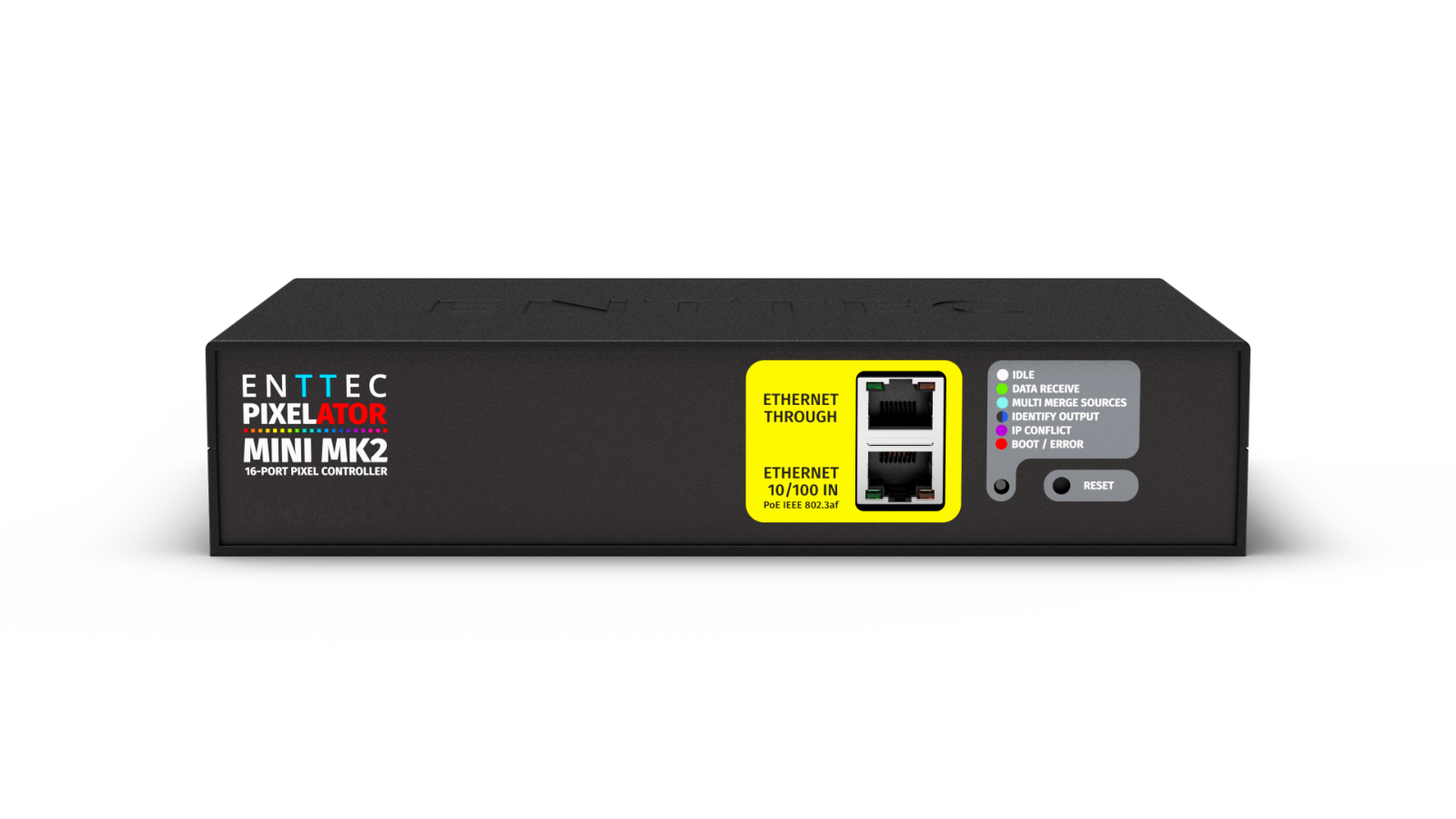
eDMX to SPI pixel controller: converting up to 128 universes of SPI data reliably across long distance.
⚠️ Safety
Ensure you are familiarised with all key information within this guide, datasheet and other relevant ENTTEC documentation before specifying, installing, or operating an ENTTEC device. If you are in any doubt about system safety, or you plan to install ENTTEC device in a configuration that is not covered within this guide, contact ENTTEC or your ENTTEC supplier for assistance.
⚠️ Heads up: ENTTEC's return to base warranty for this product does not cover damage caused by inappropriate use, application, or modification to the product.
⚡ Electrical safety
- This product must be installed in accordance with applicable national and local electrical and construction codes by a person familiar with the construction and operation of the product and the hazards involved. Failure to comply with the following installation instructions may result in death or serious injury.
- Do not exceed the ratings and limitations defined in the product datasheet or this document. Exceeding can cause damage to the device, risk of fire and electrical faults.
- Ensure that no part of the installation is or can be connected to power until all connections and work is complete.
- Before applying power to your installation, ensure your installation follows the guidance within this document. Including checking that all power distribution equipment and cables are in perfect condition and rated for the current requirements of all connected devices and factor in overhead and verify that it is appropriately fused and voltage is compatible.
- Remove power from your installation immediately if accessories, power cables or connectors is in any way damaged, defective, shows signs of overheating or are wet.
- Provide a means of locking out power to your installation for system servicing, cleaning and maintenance. Remove power from this product when it is not in use.
- Ensure your installation is protected from short circuits and overcurrent. Loose wires around this device whilst in operation, this could result in short circuiting.
- Do not over stretch cabling to the device's connectors and ensure that cabling does not exert force on the PCB.
- Do not 'hot swap' or 'hot plug' power to the device or its accessories.
- Do not connect any of this device's V- (GND) connectors to earth.
- Do not connect this device to a dimmer pack or mains electricity.
- Label any PLINK output Cat5/6 connector and DO NOT connect to non-PLINK device (eg Ethernet Switch). Connecting unlike systems could result in serious damage to equipment.
⚠️ System Planning and Specification
- To contribute to an optimal operating temperature, where possible keep this device out of direct sunlight.
- The maximum recommended cable distance between the PIXELATOR MINI MK2's output and PLINK Injector is 300 m (1000 ft). ENTTEC advises against running cabling close to sources of electromagnetic interference (EMF) i.e., mains power cabling / air conditioning units.
- This device has an IP20 rating and is not designed to be exposed to moisture or condensing humidity.
- Ensure this device is operated within the specified ranges within its product datasheet.
⚠️ Protection from Injury During Installation
- Installation of this product must be performed by qualified personnel. If ever unsure always consult a professional.
- Always work with a plan of the installation that respects all system limitations as defined within this guide and product datasheet.
- Keep the product and its accessories in its protective packaging until final installation.
- Note the serial number of each product and add it to your layout plan for future reference when servicing.
- All network cabling should be terminated with an RJ45 connector in accordance with the T-568B standard.
- Always use suitable personal protective equipment when installing ENTTEC products.
- Once installation is completed, check that all hardware and components are securely in place and fastened to supporting structures if applicable.
⚠️ Installation Safety Guidelines
- The device is convection cooled, ensure it receives sufficient airflow so heat can be dissipated.
- Do not cover the device with insulating material of any kind.
- Do not operate the device if the ambient temperature exceeds that stated in the device specifications.
- Do not cover or enclose the device without a suitable and proven method of dissipating heat.
- Do not install the device in damp or wet environments.
- Do not modify the device hardware in any way.
- Do not use the device if you see any signs of damage.
- Do not handle the device in an energised state.
- Do not crush or clamp the device during installation.
- Do not sign off a system without ensuring all cabling to the device and accessories has been appropriately restrained, secured and is not under tension.
Wiring Diagram
⚠️ Key installation guidelines:
- Ensure all safety guidelines within this User Manual and other product documentation are factored into the design.
- Controller and PSU can be wired up to 300 metres using Shielded Twisted Pair (STP) cable.
- To reduce the likelihood of voltage being induced on the control signal lines, where possible, run control cabling away from mains electricity or devices that produce high EMF (i.e. air conditioning units).
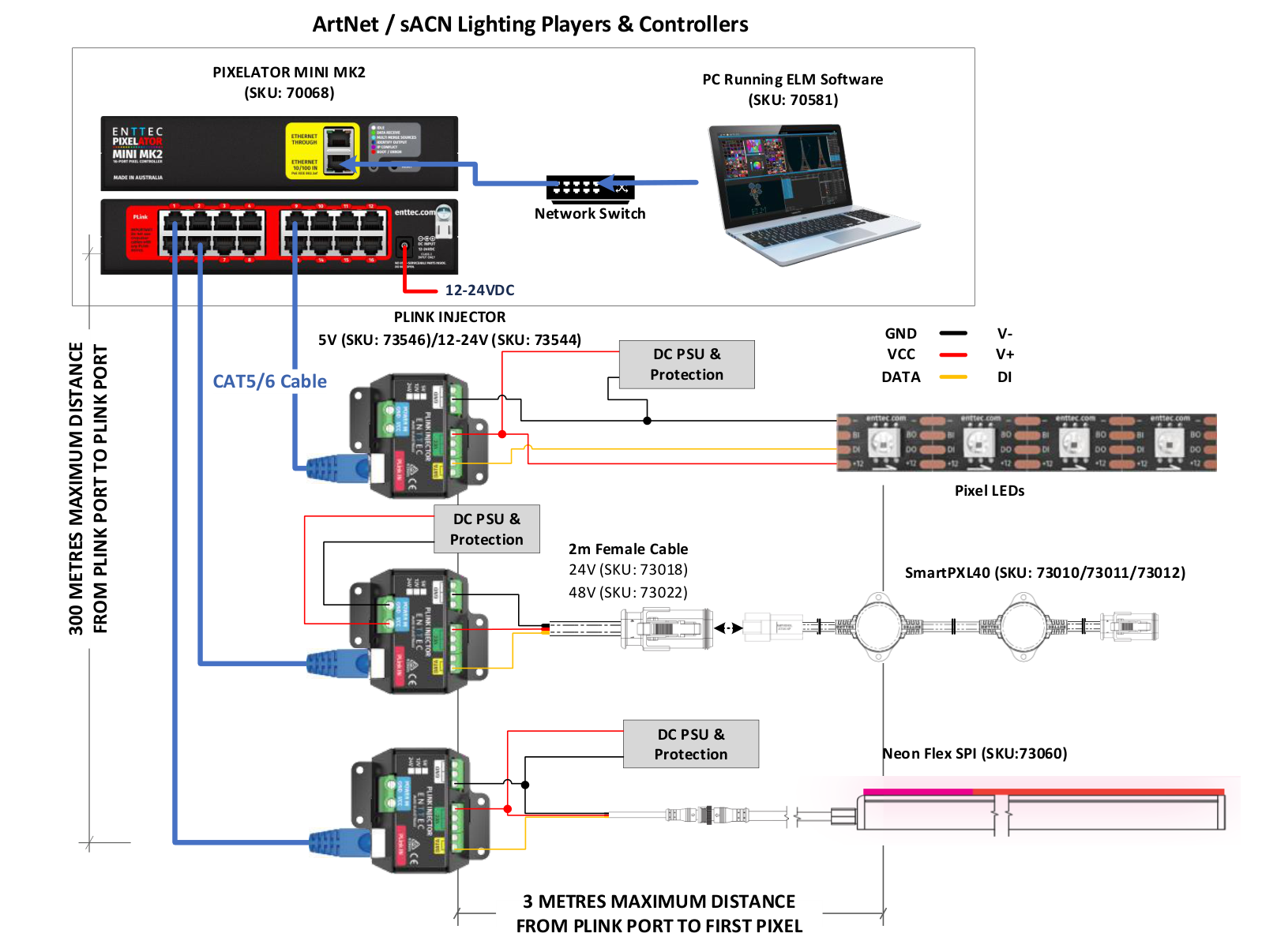
⚠️ Note: 70068 supports individual group protocols for Port 1-4, Port 5-8, 9-12, 13-16 group. (See Settings section).
Functional Features
- The PIXELATOR MINI MK2 and PLINK Injector enabling reliable pixel control over long distance.
- Supports input protocols: Art-Net, sACN and ESP.
- Up to 128 Universes (8U per port) pixel control including overdrive mode.
- Easy to configure & update through any web browser.
- Compatible with multiple asynchronous pixel output protocols with custom voltage timing.
- Allows creation of custom pixel protocols. (See 'Custom Protocol Creation Guide' document.)
- Dynamic (DHCP) IP by default or static IP configuration.
- Pixel grouping is configurable for each port. (1 to 1360 for RGB / 1 to 1024 for RGBW.)
- Pixel colour order is configurable for each port.
Hardware Features
- 16× RJ45 ports (each providing up to 8 Universes output).
- Dual RJ45 connectors for daisy-chain connectivity at 10/100 Mbps speeds.
- Active IEEE 802.3AF Active PoE or 12-24V DC power input.
- Power and output status LED indicators.
- All ports feature ESD surge protection and resettable fuses to block external faults & electrical noise propagation through control infrastructure.
- 1U Half Width form factor with mounting options for 1U Half Width Rack, 19" Rack, Surface mount, TS-35 DIN mounting.
- Compatible with ENTTEC CVC4 RGBW auto-addressable LED dimmer.
PLINK INJECTORs (Sold Separately)
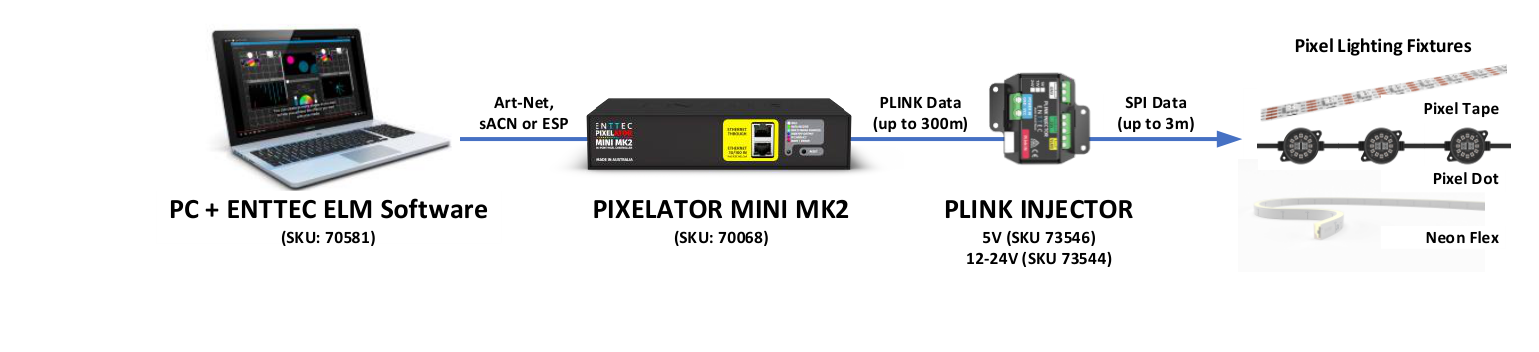
The ENTTEC PIXELATOR MINI MK2 supports transmission over 300 metres via Cat6 STP cable, ensuring a reliable connection to the PLINK INJECTOR. The ENTTEC PLINK INJECTOR seamlessly converts signals into SPI protocols, effortlessly delivering them up to 3 metres to pixel fixtures.
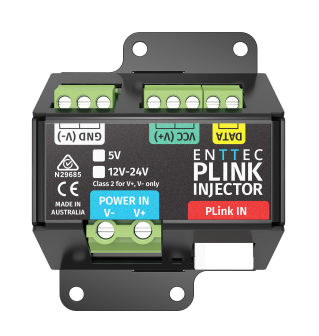
Designed for versatility, the PLINK INJECTOR features DC power input terminals alongside SPI Data, VCC, and GND output connections. With the ability to support external DC power supplies of up to 10 Amps, it ensures compatibility with a wide range of LED tapes and dots, offering exceptional performance and flexibility for diverse installations.
For voltage compatibility, please note the following:
- SKU 73546 is designed for Pixels with a 5VDC input.
- SKU 73544 is designed for Pixels with a 12-24VDC input.
- SKU 73924 is designed for outdoor installation (IP66) featuring adjustable voltage jumper.
PLINK Port Data Pinout
PLINK Data is sent over Cat5/6 STP cable over 3 pins within a RJ45 connector.
- Pin 1: Data +
- Pin 2: Data –
- Pin 7/8: Ground
Do not use crossover cables with any PLINK device.

LED Status Indicator
The PIXELATOR MINI MK2 comes with one Network LED built-in RJ45 Ethernet port and one forward-facing RGB status LED which indicates the following device states:
| Colour | Status |
|---|---|
| White | Idle |
| Green | Outputting PLINK Data |
| Blue | Device is starting up |
| Blue (Flashing) | Identifying |
| Cyan | Multiple merge sources |
| Purple | IP conflict |
| Red | Device in boot / error |
PoE (Power over Ethernet)
The PIXELATOR MINI MK2 supports IEEE 802.3af Power over Ethernet. This allows the device to be powered via the RJ45 Ethernet Connection, reducing the number of cables and the ability to remotely deploy the PIXELATOR MINI MK2 without the need for a local power source close to the device.
PoE can be introduced to the Ethernet cable, either through a network switch which outputs PoE under the IEEE 802.3af standard, or through an IEEE 802.3af PoE injector.
⚠️ Note:
- DC power input takes precedence over PoE. If the DC power is disconnected, the PIXELATOR MINI MK2 will switch to PoE in about 3 seconds.
- Passive PoE is not compatible with the PIXELATOR MINI MK2.
Out of the Box
PIXELATOR MINI MK2 factory default settings out of the box:
| Device name | PIXELATOR MINI MK2 |
| DHCP | Enabled |
| Static IP Address | 192.168.0.10 |
| Gateway IP address | 192.168.0.254 |
| Netmask | 255.255.255.0 |
| Input protocol | Art-Net |
| LED protocol | WS2812B |
| Pixel colour | RGB |
| Universes per port | 6 (all 16 ports) |
| DMX start address | 1 |
Networking
The PIXELATOR MINI MK2 can either be configured to be a DHCP or Static IP address.
DHCP
On power-up with DHCP enabled, the PIXELATOR MINI MK2 requests an IP address from the network's DHCP server. If no response is received or no DHCP server is available, it defaults to 192.168.0.10 with a netmask of 255.255.255.0. Use the assigned DHCP address for communication if provided.
Static IP
By default (out of the box) the Static IP address will be 192.168.0.10. If the PIXELATOR MINI MK2 has DHCP disabled, the Static IP address given to the device will become the IP address to communicate with the PIXELATOR MINI MK2. The IP address will change from the default once it is modified in the web interface. Please note down the Static IP address after setting.
Web Interface
The PIXELATOR MINI MK2 is configured via an intuitive web interface, accessible through any modern web browser. For the best experience, we recommend using a Chromium-based browser such as Google Chrome.
Identified IP address
If you are aware of the PIXELATOR MINI MK2's IP address (either DHCP or Static), then the address can be typed directly into the web browsers URL field.
Unidentified IP address
If you are not aware of the PIXELATOR MINI MK2's IP address (either DHCP or Static) the following discovery methods can be used on a local network to discover devices:
- ENTTEC EMU software for Windows and macOS (compatible with macOS 10.13 or later) simplifies device management by discovering ENTTEC devices on the Local Area Network. It displays their IP addresses and allows you to easily configure the device by launching its web interface.
- An IP scanning software application (i.e. Angry IP Scanner) can be run on the local network to return a list of active devices on a local network.
- Devices can be discovered using Art Poll (i.e. DMX Workshop if set to use Art-Net).
- The device default IP address 192.168.0.10 will be printed on the physical label on the product.
⚠️ Note:
- As the PIXELATOR MINI MK2 is hosting a web server on the local network and does not feature an SSL Certificate (used to secure online content), the web browser will display the 'Not secure' warning, this is to be expected.
- The eDMX protocols, controller, and configuration device must be on the same LAN and IP range as the PIXELATOR MINI MK2. For example, if the PIXELATOR MINI MK2 is at 192.168.0.10, set your computer to 192.168.0.20. Ensure all devices share the same Subnet Mask for proper communication.
Top Menu

The top menu allows all the PIXELATOR MINI MK2 web pages to be accessed. The menu option is highlighted blue to indicate which page the user is on.
The top right corner of the window features 2 installer-friendly buttons:
- Dark Mode — user interface view option that presents content on a dark background.
- Identify — this command on the webpage identifies pixels connected to a specific PIXELATOR MINI MK2 without the need to provide control data. This offers a convenience check-up for correct wiring. Note: the timer will not restart when pressed consecutively.
Home
This is the landing page for the PIXELATOR MINI MK2 web interface and it displays the configuration overview for the followings:
System Information
- Node Name
- Firmware Version
- System Uptime
- System Last Uptime
Network Information
- DHCP status (either enabled or disabled)
- IP address
- Netmask
- Gateway
- Mac Address
- sACN CID
- Link Speed
Pixel Mapping Information
- Input Protocol
- Pixel Protocol
- Universe
- Colour Order
- Mapped Pixels
- Group Pixels
- DMX Start Address
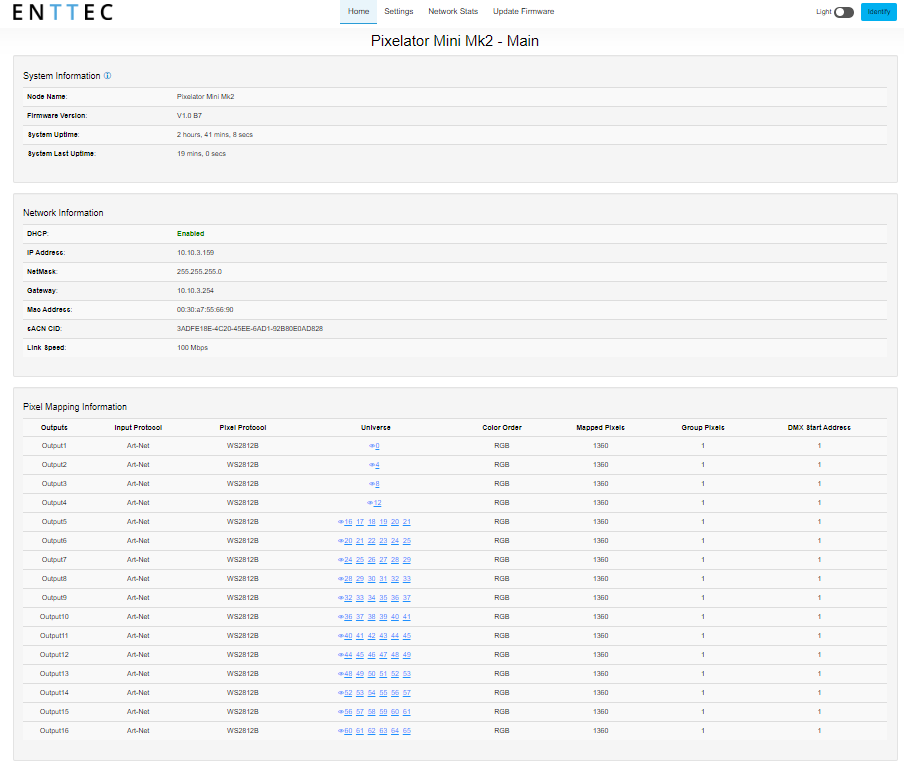
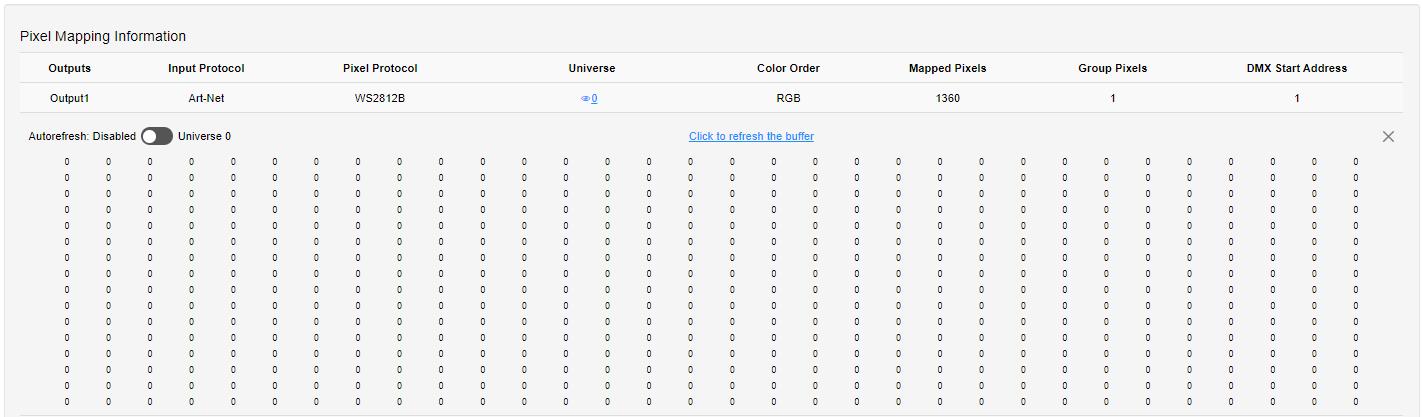
Select the Universe number to reveal the current DMX buffer. This can be manually refreshed to capture a frame snapshot or set to auto-refresh to view channels in real time. Up to 2 Universe buffers on separate ports can be revealed at once.
Settings
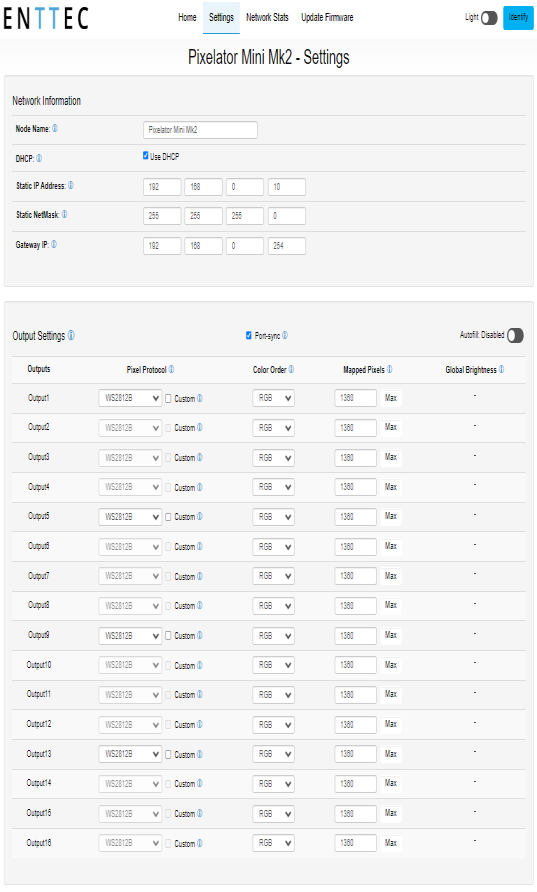
The PIXELATOR MINI MK2 main configuration is within the Settings page. Changes will only take effect after being saved; any unsaved changes will be discarded.
- Node Name: User can name the PIXELATOR MINI MK2 that aids identification within Poll replies.
- DHCP: Enabled by default. When enabled, the DHCP server on the network is expected to automatically provide the IP address to the PIXELATOR MINI MK2. When DHCP is enabled but there is no DHCP server or it is slow to respond, the PIXELATOR MINI MK2 will fall back to 192.168.0.10.
- Static IP Address / Netmask / Gateway: Used when DHCP is disabled. These options set the Static IP address, Netmask and Gateway IP settings which should be compatible with other devices on the network.
- Port Sync: When using multiple ports with different protocols or DMX universes, timing mismatches can occur. Enabling 'Port Sync' ensures all ports stay synchronised, preventing inconsistencies and ensuring smooth operation.
- LED Protocol: Select the SPI (Pixel) protocol from the drop-down list or set a custom value that matches the pixels which the PIXELATOR MINI MK2 will control. The PIXELATOR MINI MK2 provides more than 20 output SPI (Pixel) protocols:
- APA 104
- GS8208B
- SPXL-16bit
- SJ1221 (16bit & 8bit)
- SK6812
- TLC5973 (16bit & 8bit)
- TM1804, TM1812, TM1814
- UCS1903, UCS2903, UCS2904, UCS8903, UCS8904
- WS2811, WS2812, WS2812B, WS2813, WS2815, WS2818
- 9PDOT (16bit & 8bit)
User is allowed to set up to 4 different output protocols simultaneously. Port 1-4, 5-8, 9-12 and 13-16 are grouped for the same protocol; protocol can be different between groups.
- Custom LED Protocol: Tick 'Custom' to enable the LED protocols customisation through voltage timing adjustments on each port setting. By referring to the datasheet of your chosen pixel protocol, you can configure the voltage timing to meet specific requirements and specifications.
⚠️ Note: Detailed instructions can be found in the 'Custom Protocol Creation Guide' document available on the ENTTEC website. Certain criteria apply. The eligibility requirements are outlined in the guide.
- Colour Order: Configure how RGB/RGBW colours are mapped to pixels. User can enable Autofill to apply global setting.
- Mapped Pixels: Define the number of mapped pixels each port controls.
- Global Brightness: This is a function of protocol TM1814 and SJ1221 that sets the maximum brightness for the tape without hindering the DMX range available.
- Input Protocol: Choose between Art-Net, sACN, and ESP as the input protocol.
- Universes: 6 Universes per port by default. Featuring overdrive mode enabling up to 8 Universes output per port. Overdrive mode is activated automatically when configured to output more than 6 Universes per port.
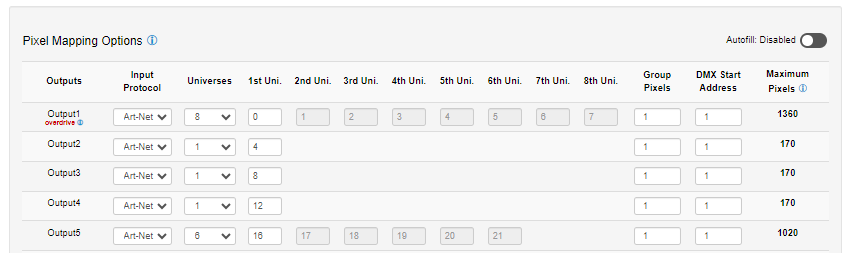
It allows the option of using the same universes for all outputs. Alternatively, each output can be configured to use unique set of universes. For example, output 1 can use universes 100, 101, 102, and 103, while output 2 uses universes 1, 2, 3, and 4.
Toggle to enable 'Autofill' function for the management of group port settings. It allows any port settings after the one changed will autofill to match unless it has already been changed.
Only the first universe needs to be specified, as the remaining universes are automatically assigned subsequent universes based on the first one.
Example: If the first universe is assigned 9, the 2nd, 3rd and 4th universe will be automatically assigned 10, 11 and 12.
- Art-Net: Supports Art-NET 1/2/3/4. Each output port can be assigned a universe number in the range 0 to 32767.
- sACN: Outputs can be assigned a universe number in the range 1-63999.
- ESP: Outputs can be assigned a universe number in the range 0-255. More details of the ESP protocol can be found at www.enttec.com.
Group Pixels: This setting allows multiple pixels to be controlled as one 'virtual pixel'. This reduces the overall amount of input channels required to control pixel strip or dots.
Example: When Group Pixels is set to 10 on a PIXELATOR MINI MK2 connected to a length of RGB pixel strip, by patching a single RGB pixel within your control software and sending the values to the PIXELATOR MINI MK2, the first 10 LEDs would respond to it.
⚠️ Note: The maximum number of physical LED pixels that can be connected to each port is 1360 (RGB) or 1024 (RGBW). When grouping pixels, the number of control channels required is reduced; this function does not increase the number of physical LEDs each PIXELATOR MINI MK2 can control.
DMX Start Address (DSA)
Assigns the first DMX channel; this is where the PIXELATOR MINI MK2 will start listening for DMX values within the universe. When the universes/output is more than one, the DMX start address only applies to the first universe.
However, where it applies, a start address offset may result in the split of a pixel. e.g., R channel in first universe and GB channels in the second universe for a RGB LED.
For ease of pixel mapping, ENTTEC recommend offsetting the DMX start address to a number divisible by the number of channels per pixel. i.e.:
- Increments of 3 for RGB (i.e., 1, 4, 7, 10)
- Increments of 4 for RGBW (i.e., 1, 5, 9, 13)
- Increments of 6 for RGB-16 bit (i.e., 1, 7, 13, 19)
- Increments of 8 for RGBW-16 bits (i.e., 1, 9, 17, 25)
Action buttons
- Save Settings: All changes must be saved to take effect.
- Reset to Defaults: This button allows the PIXELATOR MINI MK2 to reset back to factory default via web interface. Please refer to the Reset to Factory Defaults section of this document for more information.
- Reboot: Please allow up to 10 seconds for the device to reboot. When the web interface page refreshes the PIXELATOR MINI MK2 is ready.
Network Stats
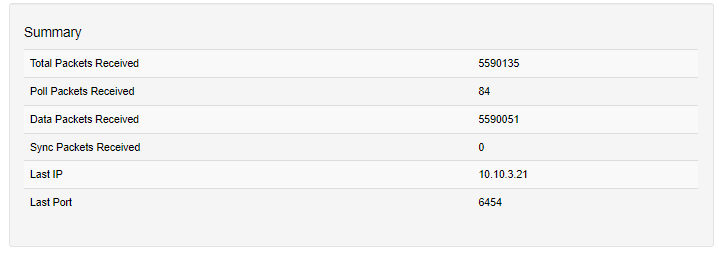
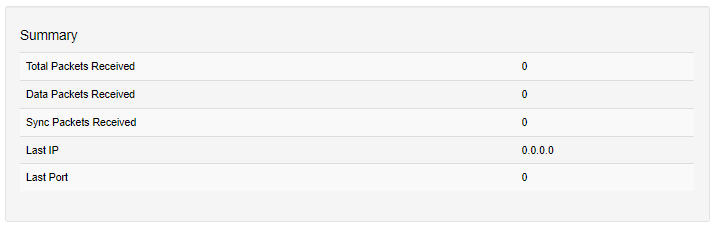
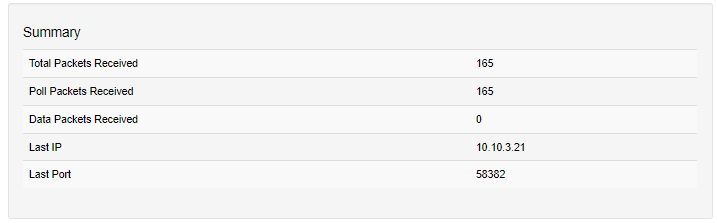
The Network Stats page shows statistics for the input DMX protocol selected. The information provided is:
Art-Net
- Total Packets Received
- Poll Packets Received
- Data Packets Received
- Sync Packets Received
- Last IP where Art-Net packets were received from
- Last port data received from
sACN
- Total Packets Received
- Data Packets Received
- Sync Packets Received
- Last IP where sACN packets were received from
- Last port data received from
ESP
- Total Packets Received
- Poll Packets Received
- Data Packets Received
- Last IP where ESP packets were received from
- Last port data received from
Update Firmware
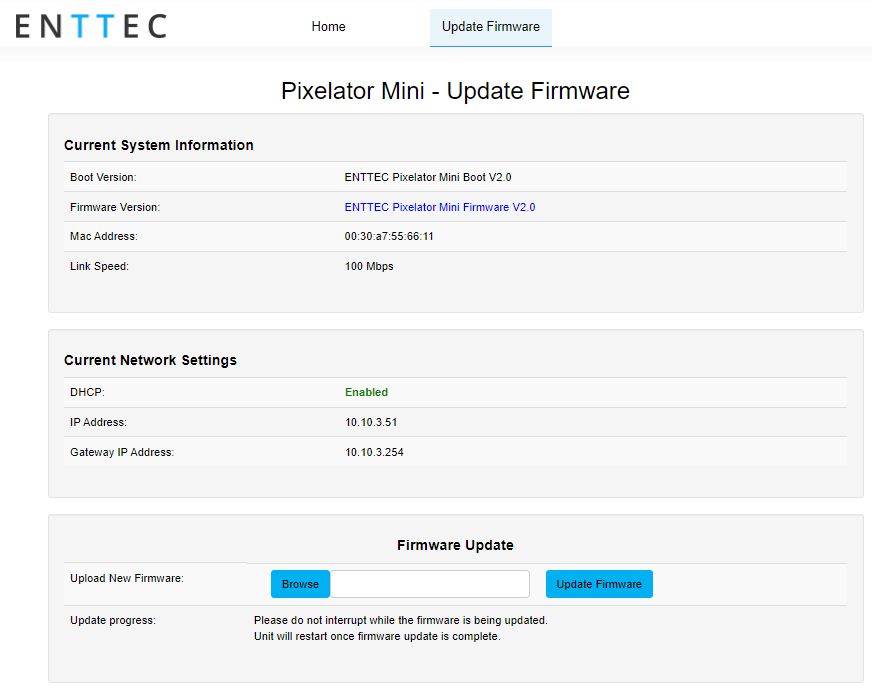
When selecting the Update Firmware tab, the PIXELATOR MINI MK2 will stop outputting and the web interface boots into the Update Firmware mode. It may take a while depending on the network setting.
This mode will display basic information regarding the device including current Firmware Version, Mac Address and IP address information.
The latest firmware can be downloaded from www.enttec.com. Use the Browse button to select a PIXELATOR MINI MK2 firmware from your computer. PIXELATOR MINI MK2 firmware files have a .bin extension.
Next click on the Update Firmware button to begin updating.
After the update has completed, the web interface will load the Home tab, where you can check the update was successful under Firmware Version. Once the Home tab has loaded, the PIXELATOR MINI MK2 will resume operation.
Reset to Factory Defaults
The PIXELATOR MINI MK2 can be reset by either the web interface or the reset button on the device. It resumes the device's settings back to factory default — see Out of the Box section for the factory default settings.
Resetting via Web Interface
The reset to defaults command can be found under the Settings tab of the PIXELATOR MINI MK2's web interface.

Once the command is pressed, a pop-up would appear as shown in the image below:
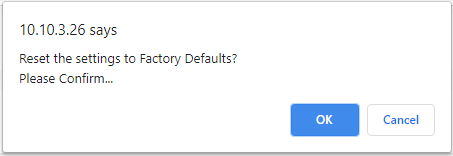
Manually refresh the page after resetting to defaults to ensure the webpage information is updated.
Resetting by Reset Button
The reset button on the device restores the network configuration of the PIXELATOR MINI MK2 to factory defaults. To reset to factory defaults, the following procedure must be performed:
- Power off the unit.
- Press and hold the Reset button.
- While holding the Reset button, power up the unit.
- Keep holding the button for approximately 3 sec.
- Release the Reset button after the LED turns yellow.
- Power cycle the unit.
Frequently Asked Questions
I'm unable to connect to the PIXELATOR MINI MK2 web interface.
Ensure that the PIXELATOR MINI MK2 and your computer are on the same subnet.
To troubleshoot:
- Connect the PIXELATOR MINI MK2 directly to your computer using a Cat5 cable and power it on.
- Give your computer a Static IP address (e.g.: 192.168.0.20).
- Change computer Netmask to 255.255.255.0.
- Open ENTTEC EMU software.
- Once EMU finds the PIXELATOR MINI MK2, you will be able to open the device webpage and configure it.
Factory Reset the device using the reset button if the above steps do not resolve the issue.
The PIXELATOR MINI MK2's factory default resets the device to static IP address 192.168.0.10 and Netmask 255.255.255.0 with DHCP enabled.
When the PIXELATOR MINI MK2 has DHCP enabled but DHCP server is unavailable (e.g. the device is connected to a computer without DHCP server), the IP address will fall back to 192.168.0.10 with netmask 255.255.255.0.
What if my LED strip protocol is not in drop down list? How to add new LED strip protocol to PIXELATOR MINI MK2?
The PIXELATOR MINI MK2 allows the user to choose a pixel output protocol even if it is not found in the drop-down list.
Visit the ENTTEC Website to view the 'Custom Protocol Creation Guide' document for more information about the key criteria and the step-by-step guide.
⚠️ Servicing, Inspection & Maintenance
- The device has no user serviceable parts. If your installation has become damaged, device should be replaced.
- ⚡ Power down the device and ensure a method is in place to stop the system from becoming energised during servicing, inspection & maintenance.
Key areas to examine during inspection:
- Ensure all connectors are mated securely and show no sign of damage or corrosion.
- Ensure all cabling has not obtained physical damage or been crushed.
- Check for dust or dirt build up on the device and schedule cleaning if necessary.
- Dirt or dust build-up can limit the ability for a device to dissipate heat and can lead to damage.
The replacement device should be installed in accordance with all steps within the installation guide.
To order replacement devices or accessories contact your reseller or message ENTTEC directly.
Cleaning
Dust and dirt build up can limit the ability for the device to dissipate heat resulting in damage. It's important that the device is cleaned in a schedule fit for the environment it is installed within to ensure maximum product longevity.
Cleaning schedules will vary greatly depending on the operating environment. Generally, the more extreme the environment, the shorter the interval between cleaning.
⚠️ Before cleaning:
- Before cleaning, power down your system and ensure a method is in place to stop the system from becoming energised until cleaning is complete.
- Do not use abrasive, corrosive, or solvent-based cleaning products on a device.
- Do not spray device or accessories. The device is an IP20 product.
To clean an ENTTEC device, use low-pressure compressed air to remove dust, dirt and loose particles. If deemed necessary, wipe the device with a damp microfiber cloth.
A selection of environmental factors that may increase the need for frequent cleaning include:
- Use of stage fog, smoke or atmospheric devices.
- High airflow rates (i.e., in close proximity to air conditioning vents).
- High pollution levels or cigarette smoke.
- Airborne dust (from building work, the natural environment or pyrotechnic effects).
If any of these factors are present, inspect all elements of the system soon after installation to see whether cleaning is necessary, then check again at frequent intervals. This procedure will allow you to determine a reliable cleaning schedule for your installation.
Package Content
- PIXELATOR MINI MK2 (70068)
- 1 × cat5 cable (79102)
- 1 × 12V PSU adaptor with international plugs
- 2 × Rack mounting bracket (79161) + 6 pcs × screws
- 2 × Surface / Din mounting bracket (79162) + 4 pcs × screws
- 2 × Din Clip + 4 pcs × screws
Ordering Information
For further support and browse ENTTEC'S range of products, visit the ENTTEC website.
| Item | SKU |
|---|---|
| PIXELATOR MINI MK2 | 70068 |
| PLINK Injector (5V) | 73546 |
| PLINK Injector (12V-24V) | 73544 |
For further support and to browse ENTTEC's product range, visit www.enttec.com.
⚠️ Note: Due to constant innovation, information within this document is subject to change.