EMU is professional lighting control software and an ENTTEC device configuration tool. Pre-program your light show in advance, then focus on your live performance. Step through manually, sync to MIDI, or drive it from your DAW with the EMU VST3 plug-in.
EMU Software Installation
Everything you need to get EMU running on your machine — supported platforms, install steps, licensing, support channels, and how updates work.
Computer Requirements
Operating System
| Platform | Supported version |
|---|---|
| macOS | macOS 14 “Sonoma” or later |
| Windows (64-bit) | Windows 10 / 11 (64-bit) |
Minimum Recommended Specification
| Component | Mac | PC |
|---|---|---|
| Operating System | macOS 15 “Sequoia” or later | Windows 11 (64-bit) |
| Processor (CPU) | Apple Silicon or Intel (x64) | Quad-core 2 GHz or better |
| RAM | 8 GB minimum | 8 GB minimum |
| Drive | Mechanical HDD | Mechanical HDD |
| GPU | 4 GB VRAM or better | 4 GB VRAM or better |
The exact requirement depends on intended use — playing back multiple Oscillators at high speed with heavy VST mapping needs far more horsepower than manually toggling Programs with a MIDI controller.
Installing the Software
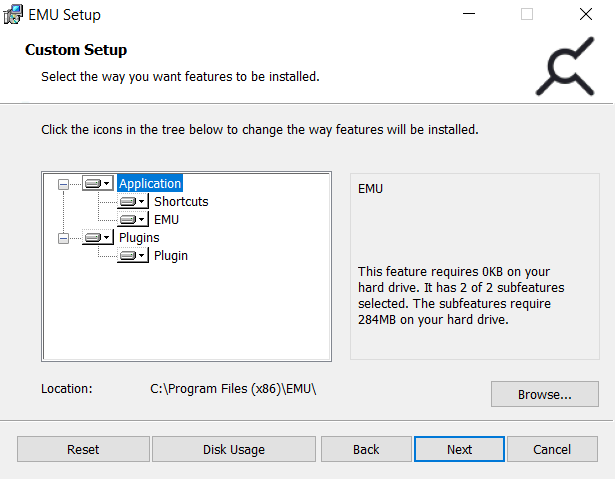
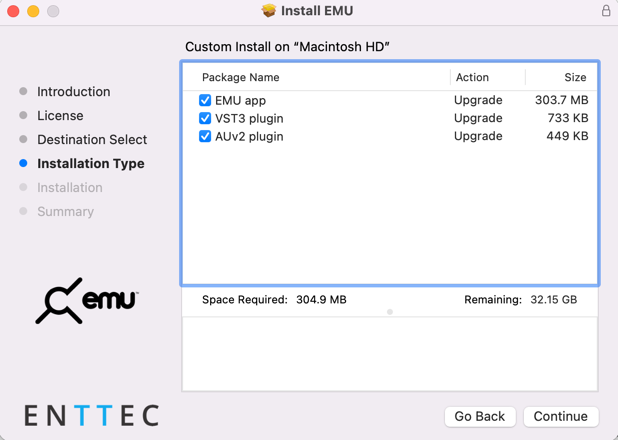
The EMU installer can be downloaded — and a license purchased — from the ENTTEC website. Download the relevant installer for your platform.
During installation, ensure the installer correctly references your VST plug-ins folder on Windows (or that you locate it correctly on macOS) if you intend to run EMU with a DAW.
Forum & Tech Support
Telephone and email support through ENTTEC's standard channels are not offered for EMU at this time. For questions, feature requests, or feedback, visit the EMU forum at support.enttec.com — or use the feedback feature in the top right of the application.
Include in every report
- Your computer's operating system & version
- EMU build number — Settings › About
- EMU log file — Settings › Advanced › Open logs folder…
- A detailed description of the issue or request
- A screen recording, video, or screen grabs
Licensing
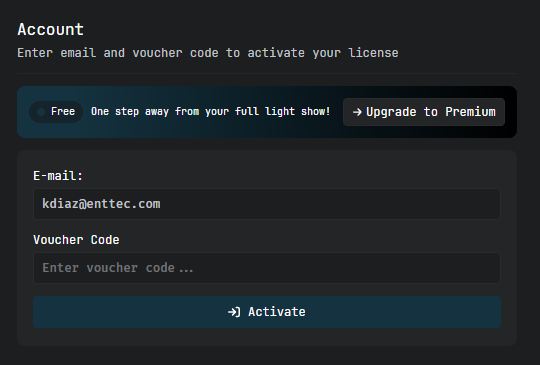
EMU operates in free mode when no license is activated. The free tier includes 1 DMX universe, Sound Tracker, Art-Net output, GDTF import, and the custom fixture editor.
To unlock all EMU features, purchase a perpetual license via one of two paths:
$100 once
Own EMU immediately, with 1 year of updates included.
$10/month × 12
Full features from your first payment. After 12 instalments, the perpetual license is yours forever.
Once your perpetual license is earned, EMU works fully offline — no ongoing internet validation, no removed features, no downgrades.
Activating an EMU License
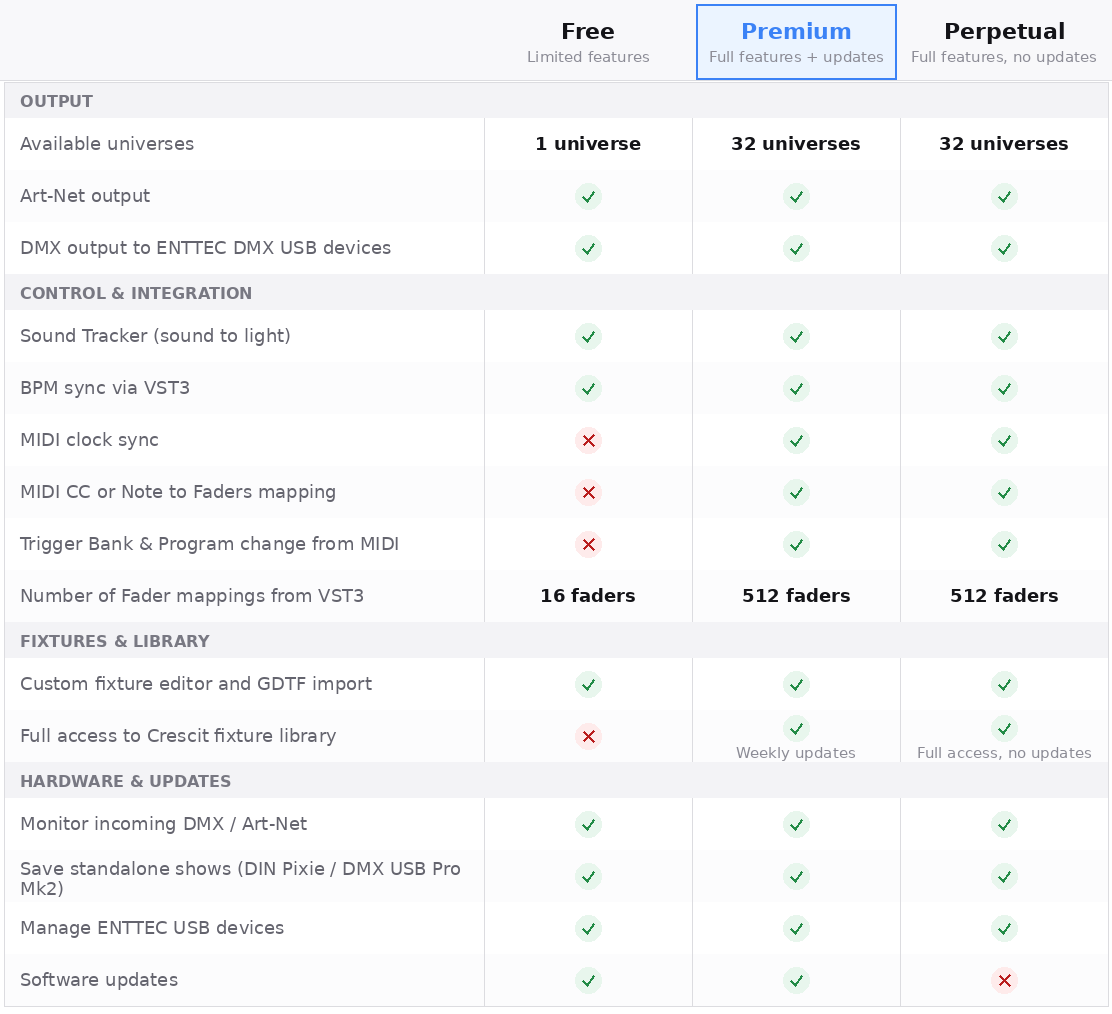
Settings › Account
All you need is your email address and voucher code. Make sure your computer is online, then:
- Open EMU and ensure your computer is connected to the internet.
- Enter your email address — the one associated with your ENTTEC account.
- Enter your license number copied from your website account page.
- Press Activate. EMU will reach the ENTTEC license server and validate.
Deactivating an EMU License
Settings › Account
- Open EMU and log in to your account if you aren't already.
- Navigate to the Settings window.
- Select the Account tab.
- Press Deactivate.
EMU will return to the free tier on this machine. Your license remains active in your account and can be re-activated on another machine at any time.
Software Updates
Settings › Updates › Check for Updates
EMU will show one of three states:
Enable the Automatic Updates toggle to have EMU update without manual checks. Before updating, export a backup of your shows — see the Shows Window section for instructions.
Hardware Compatibility
Which lights work with EMU, where to find them in the fixture library, what ENTTEC devices act as the bridge to your DMX rig, and how to wire it all together.
Will my lights work with EMU?
Whether you want to control LED washers, moving heads, dimmer packs, smoke machines, scanners, moonflowers — you name it — if they support DMX or Art-Net input, the answer is yes, EMU can control them.
EMU supports two fixture library sources: the Crescit cloud library and GDTF import. Between them, virtually any DMX fixture can be controlled.
Crescit Fixture Library
ENTTEC has partnered with Crescit to give EMU a leading fixture library, updated weekly. Access 10,000+ professional lighting fixture profiles, downloaded automatically when online.
GDTF Import
GDTF (General Device Type Format) is an open standard for fixture profiles published directly by manufacturers. Build your own local GDTF library independently of Crescit.
How to import a GDTF fixture
- Visit gdtf-share.com and create a free account.
- Search for your fixture using the search bar.
- Locate your fixture and click the Download icon beneath the Revision table.
- In EMU, navigate to Patch Window › Channel View › GDTF Library.
- Click Import GDTF and select the downloaded file.
- Your fixture will appear in the GDTF Library and is ready to patch.
Imported GDTF fixtures are stored locally and remain available offline.
What if my fixture is missing?
First, make sure you're running the latest licensed version of EMU with the latest fixture library installed, and restart EMU while connected to the internet. If still missing, use the Custom Fixture Editor to build a profile manually.
If a specific file is missing from Crescit's library, you can request it. Provide:
- Product manual
- Product datasheet
- Web URL to the manufacturer's page
- DMX map (channel layout)
Add this to the Fixture Library Requests section of the EMU forum. Crescit typically turns around new fixtures within a week.
Downloading the latest fixture library
Settings › Fixtures
The fixture library is updated weekly. If your computer is online when you launch EMU, it will check for updates and display a dialog if one is available.
Can I add a fixture myself?
Yes. Use the Custom Fixture Editor to:
- Create new fixtures from scratch
- Create new fixtures by revising existing ones
- Delete custom fixtures you've created
What Hardware Works with EMU?
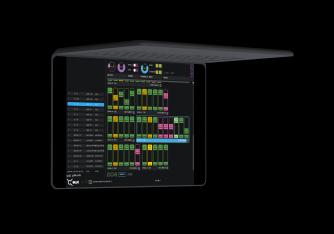
EMU supports ENTTEC's USB interface hardware and any Art-Net-to-DMX/SPI devices, enabling precise lighting control over a computer network.
ENTTEC DMX USB Hardware
The industry standard for DMX USB devices. Isolated ports protect your computer from stray voltage on the DMX line. USB-powered; for systems with insufficient power, use an external powered USB hub.
Note: ENTTEC's Open DMX USB is not compatible with EMU.
Art-Net Nodes
EMU is compatible with any Art-Net hardware or software that receives Art-Net. ENTTEC is a key industry leader in DMX-over-Ethernet — use EMU with any ENTTEC product that supports Art-Net → DMX/SPI output.
How do I connect everything up?
Using an ENTTEC USB DMX Device
Using an Art-Net Node
- Connect your computer running EMU to either ENTTEC DMX USB hardware or a network switch with an Art-Net node attached (max cable run 100 m). ENTTEC does not recommend WiFi in performance scenarios.
- Connect the DMX OUT of your interface to the DMX IN of your first fixture. You may need a 5-pin male to 3-pin female adaptor (SKU 70029) for 3-pin fixtures.
- Daisy-chain DMX OUT → DMX IN on the remaining fixtures.
- Plug a DMX terminator into the DMX OUT of the last fixture. Terminators prevent data reflections that often stop one fixture mid-chain working while those either side are fine.
- Set the DMX address of each light so channels don't overlap.
DMX Pointers
- Always use DMX cabling — never microphone cable. Mic cable isn't designed for digital lighting data and causes random flickering, especially on long runs.
- No more than 32 lighting fixtures can be linked in a single DMX chain. For more, use a DMX splitter such as ENTTEC's D-Split (SKU 70578 / 70579) to branch the data.
Software Walkthrough
A tour of EMU's interface — from the Settings window through the main programming surface, widgets, the Patch window, Programs and Banks, Shows, and the Input monitor.
Software Start Up
Key functionality is selectable from the top-right corner of the EMU window:
| Marker | Tab | Purpose |
|---|---|---|
| A | Preferences | EMU configuration — outputs, MIDI, license, fixtures, updates. |
| B | Main | Build looks by selecting fixtures and faders, apply tools, save to Programs. |
| C | Patch | Assign fixtures to DMX channels & map universes to network devices. |
| D | Programs | Manage Banks & Programs and configure VST3 mapping. |
| E | Shows | Save, open, duplicate, import, export show files (.emu). |
| F | Input | Monitor incoming Art-Net, DMX or EMU's own outputs. |
Settings Window
Open the Settings window by clicking the ⚙ gear icon in the top right. It configures outputs, sound, MIDI, license, fixture library, software updates and version information. By default, the Output tab opens — this can be disabled with the toggle inside the Output tab itself.
Output Tab & Hardware Configuration
EMU can update firmware, configure, and create standalone shows for all ENTTEC DMX USB Pro devices, and can discover all ENTTEC network devices for configuration via their web interfaces. EMU also makes an excellent device-management application for users of 3rd-party DMX software.
Rescan for Devices
Before configuring outputs, press Rescan for devices to refresh the device list. This re-scans for all compatible USB DMX devices and polls all network adaptors for Art-Net nodes via ArtPoll.
Art-Net — Refresh Rate
Defines how many times per second EMU updates the Art-Net output. Default is 44 Hz. Reduce this to lower EMU's compute usage.
Art-Net — Broadcast
EMU lists all network adaptors capable of broadcasting Art-Net for each internal universe. Broadcast sends your internal universe to all devices on the network in the same IP range. To start broadcasting, set the universe and flip the switch to enabled.
Art-Net — Unicast
When specific Art-Net devices are discovered via ArtPoll, EMU offers a unicast option — sending the universe to one device only.
Never unicast the same universe to multiple devices on the same network adaptor and output universe — use Broadcast instead for the best synchronisation.
Never unicast and broadcast to the same Art-Net device over the same network adaptor.
Do not send Art-Net over WiFi for live performances — use physical cables.
Output Table
The Output Table consolidates output information so you can route data to your DMX hardware. The first column shows EMU's internal universes that fixtures have been assigned to in the patch.
| Column | Meaning |
|---|---|
| EMU Uni | Internal EMU universe (e.g. 1). |
| Device Name | USB DMX device type + serial number. |
| Output Type | For USB DMX, this is DMX. |
| Output Uni | For USB DMX, this is 0. |
| Destination | The COM / Virtual COM port EMU is using. |
| Conf | Opens device-specific configuration (parameters, firmware update). |
| Enabled | Master on/off for that output. |
ESP Device Configuration & Factory Reset
ESP is ENTTEC's Ethernet protocol for sending DMX over Ethernet through compatible nodes. EMU can read parameters and send factory-reset requests — especially useful for nodes such as ODE MK3 and DIN ETHERGATE that have no physical reset button.
- Reset one device: Preferences › Output → locate device → Settings in the Conf column → Send factory reset request.
- Reset all ESP devices on the network: Preferences › Settings → Broadcast ESP reset request… and confirm.
DMX USB — Default Port Parameters
The defaults comply with ANSI-ESTA E1-11 DMX512 2008(R2018). Adjust with caution.
| Parameter | Default |
|---|---|
| Break Time (µs) | 181 |
| Mark After Break / MAB (µs) | 106 |
| Packet Refresh Rate (per second) | 40 |
Some older fixtures may require a lower DMX refresh rate. Use Get DMX Parameters to read current device values before making changes, then Set DMX Parameters to save.
DMX USB — Firmware Updates
The firmware is bundled with EMU and selectable via drop-down menu. If the version you need isn't listed, choose Choose File to load one from disk, then press Update Firmware.
Standalone Shows for the DMX USB Pro Mk2
The Standalone tab allows a show to be recorded in EMU and saved onto your DMX USB Pro Mk2 for playback independent of EMU. Sources for recording:
- A remote DMX source plugged into the DMX Input of the Pro Mk2
- A remote Art-Net source
- Art-Net produced in EMU, sent from the Output tab and received in the Pro Mk2 Standalone tab via local broadcast / loopback
| Action | What it does |
|---|---|
| Delete | Permanently removes the show from the Pro Mk2's internal memory. Always back up via Export first. |
| Playback | Play / stop the recorded show and verify playback settings. Progress shown at the bottom of the menu. |
| Export | Save a copy of the recorded show to your computer as .eshow — for sharing or backup. |
| Import | Upload an .eshow file to the DMX USB Pro Mk2. Device stats are shown once uploaded. |
| Record | Create a new show: set name, loop count (1 → ∞), delay between loops, channel count, input, and optional recording control. |
Footswitch
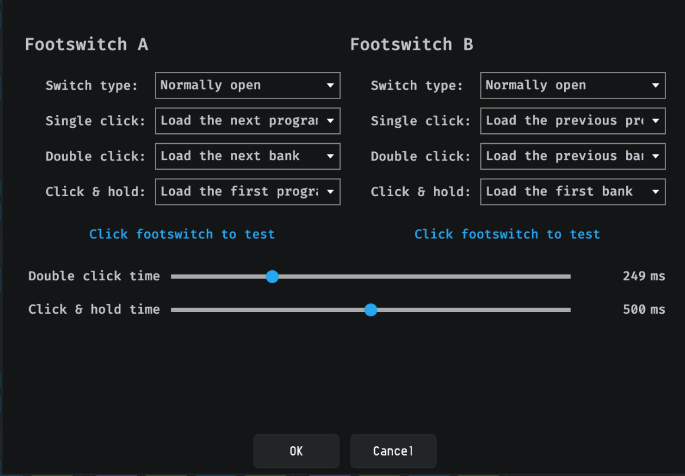
The footswitch tab appears in Settings when ENTTEC hardware with footswitch functionality is plugged in (e.g. DMXIS). Any standard non-latching footswitch (Normally Open or Normally Closed) — like a sustain pedal or non-latching guitar pedal — can control elements of EMU during a performance.
Configuration
- Switch type: Normally Closed or Normally Open.
- Single click: action for one click.
- Double click: action for two clicks within the double-click time window (set by slider).
- Click & Hold: action when the pedal is pressed and held past the threshold.
If you configure both single AND double click actions, single-click triggers will delay until the double-click window passes. To make single-clicks instant, set Double Click to No Action.
Assignable Actions
| Programs | Banks |
|---|---|
| Load the next Program | Load the next Bank |
| Load the previous Program | Load the previous Bank |
| Load a random Program | Load a random Bank |
| Load the last Program | Load the last Bank |
| Load the first Program | Load the first Bank |
Audio
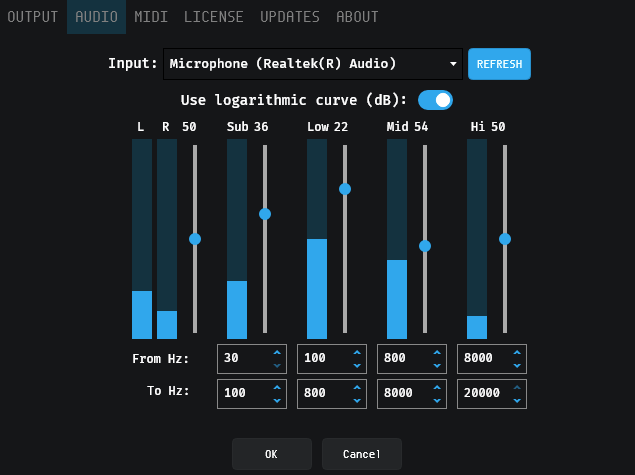
EMU's audio options define and configure an input feed for the Sound Tracker. Audio is summed across Stereo Left + Right at a sample rate of 48 kHz.
If a new audio source is connected, press Refresh. If a source is unplugged, EMU releases it and refreshes automatically. Toggle logarithmic curve to match human perception of loudness — linear when disabled.
Default Frequency Bands
| Band | Lower (Hz) | Upper (Hz) |
|---|---|---|
| Sub | 30 | 100 |
| Low | 100 | 800 |
| Mid | 800 | 8000 |
| Hi | 8000 | 20000 |
Each band has its own level controller (default 50%). The four bands feed the Sound Tracker faders.
MIDI
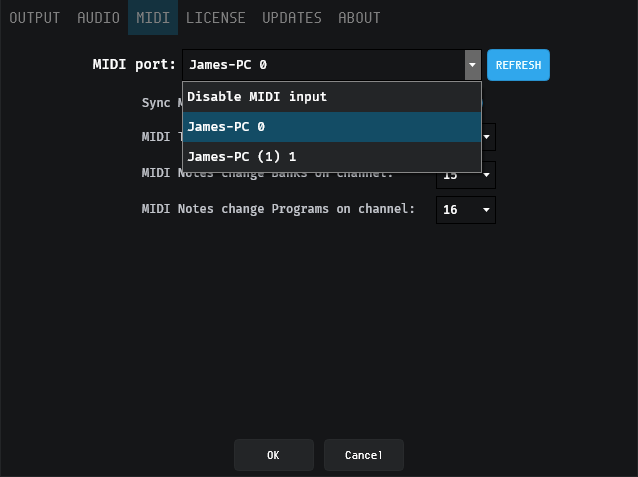
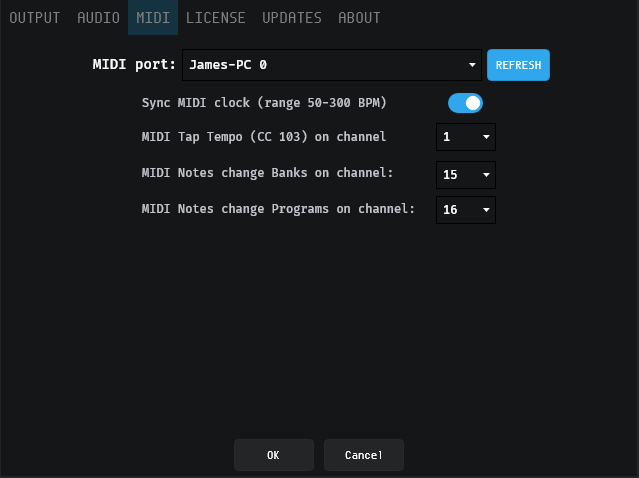
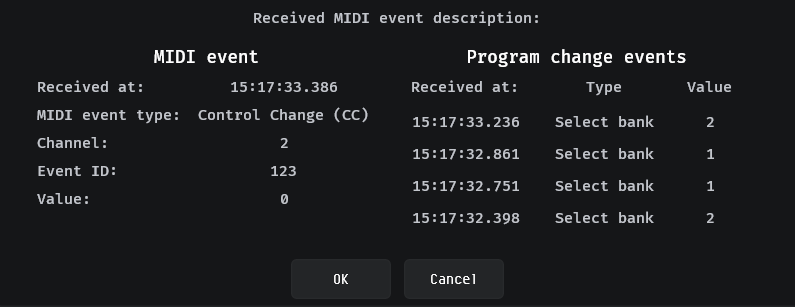
EMU works with all class-compliant MIDI devices and can be configured to receive a MIDI channel from a single source — mapping external MIDI controls from DAWs or hardware to faders, buttons and rotary dials. MIDI Clock can also drive the Speed (BPM) dial.
Connecting a MIDI device
Connect your hardware or enable your virtual MIDI driver, press REFRESH in EMU, select it from the MIDI port list, and press OK. The Received MIDI event description shows incoming MIDI in real time.
MIDI Configuration — Bank & Program Change
Set MIDI channels for Programs and Banks. In your DAW you can loop or switch between songs knowing EMU will jump to any Bank or Program. Using separate channels allows 127 × 127 mappings.
| Target | Channel | MIDI Note | Result |
|---|---|---|---|
| Programs | 15 | 0 (C-2) | Program 1 |
| Programs | 15 | 1 (D-2) | Program 2 |
| Banks | 16 | 0 (C-2) | Bank 1 |
| Banks | 16 | 1 (D-2) | Bank 2 |
License, Fixtures, Updates, Settings & About
Manage your activation
Deactivate the license on this machine; check when next internet validation is required.
Library updates
Download the latest Crescit fixture library. Multiple versions can be rolled back and forward.
Production & Preview
See all production and Preview (formerly Beta) versions of EMU — upgrade or downgrade to any listed version.
UI language & config
Define EMU's UI language and the wider application configuration.
The About tab shows EMU's version information. Always include the build number when reporting bugs or requesting support.
Main Window
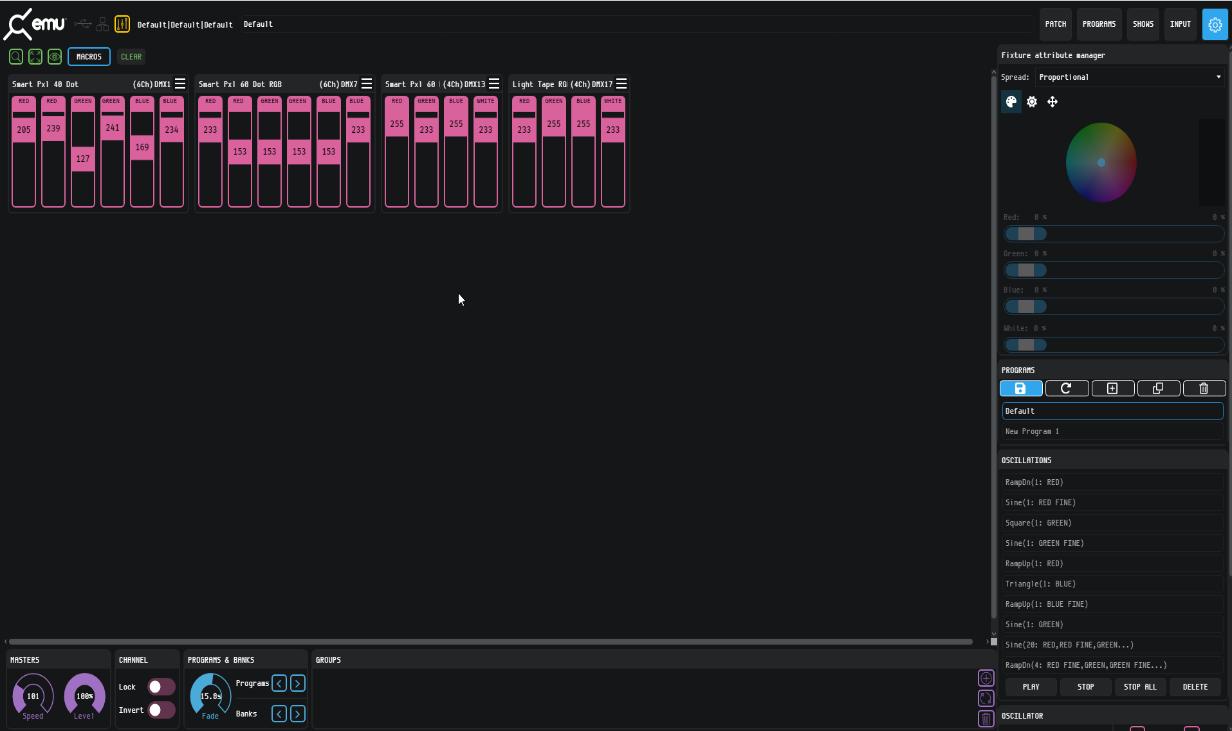
The Main Window is where you create looks for your show — select fixtures and faders, apply tools from each widget, then save each look to a Program.
Fixtures Window
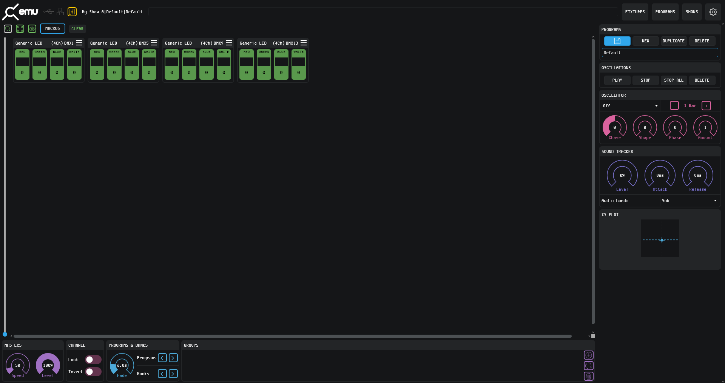
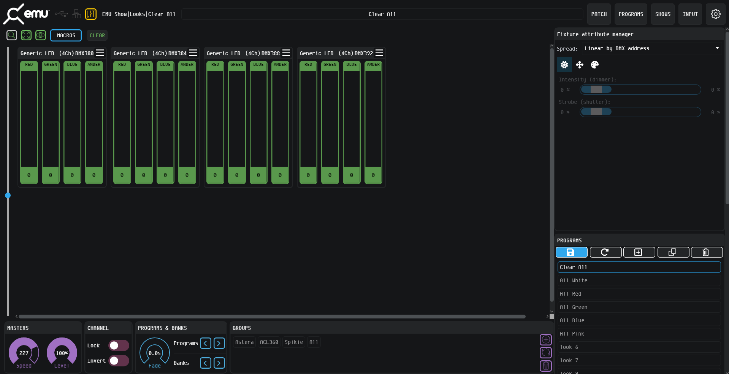
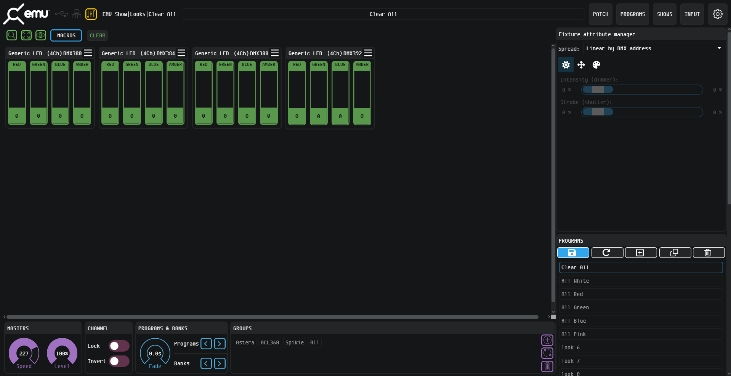
Each lighting fixture positioned on the patch grid is represented as a block of vertical attribute faders. The top of each block shows the Fixture Name, DMX Channel Footprint, and DMX Start Channel.
- Click and drag a fader handle to control the DMX channel for that parameter. The handle's number reflects the current DMX level (or a custom field for that fixture).
- Double-click a fader to enter a precise number between
0and255. - Fine-adjust using ↑ / ↓ arrow keys while a fader is selected.
Default attribute values are typically 0, except Pan, Tilt and Zoom which default to 128 (centre). This is called the home state.
Selection Logic
| State | Behaviour |
|---|---|
| Nothing Selected | Default state. |
| Fixture Selected | Click the fixture's border to select the whole fixture. Macros and position controls become applicable. |
| Attribute Fader Selected | Click a fader to select it (lighter shade). Click again to deselect. Selecting a fader also selects its fixture. Oscillators & Sound Tracker apply at this scope. |
Click any grey space around the interface to quickly deselect everything.
Selection Shortcuts
| Shortcut | Action |
|---|---|
| Shift + Click | Select a sequential range of channels — click the first fader, hold Shift, click the last. |
| Ctrl / Cmd + Click | Select multiple individual fixtures or faders. Moving one selected fader moves them all. |
| Ctrl / Cmd + A | Select all fixtures. |
| Alt + Click | Select the same attribute on all identical fixture types in a range. Perfect for fan macros on every Pan channel of one fixture type. |
Tools and Indicators
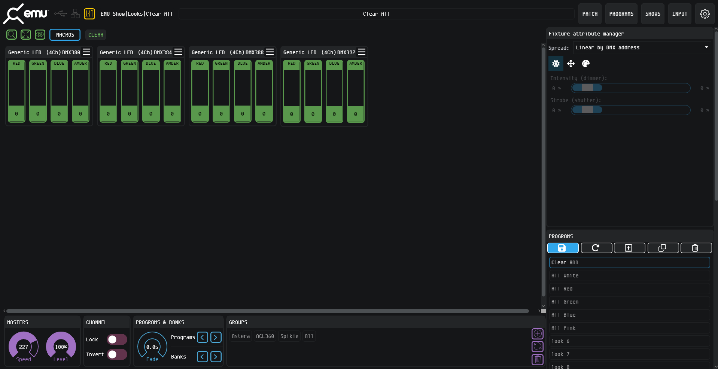
Connection Indicators
Active Program Indicator
EMU Show files contain Banks and Programs — the fundamental building blocks of any light show. Each Show file can contain multiple Banks; each Bank can contain multiple Programs. The current Show / Bank / Program selection is shown in the top-left corner of the interface as:
Interface View Options
- Zoom — enables the zoom sidebar to resize EMU's interface to show as many or few fixtures as needed.
- Expanded Fixture View — hides all control widgets. Ideal for visualising what your faders are doing when mapping them to an external control source like MIDI or VST automation.
- Percentage View — toggles fader handle values between
0–255and0%–100%.
Clear
The Clear button returns fixtures back to their home values within a Program.
- With nothing selected → Clear returns all fixtures in the Program to default.
- With specific fixtures selected → Clear returns only those fixtures.
Clearing a fixture removes all Sound Trackers and Oscillators and returns faders to default.
Macros
Macros perform programming tasks that don't have a UI shortcut. Click the Macros button (top left) and apply to your selected fixtures.
| Macro Type | Description |
|---|---|
| Fan | Creates basic fan effects across selected channels to reduce manual positioning. |
| Colours | Sets RGB colour channels to values defined by name — saves time balancing colours on each fader. |
| Select | Speeds up common selection tasks (e.g. select all Pan-Tilt or RGB channels). |
| Utility | Functions to set certain attribute fader levels. |
MIDI Mapping
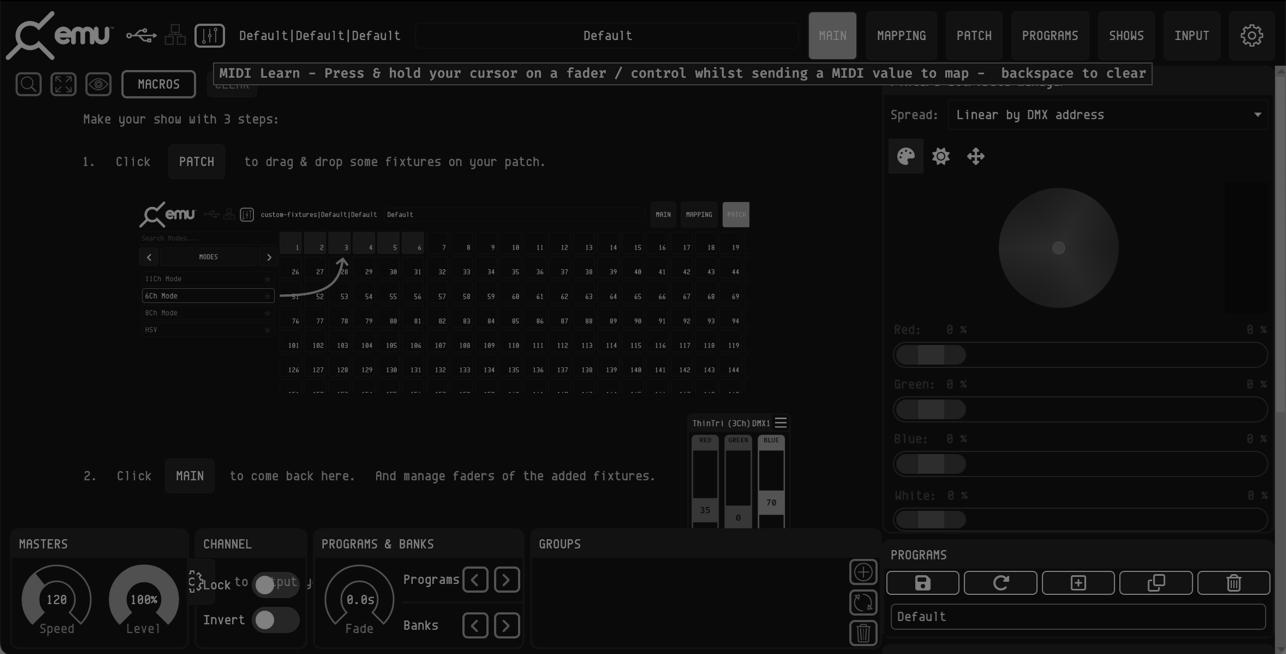
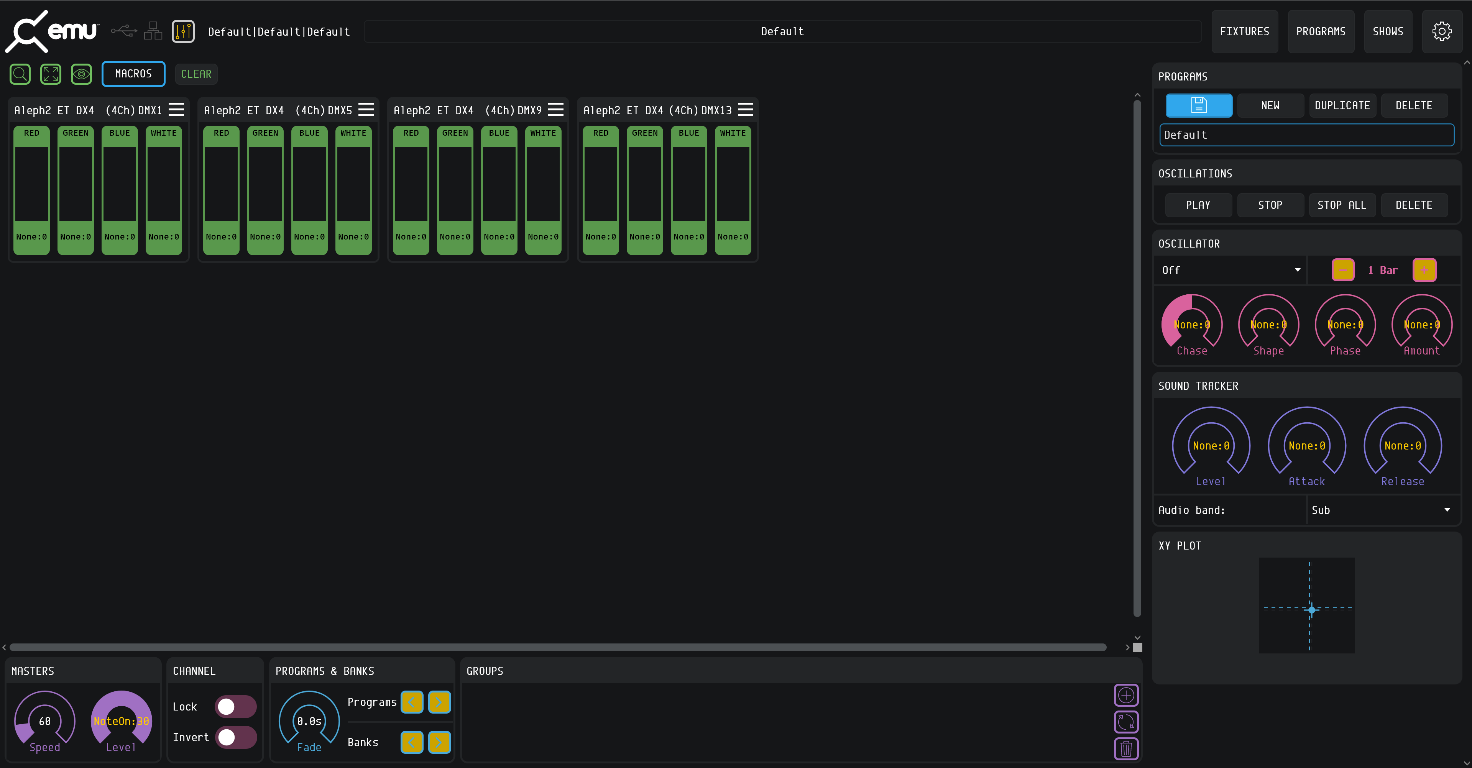
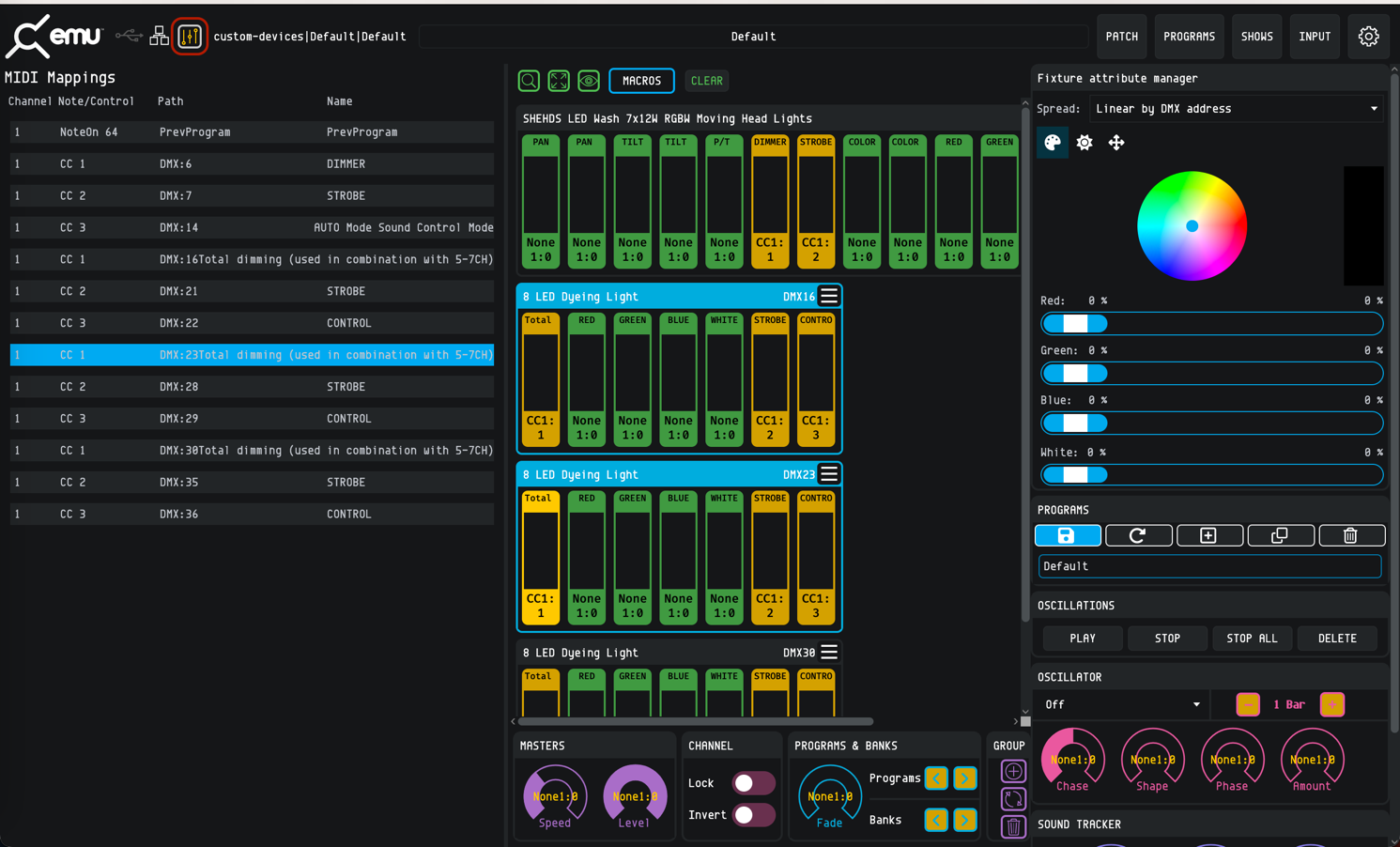
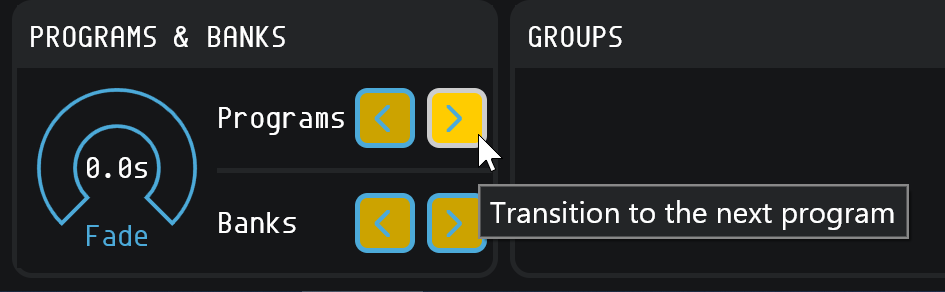
EMU allows MIDI to be mapped to faders and controllers using MIDI Learn. Perfect for mapping hardware to faders for use anywhere in your performance.
Enabling / Disabling MIDI Mapping Mode
Click the yellow box with faders inside (above the Macro and Clear buttons) — this toggles MIDI Learn mode. In Learn mode, faders show their assigned MIDI Note, mappable buttons appear yellow, and rotary dials show yellow text for their assigned MIDI channel. Toggle out to save. MIDI labels disappear, but mapped faders stay yellow.
Fixed MIDI Bank & Program Change
EMU includes permanent MIDI commands always active without switching to MIDI Learn:
| Fixed MIDI Command | Action |
|---|---|
| MIDI CC 0 | Advance to the next Bank |
| MIDI Program Change | Advance to the next Program |
You can also map custom MIDI commands to Bank / Program forward, or assign specific MIDI notes to change bank or program.
Mapping MIDI to Faders
Turn on Learn mode and the automation routes panel appears. Select the fader(s), send the MIDI signal — the faders respond by turning yellow, display the mapped channel, and a new route appears. Multiple faders can be mapped to the same MIDI note.
Faders mapped to MIDI take priority over the values defined by the active Program.
Mapping MIDI to Buttons and Rotary Dials
Click and hold the function, then send the MIDI signal. Dials display the mapped MIDI note; buttons look the same as before but are now mapped.
Un-mapping
Switch to Learn mode, select faders / routes / click and hold buttons or dials, then press Backspace. The mapping is cleared.
Widgets
Widgets live on the bottom and right side of EMU's interface — they either control master settings or create and configure lighting states per Program. Double-click any widget title bar to minimise it.
Fixture Attribute Selector
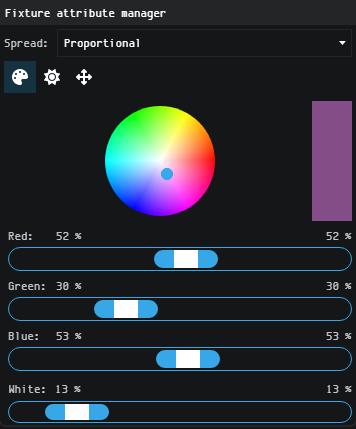
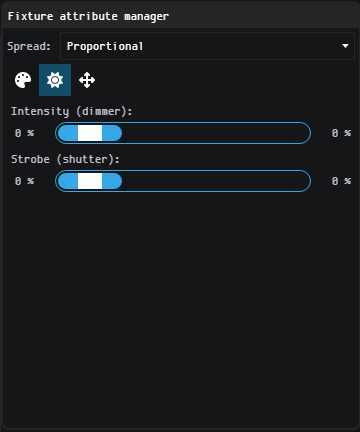
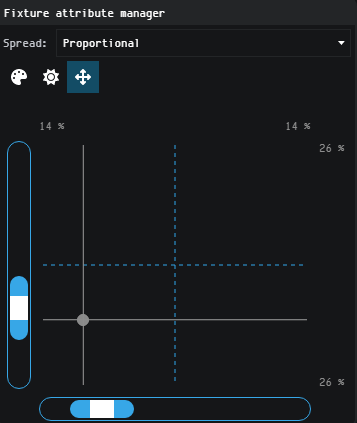
Provides 8- and 16-bit control of your selected fixtures for fast intuitive interaction:
- Intensity and shutter
- XY position plot for pan and tilt
- Additive colour mixing
Select individual or multiple fixtures, then drag the blue dot in the XY plot to define position values. With multiple fixtures, EMU can interpolate attribute values across the range to create a fanning effect — the order is determined by current values or DMX address.
Oscillator Widget
The Oscillator widget sweeps faders up and down to form dynamic lighting states. Despite just 6 controls, it's a powerful tool capable of creating multiple time-synced effects quickly.
Select the faders you want to oscillate, then pick an oscillation type:
Selected faders turn pink to indicate they are under Oscillator control.
| Control | Function |
|---|---|
| Bar +/- | Time taken (in musical bars) for a full cycle. |
| Chase | With multiple channels selected, spreads Oscillators to create a chase across your lights. |
| Shape | Morphs the basic waveform into more interesting shapes. |
| Phase | Adjusts the phase / start point and offsets it from other active Oscillators. |
| Amount | The size of the Oscillator. Proportional to the fader position of the selected fader. |
For more customisable wave shapes, map each attribute fader 1:1 directly to a MIDI CC or VST3 parameter (see VST3 mapping below).
Oscillations Widget
Lists all oscillations in the active Program. Selecting one auto-selects all relevant faders for fast modification.
| Control | Function |
|---|---|
| Play | Resumes a stopped Oscillator. |
| Stop | Stops the selected Oscillator. |
| Stop All | Stops all Oscillations in the Program. |
| Delete | Removes the Oscillator and clears it from all the faders it was applied to. |
Masters Widget
- Speed — sets EMU's global tempo (BPM). Use with the Oscillator Bars +/- control to sync Oscillators with your music. When the EMU plug-in is active, or MIDI Clock is active, those override Speed.
- Level — dims all fixtures intelligently to reduce overall output or create a blackout. Does not affect Pan, Tilt or Zoom.
Channel Widget
Applies global settings to individual channel faders to simplify programming.
- Lock — freezes the DMX output state of selected faders across all Programs. Perfect for fixed levels like a front wash that should never change.
- Invert — inverts the logical direction of selected channels. Useful when a fixture is mounted in a different physical orientation. Invert the Pan channel of an upside-down fixture and programming gets a lot easier. Global — applies through Sound Trackers, Oscillators and all other functionalities.
Programs & Banks Widget
Step through Banks and Programs quickly, and define a fade-in transition time per Program.
Programs Widget
Top right of the interface — quick access to Save, Create New, Duplicate and Delete Programs within the active Bank, without navigating to the Programs page.
Ctrl + S on Windows or Cmd + S on macOS. Renaming Programs must be done within the Programs window.Groups Widget
Fast selection and deselection of multiple fixtures so you can apply macros or modify position with the XY plot.
- Add fixtures to a group — select them (Cmd / Ctrl + Click), then press the add icon.
- Rename a group — select it in the Groups widget, then press the rename icon.
- Delete a group — select it, then press the delete icon.
Sound Tracker Widget
The Sound Tracker sets attribute faders to react to specific EQ bands of live audio input received by EMU. When the threshold is met, faders snap between 0 and the upper limit defined by the Level dial. The Attack and Release dials smooth the response.
To apply: select the fader(s), then raise the Level dial — those faders enter Sound Tracker mode.
| Dial | Description |
|---|---|
| Level | Upper limit a fader can be raised to by the Sound Tracker. |
| Attack | Time used to transition the fader from 0 to the Level value. |
| Release | Time used to transition the fader from the Level value back to 0. |
Example — drive RGBW white channels from the Sub band
- Hold Ctrl / Cmd and select the white attribute faders on your two RGBW washes.
- Open the Sound Tracker widget and raise the Level dial — selected faders turn pink to indicate Sound Tracker control.
- Play audio, select the Sub Audio Band from the drop-down, then dial in Attack and Release to taste.
To remove a Sound Tracker, select the fader(s) and either set the Level to 0 or press Backspace.
Patch Window
The Patch window provides an intuitive interface to assign fixtures to the 512 channels of each DMX universe, and to map each universe to different network devices.
Channel View — Patching a Fixture
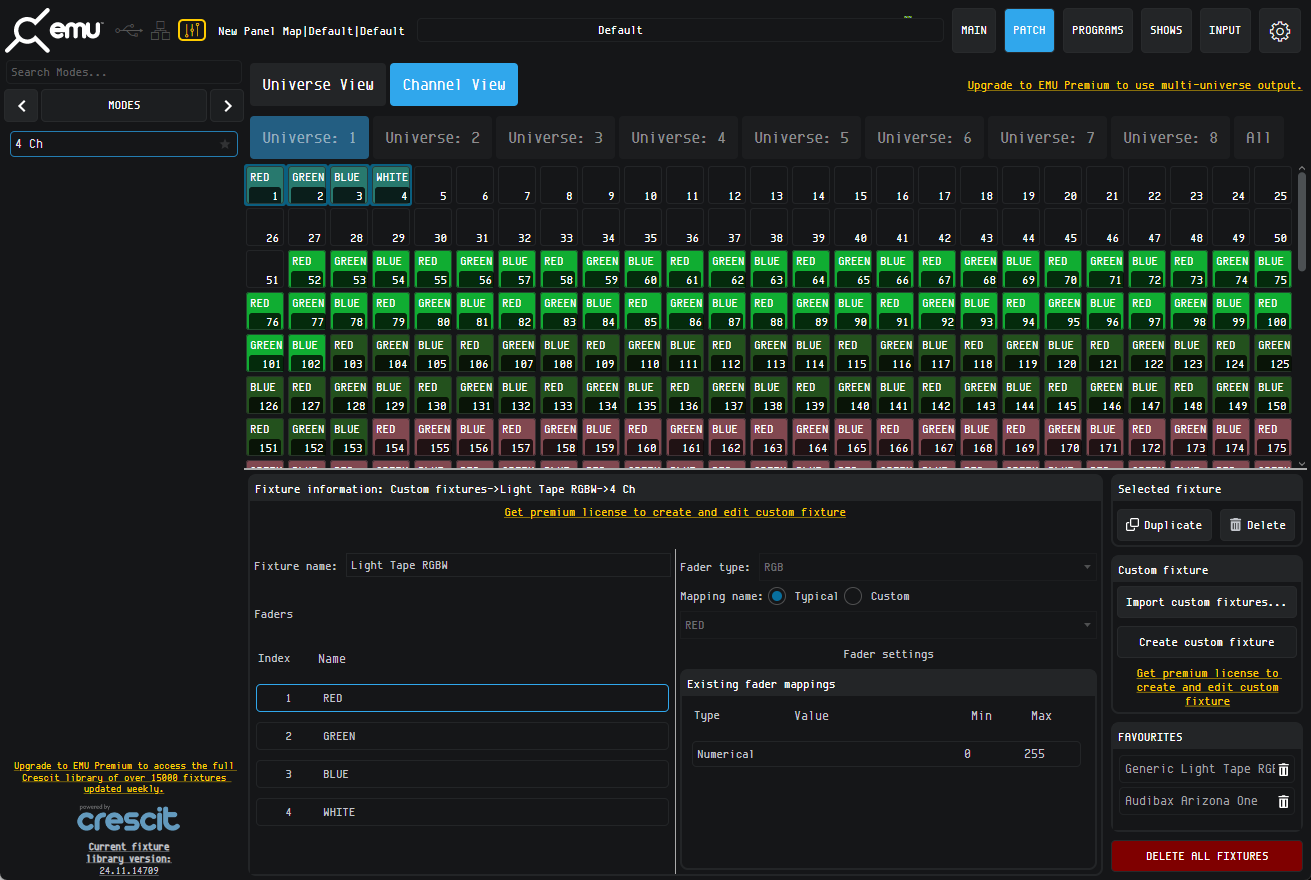
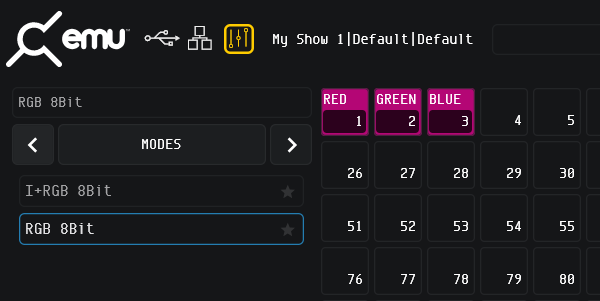
Patching is the essential first step in creating a new show. The Patch window's main area is the patch grid — 512 numbered squares, each representing a DMX channel within EMU's single-universe DMX output.
The left-hand side lists all DMX lights, organised alphabetically in a clear hierarchy:
Scroll or use the search box to find your fixture. For lights with standard features like RGB or RGBW wash, use a “generic” fixture profile to simplify the process.
Once you've found the right mode, drag it onto the patch grid. Available positions highlight in light grey; the count matches the DMX footprint of your fixture. Overlapping fixtures turn red and are blocked.
Each patched fixture is assigned a unique colour. When selected, its channel order details appear at the bottom right.
Worked example — Generic LED RGB Wash with 8-bit dimming
- Filter by Manufacturer and select the one you want.
- Filter by Model and select the one you want.
- Filter by Mode and select the one you want.
- Drag the fixture to the patch grid and release it over the channels required.
Custom Fixture Editor
A powerful tool to create any fixture configuration you want. All custom fixtures live in the Custom fixture folder of the DMX lights library list.
Create a new custom fixture
From the Patch window click Save as new custom fixture. A new fixture appears in the list with buttons underneath:
- Save as new custom fixture — adds a new fixture, with or without changes relative to the currently selected one.
- Save custom fixture — saves changes (name, added faders, fader type, etc.).
- Share — exports custom fixtures as
.femu. - Delete — removes the selected custom fixture from the library.
Worked example — build a custom RGB fixture
- Click Add fader — Channel 1 fader appears.
- Click the Fader type field and choose RGB.
- Choose RED in Mapping name.
- Repeat for Green and Blue. Channels can be reordered by drag and drop; wrong channels can be deleted at any time.
- Click Save custom fixture. The fixture is updated in the library and the channel count changes from 0 to 3.
- Rename the fixture at any time — including before saving. Scroll back from Modes to Fixtures to see it.
Create from existing fixtures
- Add the existing fixtures whose faders you want to include onto the Patch. Place them in sequence — no empty channels between fixtures.
- Click any channel of the first fixture, hold Shift, click any channel of the last fixture. All fixtures highlight.
- Press Create custom fixture. All highlighted fixtures merge to a single colour on the Patch.
- In the DMX light library, open the Custom fixtures folder. Double-click My fixture, then click on your fixture (e.g. 13 Ch).
- Delete extra channels you don't need and click Save custom fixture. Channel count updates immediately (e.g. 13 → 5).
- Rename when ready.
Changing the DMX Address & Viewing Details
Left-click a patched fixture to select it (blue border) and drag it to a new position on the grid. Fixture model and channel-order details appear at the bottom; Duplicate and Delete are at the bottom right.
Adding a Fixture to Favourites
If you regularly add the same fixture mode to show files, mark it as a favourite for faster access. EMU remembers favourites across new shows.
- Add to favourites — left-click the star icon in the fixture list.
- Patch from favourites — drag from the Favourites list (right-hand side of the Patch view) onto the patch grid.
- Remove from favourites — press the trash icon to the right of each fixture.
Deleting Fixtures from the Patch
Select a fixture, click the Delete button at the bottom right, and confirm. To wipe the grid and start from scratch, use Delete all fixtures at the top right.
Universe View — Patching a Device
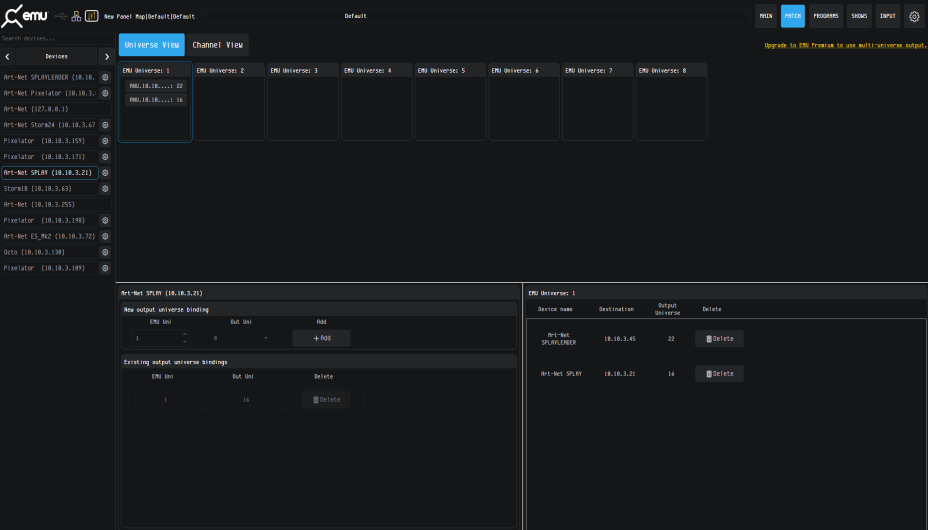
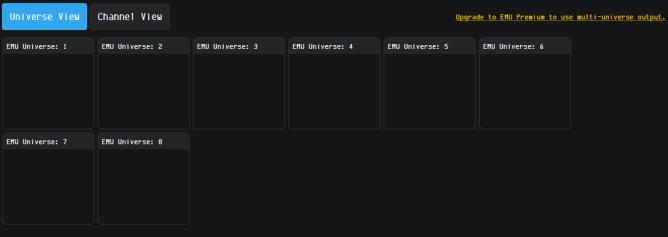
Patching a device allocates EMU's multi-universe output to specific devices on the network. The Universe View is split into:
- Left panel — list of all devices found on the network. Hierarchy: Device › Universe.
- Top section — universe patching grid for visual assignment.
- Bottom-left window — universe assignments from the device's perspective.
- Bottom-right window — universe allocations from EMU's perspective.
Worked example — allocate a device universe to EMU
- Navigate to the Universe View.
- Select an output device from the discovered network devices.
- Click one or more universes from the selected device (ensure they're highlighted).
- Drag the selected universes onto the patching grid — they auto-assign in sequential order.
- Review the grid — it shows EMU universes and their corresponding device output universes. EMU allows multiple devices to be assigned to unique or identical universes.
Exiting the Patch Window
Once patching is complete, navigate to any tab at the top right or press Escape.
Programs Window
Individual lighting states in EMU are called Programs; these are stored in Banks. Typically each Bank stores all lighting states for an individual song, with Programs stepped through during performance.
Programs and Banks can be edited two ways: through the Programs Window (the Programs button at the top of the interface) or through the Programs Widget on the right of the Main Window. Both share the key functionality for recording and playing back Programs and Banks.
Creating a Program
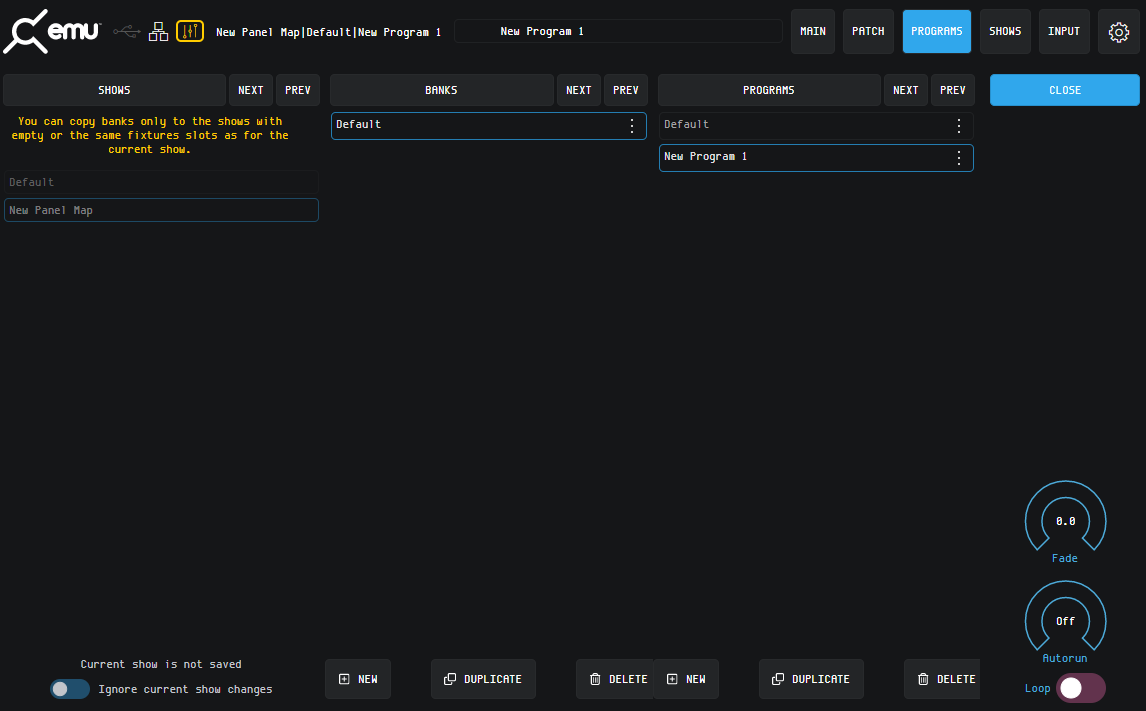
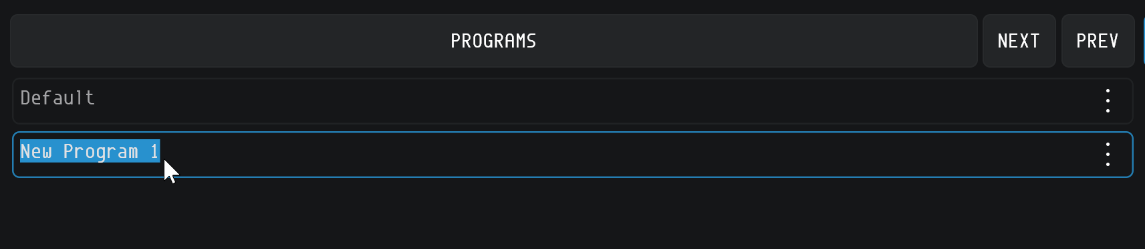
Set your lights to the state you want, then navigate to the Programs Window. The bottom of the page features New, Duplicate and Delete buttons for both Banks and Programs.
Renaming, arranging, cloning
- Rename — double-click the name, type, press Enter or click elsewhere.
- Arrange — click the three dots at the end of a Program and drag to the new position.
- Clone to another Bank — drag a Program from the Programs pane onto the destination Bank.
Autorun
Step through Programs in a Bank autonomously. Autorun time is based on the global Speed master and sets the spacing between Program transitions; each transition uses the individual Program's fade time. Enable Loop to cycle the bank; disable it to stop at the last Program.
VST3 Plug-in & Mapping
EMU's 32-bit / 64-bit Windows and 64-bit macOS VST plug-ins run EMU in the background while your DAW transmits commands — a perfectly synchronised lightshow from your sequencer. When the plug-in is active, EMU's Speed automatically tracks DAW tempo. Powerful for live performers modifying tempo mid-set.
| Parameter | Use |
|---|---|
| Program | Program Change |
| Bank | Bank Change |
| Bypass | Default |
| Fader 1 → Fader 512 | Direct user-defined control |
| PPQ | Internal use only · non-modifiable |
| Tempo | Internal · non-modifiable. When tempo is 0, master speed returns to EMU. |
| Bar | Internal use only · non-modifiable |
Mapping faders to the VST plug-in
Use the drop-down menu on each fixture's menu icon and choose Map to VST to set the entire fixture. Once a fader is mapped, the mapping is global and takes internal priority over all Programs.
To map multiple faders to the same VST channel, select them individually, right-click and choose VST Mapping, then pick a VST parameter. Mapped faders turn blue — move them in EMU to see them appear in your DAW.
Un-mapping
Select the faders and dials as when you mapped them, then press Backspace. Confirm the dialog and the mapping is cleared.
Shows Window
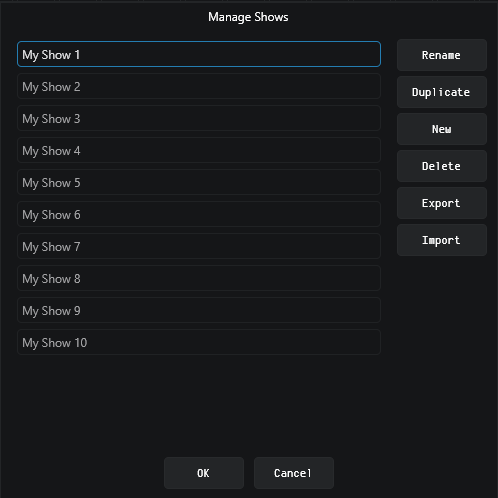
Navigate to SHOWS at the top right to manage your show files.
- Save — from the point of opening EMU, all changes are saved automatically.
- Open — select an existing show from the list of EMU Shows on your computer.
| Action | What it does |
|---|---|
| Rename | Select the show, then this option — a dialog prompts for the new name. |
| Duplicate | Select the show, then this option — a dialog prompts to name the duplicate. |
| New | Creates a new show — a dialog prompts for the name, then open it from the Manage Shows window. |
| Delete | Removes the show after confirmation. Cannot be undone. |
| Export | Bundles all settings and config into a single .emu file — transfer or back up. |
| Import | Imports a .emu file exported from another EMU instance. |
Input Window
Next to Preferences sits the Input window, which serves three purposes.
Live EMU Output View
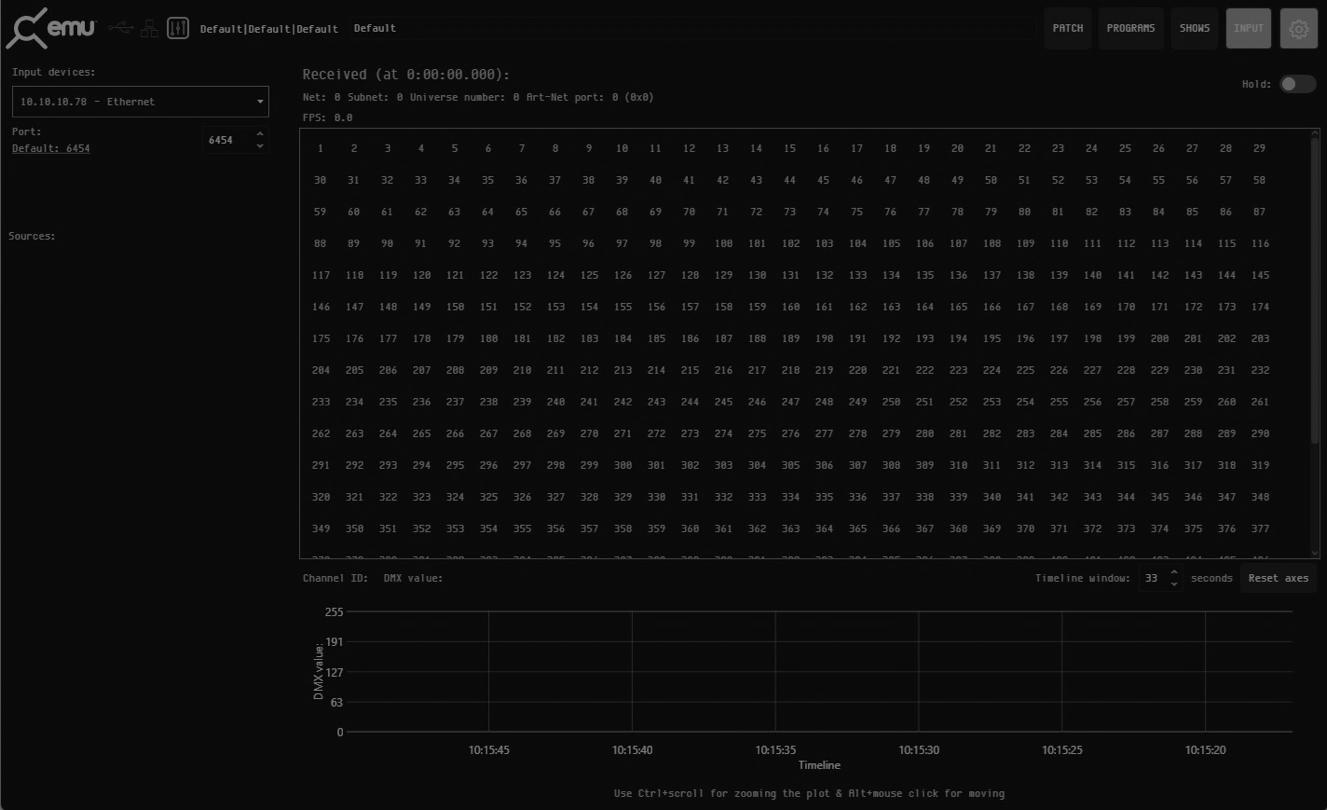
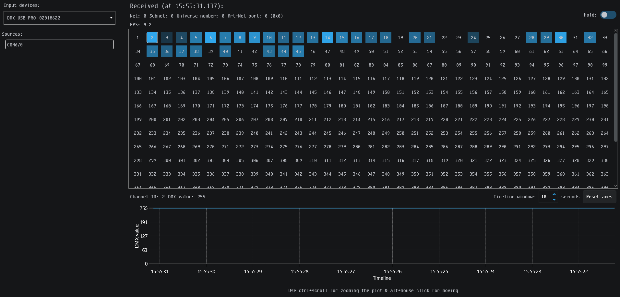
See the direct values being output over Art-Net. Even when outputting via a USB DMX device, you can still enable an Art-Net Broadcast in the Output tab. The Input Device must match the Art-Net destination from the Output tab. EMU always outputs on Art-Net universe 0, so under Sources make sure /0 is selected.
Live Art-Net View
Any network card can be selected as the Input Device. If multiple universes are being sent on a network card, they appear under Sources — click one to view it. If more than one device is sending Art-Net, a universe may appear twice; identify the source by IP address and the number after the colon.
USB DMX Input View
Choose a DMX USB Pro or DMX USB Pro Mk2 as the Input Source to view live DMX input from the device's input connector.
Reference
Glossary of DMX and lighting terms, EMU's SKU and the ENTTEC DMX devices commonly used with it.
Definitions
| Term | Definition |
|---|---|
| Art-Net | A protocol for transmitting DMX over a standard Ethernet network. Designed and copyrighted by Artistic Licence Holdings Ltd. |
| ArtPoll | A component of Art-Net that enables discovery of Art-Net-compatible devices on your network — e.g. ENTTEC's ODE Mk2. |
| DMX | The most widely used protocol for controlling lighting fixtures. Full name: DMX512 (Digital Multiplex). |
| DMX Universe | Represents 512 DMX channels. |
| FPS | Frames per Second — output rate for video or DMX. |
| Program | An individual lighting state. |
| Bank | A collection of programs. |
| Show File | All editable content within EMU. |
| Patch | The process of assigning DMX channels to selected fixtures within a given DMX universe. |
Product Codes & Ordering Information
EMU
| Product | SKU |
|---|---|
| EMU | 70680 |
DMX Control System Components
Visit enttec.com or your ENTTEC reseller to purchase DMX output devices.
| Product | SKU |
|---|---|
| DMX USB Pro | 70304 |
| DMX USB Pro Mk2 | 70314 |
| Open DMX Ethernet Mk2 (ODE Mk2) | 70303 |
| D-Split 3 and 5 PIN | 70578 |
| D-Split 5-Pin | 70579 |
Acknowledgements
- VST3 is a trademark of Steinberg Media Technologies GmbH.
- Apple, the Apple logo and Mac are trademarks of Apple Computer, Inc., registered in the U.S. and other countries.
- Windows is a registered trademark of Microsoft Corporation in the United States and other countries.
- All other brand and company names are trademarks or registered trademarks of their respective holders.