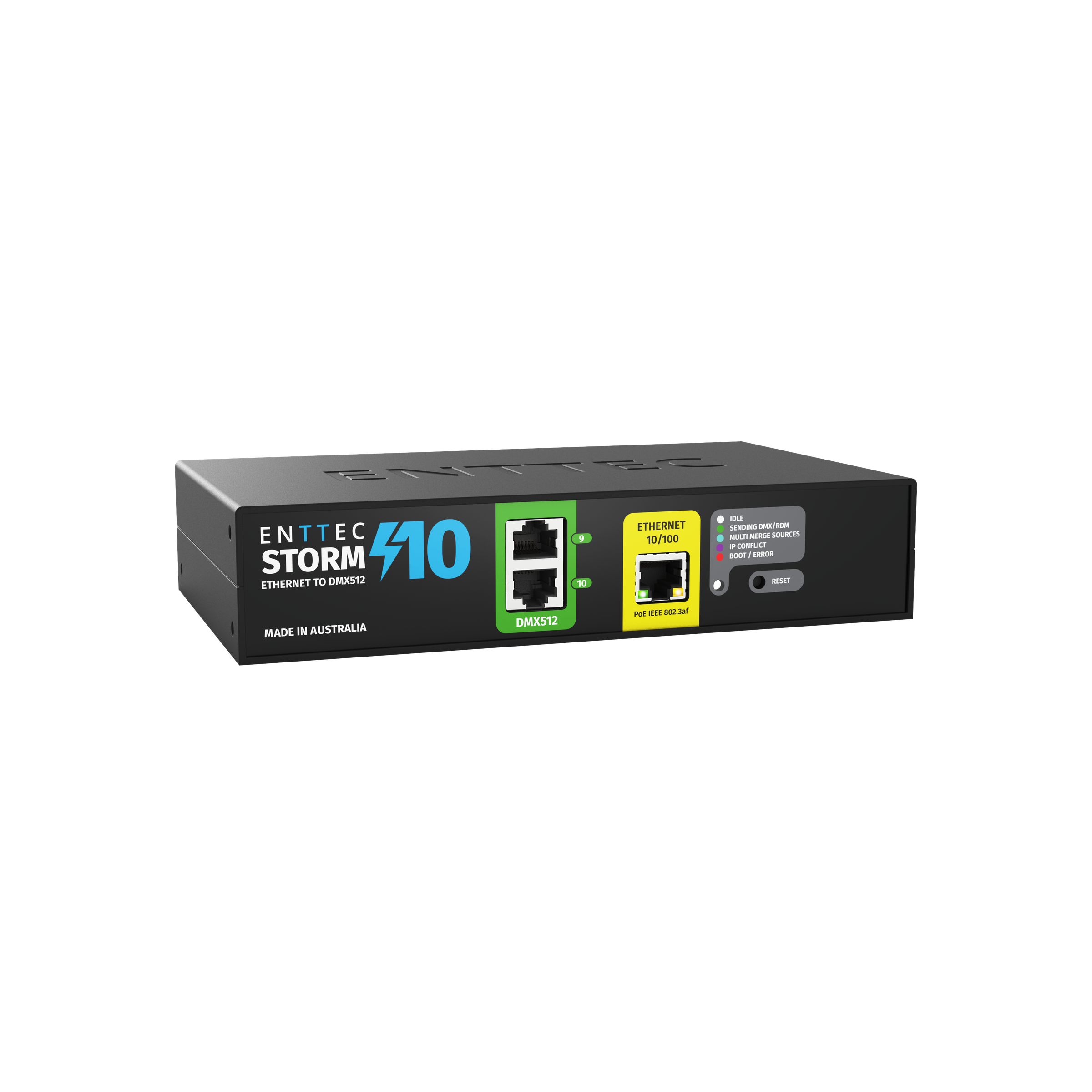
Compact Ethernet-DMX converter with 10 DMX/RDM outputs, Overdrive high-speed mode, and full RDM device management.
⚠️ Safety
Ensure you are familiarized with all key information within this guide and other relevant ENTTEC documentation before specifying, installing, or operating an ENTTEC device. If you are in any doubt about system safety, or you plan to install ENTTEC device in a configuration that is not covered within this guide, contact ENTTEC or your ENTTEC supplier for assistance.
⚠️ Heads up: ENTTEC's return to base warranty for this product does not cover damage caused by inappropriate use, application, or modification to the product.
⚡ Electrical Safety
- This product must be installed in accordance with applicable national and local electrical and construction codes by a person familiar with the construction and operation of the product and the hazards involved. Failure to comply with the following installation instructions may result in death or serious injury.
- Do not exceed the ratings and limitations defined in the product datasheet or this document. Exceeding can cause damage to the device, risk of fire and electrical faults.
- Ensure that no part of the installation is or can be connected to power until all connections and work is complete.
- Before applying power to your installation, ensure your installation follows the guidance within this document. Including checking that all power distribution equipment and cables are in perfect condition and rated for the current requirements of all connected devices and factor in overhead and verify that it is appropriately fused and voltage is compatible.
- Remove power from your installation immediately if accessories power cables or connectors is in any way damaged, defective, shows signs of overheating or are wet.
- Provide a means of locking out power to your installation for system servicing, cleaning and maintenance. Remove power from this product when it is not in use.
- Ensure your installation is protected from short circuits and overcurrent. Loose wires around this device whilst in operation, this could result in short circuiting.
- Do not over stretch cabling to the device's connectors and ensure that cabling does not exert force on the PCB.
- Do not 'hot swap' or 'hot plug' power to the device or its accessories.
- Do not connect any of this device's V- (GND) connectors to earth.
- Do not connect this device to a dimmer pack or mains electricity.
- Label any Cat5/6 DMX connector and DO NOT connect to non-DMX port (e.g. Ethernet Switch). Connecting unlike systems could result in serious damage to STORM10 and equipment.
⚠️ System Planning and Specification
- To contribute to an optimal operating temperature, where possible keep this device out of direct sunlight.
- The maximum recommended cable distance between the STORM10's output and DMX fixture is 300m (1000ft). ENTTEC advises against running cabling close to sources of electromagnetic interference (EMF) i.e., mains power cabling / air conditioning units.
- This device has an IP20 rating and is not designed to be exposed to moisture or condensing humidity.
- Ensure this device is operated within the specified ranges within its product datasheet.
⚠️ Protection from Injury During Installation
- Installation of this product must be performed by qualified personnel. If ever unsure always consult a professional.
- Always work with a plan of the installation that respects all system limitations as defined within this guide and product datasheet.
- Keep product and its accessories in its protective packaging until final installation.
- Note the serial number of each product and add it to your layout plan for future reference when servicing.
- All network cabling should be terminated with an RJ45 connector in accordance with the T-568B standard.
- Always use suitable personal protective equipment when installing ENTTEC products.
- Once installation is completed, check that all hardware and components are securely in place and fastened to supporting structures if applicable.
⚠️ Installation Safety Guidelines
- The device is convection cooled, ensure it receives sufficient airflow so heat can be dissipated.
- Do not cover the device with insulating material of any kind.
- Do not operate the device if the ambient temperature exceeds that stated in the device specifications.
- Do not cover or enclose the device without a suitable and proven method of dissipating heat.
- Do not install the device in damp or wet environments.
- Do not modify the device hardware in any way.
- Do not use the device if you see any signs of damage.
- Do not handle the device in an energized state.
- Do not crush or clamp the device during installation.
- Do not sign off a system without ensuring all cabling to the device and accessories has been appropriately restrained, secured and is not under tension.
Wiring Diagram
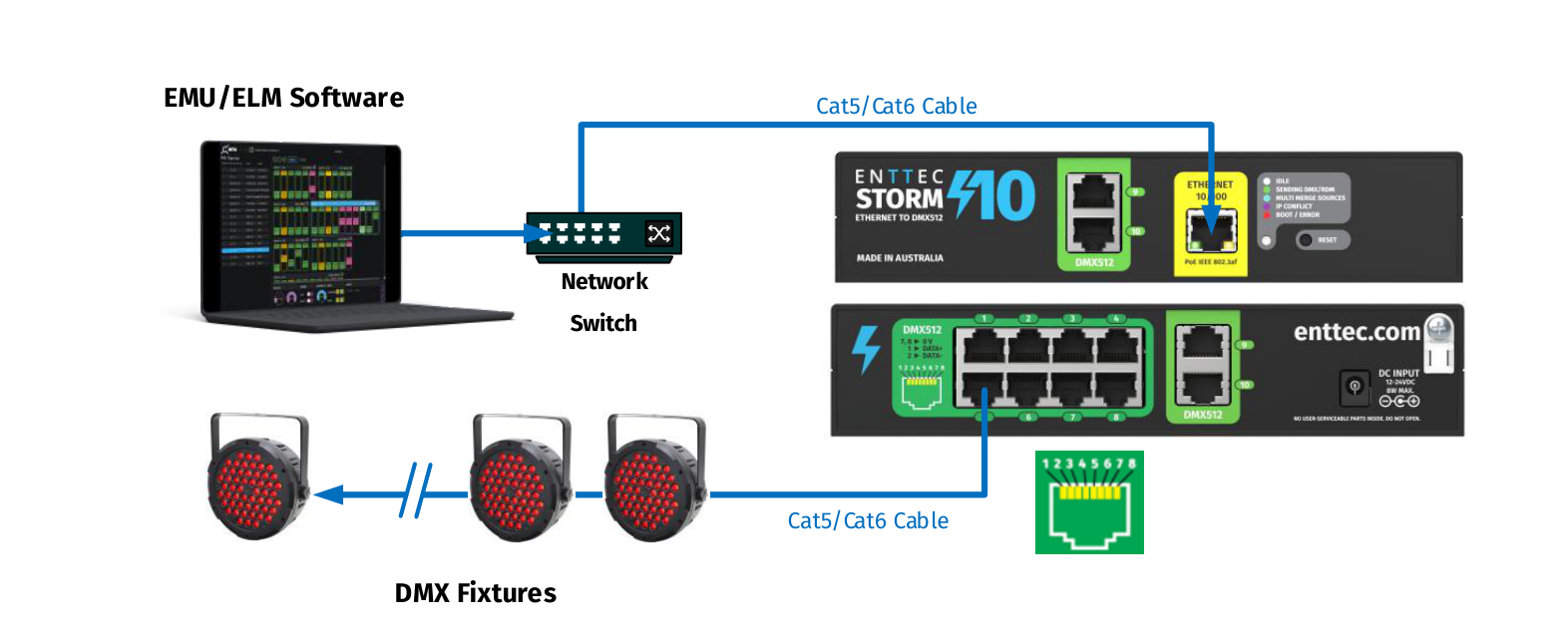
The STORM10 connects between an EMU / ELM software host (via a network switch using Cat5/Cat6 cable) and your DMX fixtures (via Cat5/Cat6 cable to the rear RJ45 DMX outputs). The Ethernet input supports PoE; rear ports 1–10 carry DMX/RDM and front ports 9 & 10 mirror their rear counterparts.
Functional Features
- 10 Universes Ethernet-DMX to DMX/RDM Node.
- Supports Art-Net, sACN & ESP Ethernet-DMX protocols.
- Allows individual port settings including disable certain output ports, input protocols, Universe, Refresh Rate and Output Merge.
- Supports DHCP or Static IP address.
- Intuitive device configuration and updates through the local host web interface.
- Overdrive mode — run outputs at up to 2 Mbit/s, carrying up to 4 DMX universes per port (up to 40 universes across all 10 outputs).
- Full RDM device management — discover, address, and monitor RDM fixtures on any output port; supports up to 512 RDM devices with full paging to controllers.
- Configurable refresh-rate cap (default 40 Hz) for consistent, standards-friendly timing.
RDM
RDM (ANSI E1.20) is fully supported on all DMX output ports. The STORM10 acts as a gateway, converting Art-RDM to RDM to discover, address, and monitor RDM-capable fixtures connected to each port.
- RDM pass-through (GET/SET) — your console or software can talk directly to fixtures over Art-Net RDM.
- Supports up to 512 RDM devices, reported to controllers with full paging.
- Works in both standard (250 kbit/s) and Overdrive modes.
- V1.5.4 fix: Reliable discovery of multiple same-manufacturer fixtures chained on one port — previously some devices could intermittently fail to appear.
- V1.5.5 fix: All 4 universes per port can now be selected — previously the selection was limited to 2 universes.
⚠️ Note:
- ENTTEC advises disabling RDM when not needed for your fixtures. Older fixtures compatible with the DMX 1990 Specification may exhibit erratic behaviour with RDM packets present on the DMX line.
Merging
Two different Ethernet-DMX sources (from different IP addresses) values can be merged if the sources are the same protocol and universe.
If the STORM10 receives more sources than expected (Disabled — 1 source & HTP/LTP — 2 sources) the unexpected source will be ignored until it becomes available for the next source. This helps protect from random data on your network sending your show into chaos. The STORM10 will display an error at Merge Status on the home page of the web interface and the status LED will light up cyan.
Whilst set to HTP or LTP merging, if either one of the 2 sources stop being received, the failed source is held in the merge buffer for 4 seconds. If the failed source returns the merge will continue, otherwise it will be discarded.
Merging options include:
| Mode | Behaviour |
|---|---|
| None | No Merging. Only one source should be sending to the DMX output. |
| HTP | Highest Takes Precedence. Channels are compared one to one and the highest value is set on the output. |
| LTP | Latest Takes Precedence. The source with the latest change in data is used as the output. |
Hardware Features
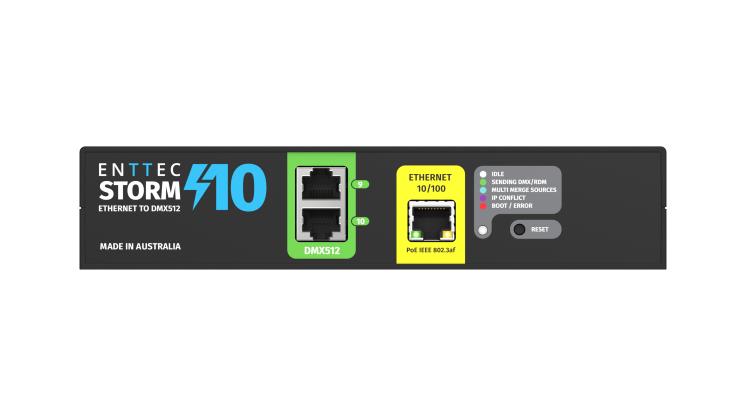
- Total 12 × RJ45 ports for DMX/RDM output.
- 10 × Rear RJ45 ports
- 2 × Forward-Facing RJ45 service ports — duplicating Port 9 & 10 outputs
- Link & Activity LED indicator built-in RJ45 port for Ethernet input.
- Forward-facing LED status indicator.
- Mounting accessories included allowing surface / din mount or rack mount in half or full width rack spaces.
DMX Output RJ45 Connectors
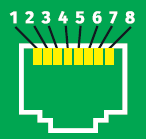
- Pin 1: Data +
- Pin 2: Data −
- Pin 7/8: Ground
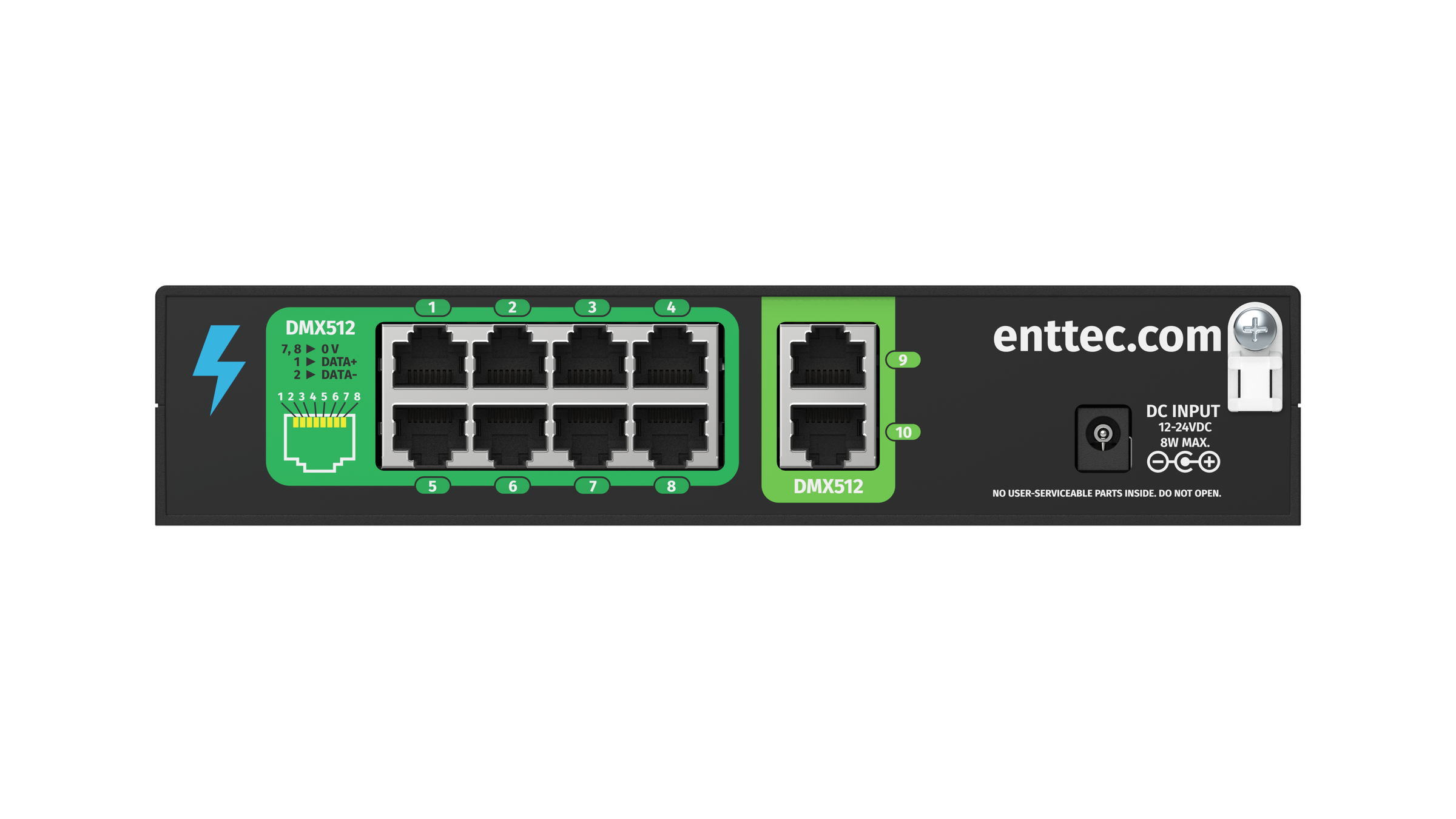
Forward-Facing Service Ports
The STORM10 includes two forward-facing service ports that electronically mirror rear Ports 9 and 10. These front ports provide convenient access for diagnostics and troubleshooting without the need to reach the back of the rack.
Please note that DMX512 rules and limitations apply collectively to both front and rear ports. This includes load capacity and cable length restrictions.
Example
According to the DMX512 standard, a single DMX data link supports a maximum of 32-unit loads. You may connect any combination of up to 32 fixtures across Port 9 or Port 10 — for example:
- 16 fixtures on the front + 16 on the rear, or
- 0 on the front + 32 on the rear, etc.
Similarly, the recommended maximum combined cable distance from the STORM10's output to the last DMX fixture is 300 metres, shared between the front and rear ports.
LED Status Indicator
The LED status indicator can be used to determine STORM10's current state. Each state is as follows:
| LED Colour | STORM10 Status |
|---|---|
| White (static) | Idle |
| Green | Sending DMX/RDM |
| Blue | Device is starting up |
| Blue (Flashing) | Identifying |
| Cyan | Multiple Merge Sources |
| Purple | IP Conflict |
| Red | Device in boot / Error |
PoE (Power over Ethernet)
The STORM10 supports IEEE 802.3af Power over Ethernet. This allows the device to be powered via the RJ45 Ethernet Connection, reducing the number of cables and the ability to remotely deploy the STORM10 without the need for a local power source close to the device.
PoE can be introduced to the Ethernet cable, either through a network switch which outputs PoE under the IEEE 802.3af standard, or through an IEEE 802.3af PoE injector.
⚠️ Note:
- DC power input takes precedence over PoE. If the DC power is disconnected, the STORM10 will typically switch to PoE in about 3 seconds. However, with older hardware, this process may take up to 1 minute.
- Passive PoE is not compatible with the STORM10.
Out of the Box
STORM10 will be set to a DHCP IP address as default. If the DHCP server is slow to respond, or your network does not have a DHCP server, STORM10 will fall back to IP address 192.168.0.10. By default, STORM10 port settings are as below:
- Type: DMX OUT
- Protocol: Art-Net
- Universe to Port 1=0, Port 2=1, Port 3=2, Port 4=3, Port 5=4, Port 6=5, Port 7=6, Port 8=7, Port 9=8, Port 10=9
- Speed: 250 kbit/s (standard DMX)
- Refresh Rate: 40 Hz
- Output Merging: None
⚠️ Note: After updating to V1.5.x firmware, any settings incompatible with the new version are automatically reset to safe defaults on first boot. Review your port configuration (mode, universes, merge) after upgrading.
Networking
STORM10 can either be configured to be DHCP or Static IP address.
DHCP: On power up and with DHCP enabled, if STORM10 is on a network with a device/router with a DHCP server, STORM10 will request an IP address from the server. If the DHCP server is slow to respond, or your network does not have a DHCP server, STORM10 will fall back to the IP address 192.168.0.10 and netmask 255.255.255.0. If a DHCP address is provided, this can be used to communicate with STORM10.
Static IP: By default (out of the box) the Static IP address will be 192.168.0.10. If STORM10 has DHCP disabled, the Static IP address given to the device will become the IP address to communicate with the STORM10. The Static IP address will change from the default once it's modified in the web interface. Please note down the Static IP address after setting.
⚠️ Note: When configuring multiple STORM10's on a Static network; to avoid IP conflicts, ENTTEC recommends connecting one device at a time to the network and configuring an IP.
If using DHCP as your IP addressing method, ENTTEC recommends the use of the sACN Multicast, or Art-Net Broadcast. This will ensure that STORM10 continues to receive data if the DHCP server changes its IP address.
ENTTEC does not recommend unicasting data to a device with its IP address set through DHCP server on long-term installations.
Web Interface
Configuring STORM10 is done through a web interface which can be brought up on any modern web browser. A Chromium based browser (i.e. Google Chrome) is recommended for accessing STORM10 web interface.
Identified IP address: If you are aware of STORM10's IP address (either DHCP or Static), then the address can be typed directly into the web browsers URL field.
Unidentified IP address: If you are not aware of STORM10's IP address (either DHCP or Static) the following discovery methods can be used on a local network to discover devices:
- ENTTEC EMU software (available for Windows and MacOS), which will Discover ENTTEC devices on the Local Area Network, will display their IP addresses and open to the Web Interface before opting to configure the device.
- An IP scanning software application (i.e. Angry IP Scanner) can be run on the local network to return a list of active devices on a local network.
- Devices can be discovered using Art Poll (i.e. DMX Workshop if set to use Art-Net).
- The device Default IP address 192.168.0.10 will be printed on the physical label on the rear of the product.
⚠️ Note:
- As STORM10 is hosting a web server on the local network and does not feature an SSL Certificate (used to secure online content), the web browser will display the 'Not secure' warning, this is to be expected.
- Ensure the controller and configuration device for the STORM10 share the same LAN and IP address range. For example, if the STORM10 is set to 192.168.0.10, your computer should be around 192.168.0.20. Keep consistent Subnet Mask settings across all network devices.
Top Menu

The top menu grants easy access to all STORM10 web pages, with the active page highlighted in blue.
The top right corner of the window features 2 installer-friendly buttons:
- Light / Dark Mode: Toggle between light and dark themes — preference is saved per browser.
- Identify: Flashes the status LED on the selected STORM10 so you can verify correct wiring without sending control data. Note: The timer will not restart when pressed consecutively.
Home
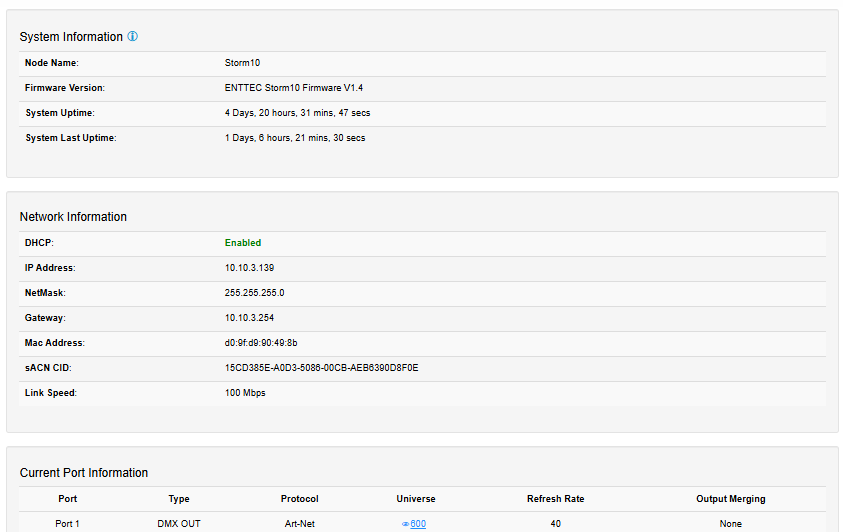
Home tab displays the following information:
System information
- Node Name
- Firmware Version
- System Uptime
- System Last Uptime
Current Network Settings
- DHCP status
- IP address
- Netmask
- Gateway address
- MAC Address
- sACN CID
- Link Speed
DMX Outputs
- Port: the port number on the device.
- Type: Disable / DMX OUT / DMX OUT (RDM)
- Universe: click the universe number to open a live DMX view buffer showing all current output levels for that port
- Protocol: Art-Net / sACN / ESP
- Refresh Rate
- Merge Status: None / Broadcast / Unicast
Settings
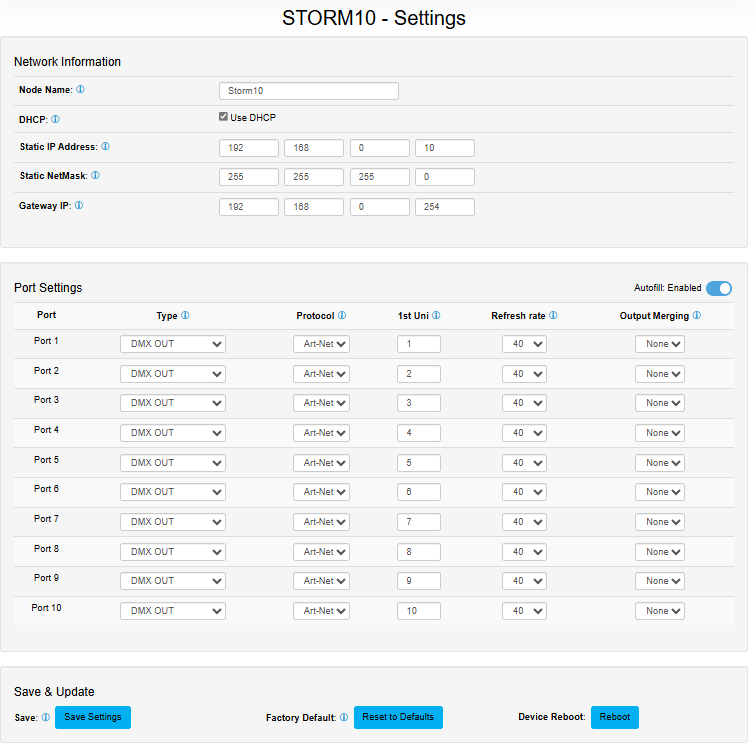
The STORM10 settings can be configured within the Settings tab. Changes will only take affect after being saved; any unsaved changes will be discarded.
Network Information
- Node Name: The name the STORM10 will be discoverable with in Poll replies.
- DHCP: Enabled by default. When enabled, the DHCP server on the network is expected to automatically provide the IP address to the STORM10. When DHCP enabled but there is no DHCP server or it's slow to respond, the STORM10 will fall back to 192.168.0.10.
- IP Address / NetMask / Gateway: These can be set for use when DHCP is disabled.
Port Settings
This is where users can set individual port configuration or enable the 'Autofill' function to manage group port settings. Any port settings after the one changed will autofill to match unless it has already been changed. Autofill isn't applied to DMX universes.
- Port: List of ports referring to the port number on the device.
- Type: Disabled, DMX OUT, DMX OUT (RDM), DMX OUT Overdrive, DMX OUT Overdrive (RDM).
- Protocol: Set individual input Ethernet-DMX protocol for the port: Art-Net, ESP, sACN.
- Universe: 0-32767 (Art-Net), 0-255 (ESP), 1-63999 (SACN)
- Refresh Rate: The rate at which the STORM10 will output the Data from its DMX port (40 Frames per second is default). It will repeat the last received frame to comply with DMX standard.
- Output Merging: None / HTP / LTP. When enabled, this can allow the merging for two DMX sources from different IP address whilst sending on the same Universe in either a LTP (Latest Takes Precedence) or HTP (Highest Takes Precedence) merge. More information can be found in the Merging section of this document.
Save & Update
- Save settings: All changes must be saved to take effect. The STORM10 takes up-to 10 seconds to save.
- Factory Default: Press this command to reset the STORM10 to Factory Defaults. Please refer to 'Reset to Factory Defaults' section of this document for more details.
- Restart Now: Please allow few seconds for the device to reboot. When the web interface page refreshes the STORM10 is ready.
Network Stats
The Network page shows statistics for the DMX protocol enabled.
Listed below is the information provided in each tab:
Art-Net
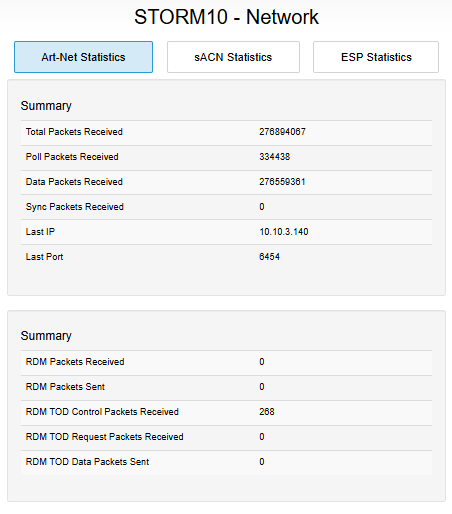
- Total packets received
- Poll Packets received
- Data Packets Received
- Sync Packets Received
- Last IP
- Last Port
- Art-Net RDM
- RDM Packets Received
- RDM Packets Sent
- RDM TOD Control Packets Received
- RDM TOD Request Packets Received
- RDM TOD Data Packets Sent
sACN
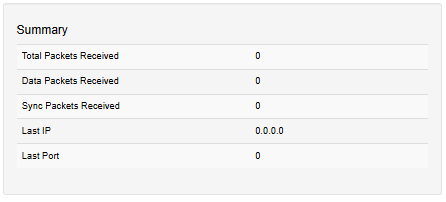
- Total Packets Received
- Data Packets Received
- Sync Packets Received
- Last IP
- Last Port
ESP
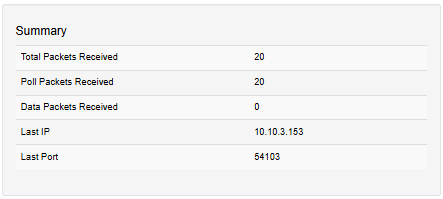
- Total Packets Received
- Poll Packets Received
- Data Packets Received
- Last IP
- Last Port
Overdrive Mode
Overdrive allows each DMX output port to run at up to 2 Mbit/s — significantly faster than the standard 250 kbit/s DMX rate. This enables each port to carry up to 4 DMX universes, giving the STORM10 a total capacity of up to 40 universes across all 10 outputs.
To enable Overdrive, set the port Type to DMX OUT Overdrive or DMX OUT Overdrive (RDM) in the Settings tab. RDM device management is fully supported in Overdrive mode.
⚠️ Note: Overdrive requires fixtures and cabling that support high-speed DMX. Verify compatibility with your fixtures before enabling. Standard DMX fixtures may not respond correctly at Overdrive speeds.
Update Firmware
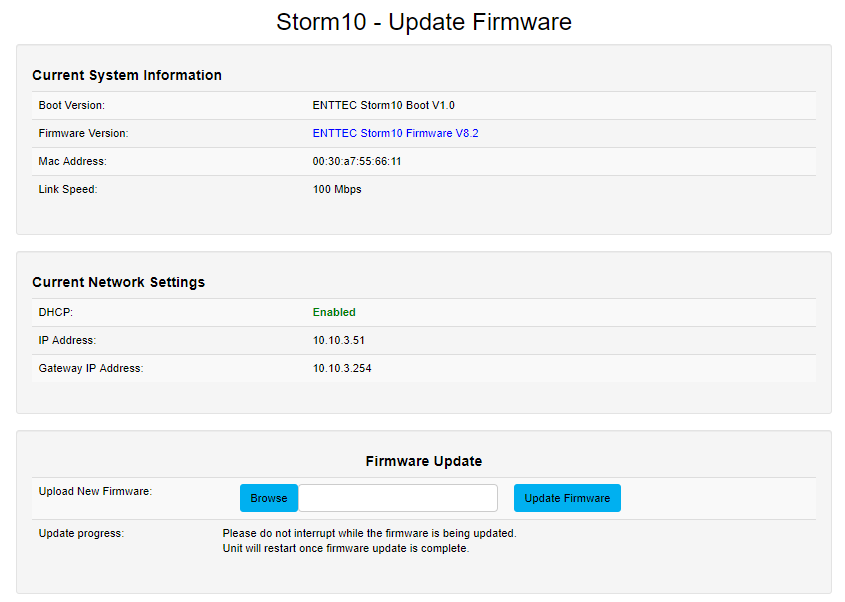
When selecting the Update Firmware tab, the STORM10 will stop outputting and the web interface boots into the Update Firmware mode. It may take a while depending on the network setting. An error message is expected as the webpage is temporary unavailable in boot mode.
This mode will display basic information regarding the device including current system information and network settings.
The latest firmware can be downloaded from www.enttec.com. Use the Browse button to select a STORM10 firmware from your computer. STORM10 firmware files have a .bin extension.
Next click on the Update Firmware button to begin updating.
Once the file has been downloaded, the STORM10 will begin installing the update. While doing that the Home page will be greyed out and a message indicating that the update is in progress will be displayed. The site will become accessible again once the update has finished installing.
Reset to Factory Defaults
The STORM10 can be reset by either the web interface or the reset button on the device. It resumes the device's settings back to factory default.
Resetting via Web Interface
The Factory Defaults command can be found under the Settings tab.

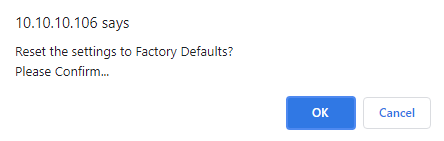
Once the command is pressed, a pop-up would appear as shown in the image below:
Resetting by Reset Button
The reset button restores the network configuration of STORM10 to factory defaults. To reset to factory defaults, the following procedure must be performed:
- Power off the unit.
- Press and hold the Reset button.
- While holding the Reset button, power up the unit, and keep holding the button.
- Release the Reset button after the status led starts blinking red.
- Power cycle the unit.
Upgrade Notes — V1.5.x
Firmware V1.5 is a major update. Please read the following before upgrading:
- On the first boot after updating, any settings incompatible with V1.5.x are automatically reset to safe defaults. Review your port configuration (mode, universes, merge) after upgrading.
- The single firmware file covers both standard and Overdrive modes — no separate file is needed.
- Saved settings are validated on every startup. If a setting is incompatible with the installed firmware version it is safely reset to defaults, preventing blank or garbled pages after an update.
Frequently Asked Question
I'm unable to connect to the STORM10 web interface.
Ensure that the STORM10 and your computer are on the same subnet.
To troubleshoot:
- Connect the STORM10 directly to your computer using a Cat5 cable and power it on.
- Give your computer a Static IP address (e.g.: 192.168.0.20).
- Change computer Netmask to (255.255.255.0).
- Open ENTTEC EMU software.
- Once EMU finds the STORM10, you will be able to open the device webpage and configure it.
Factory Reset the device using the reset button if the above steps do not resolve the issue.
The STORM10's factory default resets the STORM10 to static IP address 192.168.0.10 and Netmask 255.255.255.0 with DHCP enabled.
When the STORM10 has DHCP enabled but DHCP server is unavailable (e.g. the device is connected to a computer without DHCP server), the IP address will fall back to 192.168.0.10 with netmask 255.255.255.0.
⚠️ Servicing, Inspection & Maintenance
- The device has no user serviceable parts. If your installation has become damaged, parts should be replaced.
- ⚡ Power down the device and ensure a method is in place to stop the system from becoming energized during servicing, inspection & maintenance.
Key areas to examine during inspection:
- Ensure all connectors are mated securely and show no sign of damage or corrosion.
- Ensure all cabling has not obtained physical damage or been crushed.
- Check for dust or dirt build up on the device and schedule cleaning if necessary.
- Dirt or dust buildup can limit the ability for a device to dissipate heat and can lead to damage.
To order replacement devices or accessories contact your reseller or message ENTTEC directly.
⚠️ Cleaning
Dust and dirt build up can limit the ability for the device to dissipate heat resulting in damage. It's important that the device is cleaned in a schedule fit for the environment it is installed within to ensure maximum product longevity.
Cleaning schedules will vary greatly depending on the operating environment. Generally, the more extreme the environment, the shorter the interval between cleanings.
⚠️ Before cleaning:
- ⚡ Before cleaning, power down your system and ensure a method is in place to stop the system from becoming energized until cleaning is complete.
- Do not use abrasive, corrosive, or solvent-based cleaning products on a device.
- Do not spray device or accessories. The device is an IP20 product.
To clean an ENTTEC device, use low-pressure compressed air to remove dust, dirt and loose particles. If deemed necessary, wipe the device with a damp microfiber cloth.
A selection of environmental factors that may increase the need for frequent cleaning include
- Use of stage fog, smoke or atmospheric devices.
- High airflow rates (i.e., in close proximity to air conditioning vents).
- High pollution levels or cigarette smoke.
- Airborne dust (from building work, the natural environment or pyrotechnic effects).
If any of these factors are present, inspect all elements of the system soon after installation to see whether cleaning is necessary, then check again at frequent intervals. This procedure will allow you to determine a reliable cleaning schedule for your installation.
Package Content
- STORM10 (70057)
- Cat5 Cable (79102)
- 1 × 12V PSU adaptor with international plugs
- Rack mounting bracket (79161) × 2pcs + Screws × 6pcs
- Surface/Din mounting bracket (79162) × 2pcs + Screws × 4pcs
- Din Rail Clip × 2pcs & Screws × 4pcs
Ordering Information
For further support and to browse ENTTEC's range of products, visit the ENTTEC website.
| Item | SKU |
|---|---|
| STORM10 | 70057 |
⚠️ Note: Due to constant innovation, information within this document is subject to change.