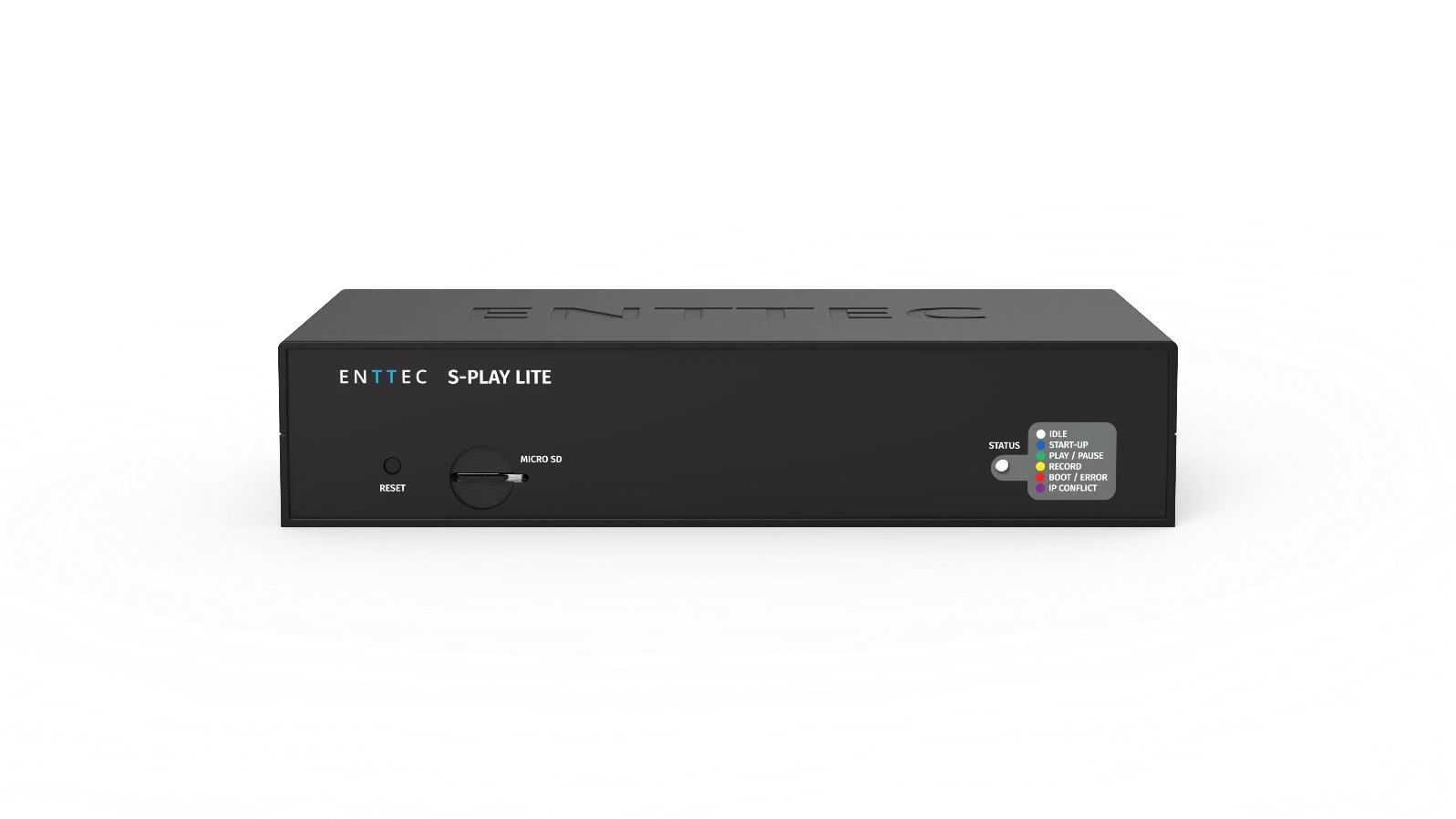
Record, Edit and Playback light shows up to 16 Universes light shows, seamlessly integrate with 3rd party hardware and system with versatile mounting solutions.
⚠️ Safety
Ensure you are familiarised with all key information within this guide and other relevant ENTTEC documentation before specifying, installing, or operating an ENTTEC device. If you are in any doubt about system safety, or you plan to install ENTTEC device in a configuration that is not covered within this guide, contact ENTTEC or your ENTTEC supplier for assistance.
⚠️ Heads up: ENTTEC’s return to base warranty for this product does not cover damage caused by inappropriate use, application, or modification to the product.
⚡ Electrical Safety
- This product must be installed in accordance with applicable national and local electrical and construction codes by a person familiar with the construction and operation of the product and the hazards involved. Failure to comply with the following installation instructions may result in death or serious injury.
- Do not exceed the ratings and limitations defined in the product datasheet or this document. Exceeding can cause damage to the device, risk of fire and electrical faults.
- Ensure that no part of the installation is or can be connected to power until all connections and work is complete.
- Before applying power to your installation, ensure your installation follows the guidance within this document. Including checking that all power distribution equipment and cables are in perfect condition and rated for the current requirements of all connected devices and factor in overhead and verify that it is appropriately fused and voltage is compatible.
- Remove power from your installation immediately if any accessory power cable or connector is in any way damaged, defective, shows signs of overheating or is wet.
- Provide a means of locking out power to your installation for system servicing, cleaning and maintenance. Remove power from this product when it is not in use.
- Ensure your installation is protected from short circuits and overcurrent. Loose wires around this device whilst in operation, this could result in short circuiting.
- Do not over stretch cabling to the device’s connectors and ensure that cabling does not exert force on the PCB.
- Do not ‘hot swap’ or ‘hot plug’ power to the device or its accessories.
- Do not connect any of this device’s V- (GND) connectors to earth.
- Do not connect this device to a dimmer pack or mains electricity.
⚠️ System Planning and Specification
- To contribute to an optimal operating temperature, where possible keep this device out of direct sunlight.
- Any twisted pair, 120ohm, shielded EIA-485 cable is suitable to transmit DMX512 data to or from the S-PLAY LITE. The DMX cable should be suitable for EIA-485 (RS-485) with one or more low capacitance twisted pairs, with overall braid and foil shielding. Conductors should be 24 AWG (7/0.2) or larger for mechanical strength and to minimise volt drop on long lines.
- A maximum of 32 devices should be used on a DMX line before re-generating the signal using a DMX buffer/repeater/splitter.
- Always terminate DMX chains using a 120Ohm resistor to stop signal degradation or data bounce-back.
- The maximum recommended DMX cable run is 300m (984ft). ENTTEC advises against running data cabling close to sources of electromagnetic interference (EMF) i.e., mains power cabling / air conditioning units.
- This device has an IP20 rating and is not designed to be exposed to moisture or condensing humidity.
- Ensure this device is operated within the specified ranges within its product datasheet.
⚠️ Protection from Injury During Installation
- Installation of this product must be performed by qualified personnel. If ever unsure always consult a professional.
- Always work with a plan of the installation that respects all system limitations as defined within this guide and product datasheet.
- Keep the S-PLAY LITE and its accessories in its protective packaging until final installation.
- Note the serial number of each S-PLAY LITE and add it to your layout plan for future reference when servicing.
- All network cabling should be terminated with an RJ45 connector in accordance with the T-568B standard.
- Always use suitable personal protective equipment when installing ENTTEC products.
- Once installation is completed, check that all hardware and components are securely in place and fastened to supporting structures if applicable.
⚠️ Installation Safety Guidelines
- The device is convection cooled, ensure it receives sufficient airflow so heat can be dissipated.
- Do not cover the device with insulating material of any kind.
- Do not operate the device if the ambient temperature exceeds that stated in the device specifications.
- Do not cover or enclose the device without a suitable and proven method of dissipating heat.
- Do not install the device in damp or wet environments.
- Do not modify the device hardware in any way.
- Do not use the device if you see any signs of damage.
- Do not handle the device in an energised state.
- Do not crush or clamp the device during installation.
- Do not pull power from the device whilst in operation.
- Do not sign off a system without ensuring all cabling to the device and accessories has been appropriately restrained, secured and is not under tension.
Wiring Diagrams
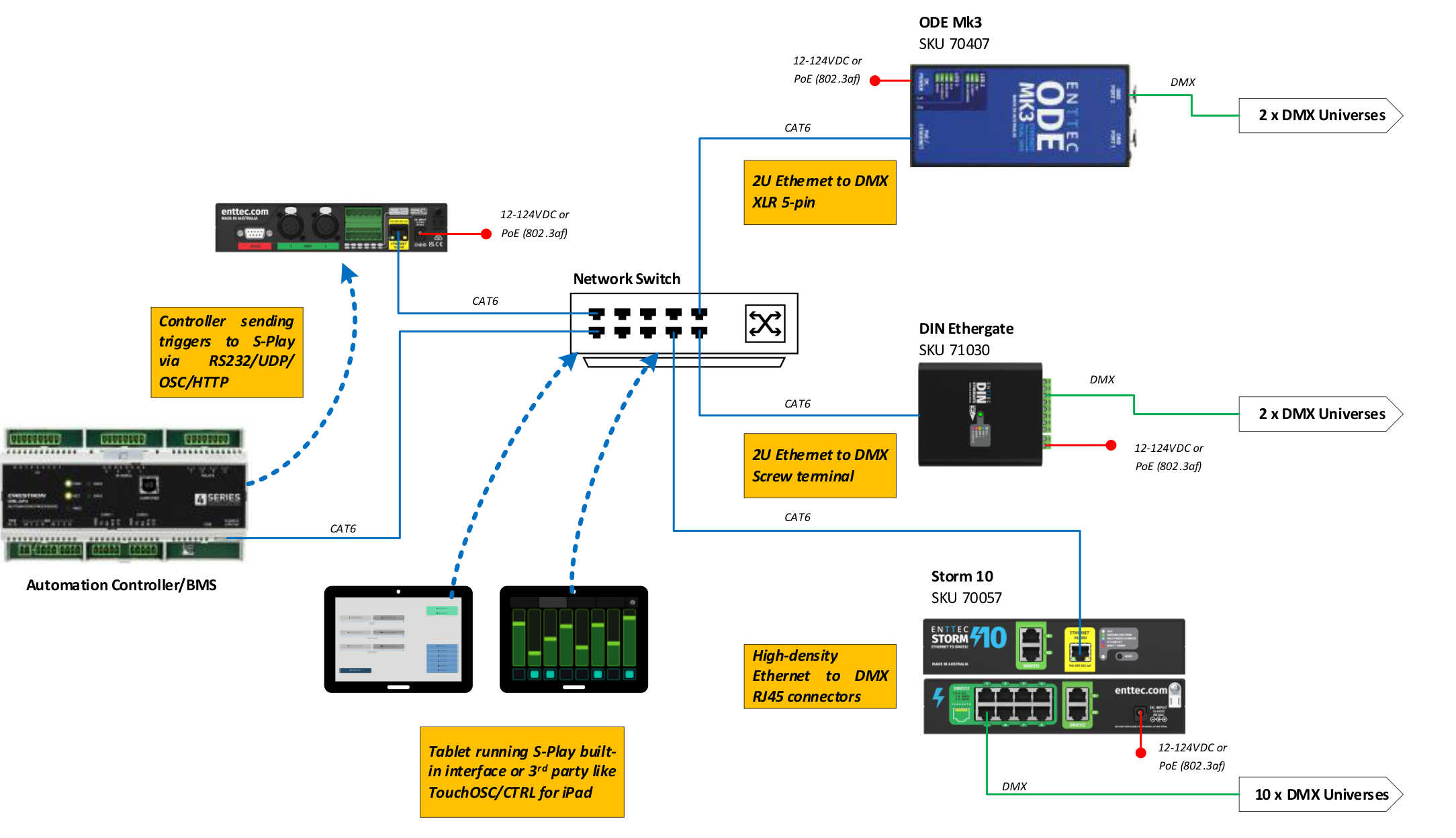
S-PLAY LITE to distribute DMX Output
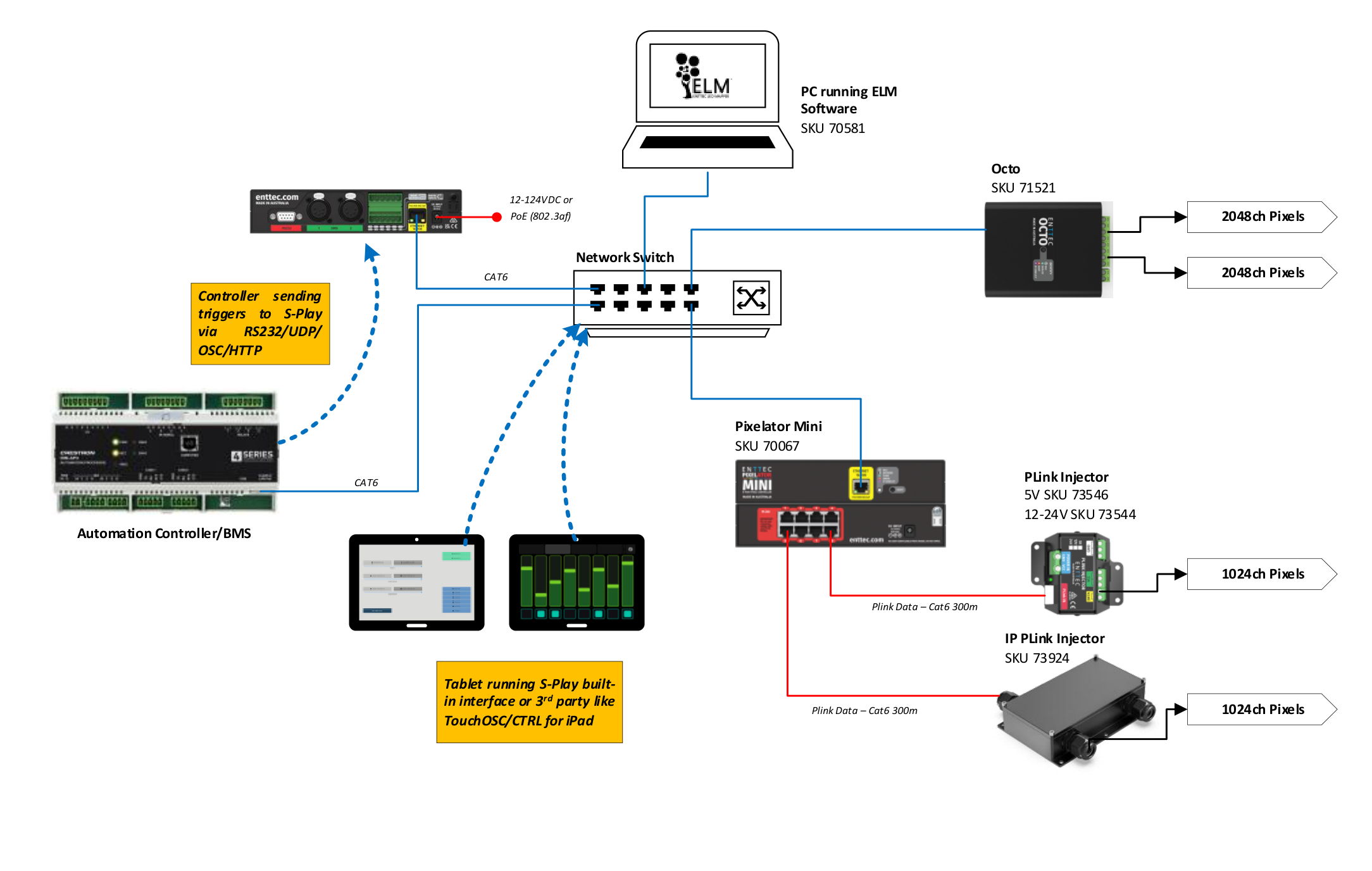
S-PLAY LITE Playback to Pixel Systems
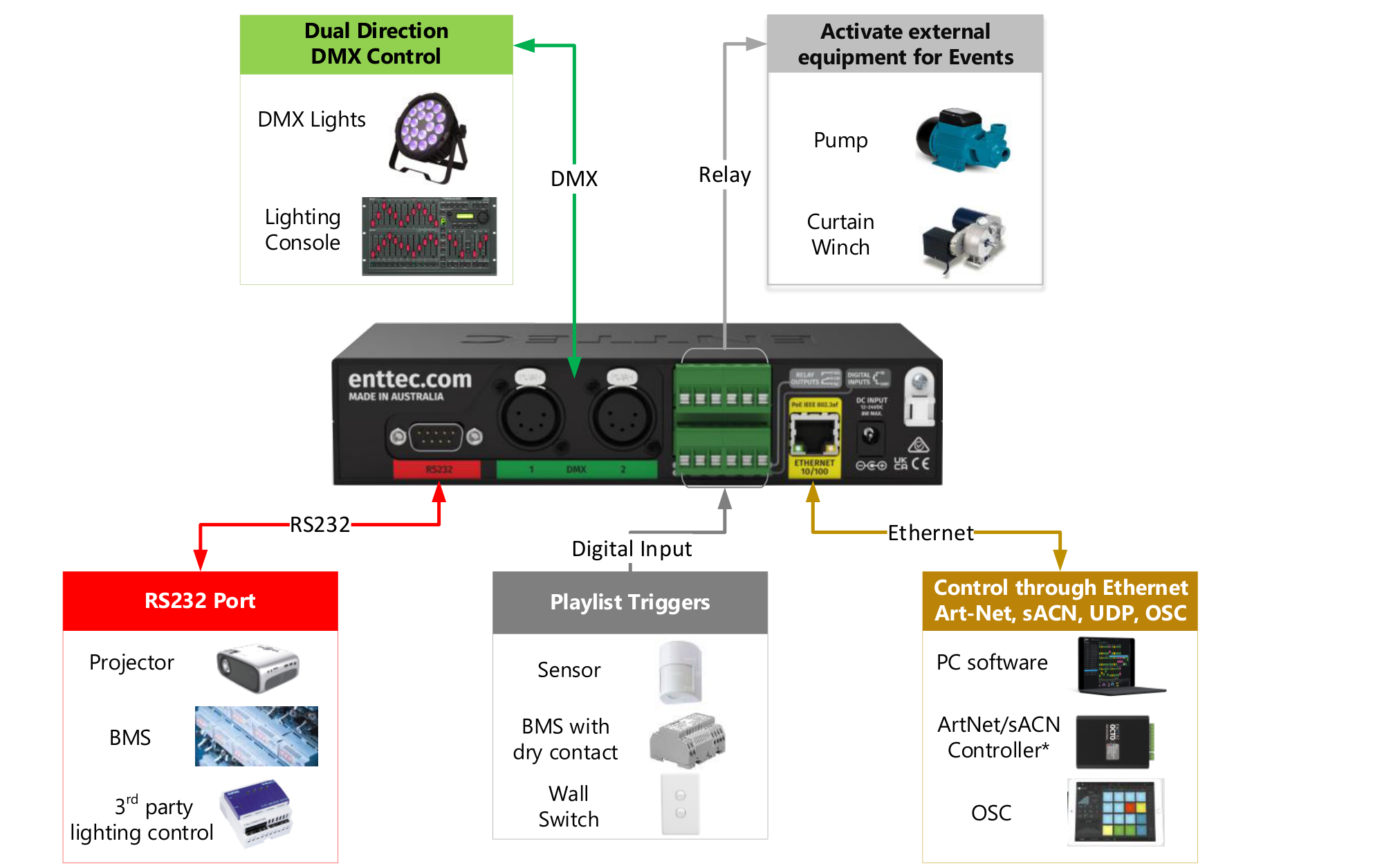
S-PLAY LITE Application Diagram
Connection to Relay
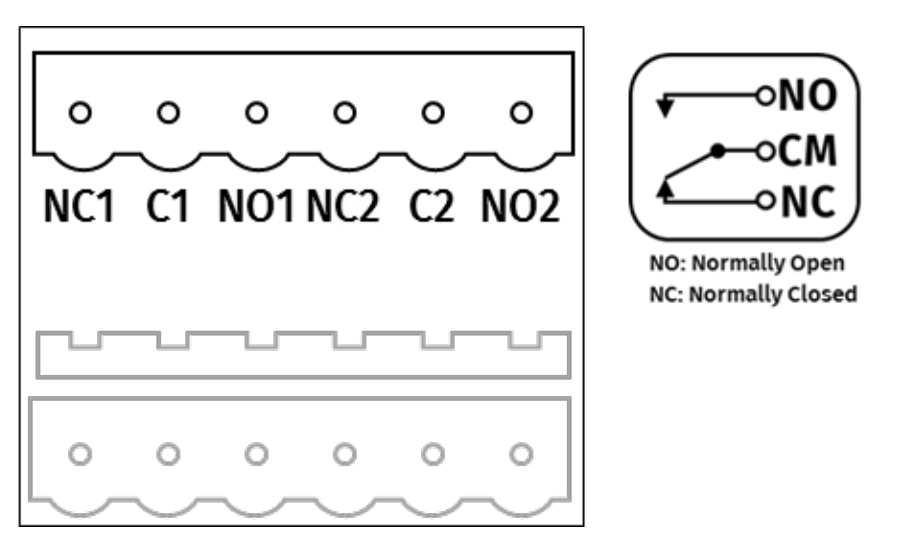
The S-PLAY LITE is equipped with a set of relays designed for use with low power devices and to provide switching logic for higher power contactors.
To ensure a safe installation it is imperative that the power connected to the S-PLAY LITE’s relays is within their operating limits.
The S-PLAY LITE’s relay specifications are as follows:
| Maximum Current Rating | 2A |
| Maximum Voltage Rating | 50V DC |
| Total switchable power of each S-PLAY LITE relay | 60W |
To calculate to total power your circuit will pass through the relay, multiply the circuit voltage by the current you intend to pass through it. This value must be lower than 60W. In other words, Voltage x Current ≤ 60W.
| Example 1 | Example 2 | Example 3 | |
|---|---|---|---|
| Current | 1.2A | 2A | 2A |
| Voltage | 50V | 30V | 50V |
| Maximum Power | 60W | 60W | 100W |
If your application requires main power switching or high current applications, ENTTEC recommends the use of a DMX switch pack controlled by the S-PLAY LITE’s DMX output or wire the S-PLAY LITE’s relay outputs to connect to the primary coil of a DIN mount high powered relay or contactor.
Connection to Digital Inputs
The S-PLAY LITE’s digital inputs detect circuit completion to the S-PLAY LITE’s ‘GND’ (V- terminal) to send triggers.
- The maximum resistance of a cable that can be used to connect to a Digital Input to the S-PLAY LITE’s GND is 20 Ohms.
- ENTTEC recommends a total maximum wire length of 100m. (50m total distance from the S-PLAY LITE in a loop).
- The longer the cable, the higher its capacitance and likelihood of interference from EMF (Electro Magnetic Interference).
- To ensure a reliable trigger when creating a system, contact should be made for 3 seconds when triggering a digital input.
⚠️ Note: Always run digital input cabling away from main power or high sources of EMI (i.e. air conditioning units) to reduce interference.
If you require a remote input trigger further away from the S-PLAY LITE than 50m, ENTTEC recommend the use of a 3rd party GPIO interface that can communicate with the S-PLAY LITE’s other triggering methods over a network.
Using Motion Sensors with the S-PLAY LITE

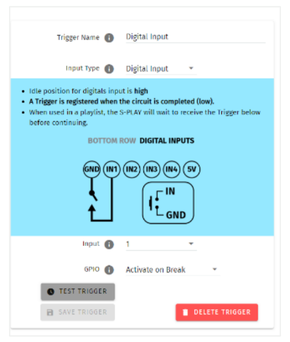
- Connect the sensor output to Digital Input ports (IN1 to IN4) in S-PLAY LITE.
- Connect 0V (GND) from sensor to GND of Digital Input connectors in S-PLAY LITE.
- Go to web interface:
- Go to Triggers.
- Create a new entry.
- Select Digital Input from Type
- Change to Port 3 in “Ports” (or to the corresponding port the OUT cable was connected to).
- You can use the Test Trigger option to ensure functionality.
- Click on Save Trigger for it to be saved ready for use on the Playlists page.
- Navigate to the Playlists Page.
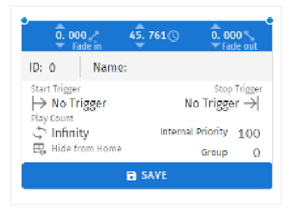
- The Trigger can be selected as a ‘Start Trigger’ to commence playback of a certain playlist and/or dragged onto the timeline to act as a condition that must be met for playback to continue.
Functional Features
Overview
- Supports protocols including DMX, Art-Net and sACN.
- 2 DMX Universe output or input.
- 16 Universe Art-Net and sACN input or output.
- Configurable output refresh rate. (Max 60FPS eDMX, 40Hz Physical DMX)
Record Cues or Create Effects
- Record/edit up to 100 Static, Dynamic or Effect Cues.
- Preview Cues being created.
- Monitor the DMX values of Cues while recording.
- On board gradient Effect Cue generator.
Create and playback Playlist Integrating External Hardware
- Create up to 100 playlists using the intuitive timeline editor.
- HTP merge between cues and playlists.
- Fade out on Stop command.
- Hold last value on pause.
- Support up to 150 Events through options: RS232, UDP, OSC, Relay, Art-Net, sACN and DMX.
- Create up to 150 remote Triggers through options: RS232, UDP, OSC, Digital Input (GPI), Art-Net, sACN and DMX.
- Map different streams and protocols to different ports.
- HTTP and OSC Device API.
Management and Support
- Enable 5 customised user interfaces that empower end users to control the system while withholding complete system privileges.
- Schedule playlists based on specific times, re-occurrences or sunset / sunrise.
- Easily accessible web interface for account management.
- Lock out edit functionality using a password.
- Allow backup and restore S-PLAY LITE state.
- Flexible storage from external MicroSD card.
Hardware Features
Overview
- 1U height – Half width
- Two bi-directional 5-Pin female XLR DMX Ports
- 12 to 24v DC Input (8W max power draw) – Power supplies over 5A should not be connected to the S-PLAY LITE
- MicroSD card storage (Class 10 40/10 Mb/s Read/write performance/format as Linus EXT TS, ie. EXT3 or EXT4)
- 100 Mbps Ethernet link featuring 802.3AF PoE
- 4 Digital Inputs (GPI)
- 2 Relay outputs (NC, NO, COM)
- Solid-state design
- Versatile din rail, surface and rack mounting options.
S-PLAY LITE Connectivity
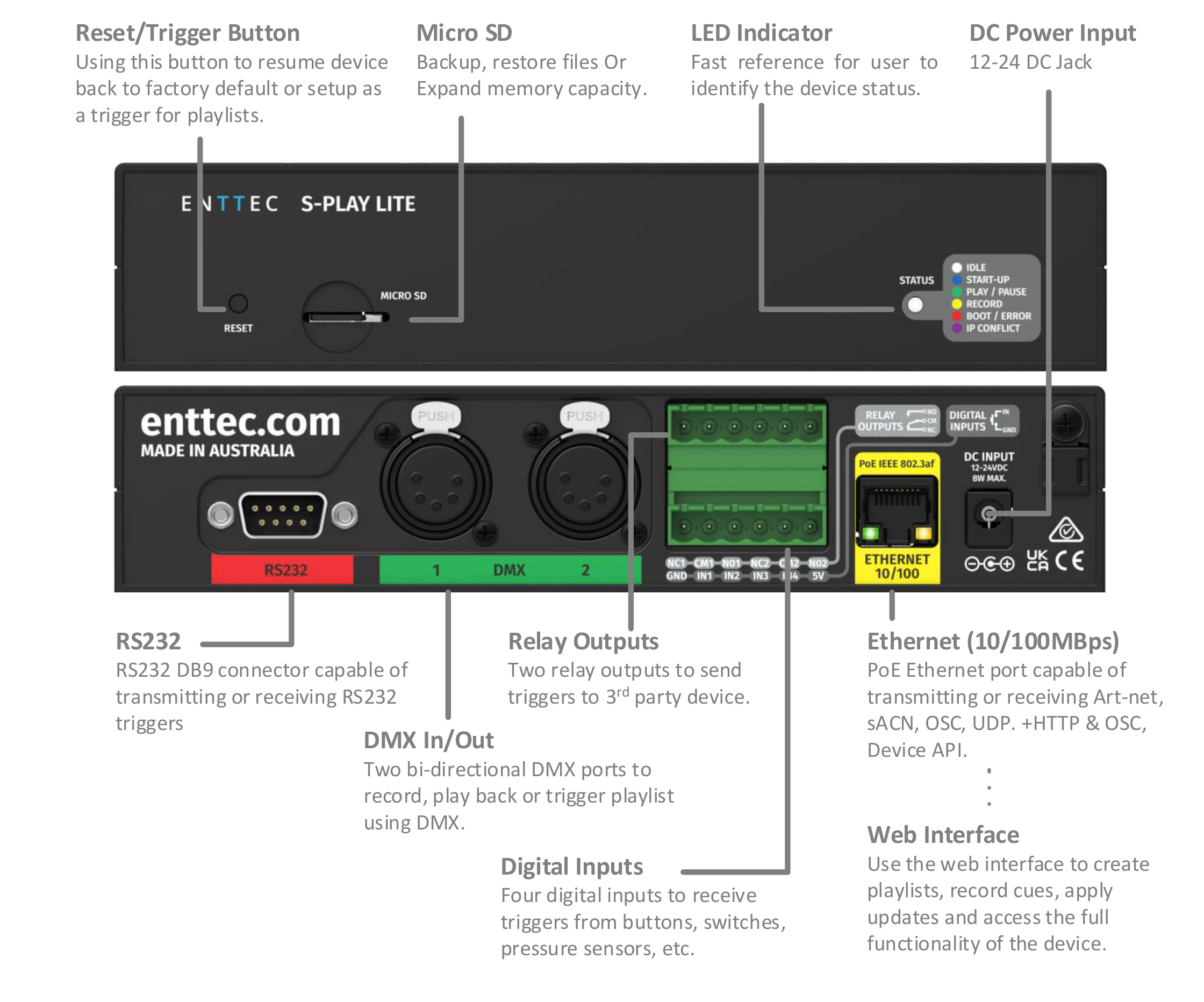
Reset Button
The reset button on the device providing multiple control options and ensuring the device's adaptability to various operational scenarios.
This reset button gives access to functionalities below:
Trigger Playlists
The reset button can be configured as a trigger button for playlists. Detail settings see Trigger section in this document.
Boot Loading
This function assists to restore or recover the device's firmware to a stable state. This can be performed by following steps:
- Press and hold the reset button while powering up the unit.
- Continue holding. Release the button within 10 seconds of powering up.
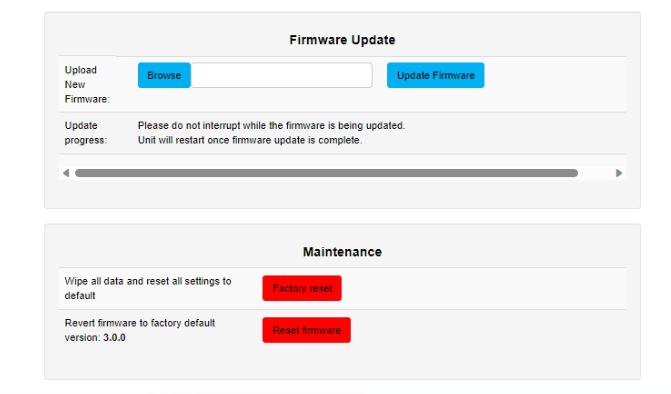
- The unit will load the boot and the web interface will be redirected to the boot page. Manually refresh the page if needed.
- On this page, users can choose to upload a firmware file, perform a factory reset at the current firmware version, or revert to the factory-state firmware.
Reset Network Configuration
In case of IP conflicts or network issues, follow these steps to reset the network configuration to default (DHCP enabled with fallback IP 192.168.0.10):
- Press and hold the reset button while powering up.
- Continue holding for 10 seconds until the LED turns Green.
- The device will restart automatically.
- The network settings will be reset to default.
Resume Factory Default
In specific situations, a factory reset might be necessary. This action reverts the device to its initial manufacturer settings, erasing all data and custom configurations:
- Press and hold the reset button while powering up.
- Continue holding for 20 seconds until the LED turns Yellow.
- The device will restart automatically.
- All settings will be reset to the initial state.
LED Indicator
The LED status indicator is used to determine the S-PLAY LITE’s current state:
| LED Colour | S-PLAY LITE Status |
|---|---|
| White | Idle |
| Blue | Device starting up |
| Green | Play/Pause |
| Yellow | Record |
| Red | Boot/Error |
| Purple | IP Conflict |
| Flashing Red and Blue | Updating firmware |
| Flashing Red | On Reset/Trigger button press |
Out of the Box
Out of the box, the S-PLAY LITE is factory configured to:
- Output Settings: Art-Net
- DHCP: Enabled
- Static IP: 192.168.0.10
- Netmask: 255.255.255.0
- UDP Input Port: 5000
- OSC Input Port: 8000
- DMX Refresh Rate: 40 FPS
- Send Black Frame when all playlists stopped: Enabled
- Restrict to one active playlist per Group: Disabled.
Network Discovery
The S-PLAY LITE has DHCP IP address enabled by default.
DHCP: When DHCP is enabled, and the S-PLAY LITE is on a network with a DHCP server, it requests an IP address on power-up. If the DHCP server is slow or absent, the S-PLAY LITE falls back to the default IP address: 192.168.0.10 with a netmask of 255.255.255.0.
Static IP: When DHCP is disabled, the default Static IP becomes the communication address. Adjust network settings, including Static or DHCP, Netmask, and Gateway within the Settings page on the S-PLAY LITE’s web interface. Remember to note the changed Static IP after modification in the web interface.
⚠️ Note: When configuring multiple devices on a Static network, ENTTEC recommends connecting one device at a time to the network and configuring a unique IP to avoid IP conflicts.
When the S-PLAY LITE is set to a static IP, the default gateway MUST be the same for both the S-PLAY LITE and your computer for EMU to discover the S-PLAY LITE.
Device IP Discovery
ENTTEC EMU software ensures smooth device discovery by instantly detecting all ENTTEC products on the network. Users can easily discover devices by following these simple steps:
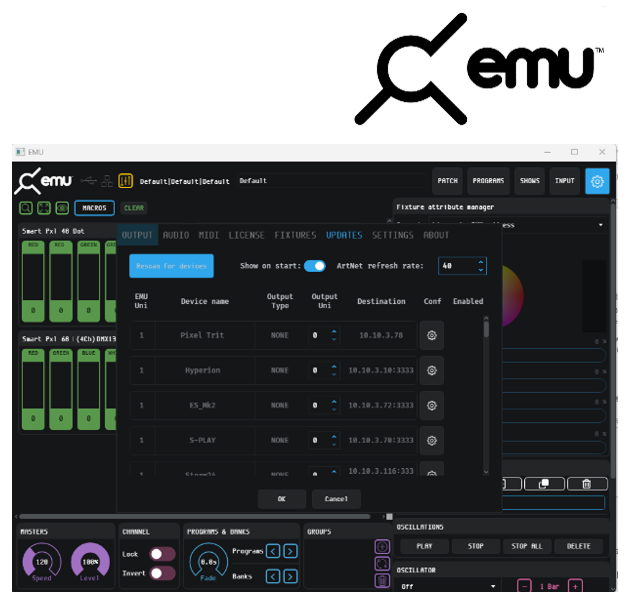
- Download EMU from www.enttec.com/sku/70680. (Available for Windows and macOS)
- Connect your S-PLAY LITE to your network or Wi-Fi router using an Ethernet cable.
- Open EMU and navigate to the Settings located in the top right corner. Then, go to the Output tab. Here, you can click on 'Rescan for Devices' and wait for EMU to detect the S-PLAY LITE and any other supported ENTTEC device on the network.
- Once the S-PLAY LITE is detected, select it and click on the configuration cog icon to be directed to your S-PLAY LITE’s web interface.
Alternatively, use the following methods to discover the IP address:
- Run an IP scanning software application (e.g., Angry IP Scanner) on the local network to generate a list of active devices.
- Use Art Poll (e.g., DMX Workshop) if the device is set to use Art-Net.
- Check the physical label on the product for the default IP address (usually 192.168.0.10) when a DHCP server is not available.
Change Network Settings
Users can customise network configurations, such as choosing between Static or DHCP, specifying Netmask and Gateway settings, and configuring input ports as needed. To change Network Settings, access the web interface and refer to the Settings section outlined in this document.
Web Interface
The S-PLAY LITE offers easy configuration and control through a web browser on any computer within the same Local Area Network (LAN) as the device. Users can directly type the IP address into the web browser's URL field, whether the S-PLAY LITE is assigned a DHCP address or a Static IP address.
Top Menu
The S-PLAY LITE’s web interface consists of the following pages:

Home
The Home page which is the default landing page presents an overview of all playback activities going on the S-PLAY LITE.
When used in combination with the lock function, the homepage can be used to as a system page for the end users to view all custom interface and playlists:
Interfaces:
- Navigate to custom interface.
Playlists
- View/Set intensity for Playlists
- Play and control all Playlists
- View/Set progress individual Playlist
Schedules:
- Activate and Pause schedules
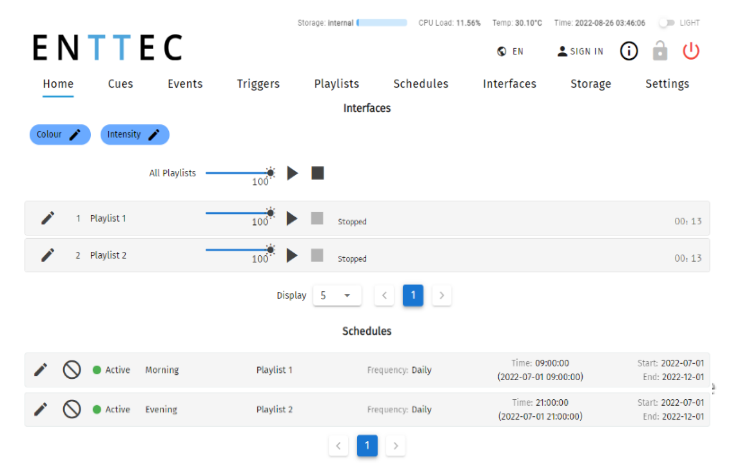
⚠️ Note: Specific interfaces, schedules, playlists can be hidden from the home page by selecting the ‘Hide from Home’ option on each of their configuration pages.
Cue
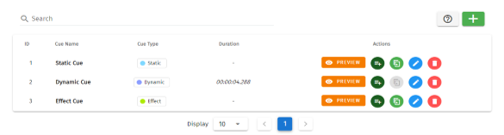
S-PLAY LITE allows a maximum of 100 cues created from a combination of Static, Dynamic and Effect Cues. The dedicated Cue page offers an array of functionalities, allowing cues to be easily configured, duplicated, edited, and previewed before building into a playlist.
3 key types of cues that can be created by using the green ‘+’ icon:
- Static: A lighting state of up to 16 DMX Universes. DMX data can be user-defined values or a snapshot of the incoming DMX frame. This can be incorporated into a playlist with applied fade-in/out times.
- Dynamic: A recording of up to 16 DMX Universes of lighting control data within a specified time frame. The S-PLAY LITE allows a perfect loop when recording over a user-defined period.
- Effect: Capable of creating a gradient effect within the S-PLAY LITE without the need for a physical DMX source or lighting design software.
Managing Cues
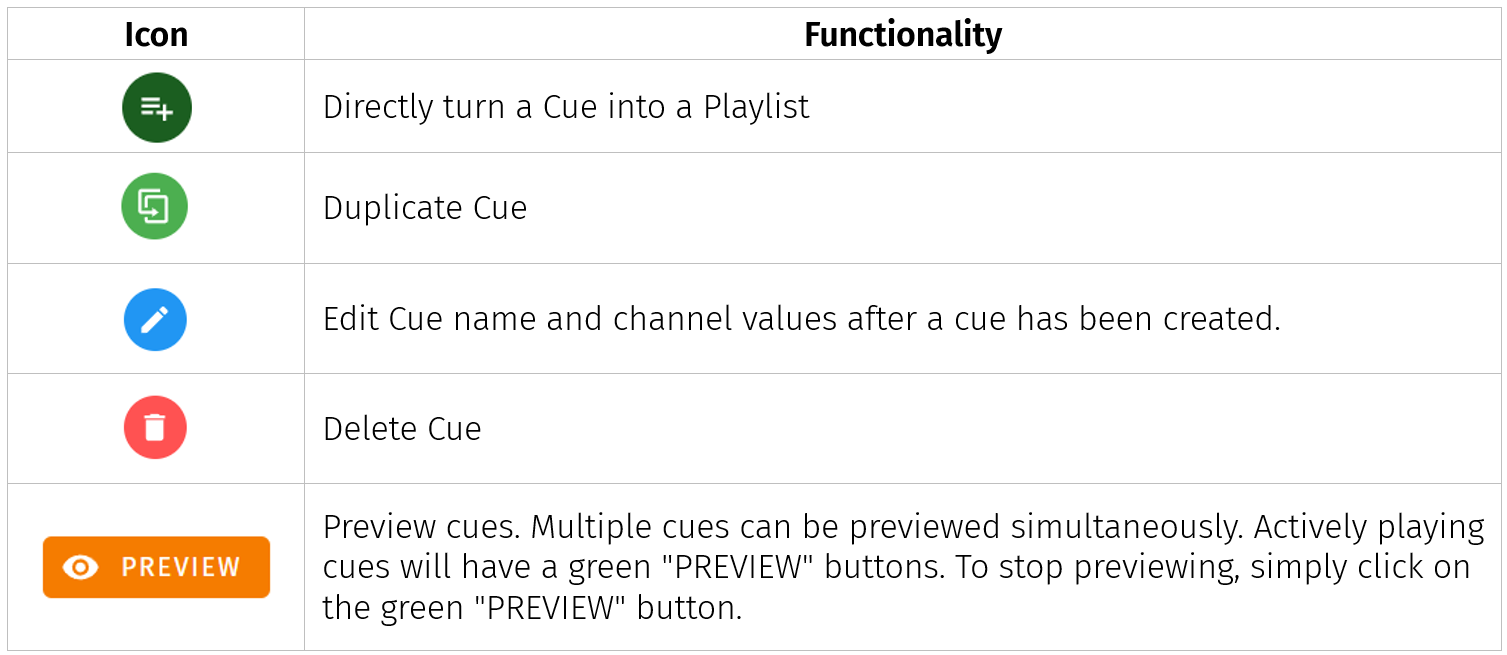
All cues can be ordered by ID, Cue Name, Cue Type & Duration. Preview, Duplicate Edit or Delete Static or Effect Cues from the Cue page.
⚠️ Note:
- Dynamic recordings cannot be duplicated.
- Editing it in the Cue Library directly overwrites the full universe values received and extends the length of the cue if necessary.
- Once a cue is selected to be edited, the S-PLAY LITE will internally trigger the Stop All command to stop all playback on the S-PLAY LITE to stop overlapping.
Static Cue
The Static Cue can be generated by either capturing DMX snapshot from external sources or using the inbuilt editor to define DMX value manually.
Follow the instructions below to create static cue at your preferred methods.
- Click the green icon ‘+’ and choose "Static" as the cue type to open the Static cue editor window.
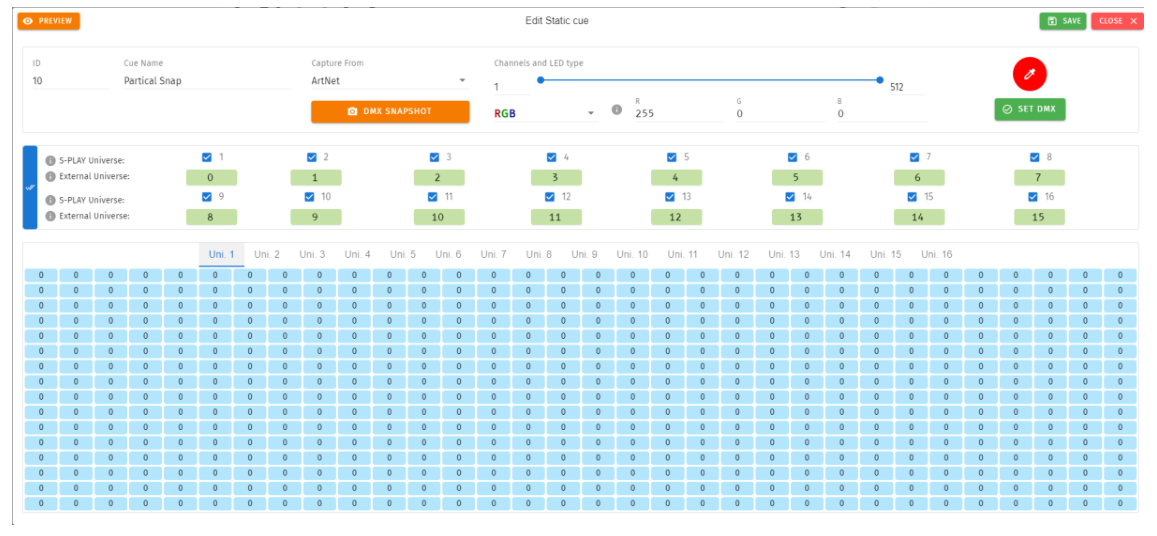
- Start by assigning a name to the cue for easy identification.
- Next, choose the source protocol and specify the desired channels to be utilised for the recording.
- DMX (up to 2 Universes)
- Art-Net (up to 16 Universes)
- sACN (up to 16 Universes)
- Select the S-PLAY LITE’s Universe, which represents the internal universe designated for recording within the S-PLAY LITE.
- Specify the External Universe, corresponding to the universe of the external source or the DMX port of the S-PLAY LITE.

⚠️ Tip: You can also set all external universe numbers to be identical if you want to mirror the same external Art-Net / sACN source to all internal universes.)
- There are 3 ways to define the channel values:
- Manually set individual channel values and press 'Set DMX' to populate the selected channels.

- Use the Colour Picker from the colour palette and press 'Set DMX' to apply and populate the selected channels.

- Capture a DMX frame from the selected DMX source connected to the S-PLAY LITE by pressing the ‘DMX Snapshot’. It will automatically populate the recorded DMX values to the selected channels and Universes.

- Manually set individual channel values and press 'Set DMX' to populate the selected channels.
- If you wish to view the output live, press the ‘Preview’ button at the top left of the interface to send the recorded data to the fixtures of your S-PLAY LITE’s outputs as defined on the Settings page.
- Save the cue once completed.
⚠️ Note: When setting single-channel or dimmer fixtures, choose 'All/W' for individual channel control.
Dynamic Cue
Dynamic Cues are recordings that allow DMX/Art-Net/sACN streams to be recorded and integrated into a show. Follow the instructions below to create a dynamic cue at your preferred methods.
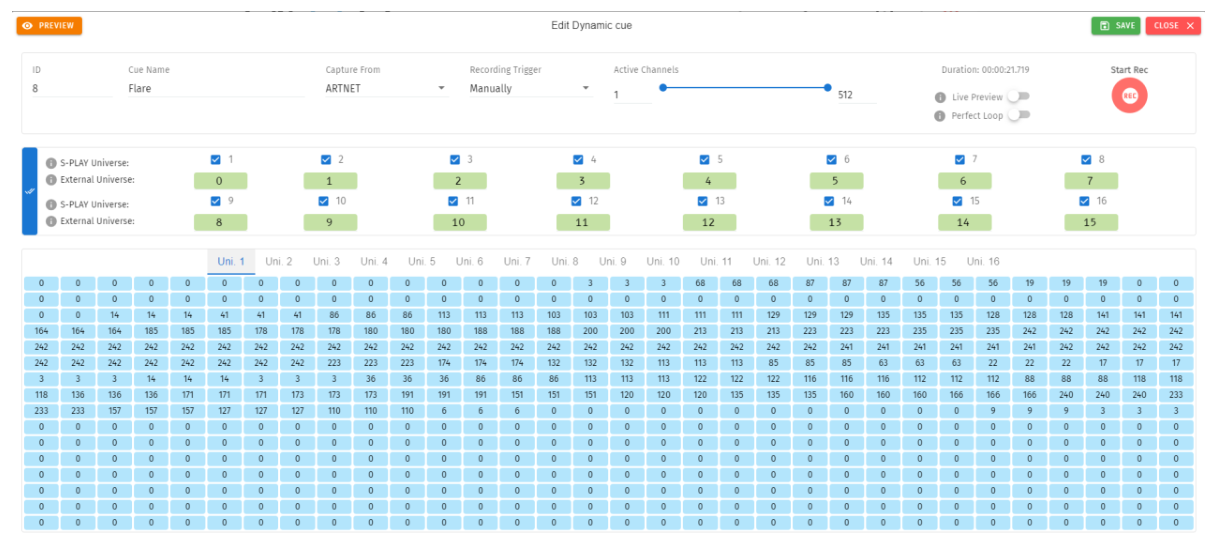
- Click the green icon ‘+’ and choose "Dynamic" as the cue type to open the Dynamic Cue editor window.
- Start by assigning a name to the cue for easy identification.
- Select one of the following options for data capture:
- DMX (up to 2 Universes)
- Art-Net (up to 16 Universes)
- sACN (up to 16 Universes)
- Activate the Internal Universe for recording.
- Specify the External Universe, corresponding to the universe of the external source.
- There are 2 ways to record:
- Manual cue recording by clicking the red "Start Rec" button.

- Configure a Recording Trigger to precisely initiate and stop recording, enabling you to effortlessly capture a show using a remote trigger. Select recording triggers from the options below:
- OSC, UDP, RS232 triggers start on message received and stop when same message received again.
- Art-Net, sACN, DMX triggers start when a value is received that is equal or above the ‘Trigger Level’. It will then stop when the value drops below.
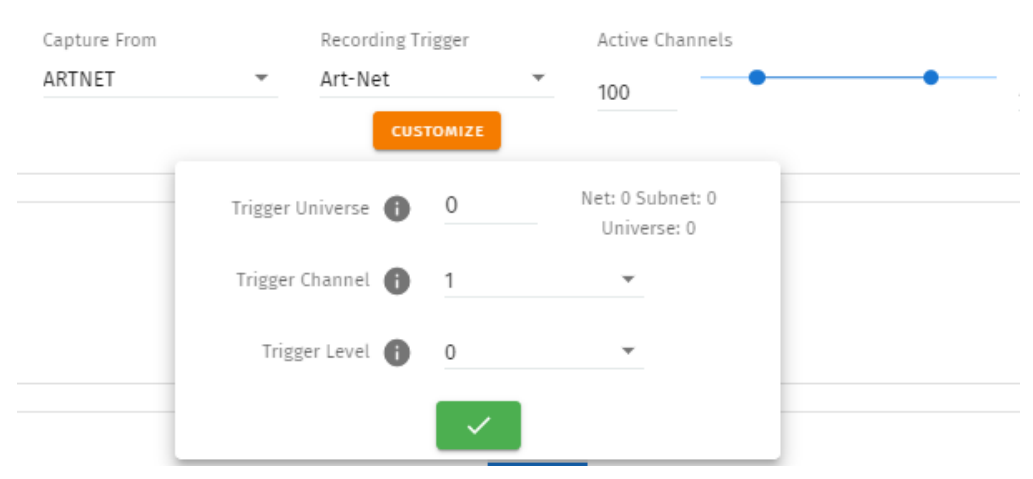
- Digital Input: when configured as ‘Activate on Break’ - Recording starts when the connection between the Digital input port and GND is broken and stops when the connection is made. This is reversed when set to ‘Activate on Make’.
- Button: Reset/Trigger button on the device can be set to trigger the recording on press or release.
- Manual cue recording by clicking the red "Start Rec" button.
- Toggle Live Preview on to send the recorded data to your fixtures of your S-PLAY LITE’s outputs as defined on the Settings page.
- If you are recording looped content, enable Perfect Loop to allow the S-PLAY LITE to automatically stop recording when it detects a loop by matching the incoming frames with the first 10 frames of the recording.
- Once the recording is initiated, the timer in the top right of the window will start running as soon as data begins to be captured. The DMX values captured will be shown for their corresponding channels.
⚠️ Recording Tips: During Art-Net or sACN recording, when utilising the 'live preview' function, it is crucial to ensure that no other active Art-Net/sACN device is outputting on the same universes that are being recorded (including the S-PLAY LITE itself). This precaution eliminates the possibility of interference loopback, which can result in erratic or inaccurate recordings. To adjust the output settings of your S-PLAY LITE, navigate to the Settings page.
When recording live generated content, Perfect Loop may have inconsistent results due to the dynamic nature of the live content generation, where the exact same 10 frames may not always be generated.
Effects
Effects in the S-PLAY LITE rely on a gradient, which makes it perfect whether fine-tuning a multitude of single channel dimmers or RGB/RGBW lights in 16 or 8bit variants. To create an Effect, press the green ‘+’ icon and select Effect as the cue type to open the Effect editor window:
- Firstly, provide a cue name to aid identification.
- If you wish to view the output live whilst creating your effect, press the preview button at the top left of the interface to send the recorded data to your fixtures of your S-PLAY LITE’s outputs as defined on the Settings page.
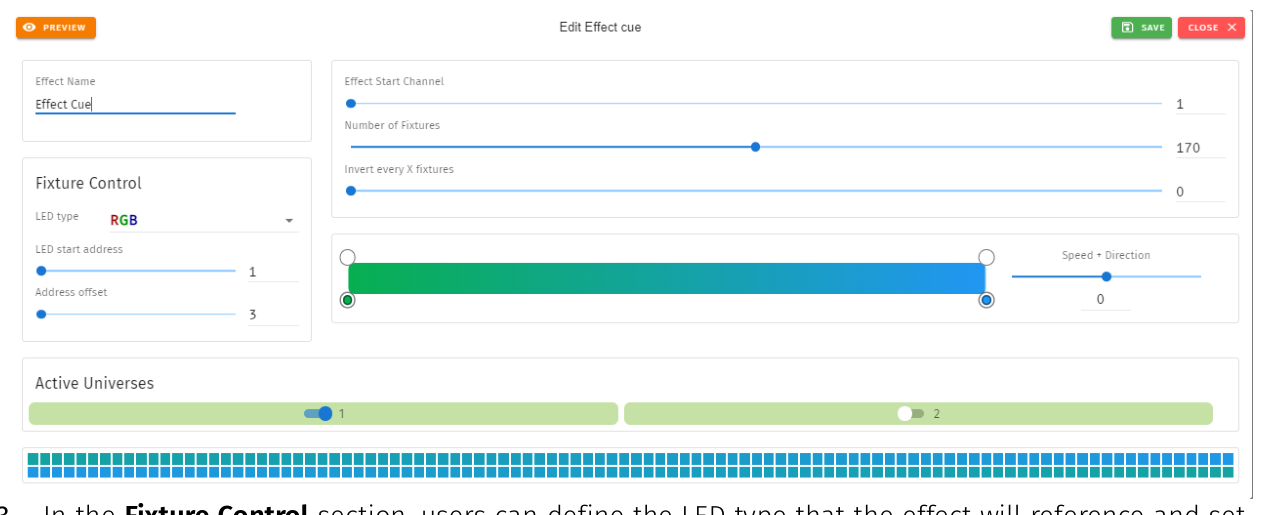
- In the Fixture Control section, users can define the LED type that the effect will reference and set the LED start address for the initial fixture (i.e., the DMX Start address of your first fixture). The Address Offset, referring to the required channel for the fixture, will be automatically populated.
- For example, if you have an 8-channel fixture where the first channels are intensity and strobe, and color begins from channel 3, you can set your address offset as 8 and the LED start channel as 3.
- This configuration ensures that the effect will play every 8 channels, starting from the 3rd channel.
- The Effect Start Channel defines the position (phase) where the the gradient will apply. The Number of Fixtures sets the number of the LEDs which will be included within the effect. By inverting the gradient direction after every defined number of fixtures, the Invert Every X Fixtures allows the creation of a grid of fixtures showing in a non-linear fashion (perfect for pixel tape projects!).
- By clicking on the gradient graphic, the user can modify and define the gradient colour at any point. Each colour point can be dragged to a position to create preferable effect. A maximum of 8 colours can be created for a Effect Cue in S-PLAY LITE. In order to create for smooth loops, ensure the beginning and end colour of the Effect are the same. The exact range of fixtures that the color point in the gradient graphic will affect can be counted based on Number of Fixtures and Position (%).
- This look can be saved as it is, or a speed and direction can be defined using the slider. (We strongly recommend using the preview option whilst doing this to ensure all is as you expect in the real world).

- Use the toggle switches below the gradient to define the universes that the effect will occupy. This is useful when layering effects or overlapping with other groups. Any universes which are not enabled will be set 0 values on each channel.
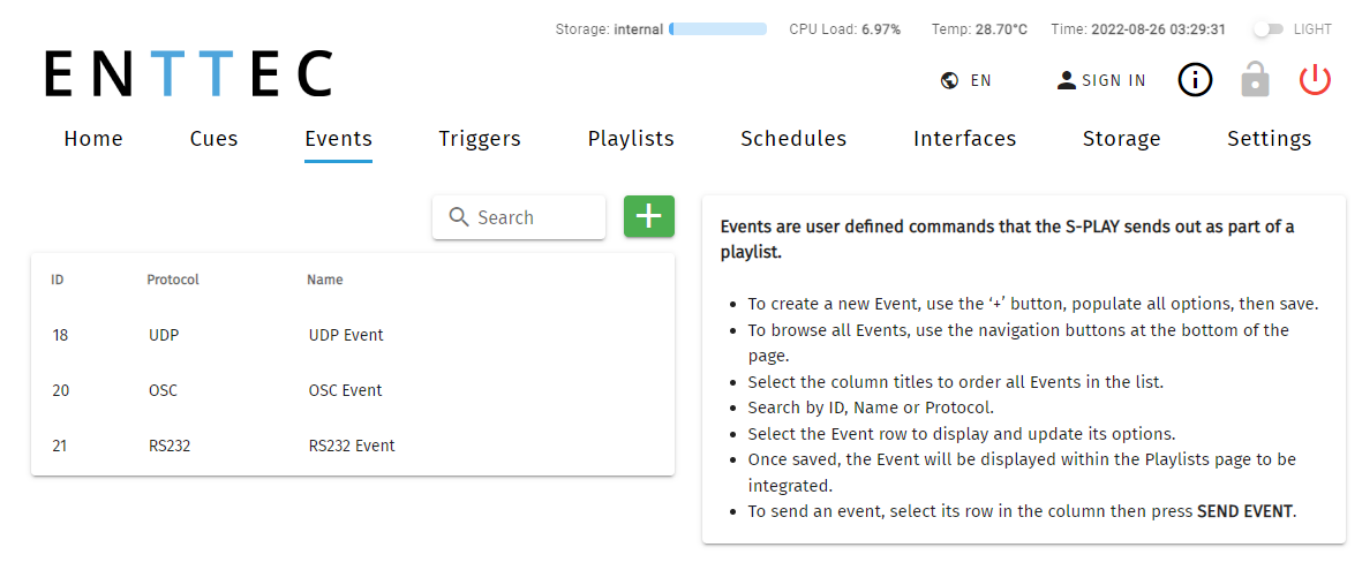
Events
The Events page allows:
- Create up to 150 custom Events, ready to be embedded in playlists.
- Send Events through: Relay, UDP, OSC, RS232, DMX, Art-Net and sACN.
- Editing, testing and deletion of Events.
Use events to allow integration between S-PLAY LITE and other devices. The S-PLAY LITE can send commands over multiple protocols and interact with the relay.
RS232
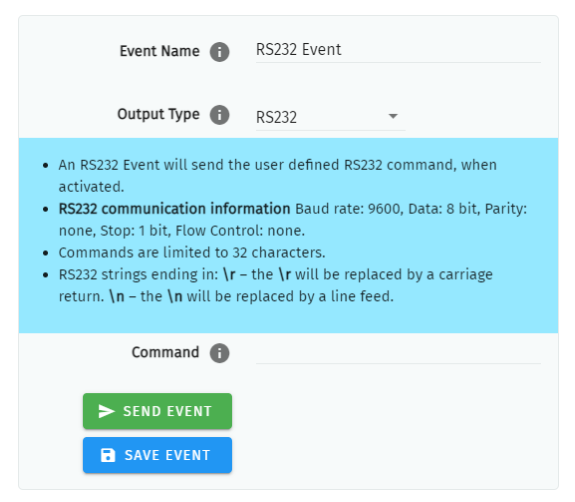
- An RS232 Event will send the user defined RS232 command, when activated.
- RS232 strings ending in \r – the \r will be replaced by a carriage return.
- RS232 strings ending in \n – the \n will be replaced by a line feed.
Make sure the receiver has the correct communication setup:
- Baud rate: 9600
- Data: 8bit
- Parity: None
- Stop: 1bit
- Flow Control: none
⚠️ Note: ASCII Command text limited to 1024 Characters.
UDP
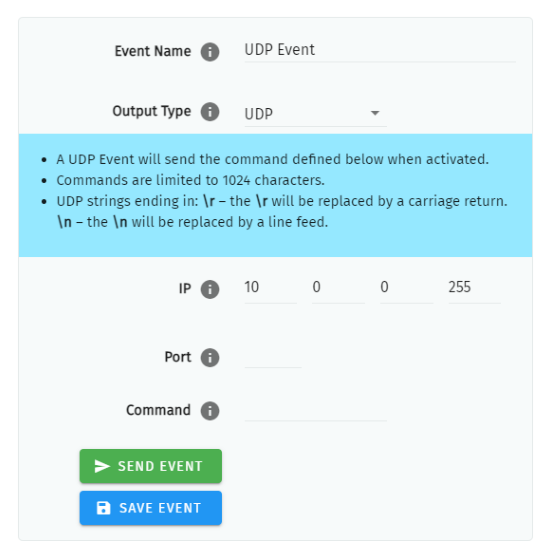
- A UDP Event will send the command defined below when activated.
- Commands are limited to 1024 characters.
- UDP strings ending in \r – the \r will be replaced by a carriage return.
- UDP strings ending in \n – the \n will be replaced by a line feed.
- Internal UDP event can be sent by setting IP to 127.0.0.1 and Port to 5000 (or Network Settings - UDP input port).
OSC
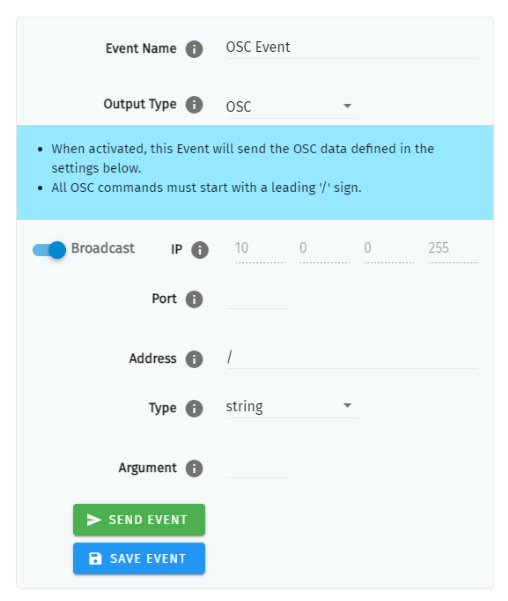
- When activated, this Event will send the OSC data defined in the settings.
- OSC Strings, Floats and Integers can be defined.
- All OSC addresses must start with a leading ‘/’ sign.
Relay
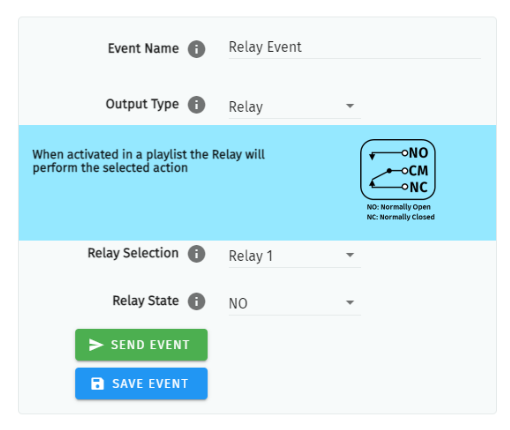
Control the relay action. When activated in a playlist the Relay will perform the selected action.
- NO: Normally Open
- NC: Normally Closed
⚠️ Note: On system power-up, the Relays position is set to be normally open.
Art-Net
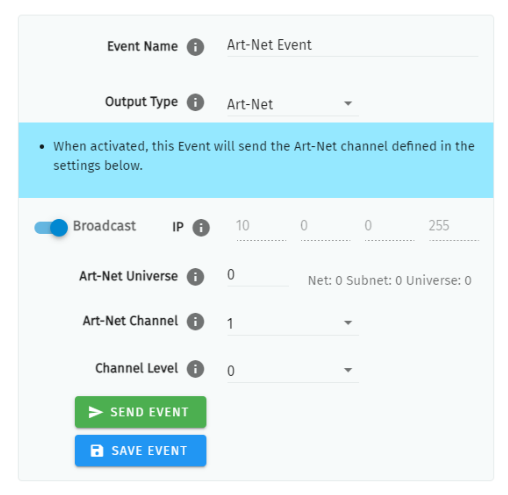
When activated, this Event will send the Art-Net frame with channel state defined in the settings.
- For the best practice, do not overlap Events with universes used for playback of recordings.
sACN
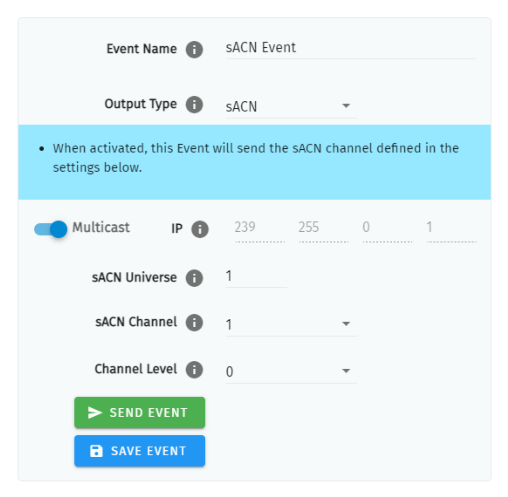
When activated, this Event will send the sACN frame with channel state defined in the settings.
- For best practice, do not overlap Events with universes used for playback of recordings.
DMX
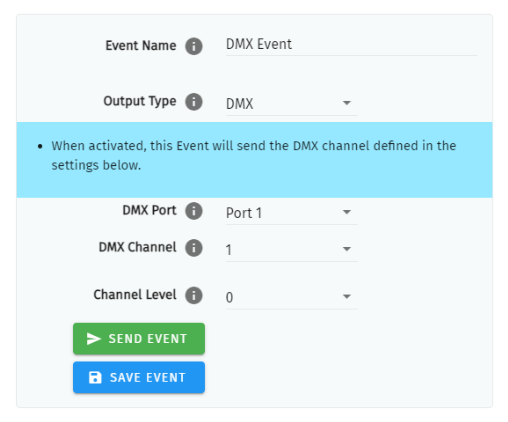
When activated, this Event will send the DMX frame with channel state defined in the settings.
- For best practice, do not overlap Events with universes used for playback of recordings.
Triggers
The Triggers page allows:
- Create up to 150 custom Triggers, ready to be embedded in playlists.
- Set receiving triggers from: digital input, UDP, OSC, RS232, DMX, Art-Net and sACN.
- Editing, testing and deletion of Triggers.
Use triggers to take control of the playlist timeline. When using a trigger, the timeline will pause until the selected trigger is active.
Triggers can be used to start a playlist or at any point within the timeline.
When a playlist is awaiting a trigger, it can be played either by activating the trigger or by pressing the play button, ensuring complete control over playback even when triggers are unavailable.
When creating new triggers, the ‘Test Trigger’ option can be used to send the trigger being created.
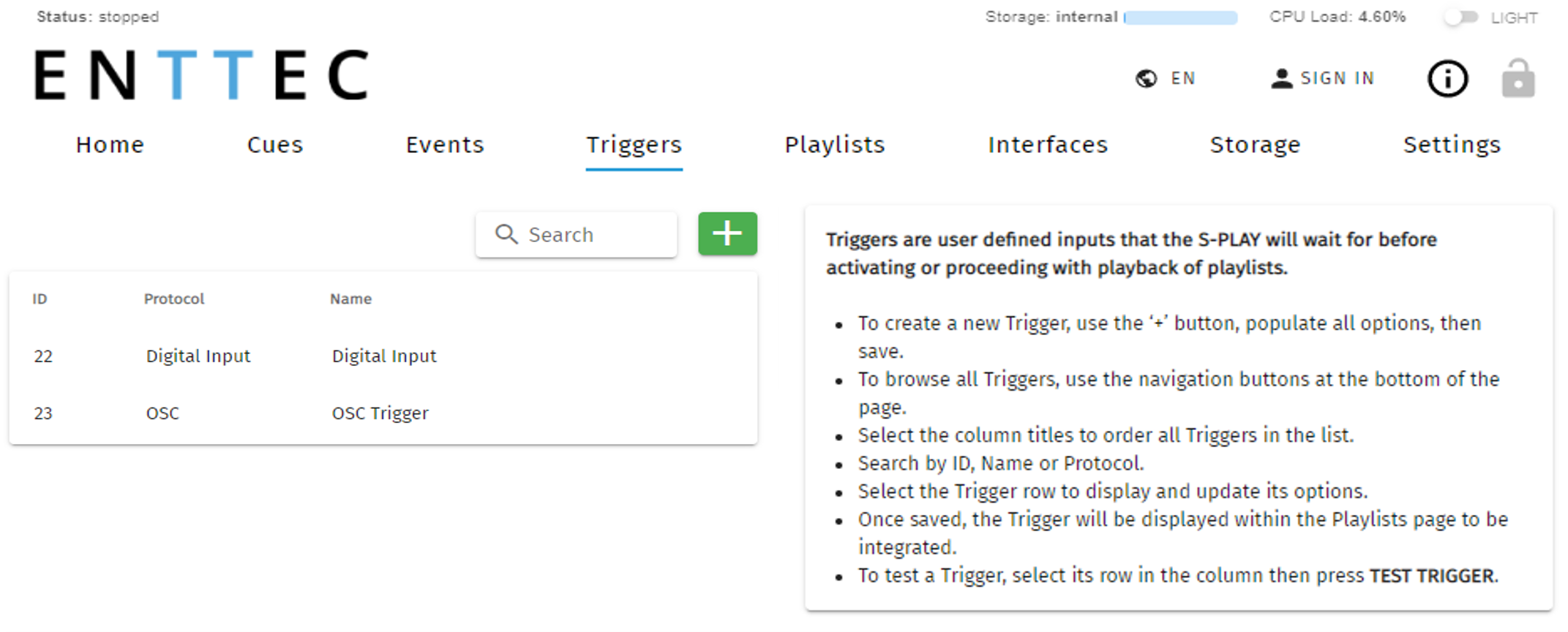
RS232
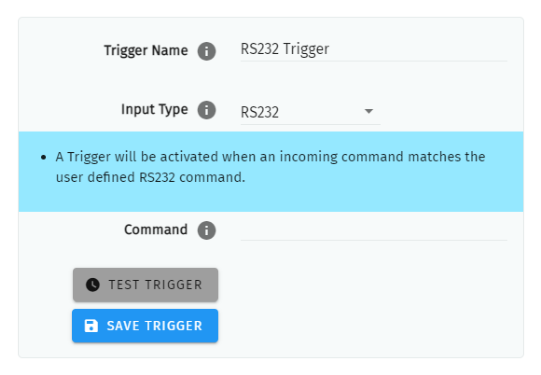
RS232 communication settings:
- Baud Rate: 9600
- Data: 8bits
- Parity: none
- Stop: 1bit
- Flow Control: None
- \r at the end of a string will be handled as a carriage return (no need to be included in the string).
- \l at the end of a string will be handled as a line feed, (no need to be included in the string).
⚠️ Note: Each command string is limited to 1024 Characters.
UDP
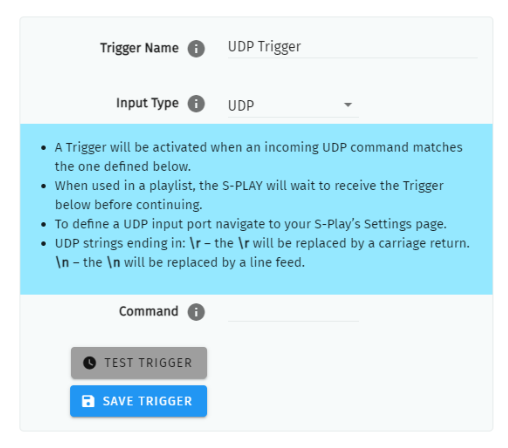
UDP communication settings:
- A Trigger will be activated when an incoming UDP command matches the one defined below.
- To define a UDP input port navigate to your S-PLAY LITE’s Network Settings.
- UDP strings ending in: \r – the \r will be replaced by a carriage return. \n – the \n will be replaced by a line feed.
OSC
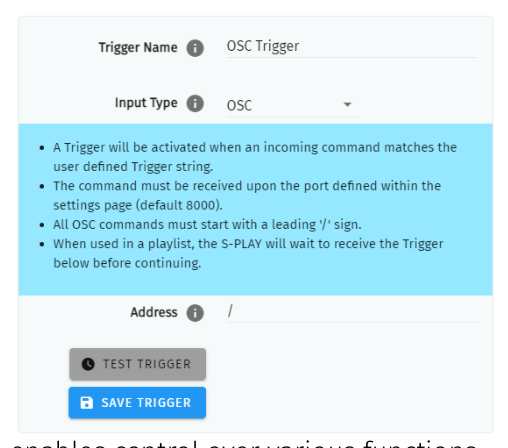
The S-PLAY LITE can receive OSC messages through two primary methods:
Triggers: Users can create triggers to initiate and resume playlists using the OSC communication settings. Key points regarding triggers include:
- Activation of a trigger occurs when an incoming command aligns with the user-defined trigger string.
- Commands must be received on the port specified within the Network Settings, typically set to the default value of 8000.
- All OSC commands must commence with a leading '/' sign.
Integration with the S-PLAY LITE's OSC API: This integration enables control over various functions, including:
- Master intensity adjustments
- Play, pause, and stop commands for all playlists
- Play, pause, and stop commands for individual playlists
- Intensity control on a per-playlist basis
For further information and to access the OSC API, please visit www.enttec.com.
Digital Input
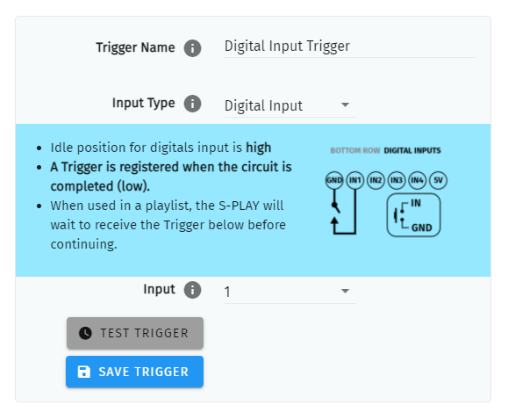
Use digital inputs with sensors, pressure pads, and wall switches to create an interactive installation.
S-PLAY LITE has 4 digital input ports to activate triggers.
- Idle position for digitals input is high.
- A Trigger is registered when the circuit is completed (low).
- If the input remains in a low position while the timeline goes over the trigger, the playlist won't pause.
Art-Net
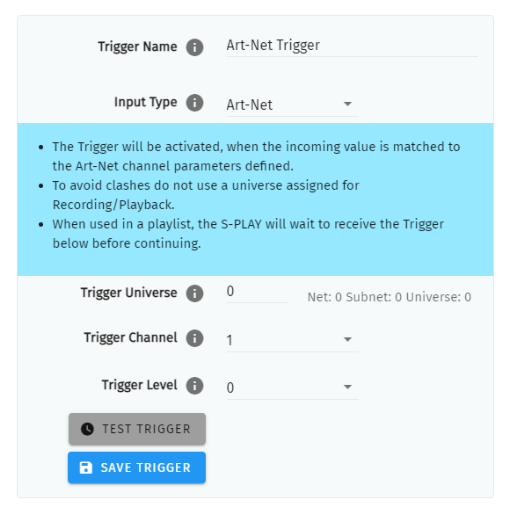
An Art-Net trigger can be unicast or broadcast to the S-PLAY LITE.
- The Trigger will be activated, when the incoming value is equal or greater than the Art-Net channel parameters defined.
- To avoid clashes do not use a universe assigned for Recording/Playback.
- When used in a playlist, the S-PLAY LITE will wait to receive the Trigger below before continuing.
sACN
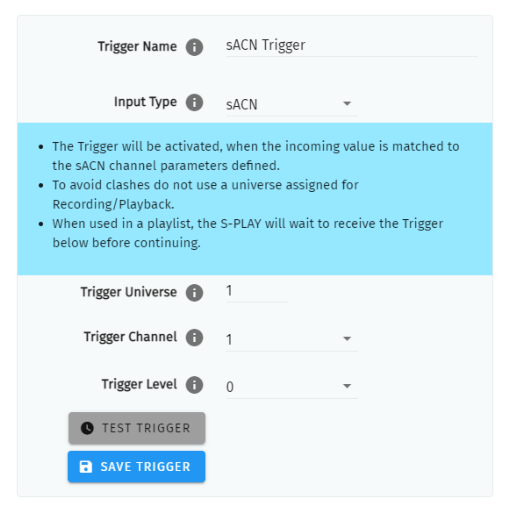
- The Trigger will be activated, when the incoming value is equal or greater to the sACN channel parameters defined.
- To avoid clashes do not use a universe assigned for Recording/Playback.
- When used in a playlist, the S-PLAY LITE will wait to receive the Trigger below before continuing.
DMX
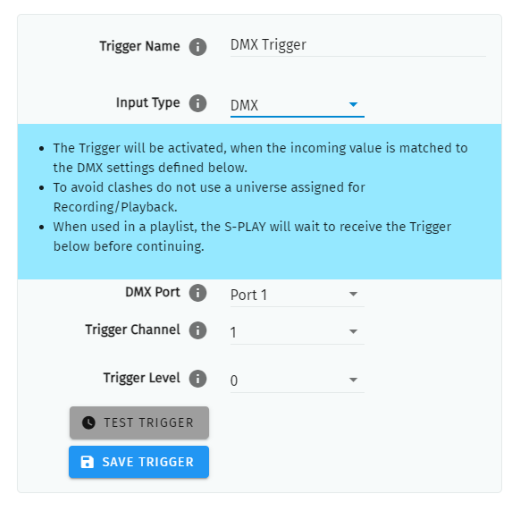
- The Trigger will be activated, when the incoming value is equal or greater to the DMX settings defined.
- To avoid clashes do not use a universe assigned for Recording/Playback.
- When used in a playlist, the S-PLAY LITE will wait to receive the Trigger below before continuing.
⚠️ Note: If DMX is selected as output protocol in the setting page, the DMX triggers will be disabled in the playlist.
Button
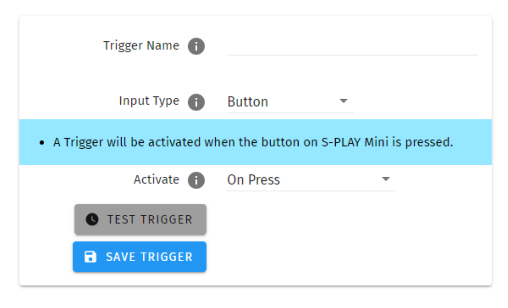
S-PLAY LITE’s reset button can be configured as a trigger button to activate a playlist command.
- A Trigger will be activated when the button is on release or on press.
Playlists
The Playlists page is where playlists can be created by combining Cues, Events and Triggers onto the timeline. Using the tools made available it is possible to:
- Create 100 playlists.
- Play multiple playlists simultaneously.
- Edit, Rename and Delete Playlists.
- Access to all Playlists.
- Play, Pause and Stop Playlists.
- Re-order Playlists.
- Hide certain playlists from the home page.
- Define loops.
- Define fade time.
- Define start and stop triggers or to start from start up.
- Set Master intensity.
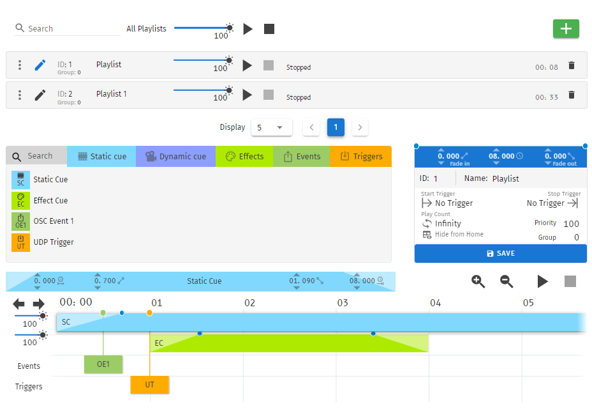
The playlist editor allows the user to add multiple cues (static, dynamic or effect), events and triggers in a sequence. These can be stored and played back at any given point.
⚠️ Top Tip: By default, cues on the timeline hold their end value on the output until a different scene is triggered. If you want to send a blackout at the end of a specific cue or timeline to all channels, set it to have a fade out time. If you require a snap to black instead of a fade out effect, set this fade out time to be 0.001 second.
Playlists Page Layout
The playlists page is comprised of 9 key elements:
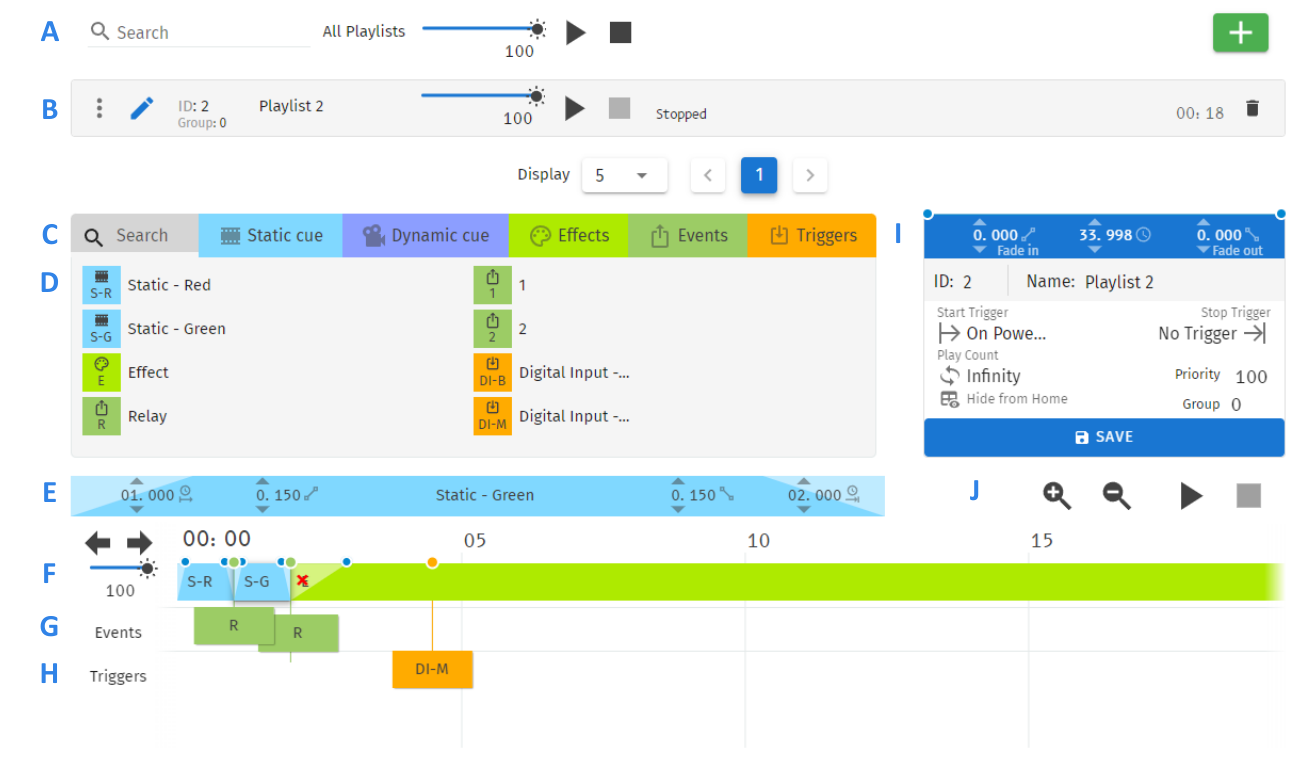
| A | Control all playlists playback with master level |
| B | Global playlist control |
| C | Search and filter bar for cues, triggers & events |
| D | Cues, triggers & events library |
| E | Cue configuration |
| F | Cues tracks |
| G | Event track |
| H | Trigger track |
| I | Playlist configuration |
| J | Timeline navigation |
Created Playlists

This section lists all the playlist created. The section displays basic information like the playlist name and duration and gives basic control over a playlist.
- Reorder: Drag and drop the playlist from the three dots rearranging your playlist (this will be reflected on the Home Page).
- Edit: Loads the playlist in the timeline and media tracks for editing
- Name: Displays the ID (set internally) and name of the playlist set in the Playlist Attribute section.
- Intensity: real-time control of the master intensity of the playlist. By default, it is set to 100% and it can be changed when the playlist is playing.
- Control - Play: Play the selected playlist, also the Playlist is loaded into the timeline and media track section.
- Control - Pause: Pause the selected playlist. By pausing a playlist, S-PLAY LITE holds the las DMX value.
- Control - Stop: Stops the selected playlist. By stopping a playlist, S-PLAY LITE stops outputting any data (set DMX value to 0).
- Status: Shows the status of the playlist. It can be: Playing, Paused, Stopped, Waiting for Trigger.
- Timeline and Duration: Shows the playback state of each playlist. Once the playlist has completed playing, it stops outputting data. Opacity of this bar matches the playlist intensity.
- Delete: Deletes the playlist and schedules where the playlist is used in.
Global Playlist Control
Gives control over all playlists. When pressing play on the global control, all the playlists start playing. If there are conflicts in channels, the values are merged on a Highest Takes Precedence (HTP) basis.
Search and Filter Bar
This box contains all Cues Events and Triggers Stored on the S-PLAY LITE. To create a new Playlist, select "Create New Playlist" from the list. This entry will always be the first entry on the menu.
Cues, Triggers & Events Library
Lists all the media that can be used in the playlist. It is categorised by Static Cues, Dynamic Cues, Effects, Events and Triggers.
To use any media, drag and drop the desired cue into any of the media tracks. Please note that triggers and events have dedicated tracks.
⚠️ Note: To ensure the best output frame rate and performance, it's recommended to avoid using the same dynamic cue in different playlists.
Playlist Playback Configuration
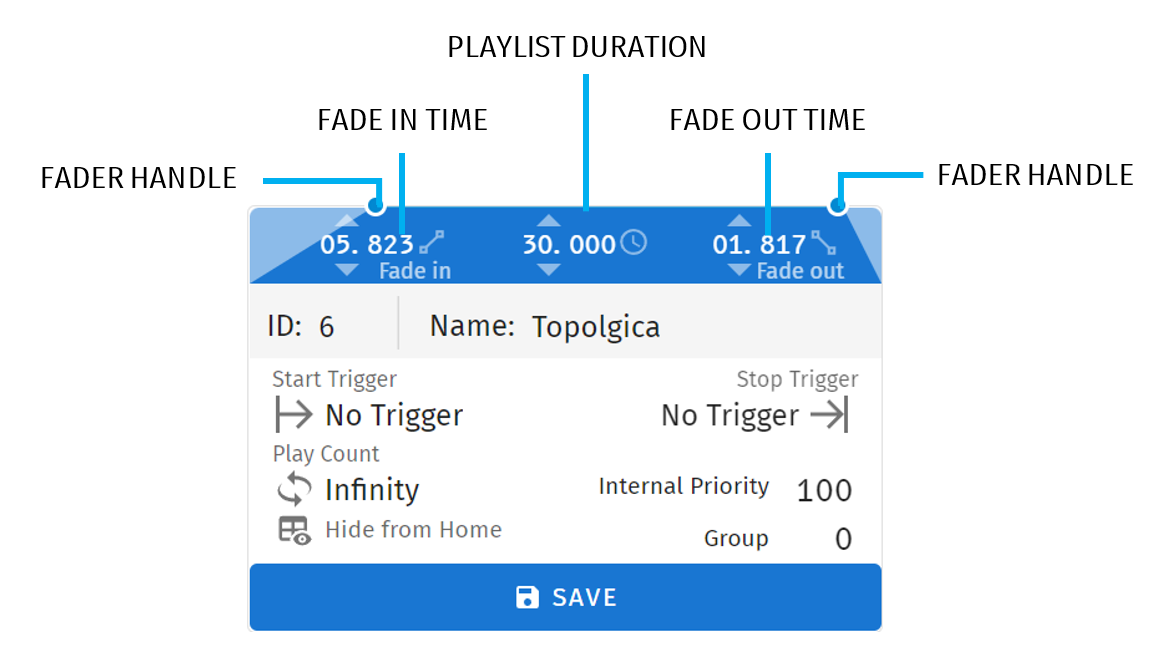
- Playlist Fader Configuration: Set the fade in and fade out time for a playlist. – Fade out time will begin once the stop command is activated over the defined duration.
- Playlist Duration: The total duration for the playlist.
- ID: Update ID of existing playlist.
- Name: Set the name of the playlist.
- Start Trigger: Options to playback this playlist either "On Power Up" or activate it using a list of triggers that are configured on the Triggers page. To utilise this feature, simply select a trigger from the dropdown menu. The playlist will start playing either by pressing the play button or by activating the chosen trigger.
- Stop Trigger: Choose from a list of triggers that are configured on the Triggers page to stop the playlist; the Playlist will stop when the trigger conditions are met.
- Play Count: Determine the number of times that the playlist will play until it stops.
- Internal Priority: When playing multiple playlists, for any conflict between channels, the playlist with higher priority will drive the output. If the playlist has the same priority the channels will merge following HTP (Highest takes precedence) method.
- Group: A group of playlists is a collection of playlists used together with the "Play one active playlist per group" option on the Settings page. This setting enables smooth fading between looks in a fixed area by ensuring that only one playlist from the group is played at a time.
- Hide from Home: Option to show or hide this playlist in Home Page.
- Save: Saves any change on the Playlist. S-PLAY LITE will ask to save any change before playing a Playlist.
Playlist Settings
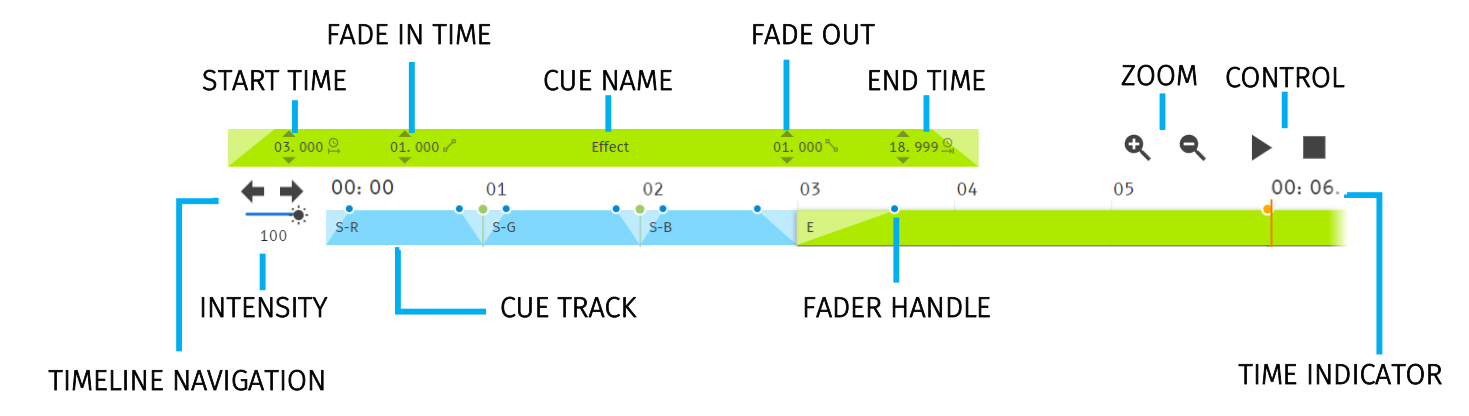
- Cue Fader Configuration: This configures start/end time, fade in/out time for a specific cue added into the cue track. The cue configuration is enabled when a cue in the cue track is selected. Fader handle is also available in the cue track for each cue for intuitive editing.
- Zoom: Zoom In and Out using the magnifying glass with the plus and minus symbol. Note that when you zoom in/out, the values in the timeline change and the size of the cue boxes change.
- Control: Gives navigation and playback over the playlist loaded in the Playlist Editor.
- Timeline Navigation: Navigate back and forward between timelines using this option. Drag the timeline to navigate back and forward.
- Intensity: Each track has its own intensity and it affects all the media on the same level.
- Cue tracks: Drag and drop media to this section. To remove a cue from the tracks, select the cue and click on the red x next to the right edge of the box. When playing multiple media at the same time. i.e. 2 cues on 2 different tracks, S-PLAY LITE will use HTP (Highest value Takes Priority) merging.
- Event and Trigger Tracks: The bottom 2 tracks are specifically designated for events and triggers. The vertical line indicates the precise timing at which the playlist will either pause until the trigger becomes active or execute the event. When triggers are used, the playlist will pause and maintain the last output value. To resume playback, simply activate the selected trigger or press the play button again.
Example Playlist
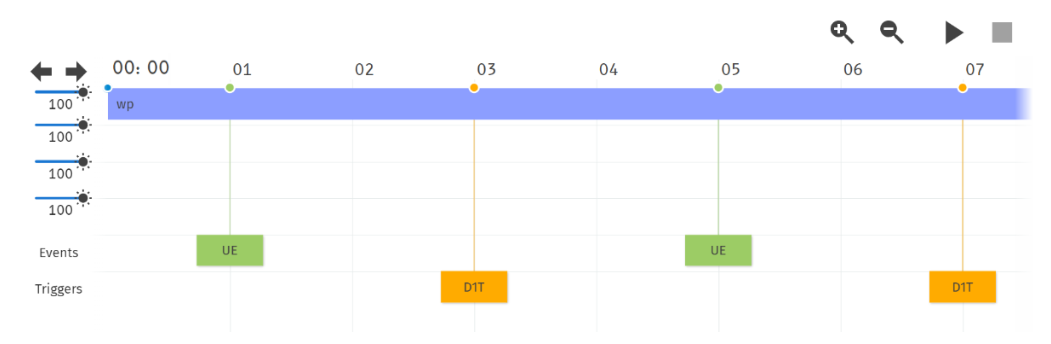
In this example, a playlist named "Playlist A" is created. It is set to automatically start playing on power up and will loop indefinitely (Play Count: Infinity).
Within the playlist, there is an Effect Cue labelled "c" that will play while simultaneously triggering an UDP Event (UET). At the 3-second mark, the playlist will pause and wait for a digital input trigger (G1) to be received before resuming the playback of the effect, which will continue until the 7-second mark.
The playlist will then proceed to send additional Events and wait for triggers as specified. Upon reaching the end of the playlist, it will loop back and replay the sequence.
Schedules
The schedules page allows the user to:
- Access all schedules.
- Create and edit schedules to trigger playlists once or at regular intervals.
- Play and pause schedules.
- Monitor status of the schedule.
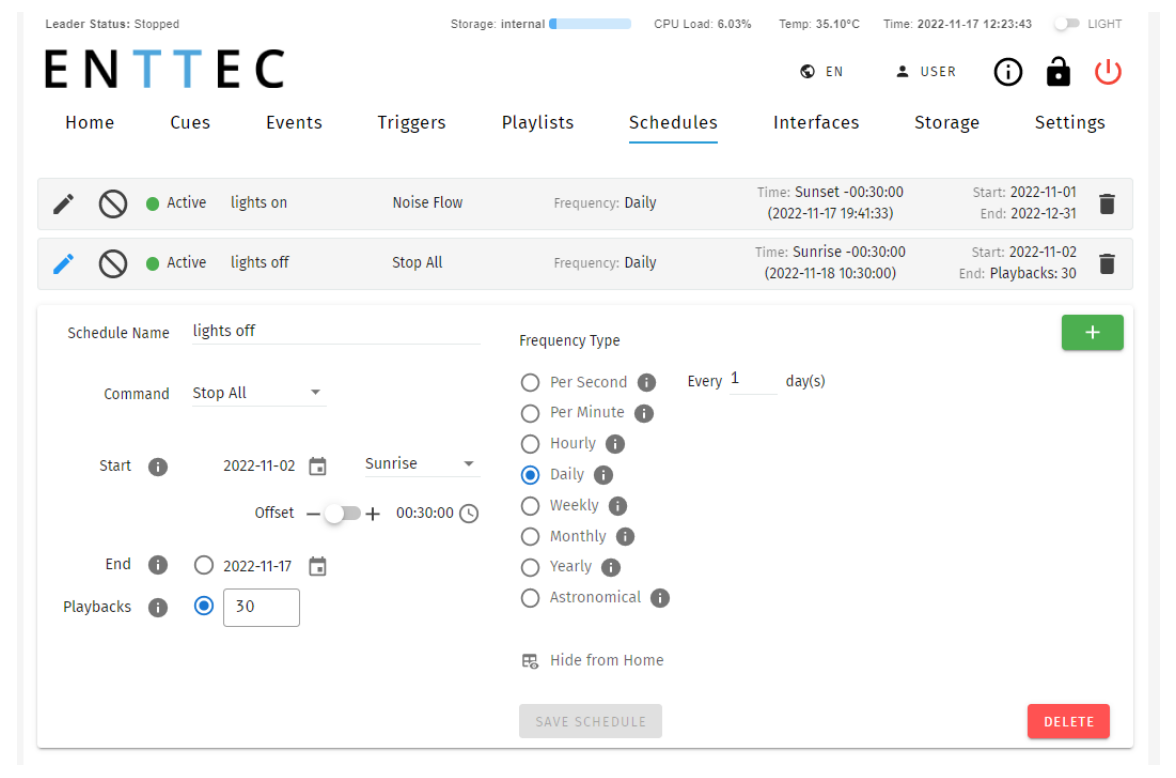
To set up a schedule you need to create a playlist first. S-PLAY LITE allows users to set a schedule for the playlists to play, pause or stop at any time range. Set multiple schedules populating the times to activate and deactivate the playlists.
For example, the first schedule shows “Noise Flow” can be played every day 30 minutes before sunset from the 1st of November until the 31st of December.
The second schedule in the S-PLAY LITE will ‘Stop All’ playlists 30 minutes after sunrise each day for 30 playbacks.
⚠️ Note: Always ensure your S-PLAY LITE system time and location is set correctly in Settings when using Schedules.
There are 7 different sections to be filled out when creating a schedule:
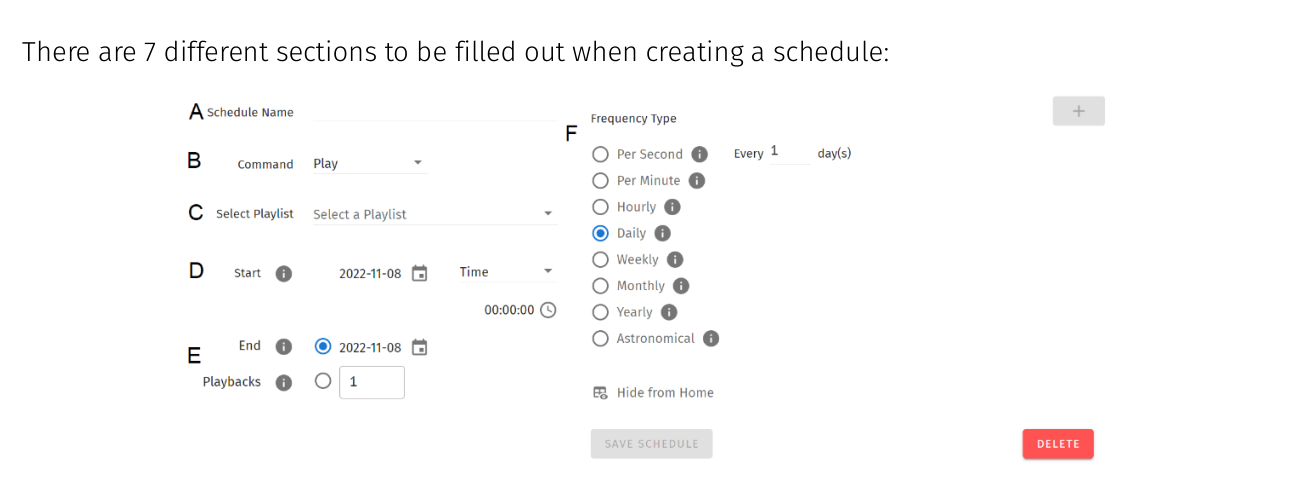
| A | Schedule Name |
| B | Command |
| C | Selected Playlist |
| D | Start condition. |
| E | End condition. |
| F | Frequency type. |
Created Schedules

The created schedule list gives information at a glance of the parameters set on each schedule.
- Edit: Load Schedule into the Schedule Editor using the pencil icon to update or change any parameter.
- Suspend: Gives control over the scheduler. If a scheduler is suspended, it will not run and the status indicator will become yellow. (Essentially a method to pause the schedule from activating).
- Status: Displays the status of the schedule.
- Green: Active Schedule. An active schedule still has instances to play.
- Yellow: Suspended Schedule. The schedule will not play until it's restored to active and the end condition is not met.
- Red: Expired Schedule. An expired schedule does not have any instances left to play.
- Schedule name: Name set in the Schedule Editor.
- Playlist name: Playlist selected in the Schedule Editor.
- Frequency: Play Count is set in the schedule editor, by default this is the same value configured in the playlist attributes.
- Time: Set Start time of a day with (next Schedule activation time) below.
- Start time: Time set in the Schedule Editor.
- Start date: Start date set in the Schedule Editor.
- Delete: Delete selected schedule.
Schedule Name
Name to aid Schedule identification.
Select Playlist
List of available Playlists to apply schedule actions to.
Start Condition
Set a schedule to start at a specific time, at sunrise or sunset. The sun phase is calculated based on the location set in the settings page. It takes into consideration:
- GMT Offset.
- Latitude.
- Longitude.
To set the start of the scheduler to a specific time do the following:
- Select “Time” from the dropdown menu.
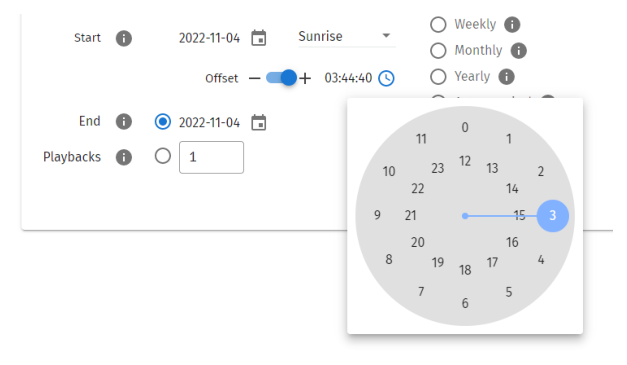
- Click the first two digits on the second dropdown menu and set the hour using the dial. Note that the inner circle shows hours past noon (>12) and the outer circle show hours before noon (1AM to 12).
- To set minutes, click on the last two digits and use the dial to select the desired time.
End Condition
The scheduler will expire once the end condition is met. It can be on a specific date or after a desired number of play counts.
Frequency Type
Set the frequency when the playlist set will play:
- Per Second: Start the selected playlist after the specified seconds.
- Per Minute: Start the selected playlist after the specified minutes.
- Hourly: Start the selected playlist after the specified hours.
- Daily: Start the selected playlist either every day or number of days.
- Weekly: The selected playlist will play on the selected days every week, or as specified in the tick box selection.
- Monthly: The selected playlist will play on a specific day of every month.
- Yearly: The selected playlist will play on a specific day of the year.
- Astronomical: The selected playlist will play depending on the phase of the moon: New Moon – First Quarter – Full Moon – Third Quarter.
Hide from Home
By default, all schedules are shown on the S-PLAY LITE home page. Using the ‘Hide from Home’ option removes them from the homepage. This means users who are not logged in cannot see them.
Interfaces
The Interfaces page in S-PLAY LITE supports 5 custom user interface for intuitive and tailored playlist control for end users. The interface can be viewed from any device with a web-browser (i.e. a computer or smartphone) when connected to the same local network and even configured to be a default landing page.
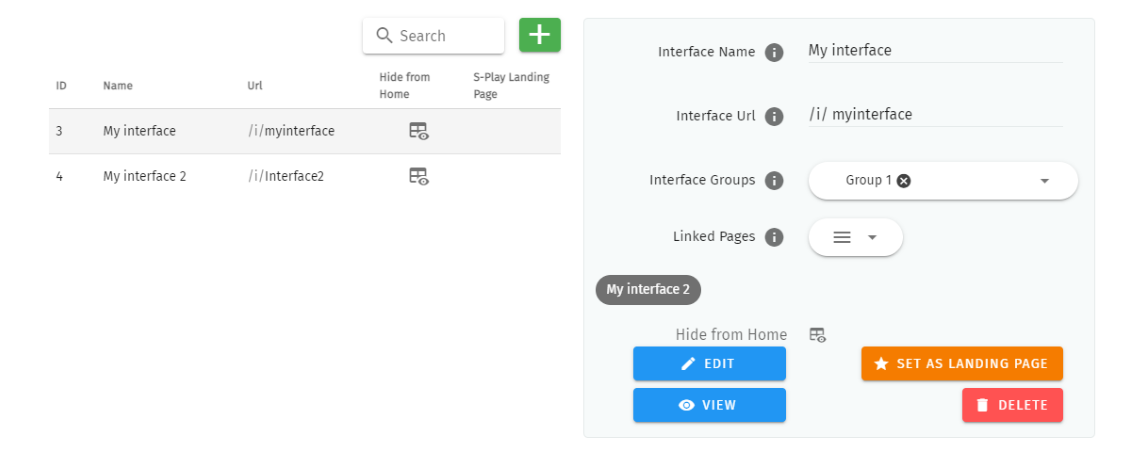
The Interface page features the following options:
- Interface Name: Naming (to be displayed at the top of the interface)
- Interface Url: Configuration of a custom Interface URL.
- The ability to add an interface to an Interface Group to make navigation between interfaces simple.
- Link to specific interface pages. (Drag and drop within the UI to order these pages).
- On the S-PLAY LITE home page, there is a link displayed for accessing the Interface. By clicking on the "Hide from Home" option, the interface will no longer be visible on the home page.
- Set the interface as the S-PLAY LITE’s landing page when connecting to the device IP.
Interface Editor
After an interface has been created, press on the ‘Edit’ button on the interface page to begin adding Widgets and customising its appearance.
This opens a blank page with a Menu button to navigate back to the interfaces page at the top left and the Interface Editor to the right.

The interface editor allows interface colour and individual widgets to be added to the interface. Functions described in below table:
| Icon | Item | Function |
|---|---|---|
 | Hide Menu | Use this button to hide the menu when editing Widgets |
 | Create New Widget | Pressing this button creates a new widget. |
 | Toggle edit mode | Toggle edit mode ON and OFF, this is useful for viewing the interface without individual widget editing to get a feel for how it will look when in use. |
 | Page Colour | Selecting this will open the page colour picker allowing you to select a colour with the colour picker or enter values directly in RGBA or HEX formats.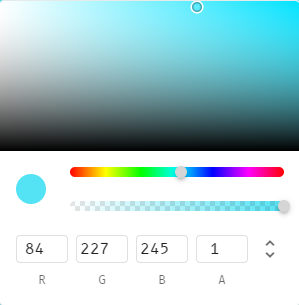 |
 | Alignment Horizontal | Set all controls to Left, Centred or Right. (Default centred). |
 | Alignment Vertical | Set all controls to Top, Centred or Right. (Default cantered). |
After the background is set, user can add widgets to design the interface.
Widgets
Widgets are the building blocks of buttons or sliders that can be:
- edited for its display name.
- set a quick functional command.
- displayed in customised width.
- displayed in customised colour through RGBA colour picker.
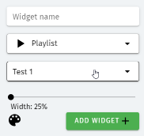
Each widget function as below table:
| Widget | Function |
|---|---|
 | Used to define a fixed space between other widgets. Spacers can be set between 10 and 100% interface width. |
 | Widgets to control all Playlists contained on the S-PLAY LITE. |
 | Widgets to control all Playlists contained on the S-PLAY LITE. |
 | Widgets to control all Playlists contained on the S-PLAY LITE. |
 | Widgets to control Specific commands on the S-PLAY LITE Playlists contained on the S-PLAY LITE. |
 | Widgets to control Specific commands on the S-PLAY LITE Playlists contained on the S-PLAY LITE. |
 | Widgets to control Specific commands on the S-PLAY LITE Playlists contained on the S-PLAY LITE. |
 | Widgets featuring a slider to control intensity for all playlists or individual playlist. |
 | Widgets featuring a slider to control intensity for all playlists or individual playlist. |
 | Widget to control Play/Stop commands for given Playlist. This button also shows the playlist’s state and playback progress. |
 | Widget to control colour filter of a specific Effect Cue. |
Example interface
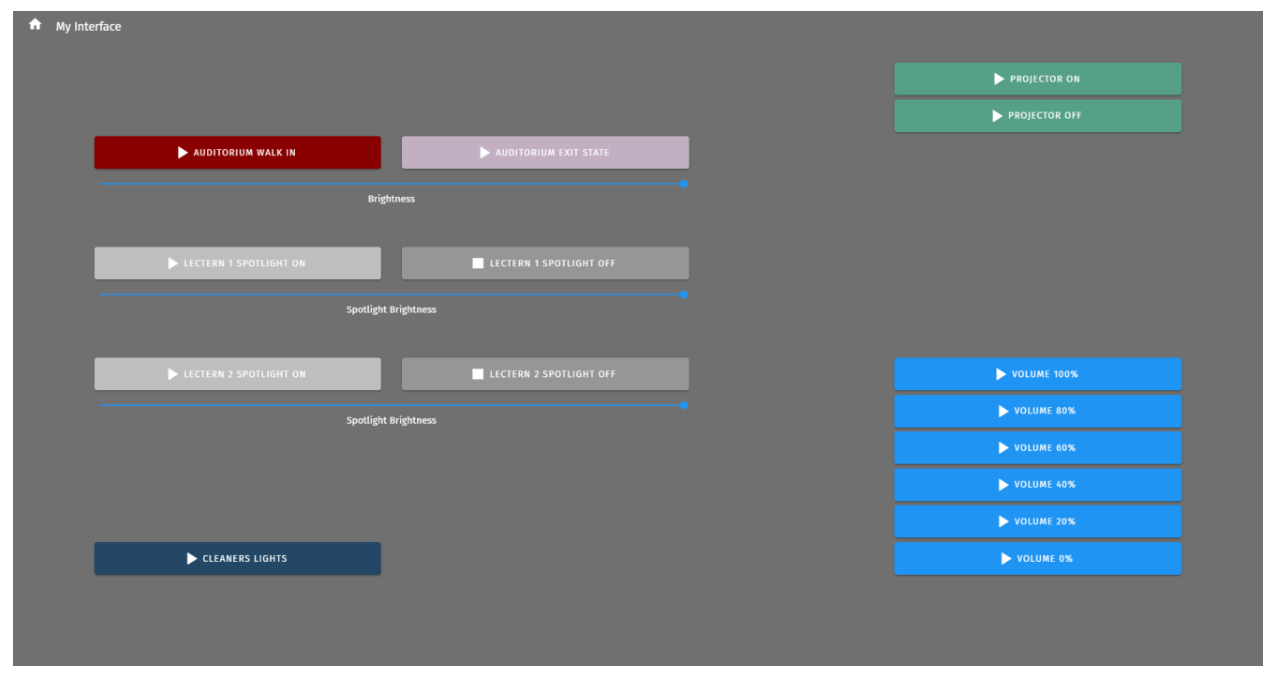
The image below shows a custom interface linked to Playlists that can trigger RS232, UDP and other protocols alongside lighting states from the S-PLAY LITE directly.
Storage
The storage page allows the user to achieve the following:
- View the internal system storage use / capacity.
- View the external SD Card storage use / capacity.
- Backup of the selected storage.
- Toggle between the S-PLAY LITE’s internal storage or the external SD’s storage.
- Transfer show from internal to external SD and vice versa.
- Restore a backup onto either the internal memory or External SD Card. (Note: restoring a backup will erase the current shows on your S-PLAY LITE – always backup your current configuration before restoring a backup).
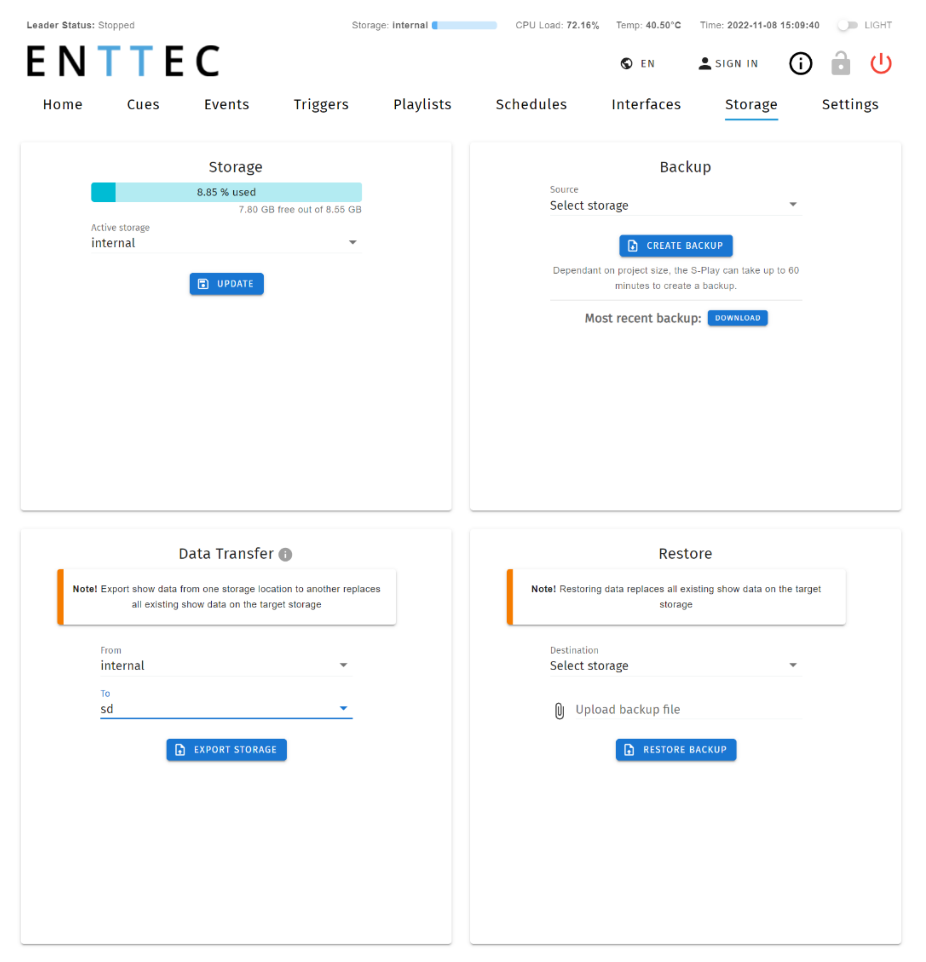
Backup
The S-PLAY LITE can produce a backup package that includes all:
- Cues
- Playlist
- Schedules
- Settings excluding IP address.
After pressing CREATE BACKUP. The process produces a .bak package that can be downloaded and saved to any location on your computer. (This can take up to an hour to produce and compress the backup depending on the size of your cues show.)
Restore
Use the created .bak file to restore cues, playlists, schedules and output settings.
Navigate to the Storage Menu in the web interface, then go to Restore section.
- Select the desired memory location (internal or external SD).
- Click browse and locate the .bak file on your computer.
- Insert and click on RESTORE BACKUP.
Once the restore is complete, a confirmation message will appear.
Data Transfer
Copy show-related files from one storage to another.
Navigate to the Storage Menu in the web interface, then go to Data Transfer section.
- Select From to choose memory location (internal or external SD).
- Select To to choose memory location (internal or external SD) that the files will be copied to.
- Press EXPORT STORAGE.
Storage & Calculating Requirements
Static Cue
Snapshots are comprised of a single DMX frame. The maximum file size of a frame of one universe with associated metadata is 518 bytes.
To calculate the theoretical file size of a static cue, multiply 518bytes by the quantity of universes you intend to capture as part of the static cue. This calculation will give a file size in bytes.
((518 bytes) * (Quantity of Universes to be captured)) = Static Cue Size (bytes)Dynamic Cue
A dynamic cue can be thought of as a stream of Static Cues. To calculate the theoretical file size of a Dynamic Cue the size of a single 1 universe DMX frame (518 bytes) should be multiplied by the quantity of universes being captured, the quantity of frames being recorded per second and duration of recording (in seconds).
((518 bytes) * (Quantity of Universes) * (Frames per Second [produced by the DMX source]) * (Intended Recording Length [seconds])) = Dynamic Cue Size (bytes)Triggers & Events
Triggers and Events each have a maximum file size of 1Kb (1000bytes). To calculate the theoretical storage size all Triggers and Events your configuration will occupy, multiply the total quantity of Triggers and Events you will use by 1Kb.
((1000 bytes) * (Quantity of Triggers and Events)) = Total Trigger and Event Size (bytes)Settings
Fast navigation between each option tab can be made using the navigation menu on the left-hand side of the page.
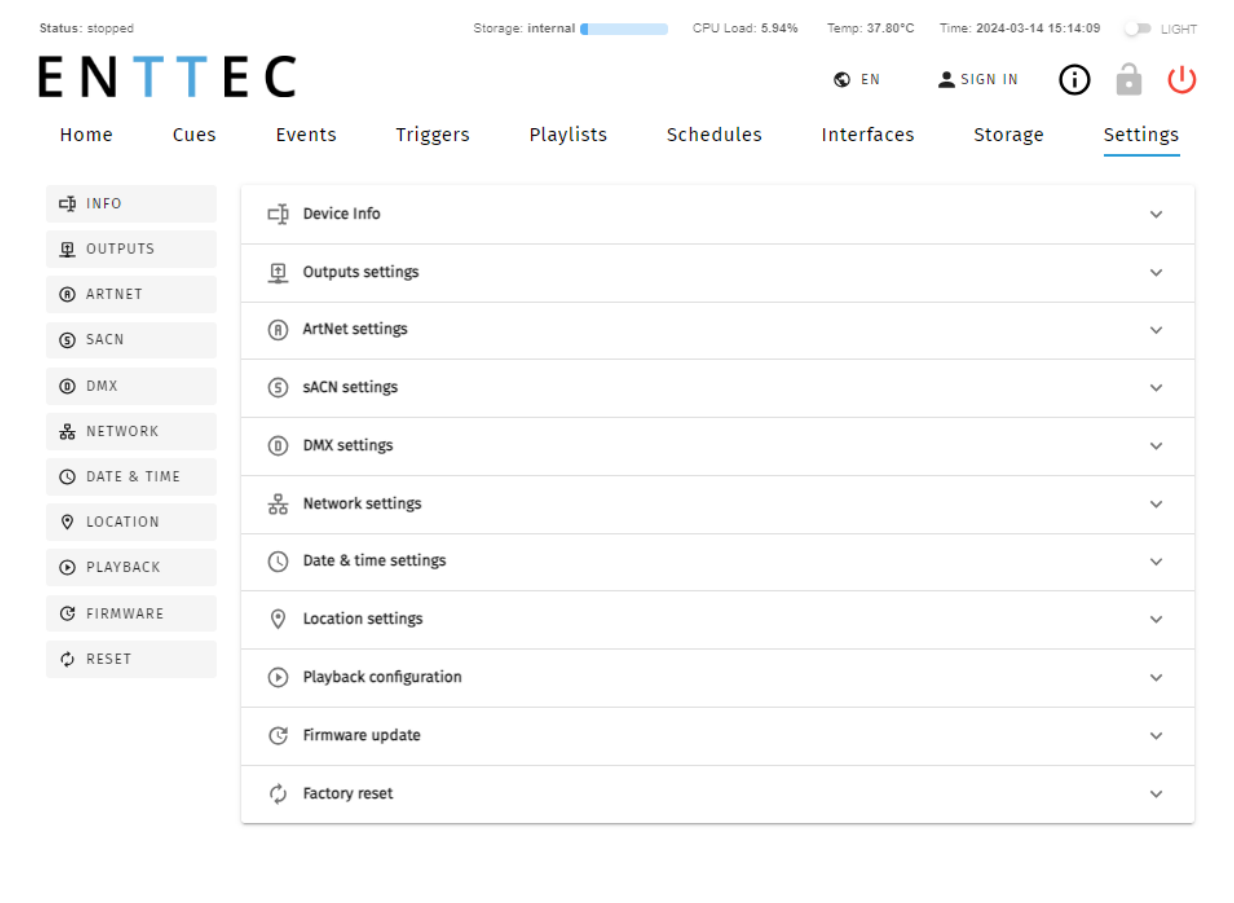
The settings page allows the user to:
- Set the S-PLAY LITE device name to be identical on the network.
- Configure each Universes’ output settings.
- Configure Art-Net and sACN settings and the corresponding IP.
- Configure refresh rate.
- Change the S-PLAY LITE’s network configuration.
- Define the OSC and UDP input port.
- Set the date, time and location.
- Update playback configuration.
- Send black frame on playlist stop.
- Restrict playback of one playback group at a time.
- Update firmware.
- Download the latest firmware version from the ENTTEC website and navigate to the bottom of the Settings page.
- After updating firmware, power cycle your S-PLAY LITE and clear your web browser cache using ‘Ctrl’ + ‘Shift’ + ‘R’ to ensure nothing is stored in your browser from a previous firmware version.
- Reset to factory defaults.
Device Info
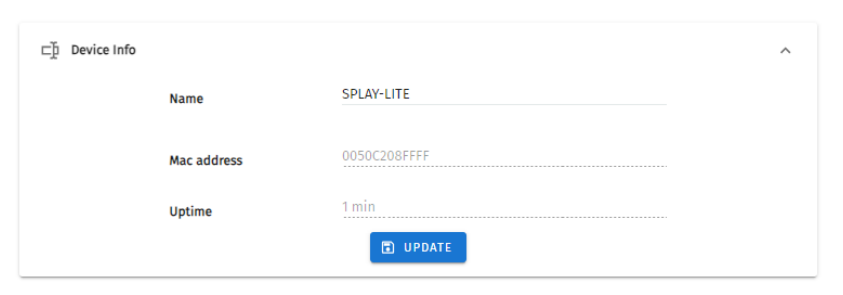
Device info allows user to set unique S-PLAY LITE name for identification. Uptime shows the time the S-PLAY LITE has been working.
Output Settings
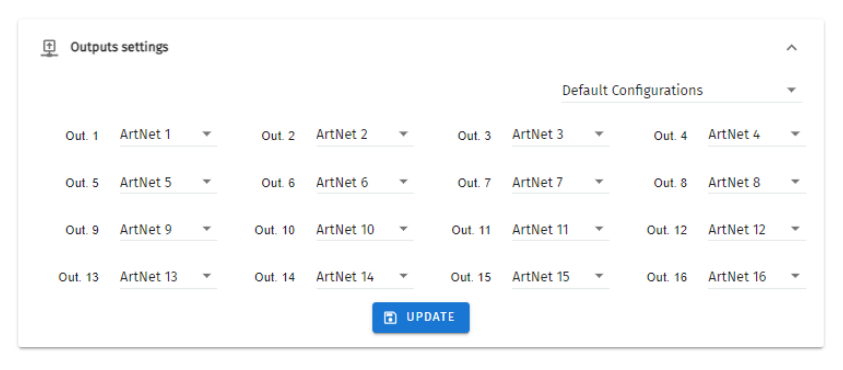
The Output Settings allows you to assign S-PLAY LITE’s internal 16 universes data to the Art-Net, sACN and DMX with settings configurable in the next section to create tailored outputs required for your project.
Drop-down in the upper right corner allows to set all outputs to one protocol with one click.
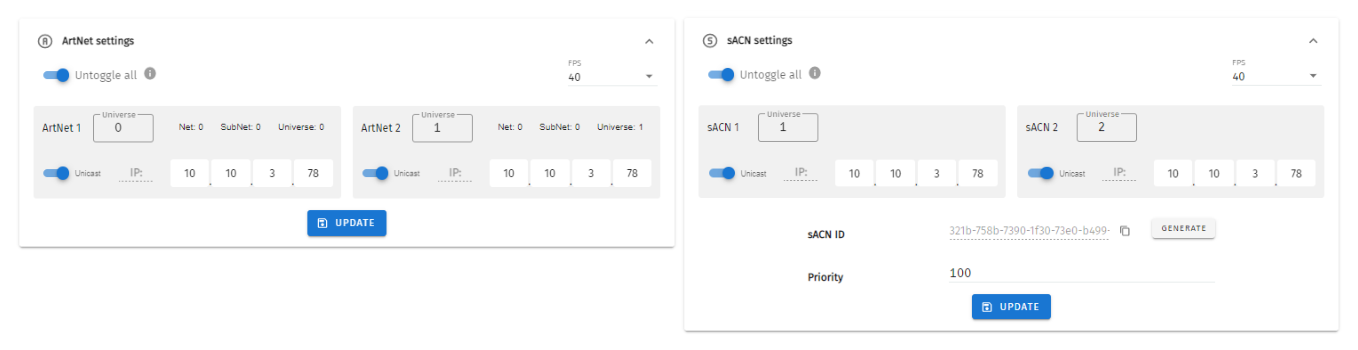
Art-Net and sACN settings
Art-Net and sACN settings allow configuration to each internal 16 Universes directed to the S-PLAY LITE. This section allows a protocol universe to be set to unicast, multicast & broadcast alongside the refresh rate between 1 to 60 FPS.
The sACN ID can be regenerated, and the Priority can be set between 1 and 200, with a default value of 100. This Priority value is also applied to sACN Events.
⚠️ Top Tip: The tab key on your keyboard can be utilised to expedite the editing process when entering Universe numbers and IP addresses for sACN and Art-Net configurations.
DMX Settings

Provides control over DMX output frame rate.
Network Settings
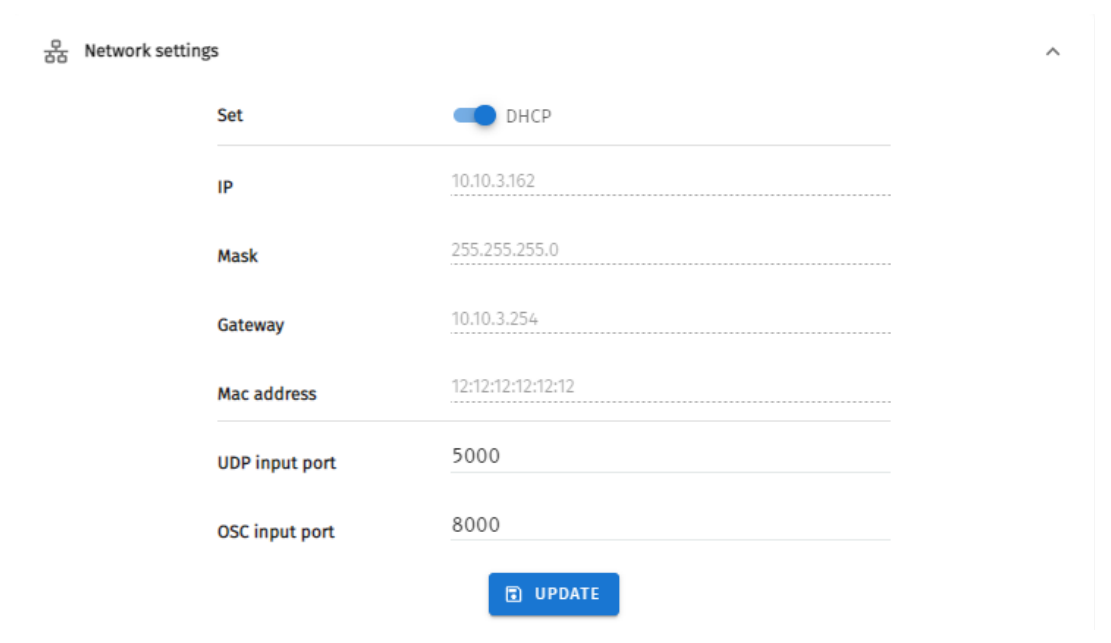
Network Settings allow a DHCP or Manual IP address to be defined. Once update IP changes, the S-PLAY LITE will reboot in order to initiate all services.
UDP and OSC input ports for use with S-PLAY LITE Triggers can also be defined in the Network Settings.
Default Network Settings:
- DHCP: Enabled
- Fall Back/Static IP: 192.168.0.10
- Mask: 255.255.255.0
- Gateway: 192.168.0.1
Default Ports:
- UDP Input Port: 5000
- OSC Input Port: 8000
Date & Time Settings
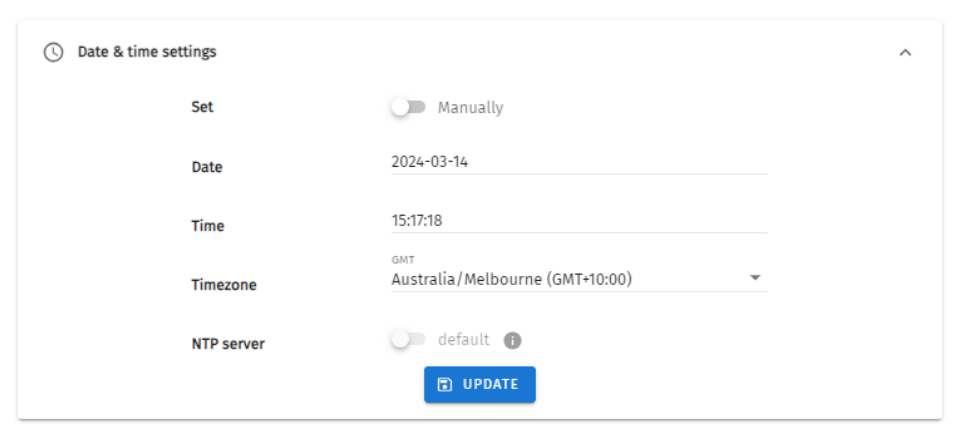
Either define it manually or enable NTP to set the Date and Time from local network automatically. When the time is set manually, it is required to be updated to reflect daylight saving time twice a year.
Location Settings
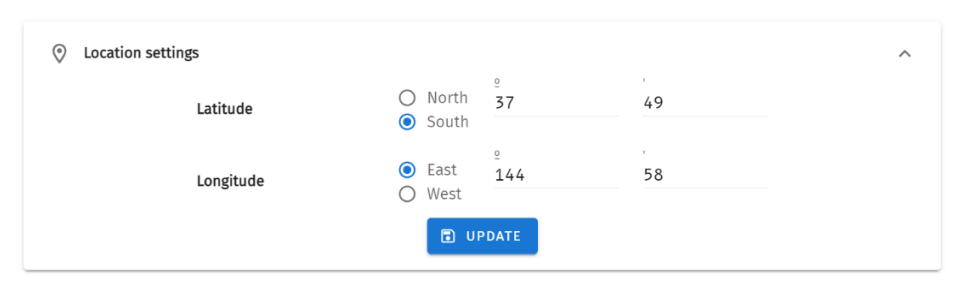
Latitude and Longitude can be defined to inform the sunrise/sunset times used by the scheduler.
You can find your site’s latitude and longitude using geolocators. An example of one of these is: https://www.latlong.net/
Playback Configuration
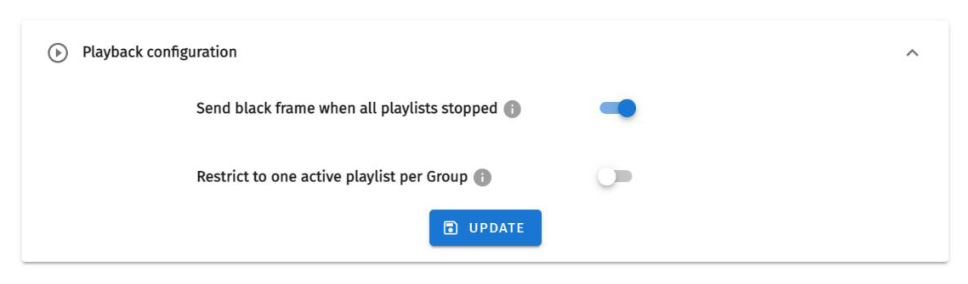
Playback configuration allows global settings to be defined.
The option to restrict to one active playlist per group stops all other playbacks in the group. All stopped playlist will obey their fade times.
Firmware Update
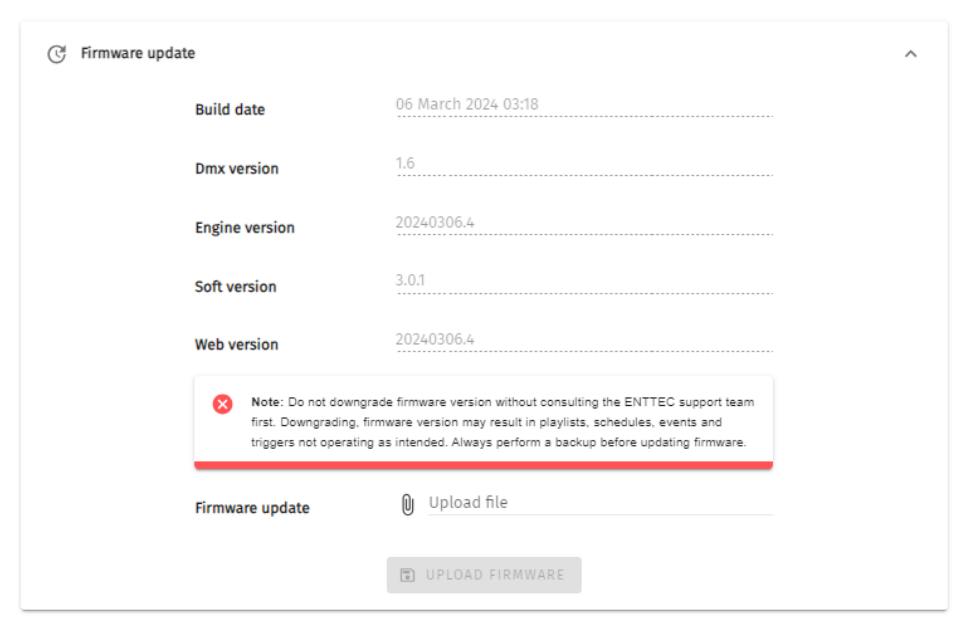
To update firmware, download it from the ENTTEC website and upload it to this widget. Upon validating the firmware, the S-PLAY LITE will update and restart.
⚠️ Note:
- Always use firmware designed for S-PLAY LITE only. Uploading incorrect firmware can result in permanent damage.
- Do not downgrade firmware without consulting the ENTTEC support team first, as it may affect playlists, schedules, Events, and Triggers. Always perform a backup and a factory reset before updating firmware.
- After updating firmware, power cycle your S-PLAY LITE and clear your web browser cache using ‘Ctrl’ + ‘Shift’ + ‘R’ to ensure no residual data from the previous firmware version is stored.
Factory Reset

- A factory reset can be performed using either the web interface or the reset button on the device.
- For instructions on resetting via the reset button, please consult the 'Reset Button' section of the document. To initiate a reset through the web interface, navigate to the 'Reset' option on the Settings page and click 'Factory Reset.'
⚠️ Note:
- Factory reset will erase all created content, returning the device to its original factory state.
- Always take a backup before undertaking a factory reset. Factory reset cannot be stopped once initiated. Avoid powering off the S-PLAY LITE during a factory reset.
User Management
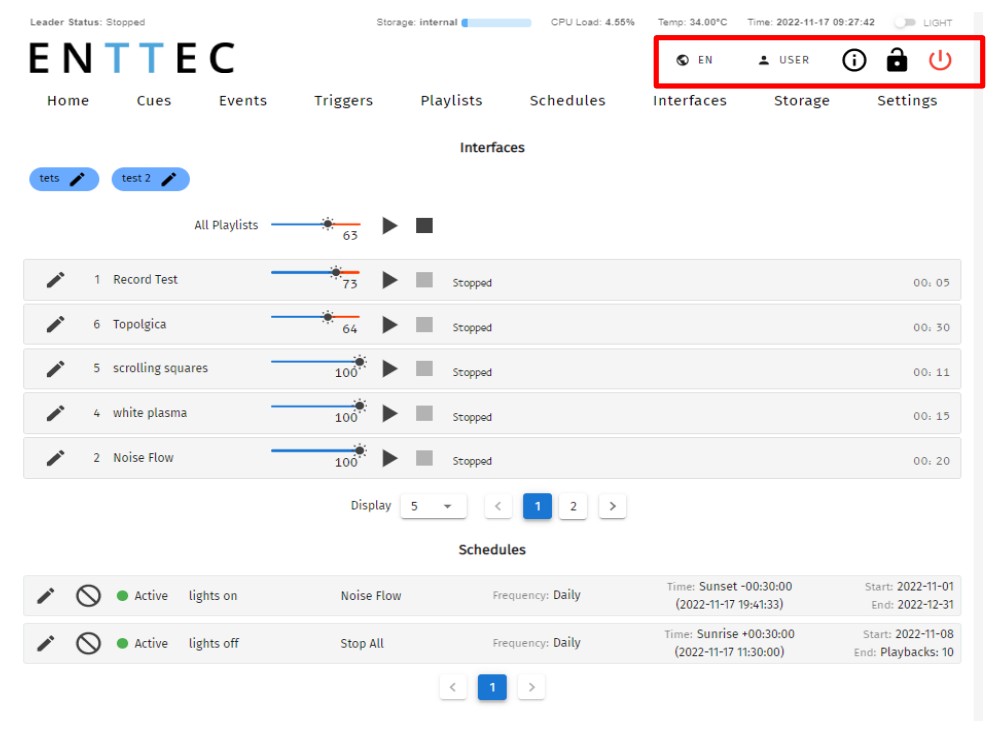
User management can be found on the top right corner of the webpage. This is where users can Lock the functions, Monitor DMX current, login to users account and switch languages between English and Chinese.
Monitor DMX Current

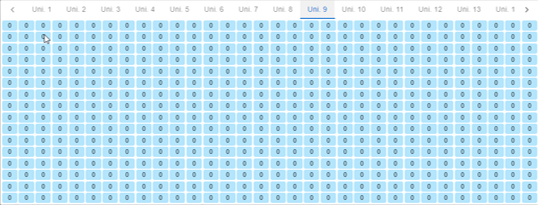
S-PLAY LITE allows the user to monitor DMX current for all universes at real time. By clicking, an overview of each universe current setting will appear at the bottom page.
Simply click next to each output, to view the current DMX value of the universe. The current DMX value will be shown in the window as below. Click the universe number in the top row of this window to monitor all the other current DMX value from each universe.
Lock Feature
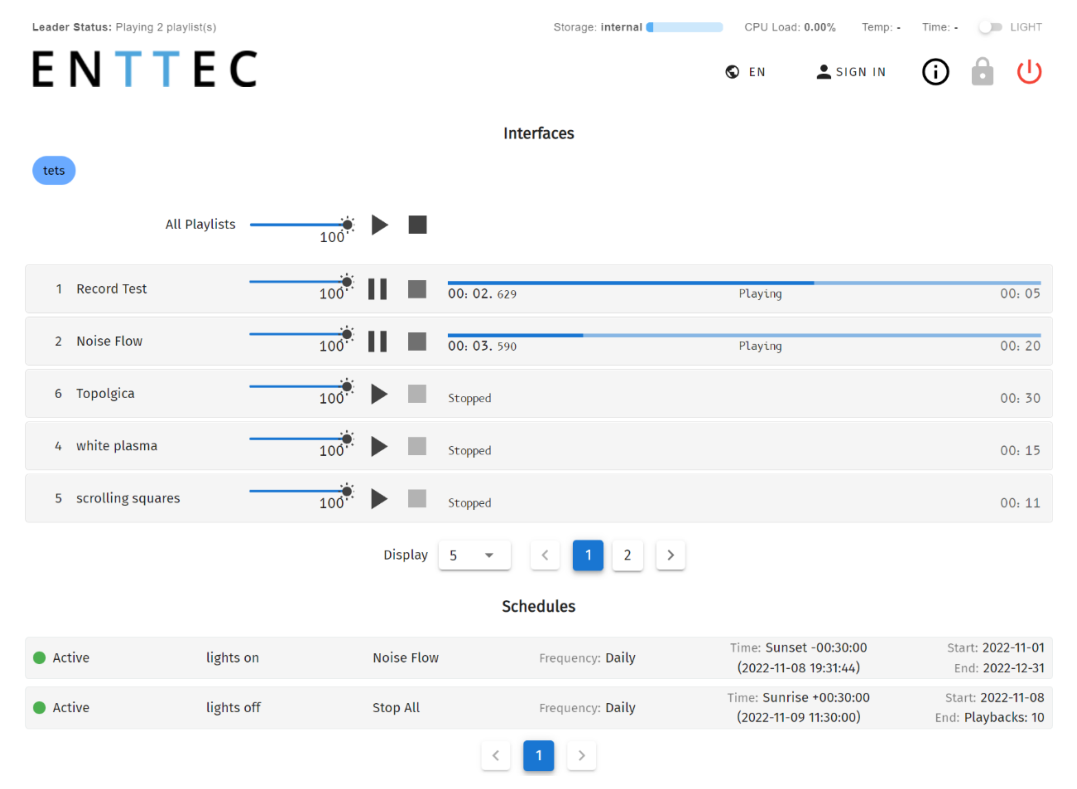
S-PLAY LITE includes a locking system to prevent settings, playlists, and cues from being modified.
By default, the S-PLAY LITE is unlocked, allowing any computer within the network to modify settings, create cues, generate playlists, and trigger playlist actions.
Sign in to access this feature using default login details provided in this document. To lock the unit, simply click on the padlock located in the top right-hand corner of the user interface. When not signed in, the unit will display only the home page with all the functional tabs hidden.
When the S-PLAY LITE is locked, users can:
- Access to the custom interfaces.
- Play and control all playlists.
- Adjust playlist intensity.
- Pause and Resume Schedules.
To unlock full functionality the user account must be logged in.
When a user is logged in, the unit can remain locked for the rest of the users accessing from other locations/browsers on the network. However, the unit will ensure that only one browser is open at the same time when accessing "Home", "Cue Library" and/or "Playlist Page". This is to avoid having conflicting commands that can jeopardise any part of the recording process.
To unlock the S-PLAY LITE, simply click on the padlock icon on the top right corner of the web interface.
Shutting down the S-PLAY LITE
The S-PLAY LITE will be turned off by the red “Power” icon on the top right corner of the web interface.

A message will appear to confirm the command allowing the power to be removed.
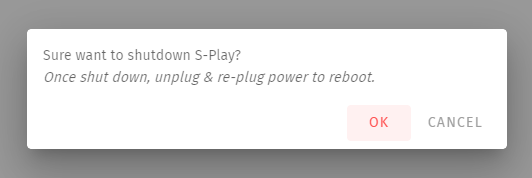
To re-boot the S-PLAY LITE, unplug and re-plug the DC jack, or power cycle your PoE source.
⚠️ Note: Simply removing power mid-way through the S-PLAY LITE’s boot process or when reading/writing to memory has the potential to corrupt the S-PLAY LITE’s internal storage or to your external SD card.
Default Login and Password
| User | Default Password |
|---|---|
| user | 123456 |
⚠️ Note: Before setting a password take a full backup of your show data and settings. If the password is forgotten or lost, returning the password to default can be achieved through a full factory reset by reset button or through ENTTECT EMU Software.
Ports
XLR5 Female (DMX-512)
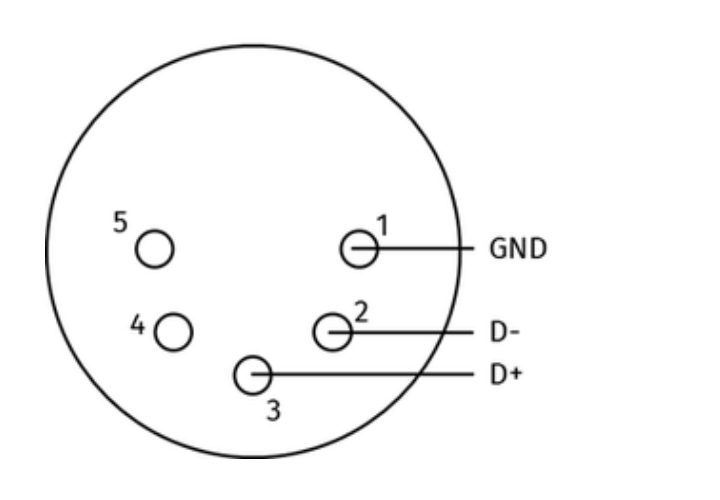
| PIN | CONNECTION |
|---|---|
| 1 | GND |
| 2 | DATA - |
| 3 | DATA + |
| 4 | NC |
| 5 | NC |
DB9 Male (RS232)

| PIN | CONNECTION |
|---|---|
| 1 | NC |
| 2 | RX |
| 3 | TX |
| 4 | NC |
| 5 | GND |
| 6 | NC |
| 7 | NC |
| 8 | NC |
| 9 | NC |
GPIO
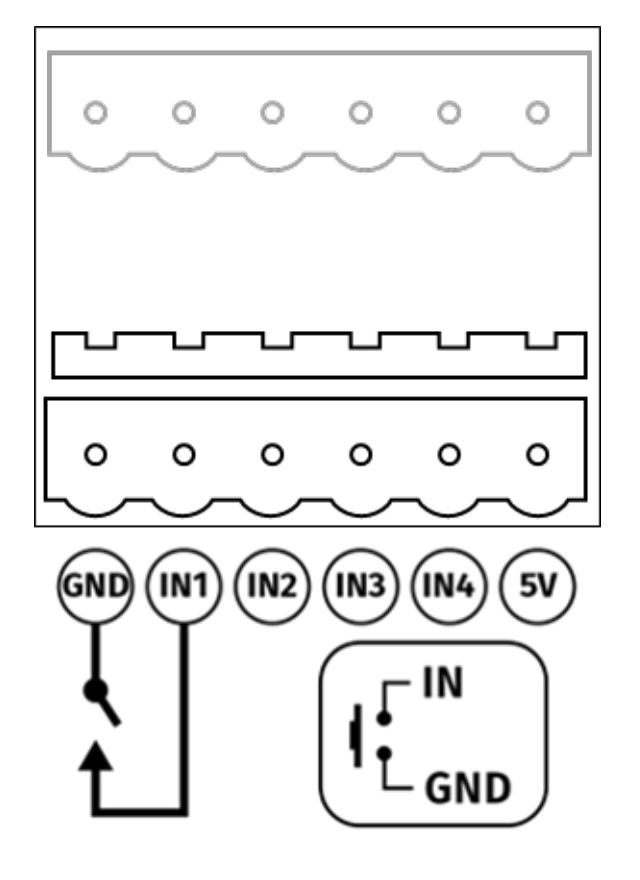
Relay
⚠️ Servicing, Inspection & Maintenance
- The device has no user serviceable parts. If your installation has become damaged, parts should be replaced.
- ⚡ Power down the device and ensure a method is in place to stop the system from becoming energised during servicing, inspection & maintenance.
Key areas to examine during inspection:
- Ensure all connectors are mated securely and show no sign of damage or corrosion.
- Ensure all cabling has not obtained physical damage or been crushed.
- Check for dust or dirt build up on the device and schedule cleaning if necessary.
- Dirt or dust buildup can limit the ability for a device to dissipate heat and can lead to damage.
The replacement device should be installed in accordance with all steps within the installation guide.
To order replacement devices or accessories contact your reseller or message ENTTEC directly.
Cleaning
Dust and dirt build up can limit the ability for the device to dissipate heat resulting in damage. It’s important that the device is cleaned in a schedule fit for the environment it is installed within to ensure maximum product longevity.
Cleaning schedules will vary greatly depending on the operating environment. Generally, the more extreme the environment, the shorter the interval between cleanings.
⚠️ Before cleaning:
- ⚡ Before cleaning, power down your system and ensure a method is in place to stop the system from becoming energised until cleaning is complete.
- Do not use abrasive, corrosive, or solvent-based cleaning products on this device.
- Do not spray on the device or accessories. The device is an IP20 product.
To clean an ENTTEC device, use low-pressure compressed air to remove dust, dirt and loose particles. If deemed necessary, wipe the device with a damp microfiber cloth.
A selection of environmental factors that may increase the need for frequent cleaning include:
- Use of stage fog, smoke or atmospheric devices.
- High airflow rates (i.e., in close proximity to air conditioning vents).
- High pollution levels or cigarette smoke.
- Airborne dust (from building work, the natural environment or pyrotechnic effects).
If any of these factors are present, inspect all elements of the system soon after installation to see whether cleaning is necessary, then check again at frequent intervals. This procedure will allow you to determine a reliable cleaning schedule for your installation.
Package Contents
- S-PLAY LITE (70094)
- Cat5 cable (79102)
- 1 X 12V PSU adaptor with international plugs
- Rack mounting bracket (79161) x 2pcs + screws x 6pcs
- Surface/Din mounting bracket (79162) x 2pcs + screws x 4pcs
- Din Clip x 2pcs + screws x 4pcs
- ReadMe Card
Ordering Information
For further support and to browse ENTTEC’s range of products visit the ENTTEC website.
| Item | Part No. |
|---|---|
| S-PLAY LITE | 70094 |
⚠️ Note: Due to constant innovation, information within this document is subject to change.