TABLE OF CONTENTS
- ELM license Information
- Complimentary ELM license
- First-time registration via a new ELM voucher
- ELM Tutorials
- Viewing all your licenses
- Activate another new computer
ELM license Information
An ELM license is registered to an email address linked to one individual or company. This allows the license owner to register the license to one computer at a time by logging into a website portal.
Note: If you want to run multiple computers simultaneously (including active and backup computers), you will need to purchase additional licenses per computer.
Each ELM license enables up to 3 activations on different computers/hardware IDs.
An ELM license activation isn’t transferrable, meaning a license cannot be deactivated from one computer and moved to another. Registering ELM on another computer will use one of the license activations.
Note: The computer's Hardware ID is linked to your computer’s CPU and motherboard. You can upgrade any other components and reinstall the OS without invalidating your license.
You can stack multiple licenses on the same computer to get more DMX universes; for example, two 8U licenses can be stacked onto one ELM computer to allow 16 universes of output.
Complimentary ELM license
We are currently running a special promotion where you can apply for a complimentary ELM license when purchasing an ENTTEC pixel controller. The license will unlock the number of universes that the pixel controller can output; for example, ENTTEC's Octo can output 8 universes, therefore, you can apply for an 8-universe license.
To claim a complimentary lifetime ELM license. First, login to your ENTTEC account within the website.
From the Dashboard tab, click on Activate License.
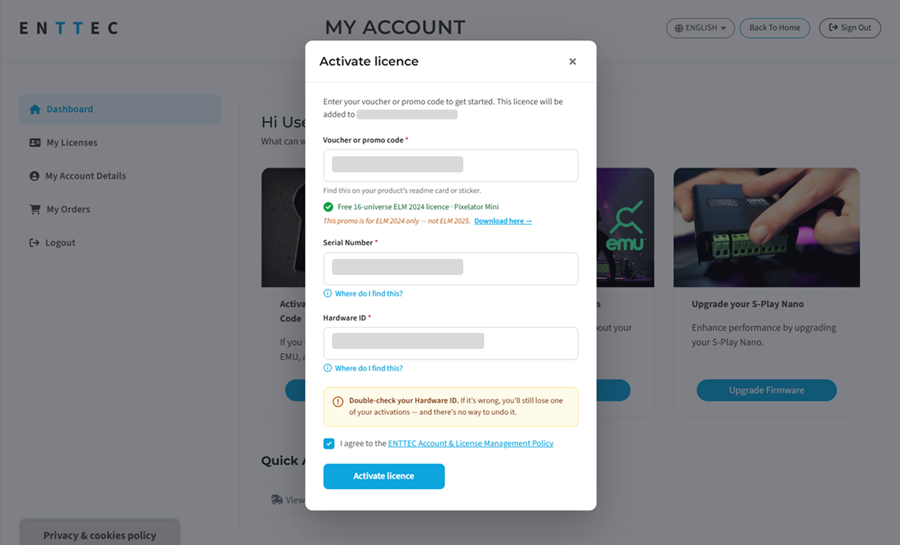
The Activate license popup opens. In the Voucher or promo code field, enter your promo code (printed on a sticker on the rear of your ENTTEC pixel controller).
Once your code is recognised, the Serial Number and Hardware ID fields unlock. Enter your Serial Number (printed on the device) and your Hardware ID (shown in the bottom-left of the Settings -> License window inside ELM).
Tick the I agree to the ENTTEC Account & License Management Policy checkbox, then click Activate license.
Note: ELM's Hardware ID is displayed in the bottom left corner of the License window (found within Settings) within the ELM software.
On the success screen, click Download license file to save your license file to your computer.
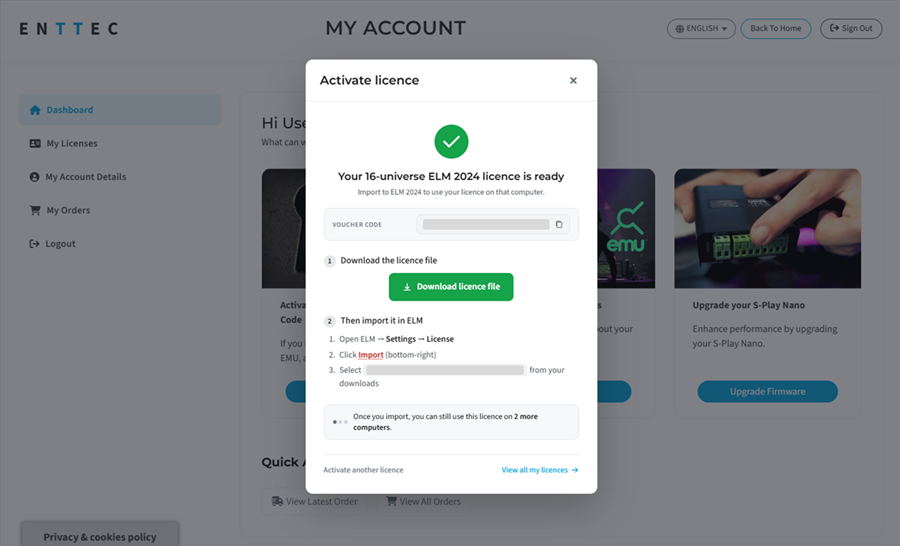
Open ELM, go to Settings -> License, click Import (bottom-right), and select the downloaded license file. After the import completes, your license count increases on the Settings -> License page.
First-time registration via a new ELM voucher
Once you have your ELM voucher, go to the My Account section of our website. The email address you log in with must match the address the voucher was sent to.
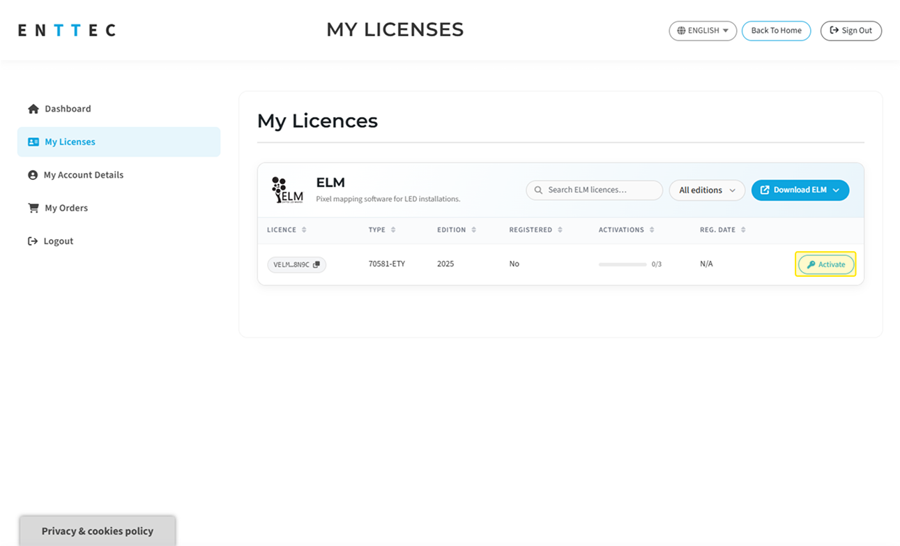
From the sidebar, click My Licenses.
In the ELM section, find your voucher (its row shows as Available) and click Activate on that row.
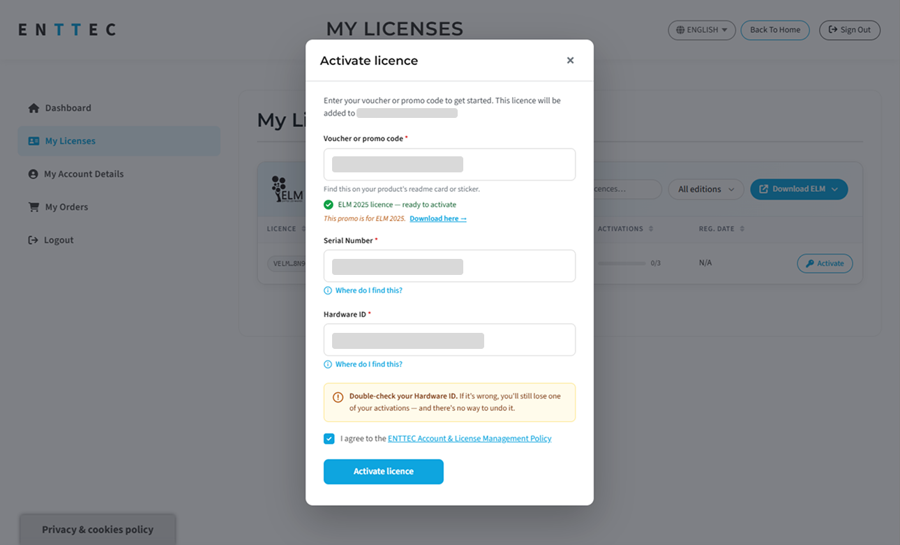
The Activate license popup opens with your voucher code pre-filled. Enter your Serial Number (printed on your device) and Hardware ID (shown in the bottom-left of the Settings -> License window inside ELM).
Tick the I agree to the ENTTEC Account & License Management Policy checkbox, then click Activate license.
Note: ELM's Hardware ID is displayed in the bottom left corner of the License window (found within Settings) within the ELM software.
On the success screen, click Download license file to save your license file.
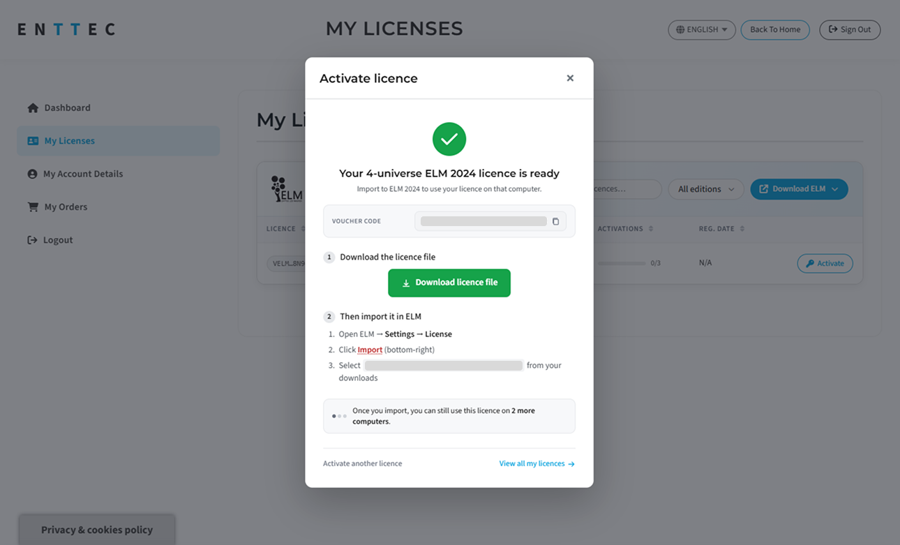
Open ELM, go to Settings -> License, click Import (bottom-right), and select the downloaded license file. After the import completes, your license count increases on the Settings -> License page.
ELM Tutorials
Please see our Youtube Tutorials
Viewing all your licenses
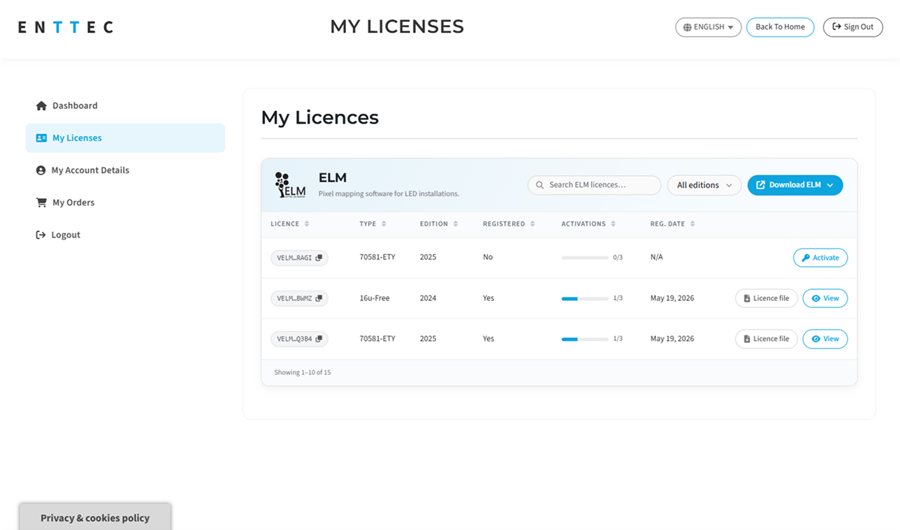
You can review every ELM activation from the My Licenses page.
In the ELM section, each row shows the license, type, edition, whether it's registered, and how many activations you've used. Available vouchers show an Activate button; registered licenses show License file (quick download) and View buttons.
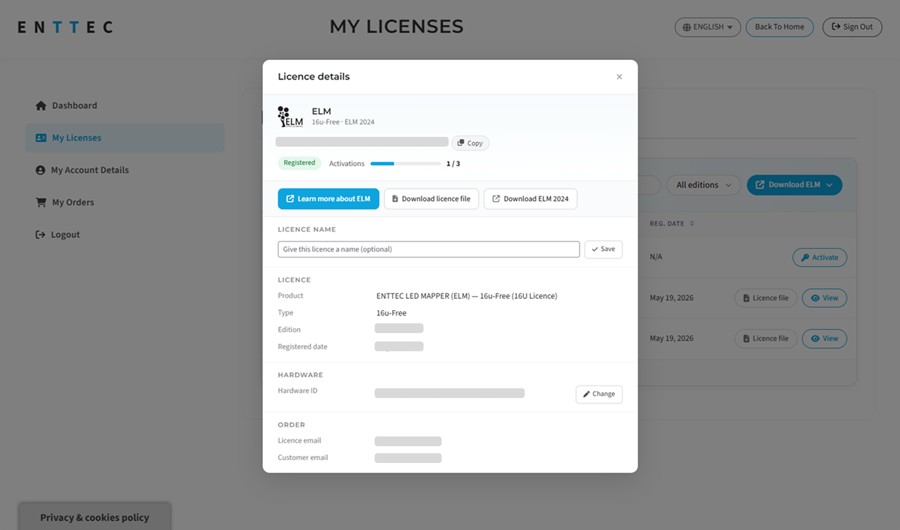
Click View to open License details, where you can see the license, Hardware ID and order info, give the license a name, and download the license file.
Activate another new computer
As mentioned in the initial section of this article, each ELM license can only be activated on 3 (in some cases, 4) computers.
To change the computer linked to an ELM license:
Go to the My Licenses page of your ENTTEC account. In the ELM section, find your registered license and click View on that row.
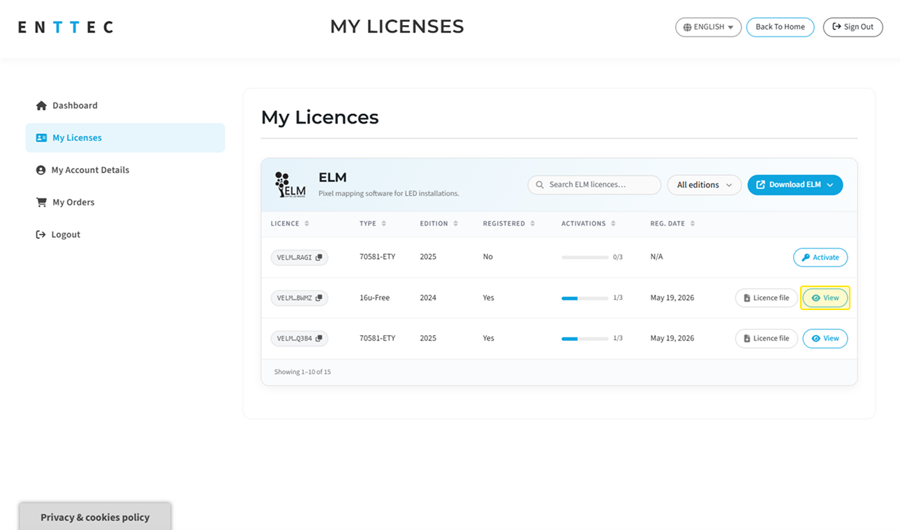
In the License details popup, under the Hardware section, click Change next to your Hardware ID.
Important: Each change consumes one of your activations and cannot be undone. Double-check the new Hardware ID (copy and paste rather than typing) before confirming.
Enter your new Hardware ID and click Confirm change.
Note: ELM's Hardware ID is displayed in the bottom left corner of the License window (found within Settings) within the ELM software.
After the change is confirmed, the Hardware ID updated callout appears. Click Download license file to save the new license file.
Open ELM, go to Settings -> License, click Import (bottom-right), and select the new license file.