ELM comes in two builds: ELM, the stable general release (GA), and ELM Preview. Both are full versions of ELM 2026 and use the same licence. They differ in how new each build is and how often it updates.
At a glance
| ELM (Stable / GA) | ELM Preview | |
|---|---|---|
| What it is | Our stable release, tested and approved before it is published | The latest build, with every fix and new feature as soon as it is ready |
| How often it updates | When a release is approved. It can be about a month behind Preview, sometimes more | As often as daily |
| Best for | Live shows, installations and anything you depend on | Trying a new fix or feature early, or checking whether a bug you reported is fixed |
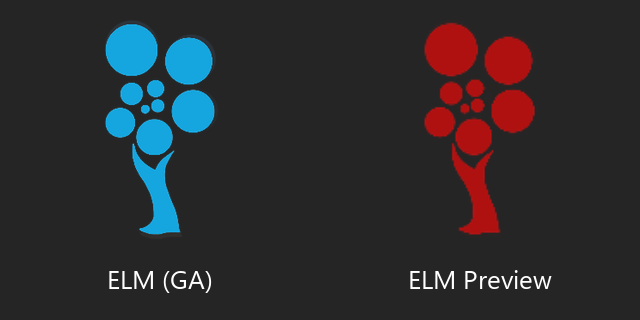
| Icon colour | Blue | Red |
| Window title | Enttec LED Mapper 2026 | Enttec LED Mapper 2026 Preview |
| Licence | One ELM licence covers both | |
| Platform | Windows 10/11, 64-bit | |
How to tell which one you are running
Preview is marked in red wherever ELM shows its name:
- App icon: red for Preview and blue for GA, on the desktop, the Start menu and the taskbar.
- Window title: ends in Preview.
- Splash screen and stage view: Preview shows a 2026 PREVIEW badge.
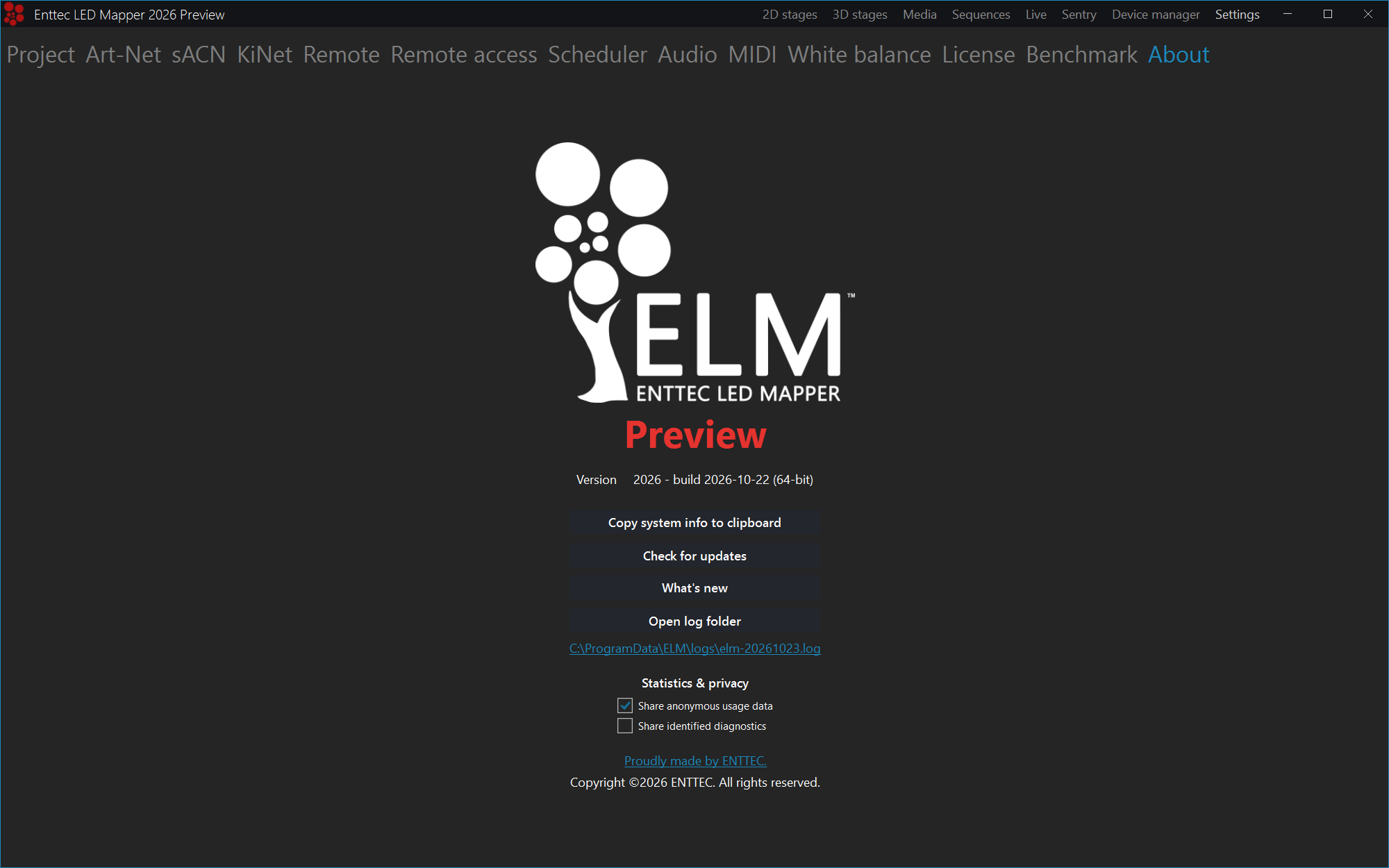
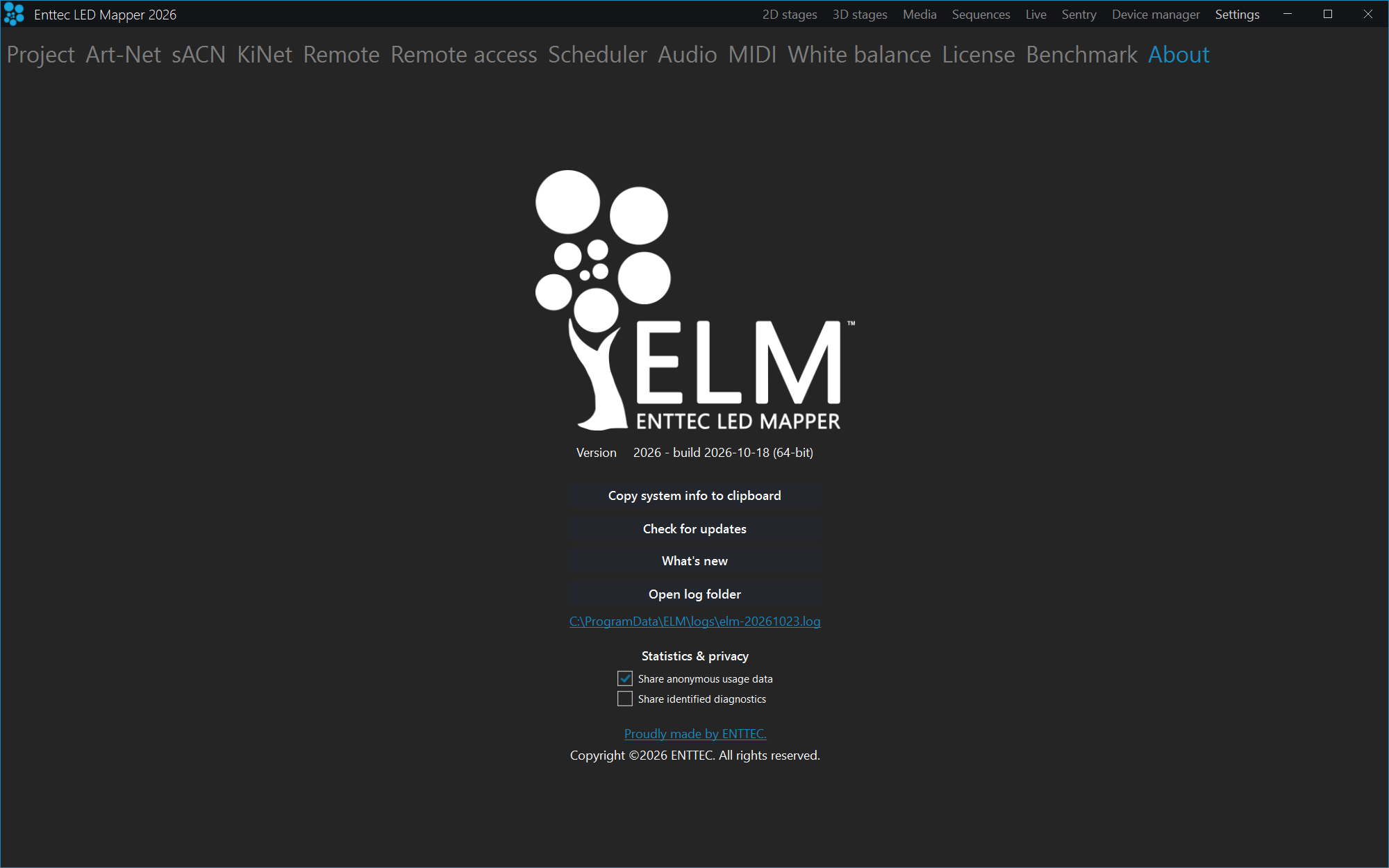
- About screen: Preview shows a large red Preview label under the ELM logo. GA has no label.
About screen in ELM Preview: red Preview label under the logo, red icon and Preview in the title bar.
About screen in ELM (GA): no label, blue icon.
The About screen also shows the build date (for example build 2026-10-22). Quote it when you contact support.
Where to download
Both builds are in the Download section of the ELM 2026 product page. Choose Download ELM 2026 for the stable release or Download Preview for the Preview build. You only need to download once: after that, each build updates itself.
Running both on the same computer
You can install GA and Preview on the same computer. They install separately, under their own names, so installing one never replaces the other.
- One at a time: only one ELM can be open at a time. If you start one while the other is running, ELM asks you to close the running one first.
- Licence: shared. Activate ELM once and both builds are licensed.
- Settings: kept separately. Recent projects, language and other preferences in Preview don't affect GA.
- Updates: each build updates itself on its own channel. GA only ever updates to GA, and Preview only to Preview. Use Check for updates on the About screen to check manually.
- "Open in ELM" links (for example from Pixel Designer) open in GA when GA is installed.
Project files
Both builds use the same .elm project files, so you can open a project in either one. A project that uses a feature only Preview has yet may lose that feature if you open and save it in GA.
Save a copy before you open a Preview-saved project in GA, especially before a show.
Which one should I use?
- Use GA for live shows, permanent installations and any project you deliver to a client.
- Use Preview to try a fix or feature before it reaches GA. Our support team may also suggest it to confirm that a problem is fixed.
Many users keep GA for their shows and Preview for trying new features.
Found a problem in Preview?
Preview gets new code first, so it is where we find and fix problems before they reach GA. If something isn't working, contact support and include the build date from the About screen. If diagnostics sharing is turned on, crash reports reach us automatically.