NMU, the ENTTEC Node Management Utility, is discontinued. It is no longer developed, distributed, or supported. The job most people used it for, finding ENTTEC devices on a network and changing their settings, is now built into EMU, which runs on both Windows and macOS.
If you came here looking for an NMU download, EMU is what you want instead. You can get it from the EMU product page. Device discovery and configuration are part of the free version of EMU, so you do not need a licence to find your nodes and set them up.
What NMU used to do
NMU was a small utility for device management rather than lighting control. You ran it on a computer that shared a network with ENTTEC Ethernet hardware, and used it to discover devices, view and change their IP addresses, assign DMX universes, and reach their configuration.
It never sent lighting data of its own. You always needed separate control software alongside it, which is the main reason it no longer needs to exist as a separate download.
EMU does the same job
EMU discovers ENTTEC Ethernet hardware on your network automatically and lists it under Settings > Output, with each device shown by name and IP address. From there you can open a device's configuration and enable it as a DMX output. The difference from NMU is that EMU is also the control software, so discovery, configuration, and output all happen in one application instead of two.
Make sure you are running the latest version of EMU before following the steps below. If you do not see the screen described here, an update is the first thing to try: see Check your EMU version and upgrade to the latest.
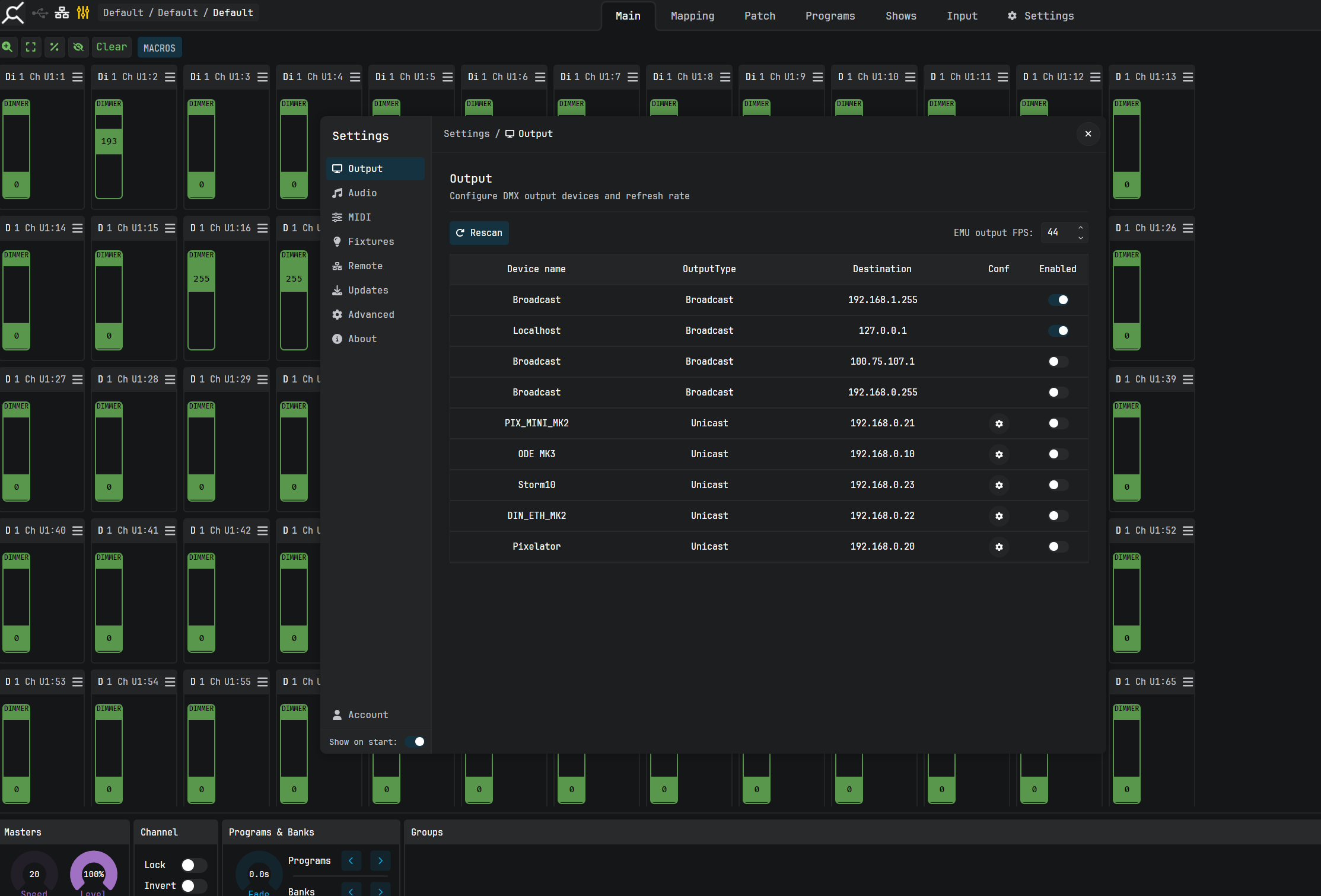
Finding a device in EMU
- Connect the ENTTEC device to the same network as the computer running EMU. A wired connection is the most reliable, and the device and the computer must be on the same subnet.
- Open Settings from the top right of EMU, then choose Output in the left hand list.
- Devices EMU has found are listed with an OutputType of Unicast, showing the device name and its IP address under Destination. If a device is missing, press Rescan.
- Click the gear icon in the Conf column to open that device's configuration.
- Turn on the Enabled toggle for any device you want EMU to send DMX to.
The list also contains Broadcast and Localhost entries. Those are output destinations rather than discovered hardware, so they have no configuration gear.
If your device does not appear
Discovery relies on the device and the computer being able to reach each other directly, so start with the network:
- Confirm both are on the same subnet. If you need to change your computer's address, see Networking: Change IP address (Windows) or Networking: Change IP address (macOS).
- Check that a firewall or VPN on the computer is not blocking discovery traffic.
- Avoid discovering across WiFi, managed switches with multicast filtering, or separate VLANs where possible.
Most current ENTTEC Ethernet devices also have a built in web interface you can reach directly by IP address, which is the fastest way to confirm a device is alive on the network. See Networking: Connecting to Web Interface.
If your hardware is old enough that EMU does not list it and it has no web interface, contact ENTTEC support and tell us the product and its firmware version, and we will tell you what your options are.